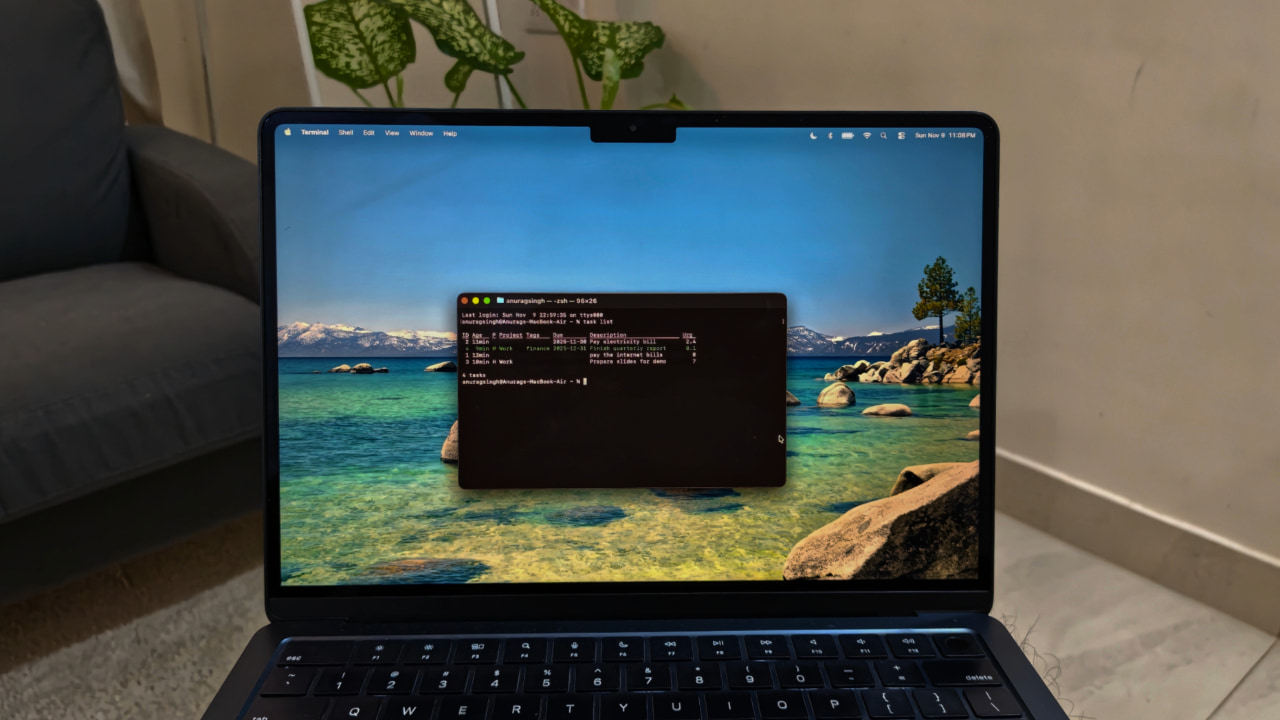
The terminal might seem intimidating at first, but once you get the hang of it, you’ll probably appreciate it more than the graphical user interface. I’ve been experimenting a lot with it on both my Linux and Mac devices, and the experience has been great. More recently, I started using Taskwarrior instead of the many GUI productivity apps I had before, and I might just stick with it.
Good to know: Can This Terminal-Based Browser Be Your Daily Browser?
What Is Taskwarrior
Taskwarrior is a terminal-based task manager. It is essentially a to-do list you interact with by typing commands. Despite its simple appearance, Taskwarrior is flexible, fast, and doesn’t distract you with flashy visuals or force a particular productivity method.
All tasks are stored as human-readable text (in JSON format) on your own machine. You can assign unlimited tags or project names to tasks and then filter or search by those labels. Taskwarrior also supports virtual tags (like +OVERDUE or +TODAY) that automatically apply based on task status.
Taskwarrior supports due dates, recurring tasks, and priority levels. You can add a due date or priority in the same command when creating a task. The tool even calculates an “urgency” score to help highlight what’s important. Recurring tasks and dependencies between tasks are supported as well.
Taskwarrior can also generate reports. The default task list shows all pending tasks, but you can also view summaries, calendars, or even a burndown chart. You can also define custom reports (choosing which task attributes to display) or queries to slice and dice tasks in any way.
Taskwarrior is highly extensible and scriptable. It has a hooks API that lets you run custom scripts when tasks are added/modified (for example, to enforce certain rules or update other systems). It supports User Defined Attributes (UDA), essentially custom fields you can attach to tasks (like estimate:2hr for estimated duration). It can import/export tasks in standard JSON, so integrating with other tools or writing your own add-ons is straightforward.
Setting Up Taskwarrior
Setting up and using Taskwarrior is simple, regardless of which platform you’re on.
On Linux, Taskwarrior is included in most distribution repositories. For Debian or Ubuntu, you can install it with
sudo apt-get install taskwarriorOn Fedora or CentOS, use
sudo dnf install taskOn Arch, use
sudo pacman -S taskThe package name is usually either taskwarrior or just task, and it has been available in most repositories for years.
On macOS, if you use Homebrew, you can install it with
brew install taskOn Windows, it works through the Windows Subsystem for Linux (WSL). The recommended method is to install WSL, set up a Linux environment such as Ubuntu, and then run
sudo apt-get install taskwarriorThe first time you run any Taskwarrior command, it will create a configuration file and a data directory in your home folder.
Using Taskwarrior Is Easy
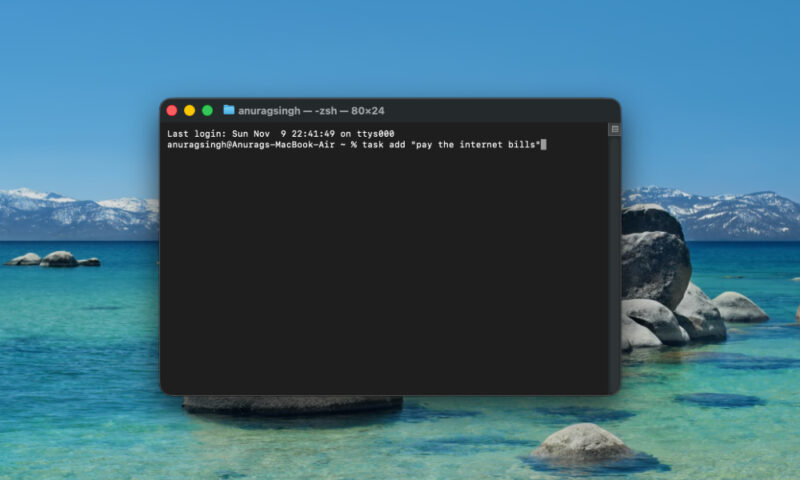
Once you have Taskwarrior installed, you can start using it right away. The first command you will use is task add, which creates a new task:
task add "Finish writing blog post"This adds a task with that description and returns a confirmation such as “Created task 1.” Every new task receives a unique ID, and that ID is what you use to update or complete it later. Quotes are optional unless the description includes special characters.
To check what you have added, use the command:
task list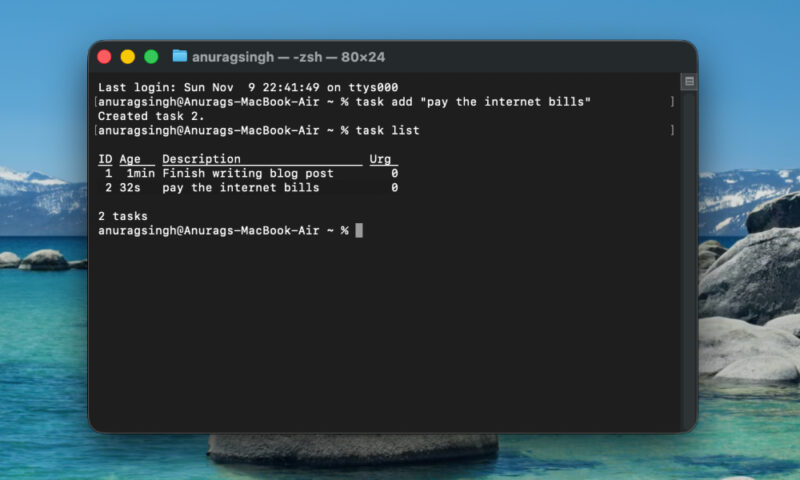
Taskwarrior will show a table of your pending tasks. The table includes columns like ID, age, due date, description, and urgency. Even with no custom setup, this default view gives you a clear snapshot of what needs attention.
When you finish something, you mark it complete by using its ID. For example, when task ID 1 is completed, you run the command:
task 1 doneTaskwarrior logs the task as completed, removes it from the pending list, and prints a confirmation. These three commands: add, list, and done, form the core of Taskwarrior’s workflow. You can be productive with only these, although the tool becomes much more powerful once you start adding more details.
You can enrich tasks by including context, deadlines, priorities, and projects directly in the creation command. For example:
task add "Pay electricity bill" due:2025-11-30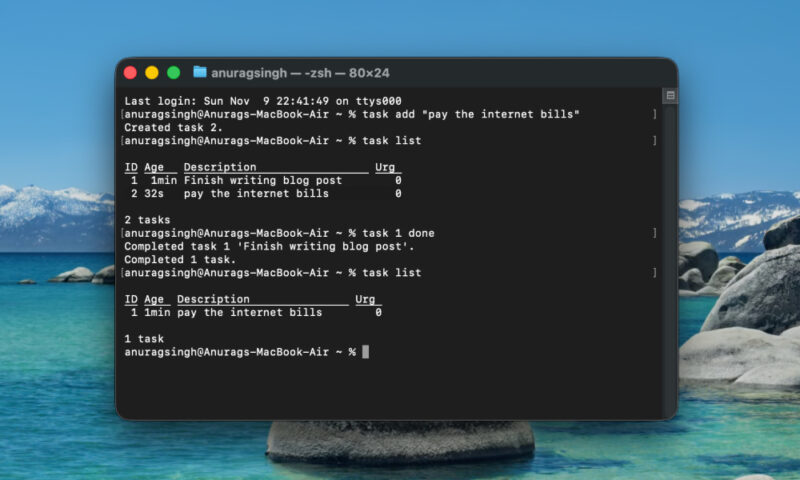
This attaches a due date and helps Taskwarrior calculate urgency. Similarly, you can assign a project or priority:
task add "Prepare slides for demo" project:Work priority:HThis tells Taskwarrior that the task belongs to the Work project and has high priority. You can also add tags by including them in the description:
task add "Buy groceries" +errand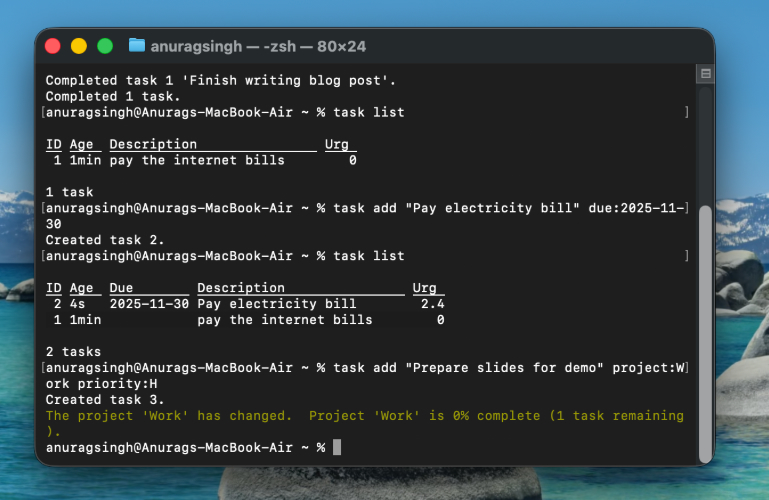
You can combine all of these details in a single command. For example:
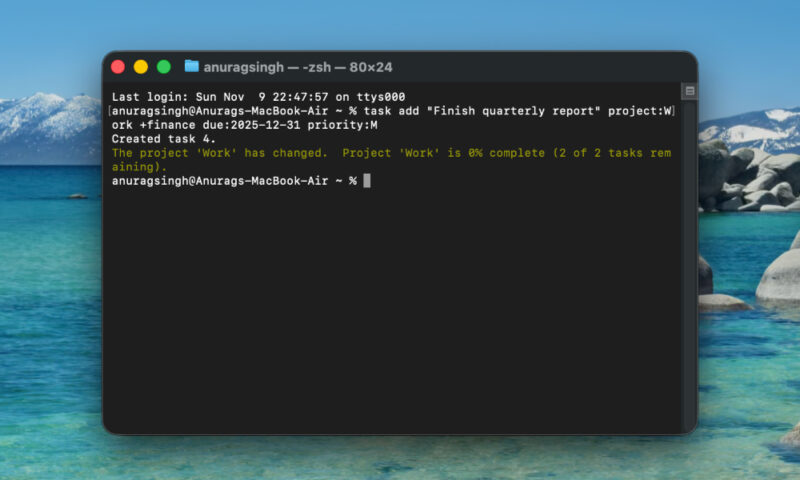
task add "Finish quarterly report" project:Work +finance due:2025-12-31 priority:MThis creates a task under the Work project, tagged “finance,” with a due date and a medium priority. Taskwarrior stores all this information and displays it in the relevant columns when you run task list.
Modifying and Updating Existing Tasks
Once a task is created, you can update it at any time. Taskwarrior gives you a few simple commands that let you change descriptions, add more details, or adjust deadlines.
To change the description of an existing task, use modify:
task 3 modify "Finalize presentation for Monday"This replaces the original description with the new one. You can also update other attributes the same way. For example, if you want to add a due date or priority later, you can modify the task:
task 3 modify due:2025-12-01 priority:HTaskwarrior updates only what you specify so you can safely add or change fields without affecting the rest of the task.
If you want to keep the original description but add extra detail, use append. This attaches text to the end of the existing description or notes:
task 5 append "Include budget estimates"This is helpful when you need to add context or reminders without rewriting the entire task.
Sometimes you need to remove a task entirely. This could be because it is no longer relevant or was created by mistake. To delete a task, run:
task 7 deleteTaskwarrior will ask for confirmation to prevent accidental deletion. Once confirmed, the task is removed from your pending list.
If you make an error, Taskwarrior gives you a safety net. The undo command reverses the most recent change. This includes accidental deletes, incorrect modifications, or marking the wrong task as done.
For example, if you deleted a task by mistake, simply run:
task undoTaskwarrior restores the previous state immediately. Undo works one step at a time, so it is especially useful when you are learning the commands or experimenting with filters and modifications.
My Experience of Using Taskwarrior
When I first heard about Taskwarrior, I was skeptical that a command-line tool could replace the polished productivity apps I was using. At the time, I had a whole suite of tools, including Todoist for daily to-dos and reminders, Trello for project boards, and Notion for notes and planning. These apps had served me well in some respects, but I always felt a bit scattered jumping between them. There was friction in having tasks and info siloed in different places. So, in a bid for simplicity, I decided to try living inside the terminal with Taskwarrior. I gradually replaced all those apps with Taskwarrior and a few lightweight helpers, and I haven’t looked back.
Adopting Taskwarrior did require some changes in how I manage tasks day-to-day. For example, I started a habit of opening a terminal window or pane dedicated to Taskwarrior, especially in my work environment. I might keep a running task list view or use the task next report (which can show the next most urgent tasks). This is similar to how one might keep a Trello board open in a browser tab all day, except my “board” is a filtered text list that updates whenever I run a command.
One challenge with Taskwarrior is that it doesn’t natively “remind” you in the way something like Todoist or a calendar does. If you forget to check your task list, it won’t pop up and nag you (unless you set up an external reminder system or a cron job that emails you your tasks, which some do).
On the flip side, Taskwarrior’s text-based approach opened up new capabilities that I didn’t have before. For example, bulk editing tasks are super easy. I can select a bunch of tasks with a filter and modify all of them with one command.
The terminal is surprisingly easy to master. If you’re not sure where to start, check out some useful things you didn’t know you could do in your Linux terminal. You can also explore tools that can make the terminal more enjoyable.








