
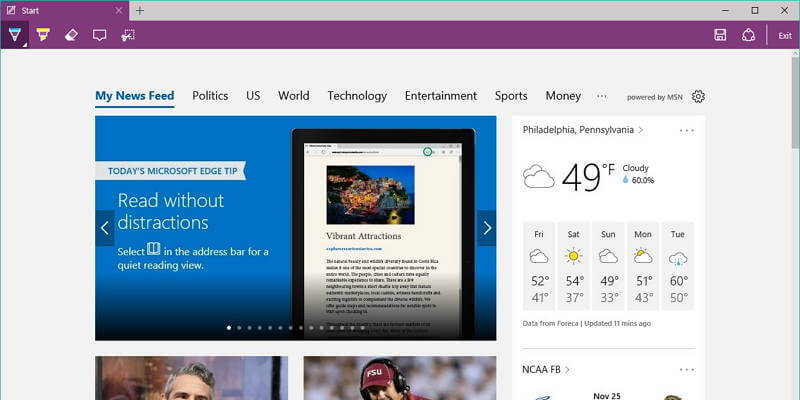

Microsoft’s newest browser, Edge, is a big step up from Explorer in a lot of ways. For example, its screenshot capability is vastly expanded, allowing you to annotate and share directly from the browser. However, the process is not particularly transparent.
Take a Screenshot in Microsoft Edge
1. Navigate to the website you want to capture.
2. Click on the pencil-and-selection icon in the upper right.
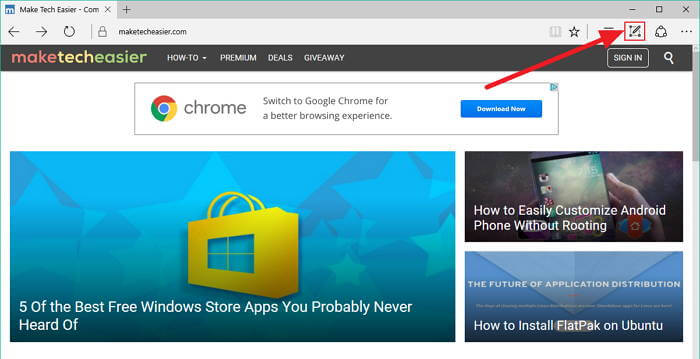
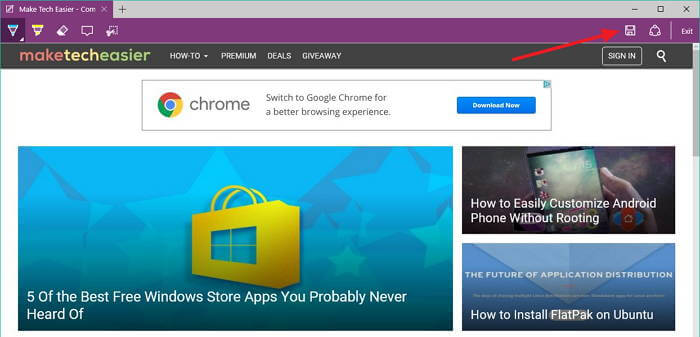
3. If you want to save a screenshot of the full page, click the Save icon in the purple menu bar.
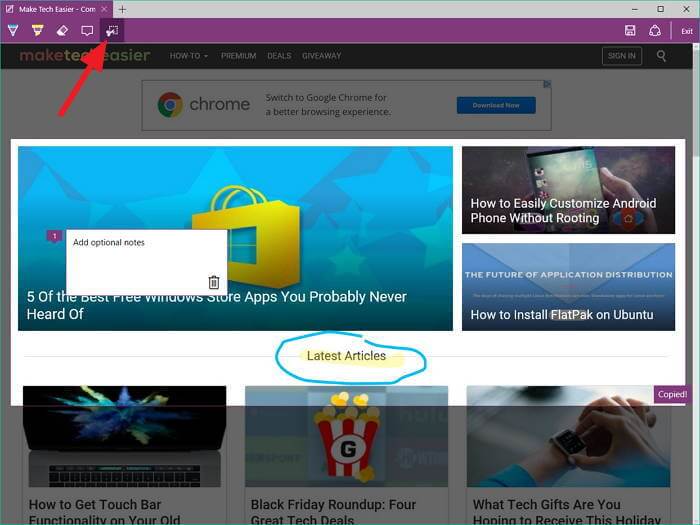
4. To capture a portion of the screen, click the scissor icon in the left of the screenshots menu.
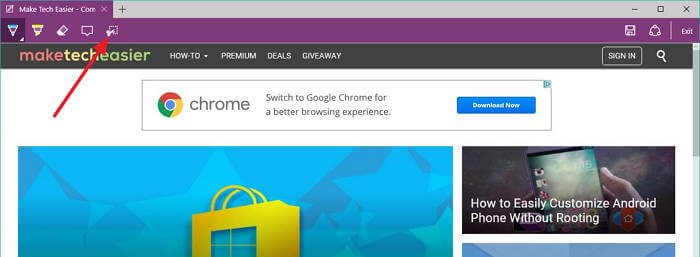
5. This will darken the image and reveal the text “Drag to copy region.”
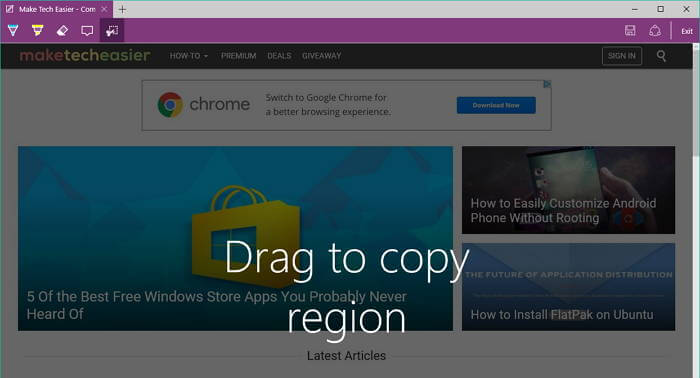
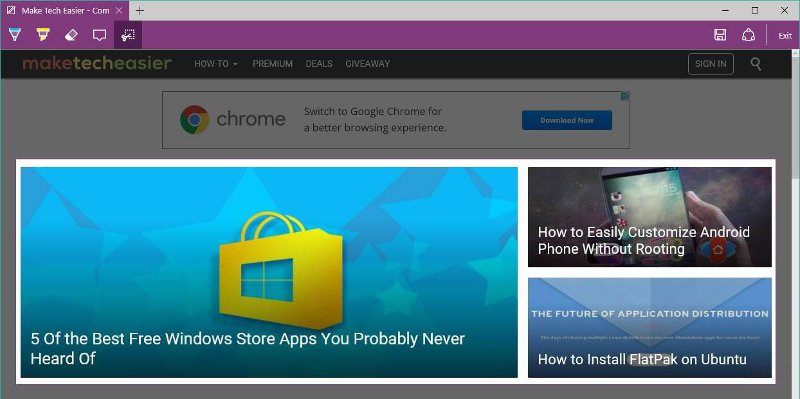
6. Click and drag your cursor across the darkened section to make a selection. The selected area will appear as normal, while the area outside the selection will have a dark mask on top of it.
Annotate Screenshots in Microsoft Edge
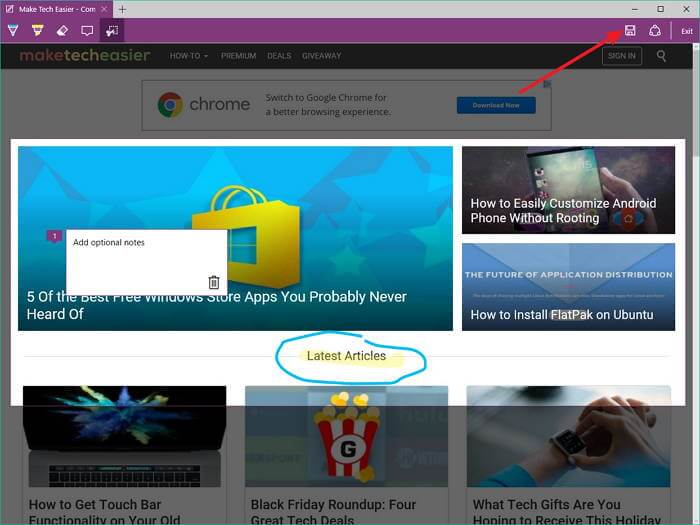
Screenshots can also be annotated using the notes, highlighter, and pen tools embedded in Edge.
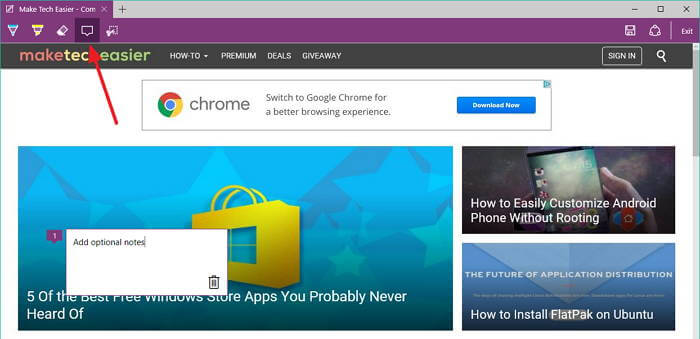
1. To make notes, click the notes icon. A small text box will pop up for you to write your note. When done, click on the area outside the note to confirm it.
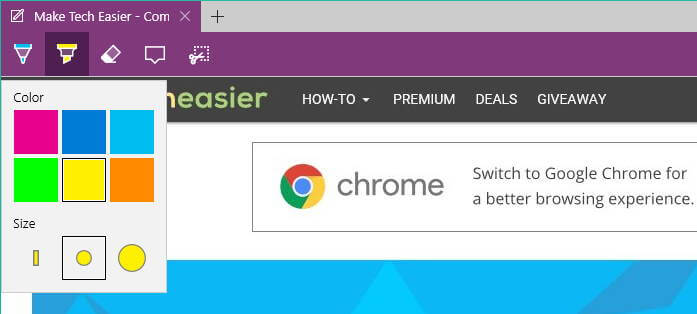
2. To highlight text, click the highlighter tool in the upper-left of the screenshots bar. This will allow you to draw thick, semi-transparent “highlights” on your screenshot. It doesn’t snap to text, but it’s a handy way to quickly mark an item.
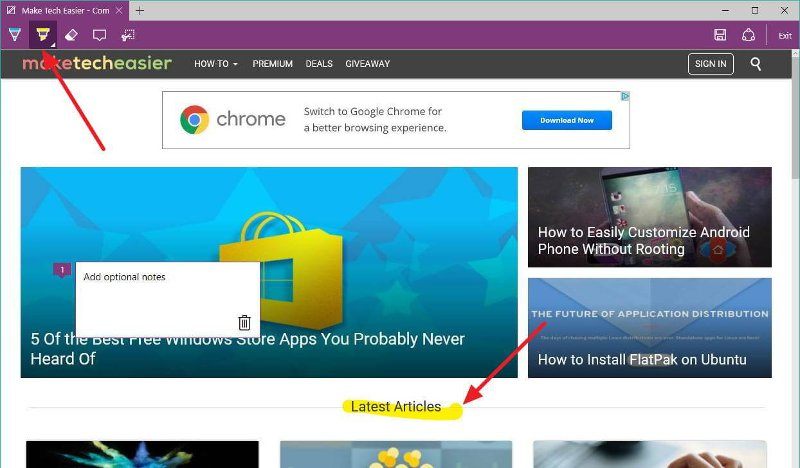
3. To change the thickness or color of the highlighter tool, click on the icon again to reveal a menu of options.
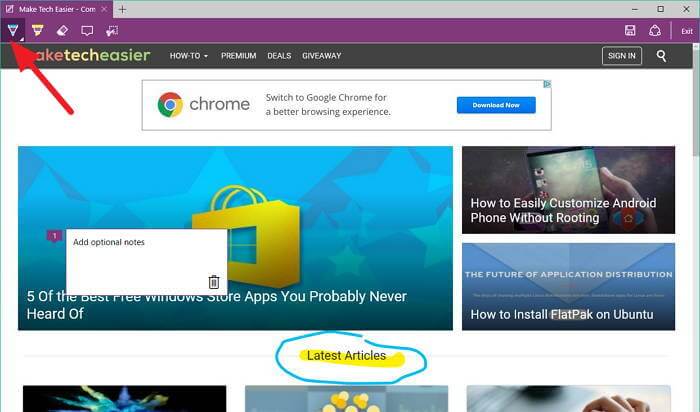
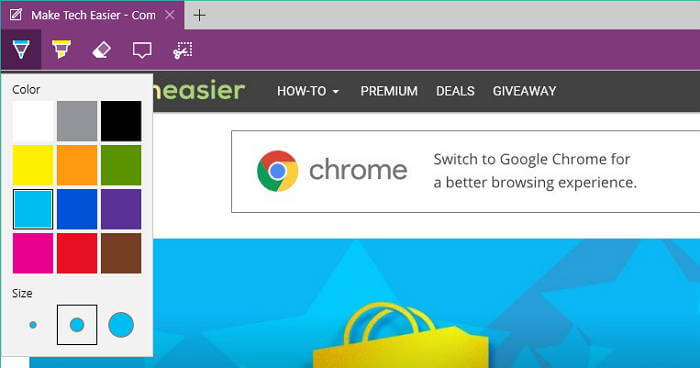
4. For more refined control, you can also use the pen tool. To access it, click on the pen icon in the upper-left of the screenshots bar. This allows you to draw thinner lines and access more color options.
5. You can access a similar menu of options by clicking on the pen icon again.
6. If you want to save only the annotated region of a larger screenshot, you’ll need to first apply your annotations. Then, click on the scissors icon in the left of the menu bar and drag to select the region you’d like to capture. If you attempt to do it in the opposite order, your selected region will be reset as soon as you apply any annotations.
Saving a Screenshot in Microsoft Edge
Once you’ve made your screenshot, you can save it to a few different areas.
1. After making any necessary selections or annotations, click the save icon on the right of the screenshots toolbar.
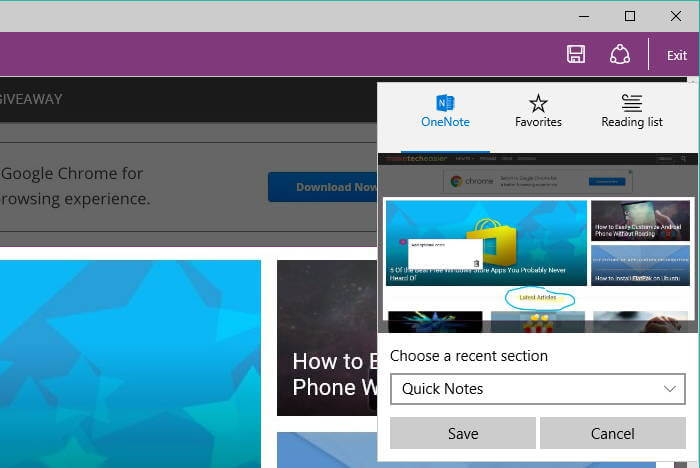
2. In the popup window, you’ll see a few places you can save your screenshot, called a “note” within Edge. The first location is OneNote, Microsoft’s note-taking app. To save into OneNote, just select your destination notebook and click “Save.”
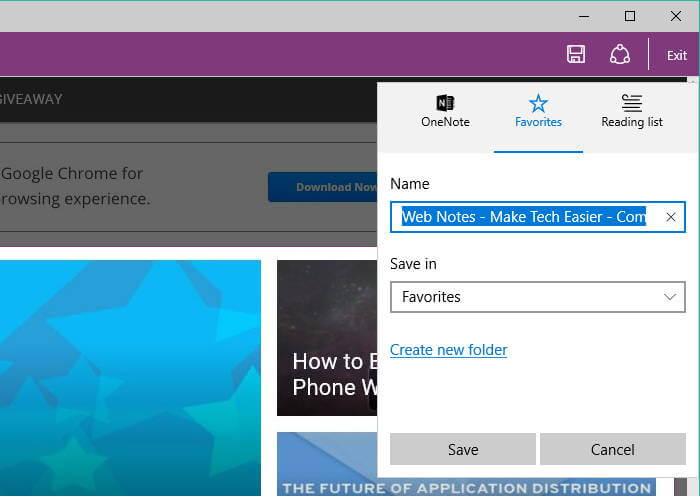
3. You can also save the note to your favorites or bookmarks. To do that, click the Favorites icon, then choose the destination folder and click save. If you just want to save your screenshot to disk, this is the first step.
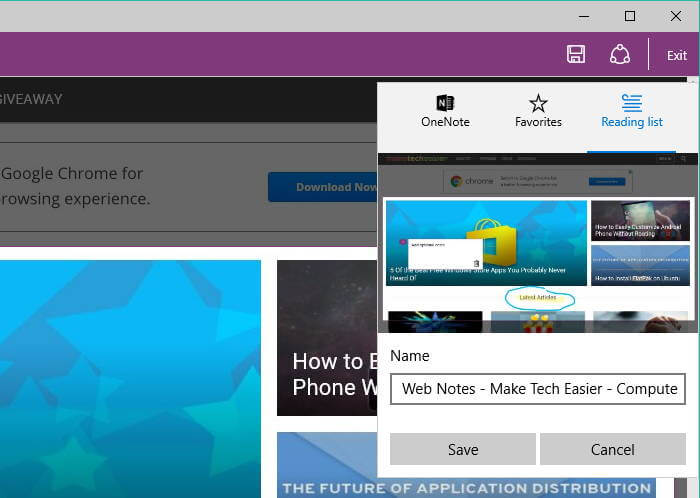
4. Screenshots can also be saved to your Reading List, though this is ultimately very similar to saving it to your Favorites.
5. To save the screenshot to disk, first save to your Favorites as in Step 4. Then, click the bookmarks icon in the right-hand side of the menu bar.
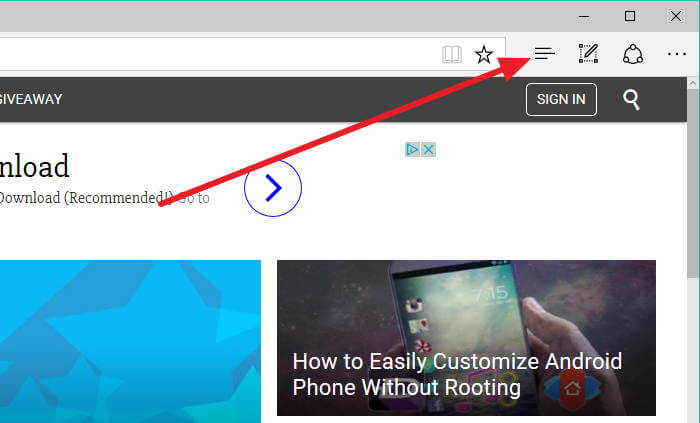
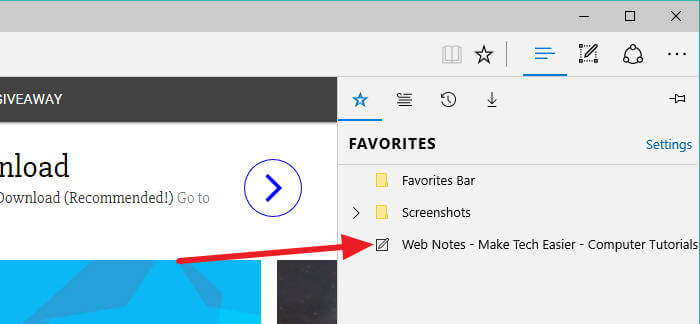
6. From the resulting sidebar, click on your newly-created screenshot.
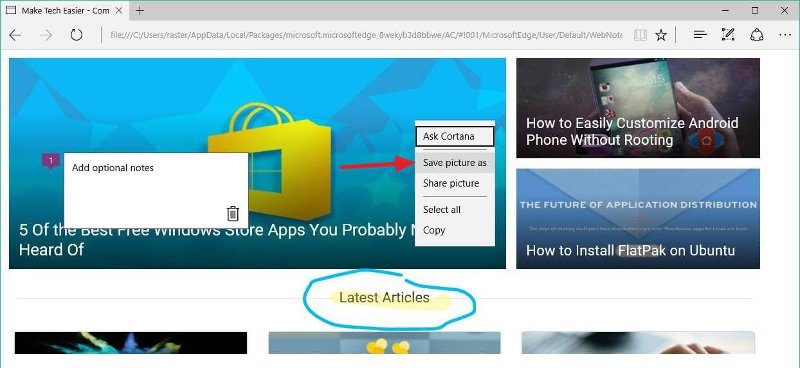
7. Right-click on the image and choose “Save Picture As …”
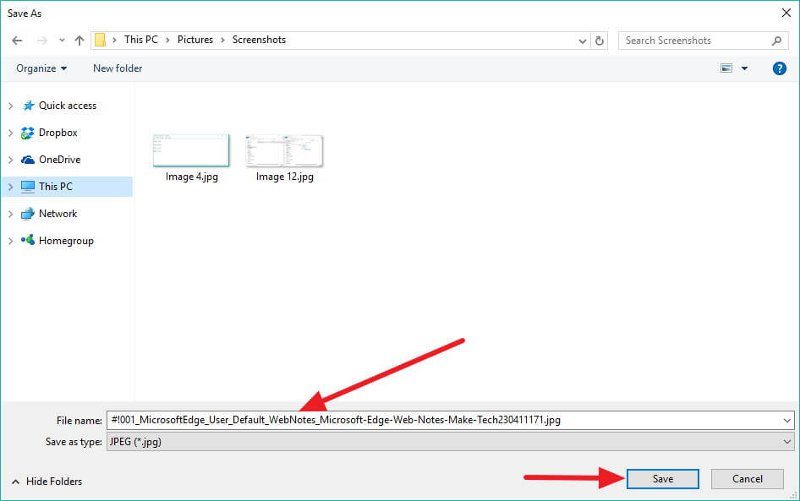
8. Finally, rename your image to something sensible, and choose the save location before clicking the Save button.
Conclusion
Taking screenshots in Edge might be slightly convoluted, but the helpful annotation options make capturing screenshots a little more useful. And if you’re deep into the Microsoft ecosystem, saving screenshots directly to OneNote is a time-saving feature.