
There have been a lot of reports lately that Windows is automatically upgrading PCs to the latest feature update or even from Windows 10 to Windows 11. If you want to stay on Windows 10 or a specific feature update, it can be scary to think Windows might upgrade while you aren’t looking. To ensure such an incident never happens, follow the methods below to prevent Windows from upgrading.
Is Microsoft Really Upgrading Windows PC Without User Consent?
If these upgrades are optional, then why do users’ PCs seem to be upgrading on their own? Interestingly, there is no known information from Microsoft or any other reliable source that PCs are being upgraded automatically without user consent on purpose. Most likely, users are accidentally accepting an upgrade, or possibly a bug is causing upgrades.
Microsoft can be very pushy about upgrades, especially OS upgrades. There is a good chance the user may accidentally click Accept on an unexpected upgrade prompt. For feature updates, users may install them alongside other Windows updates as they are in the same interface.
Feature updates can also be automatically installed if you have the Get the latest updates as soon as they’re available option enabled in Windows updater. Furthermore, they are force-installed if the current one reaches the end of service time, like Windows 11 23h2, which went out of service in November 2025.
No matter the cause, one thing is for sure: user PCs unexpectedly get upgraded all the time. If you don’t want that, you should take the following proactive measures so your PC isn’t upgraded even by accident.
Stop Windows From Upgrading Using the Group Policy Editor
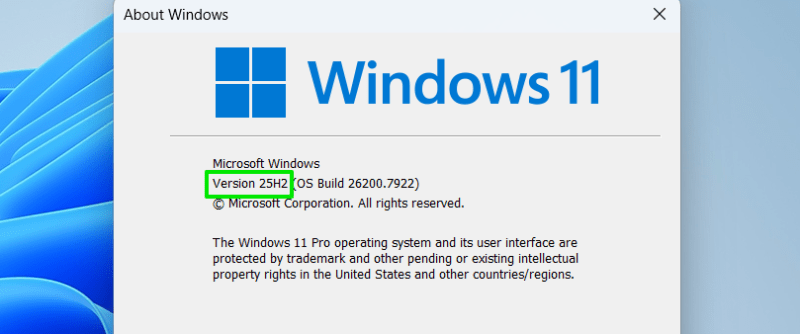
If you are using Windows Pro or Enterprise editions, you can force Windows to stay on the same feature update or OS edition using the Group Policy Editor. However, first you need to know your Windows exact feature update version. To do so, press the Win + R keys and type winver to open About Windows. You’ll find your version at the top, like 24H2 or 25H2.
Search “gpe” in Windows Search and open Edit group policy.
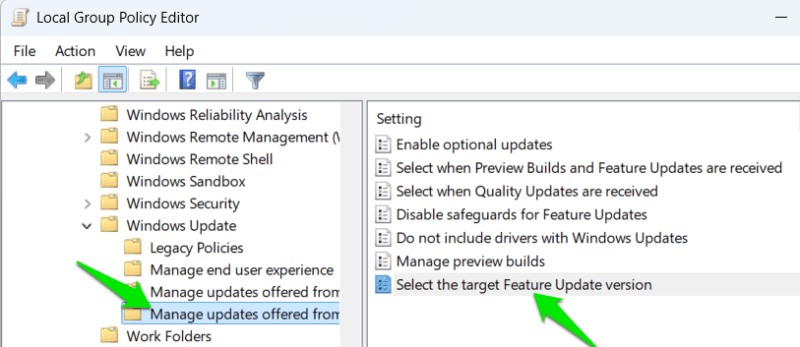
Move to Computer Configuration → Administrative Templates → Windows Components → Windows Update → Manage updates offered from Windows Update. Here, open the Select the target Feature Update version policy.
Now, select Enabled and under Options, enter OS edition in the first field and your target feature update version in the second field. If you want to stop Windows 10 from upgrading to Windows 11, then enter Windows 10 in the first field and 22H2 in the second field.
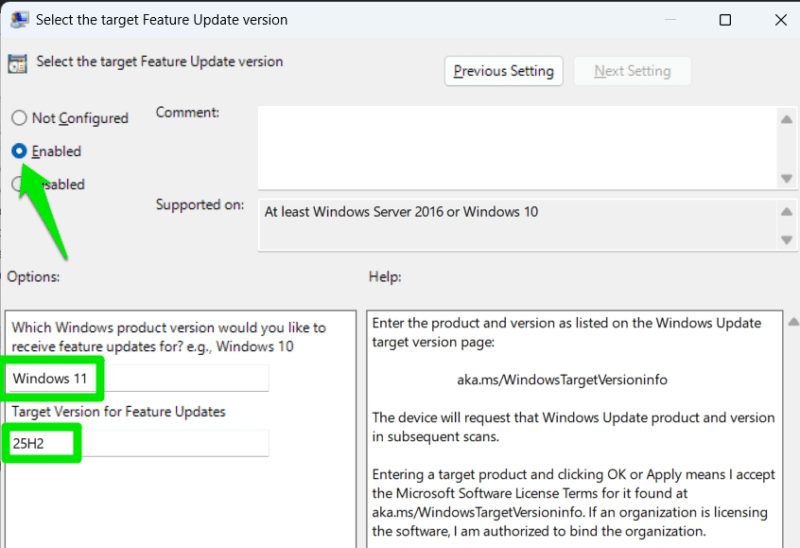
Apply the changes, and your Windows will not upgrade beyond that version or OS edition.
Stop Windows From Upgrading Using the Windows Registry
The above GPE policy can also be applied using the Windows Registry, which would be necessary if you are using Windows Home edition, since it doesn’t include Group Policy Editor by default. Here’s how:
Warning: ensure you back up the Registry before making any changes, as any incorrect change in the Registry can corrupt data and cause system instability.
Open the Windows Registry and move to the following location:
HKEY_LOCAL_MACHINE\SOFTWARE\Policies\Microsoft\Windows\WindowsUpdateHere, right-click in the right panel, select New → DWORD (32-bit) Value, and name it TargetReleaseVersion. Double-click on it and set its value to 1.
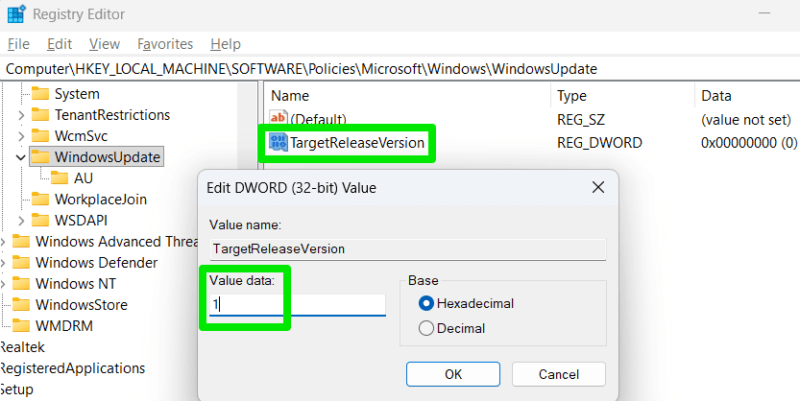
Afterward, right-click again in the right panel, select New → String Value, and name it ProductVersion. Open it and provide the name of the OS edition you want to stay on. Like enter Windows 11 if you want to prevent feature version upgrade, and enter Windows 10 if you are trying to block an OS upgrade.
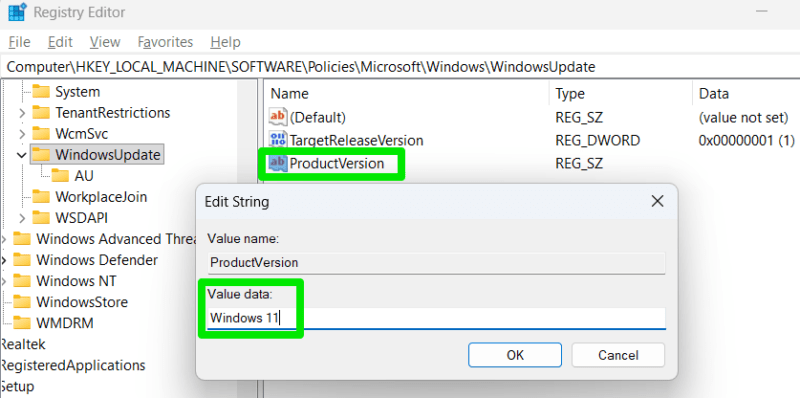
Now, create another String Value and name it TargetReleaseVersionInfo. Open it and enter your feature update version here. For Windows 10, that will be 22H2.
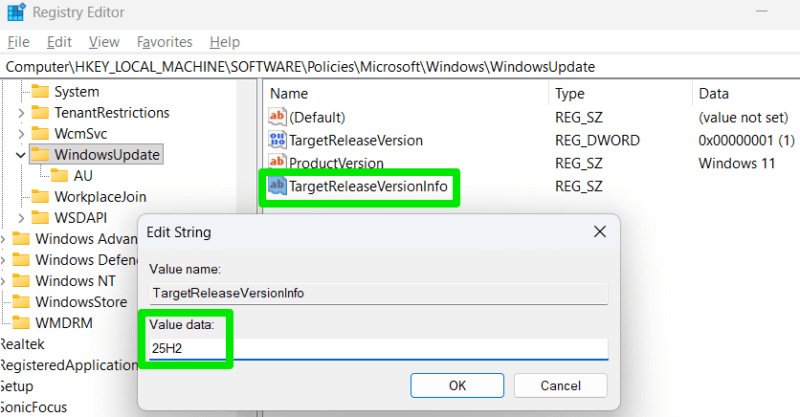
Keep in mind that if you set a target feature update version in Windows 11, it will not respect the Registry edit after the end of service time for the feature update version. Windows 11 will force-upgrade the PC within 60 days of expiry.
Use the InControl App to Freeze Your PC to the Current Windows Version
If you want an even more robust solution, then the free InControl is both easier to use and ensures the block stays in effect permanently. This app will freeze your OS edition and feature update version to whatever is current. It uses six different registry keys to enforce the freeze, which allows it to prevent version upgrades even after the end of service time.
To use the app, all you have to do is click on the Take Control button, and it will immediately freeze the upgrades while still allowing monthly Windows updates. The app doesn’t need to run for these changes to stay in effect. Although you’ll have to use the app to undo the change.
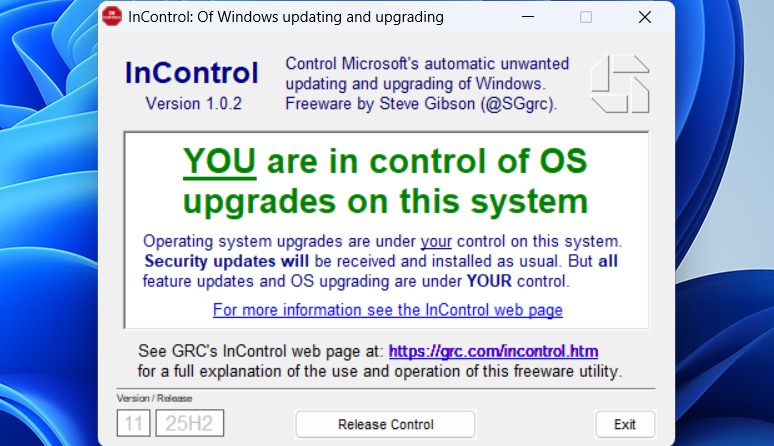
After these changes, you can have peace of mind that your PC setup won’t be upgraded by any means. However, if you need to upgrade later, you’ll have to undo all these changes. If you are still stuck on Windows 10, here are some solid reasons to upgrade to Windows 11.








