With Windows 10 support ending soon, Google Chrome has begun checking your PC’s Windows 11 compatibility. It’s a research move, not an upgrade nag, but it does add to Chrome’s overall data collection. If you’d rather keep Chrome away from your system’s deeper specifications, you can block these checks. This guide lists two methods to stop Chrome from probing your hardware.
How Google Chrome Checks Windows 11 Compatibility
Starting from July 4, when you first-time launch Chrome on a Windows 10 PC, it will launch a background check to track hardware requirements for Windows 11. It only happens once and marks your PC whether it’s eligible or not. This information is then sent to Google along with other telemetry that Chrome collects.
The information it checks includes the official requirements set by Microsoft. Therefore, expect the following information to be shared with Google:
- CPU vendor and model, including generation.
- Amount of RAM and available free disk space.
- Secure Boot is enabled or disabled.
- Trusted Platform Module (TPM) version 2.0 support.
If your Windows 10 PC fulfills all the requirements, it will create an internal flag with the name “IsWin11UpgradeEligible” and yes/no (0, 1) values. If you want to prevent Chrome from knowing this information, you’ll have to do it on a new Chrome installation or on a PC where Chrome hasn’t been opened since July 4, 2025.
Edit the Chrome Shortcut to Disable this Check
If you want to stop this check from happening at all, it can be done by using Chrome’s built-in command-line switches. Since this feature is added as an internal flag, it can be disabled by modifying the Chrome launch shortcut to disable the flag. No Windows compatibility check will run as long as you open Chrome through that shortcut. Here’s what you need to do:
Right-click on the Chrome shortcut on the desktop and select Properties. This won’t work with pinned shortcuts, only shortcuts on the desktop or the executable in File Explorer.
Here, in the Target field, you need to append the following line at the end of \chrome.exe”.
--disable-features=IsWin11UpgradeEligible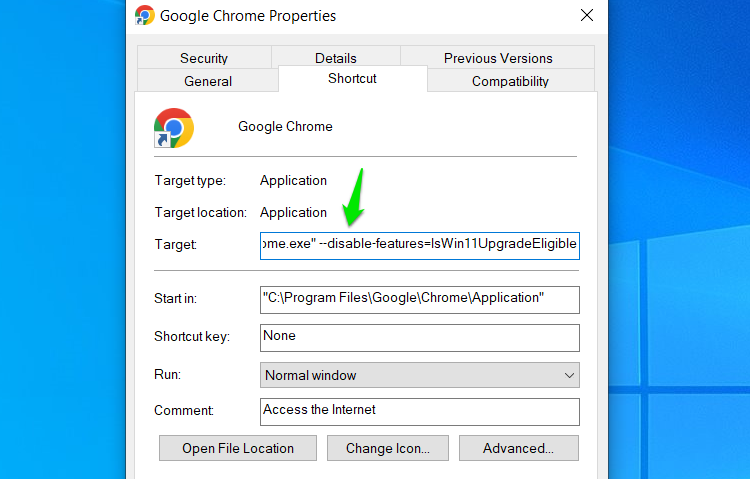
Make sure there is a single space between the original text and appended text. Afterward, click Apply and launch Chrome. It will not check for Windows 11 eligibility, and no data will be sent to Google.
Disable Chrome Anonymous Telemetry
By default, Chrome sends anonymous data about your device and usage patterns to Google for product improvement, like setting preferences, system information, crash reports, etc. The information from the Windows 11 compatibility check is also anonymous information that is shared with Google using this functionality.
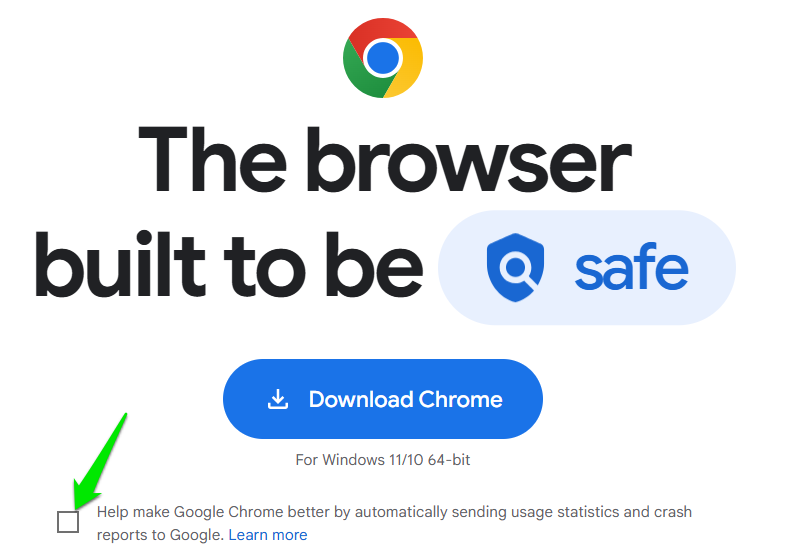
If you disable this function, Google will not be able to learn about the Windows 11 compatibility of your machine, even if Chrome checks and records it. On a fresh installation, you can just uncheck Help make Google Chrome Better option under the Download Chrome button on the download page. This will install Chrome with anonymous telemetry disabled.
If Chrome is already installed, disabling it from inside Chrome is risky, as Chrome may share telemetry while running. So, to be safe, do it from the outside using the Windows Registry. Here’s how:
Search “registry” in Windows Search and open the Registry Editor.
Here, move to the following location:
HKEY_LOCAL_MACHINE\SOFTWARE\PoliciesNow right-click on Policies, select New -> Key, and name it Google. Then, right-click on Google, select New -> Key, and name it Chrome.
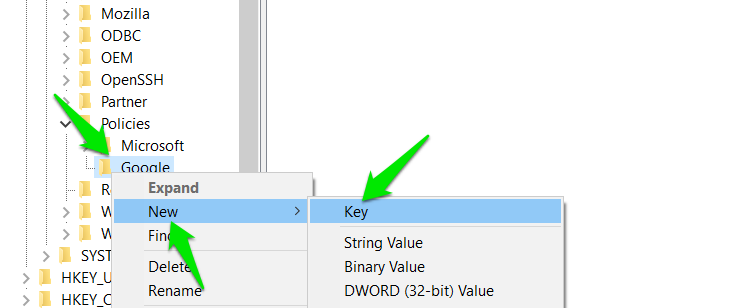
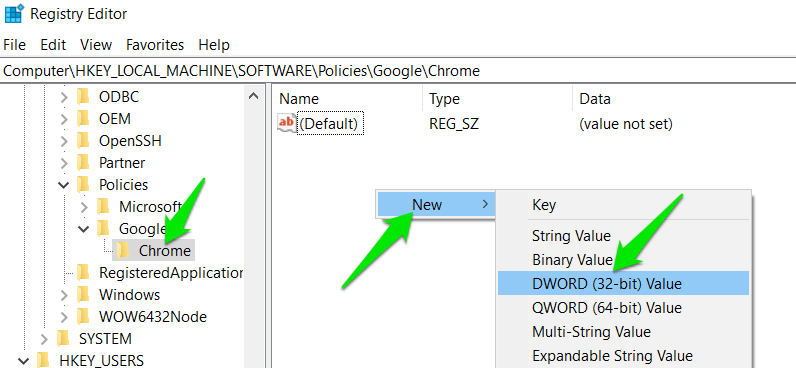
While the Chrome key is selected, right-click in the right panel and select New -> DWORD (32-bit) Value.
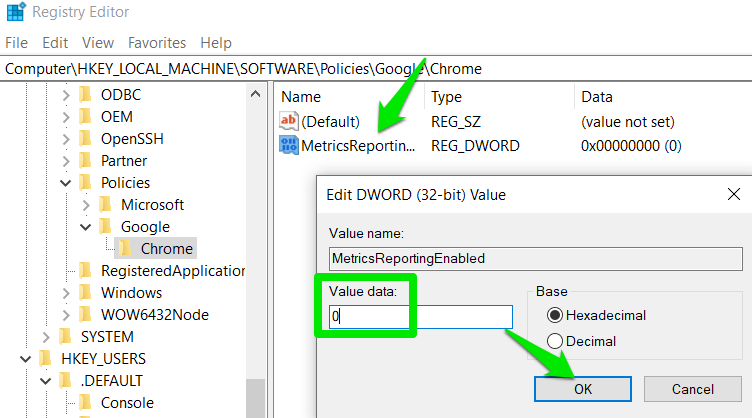
Name this value MetricsReportingEnabled and then double-click on it and set its value to 0.
You can now safely launch Chrome, and it won’t share Windows 11 eligibility with Google. However, it will still record it, and it may get shared if you enable telemetry later.
Interestingly, you can also give incorrect information to Chrome by using the hack to bypass secure boot and TPM 2.0 checks. Of course, upgrading to Windows 11 is the best way to eliminate these checks, even if you install Windows 11 on an unsupported PC.








