Like Windows Update, you can’t permanently disable automatic app updates in the Microsoft Store anymore. The Store removed the persistent on/off switch and now only lets you pause updates for 1–5 weeks. While that’s better for security, it frustrates users who want full control. If you want to block forced updates, try the workarounds in this guide.
Disable the Microsoft Store’s Update Scheduler
Microsoft Store uses a scheduled task to check for app updates. While there can be other triggers to check for app updates and update the apps, this is the main trigger that updates apps (especially in the background). You can disable this scheduled task to prevent the Microsoft Store from checking for updates. Here’s how:
In Windows Search, search for “task scheduler” and open the Task Scheduler app. Here, move to Task Scheduler Library → Microsoft → Windows → InstallService. Disable both ScanForUpdates and ScanForUpdatesAsUser entries by right-clicking on them and selecting Disable.
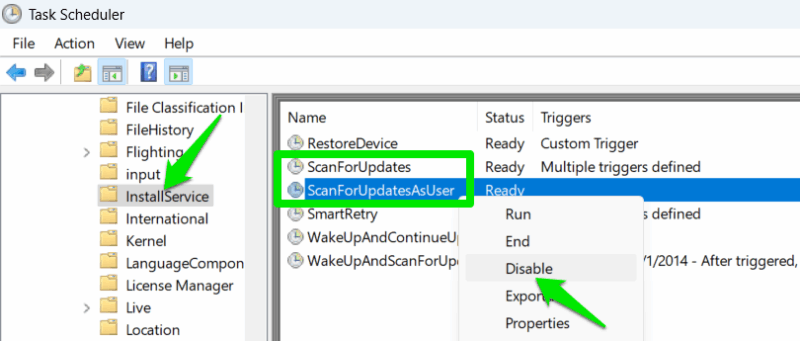
Keep in mind that this method isn’t perfect. The updates can still happen, like by manually clicking the Check for updates button in the Microsoft Store, or an app using its own built-in trigger to search for updates. We recommend you to use this method in combination with other methods here for the best results.
Turn Off the Microsoft Store Install Service
Microsoft Store Install Service is responsible for managing both app installs and updates. If you don’t download apps too often from the Microsoft Store and just want to ensure your current apps don’t auto-update, then disabling this service can ensure that. However, this also disables the ability to install new apps, so you’ll have to enable the service before installing a new app.
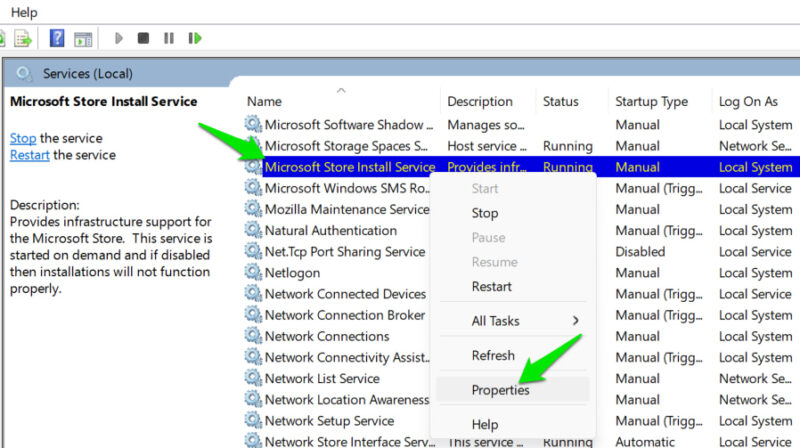
Search “services” in Windows Search and open the Services app. You need to search for the Microsoft Store Install Service here; just type the name on the keyboard while the app is open to directly reach it. Once found, right-click on it and select Properties.
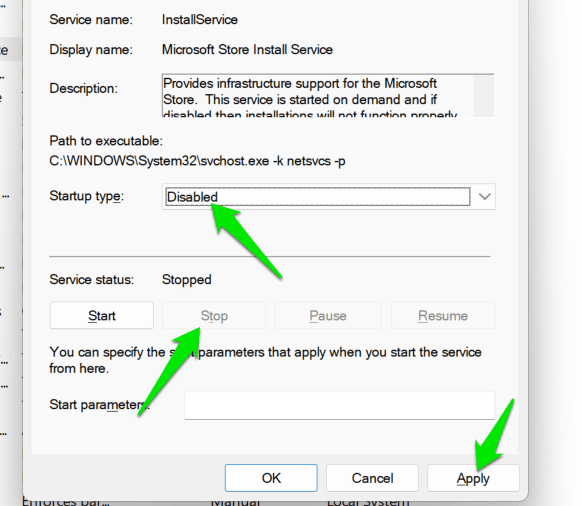
Click on the Stop button to stop the current session, and then choose Disabled in Startup type. Once you confirm the changes, apps won’t be able to update or install through the Microsoft Store. Don’t worry, it won’t lead to Microsoft Store not working at all; you will still be able to open and browse the Store.
Use Group Policy Editor to Disable App Updates
Group Policy Editor has always had an option to block Microsoft Store app updates, and it seems to be working so far. There is a good chance it won’t work in the future, as Microsoft is completely changing the behavior, but you can use it for now to disable app updates. You’ll need to be using Windows Pro as GPE isn’t available on the Windows Home edition.
Search “gpe” in Windows Search and open Edit group policy. Go to Computer Configuration → Administrative Templates → Windows Components → Store. In the right panel, open the Turn off Automatic Download and Install of updates policy and set it to Enabled.
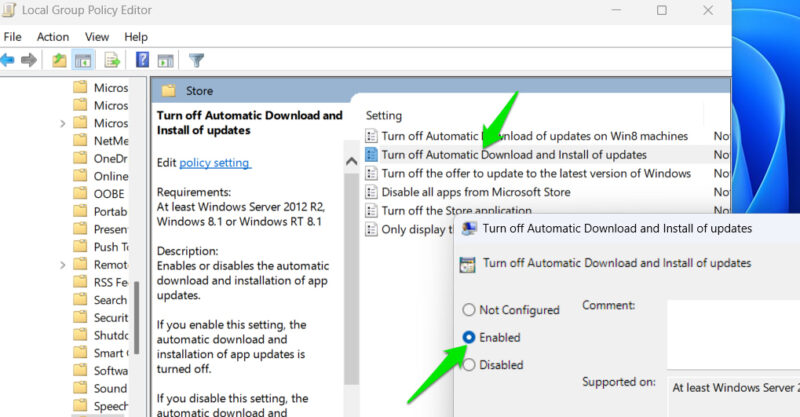
Once enabled, the auto update setting in the Microsoft Store will turn off and turn gray.
Bonus: Download Apps Directly From the Developer’s Website
Many Microsoft Store apps are also available for downloading directly from the developer’s website. They usually don’t automatically update, or at least ask before updating. If there is an app you don’t want to update, you can search its name online to see if the developer also offers a direct version to download.
These methods aren’t as convenient or foolproof as disabling updates from Microsoft Store settings, but they will get the job done. Keep in mind that Windows updates can affect these workarounds in the future, so keep an eye on them to ensure app updates are disabled.








