


Many websites use push notifications to send updates directly to your PC or smartphone. This can be a useful practice because it means you’ll never miss a new article or a comment on your post again. However, if you allow all websites to send you notifications, it can quickly become too much to handle. Here we show you how to stop Chrome notifications coming your way.
Disable Chrome Notifications on Desktop
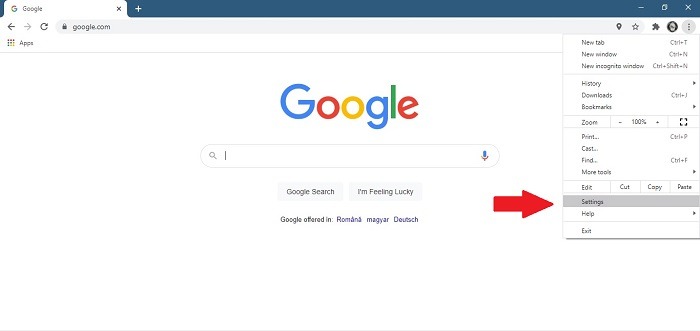
You can easily disable Chrome notifications on your PC (Windows/macOS) directly from the browser’s settings. Click on the main menu in Chrome (aka the three dots in the upper-right corner) and select Settings.
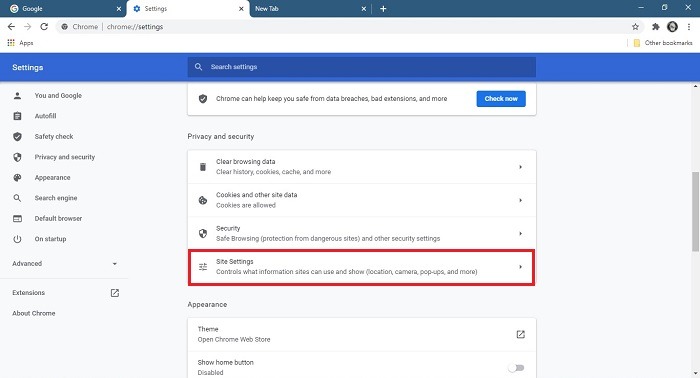
Next, scroll down until you find the “Privacy and security” section, then click on “Site Settings” to access more options.
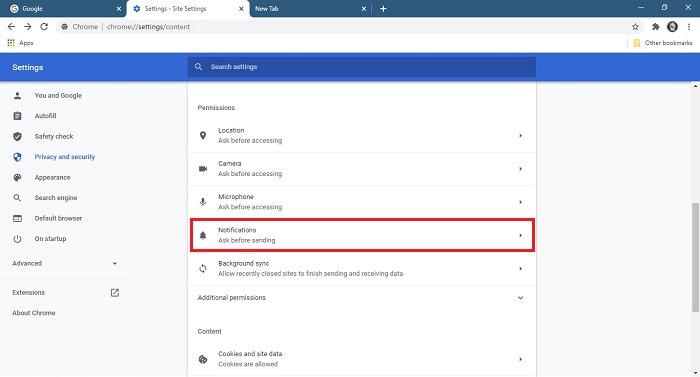
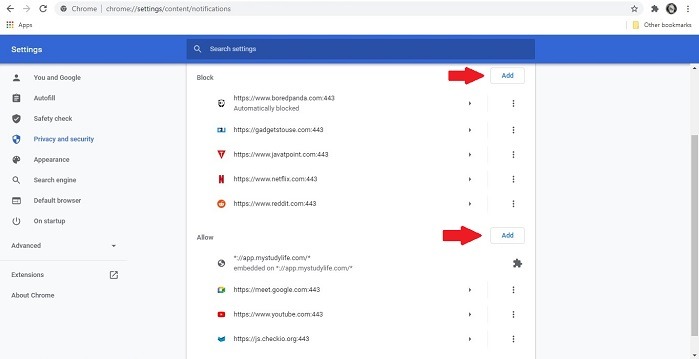
Look for the Permissions section and select Notifications. Here you can enable or disable the option which lets “Sites ask to send notifications.”
Or, you can enable the “Use quieter messaging” alternative. Once activated, it will stop sending notifications your way after you ignore multiple notifications from a site. The two can be used in tandem.
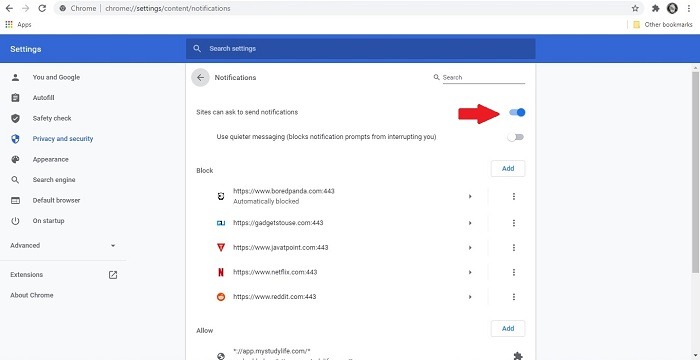
If there are any particular notifications that are bugging you, there’s a Block list where you can add specific sites you want to prevent from sending you notifications. On the other hand, if you wish to receive notifications from a particular website, then you can add to the Allow list at the bottom.
Also read: How to Block Websites on Chrome, Firefox, Edge, Safari, Android, and iOS
Disable Chrome Notifications on Android
To disable Chrome notifications on your Android, open the app on your device and tap on the main menu in the top-right corner of the screen. Then tap on Settings.
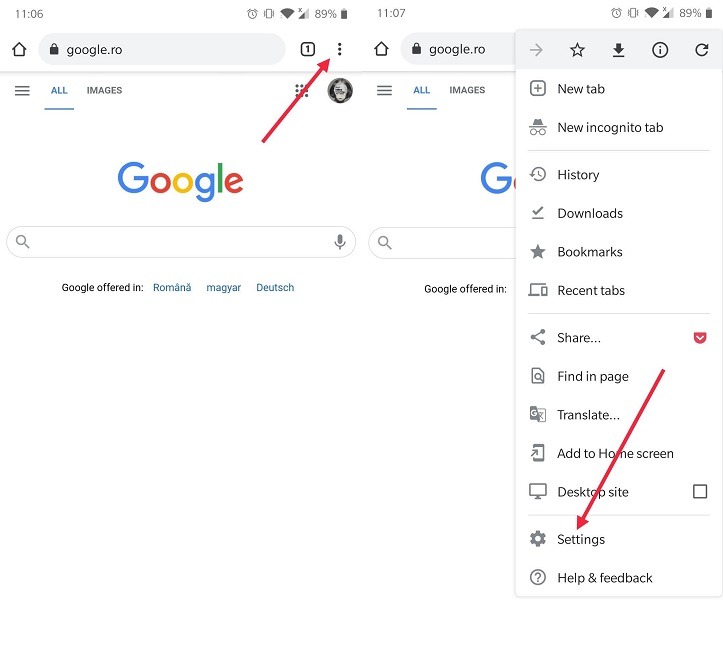
Scroll down and tap on “Site Settings” in the Advanced section, then select Notifications. Here you will see all the websites that are allowed to send notifications to you.
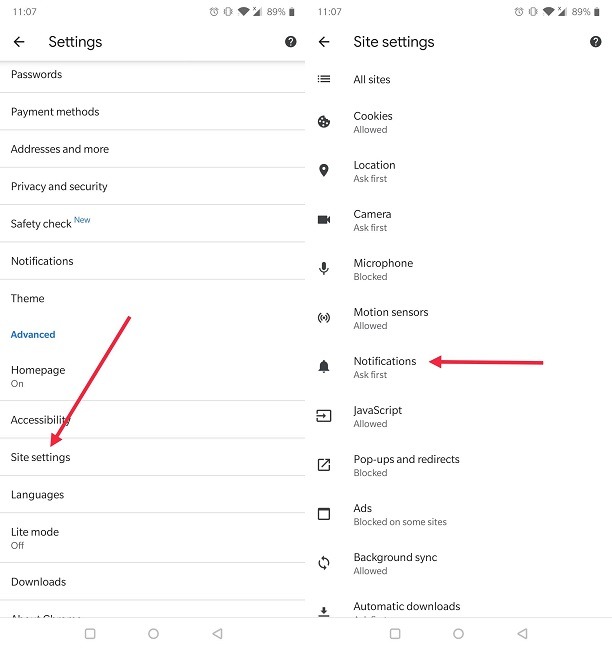
To completely disable notifications, toggle off the Notifications option at the top, and you won’t receive notifications from any website.
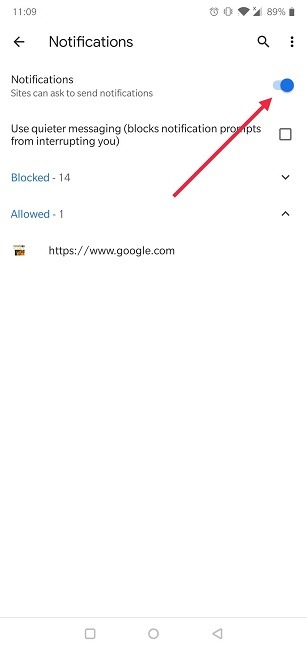
If you decide to allow notifications, know that you can use this option in combination with “Quieter messaging.”
Below, you can view your Block and Allow lists of websites. But unlike in Chrome for desktop, here you can’t add more websites. You can change their permissions, though, so you can block and unblock individual websites from the lists.
Alternatively, you can disable website notifications in Chrome by going to “Settings -> Notifications” (under Basics). Scroll down until you find Sites, then toggle off the “Show notifications” option.
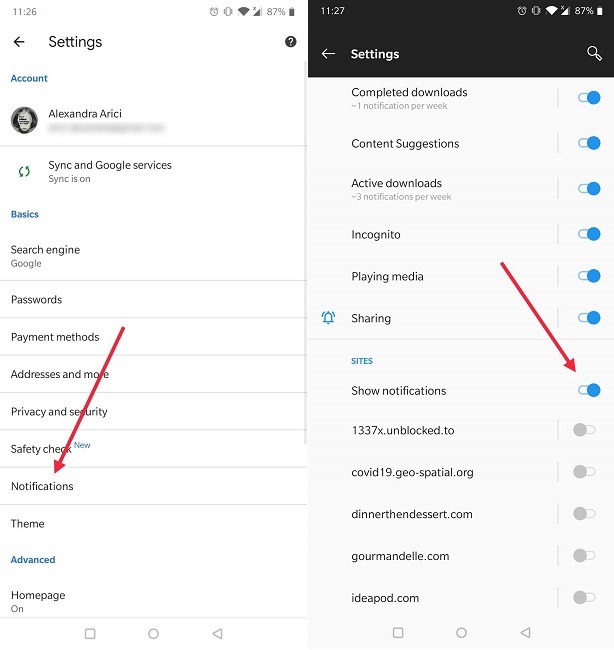
Just follow the above instructions to get rid of all intrusive Chrome notifications. It’s certainly not recommended to disable all your notifications, so the best course of action would be to allow only the important ones to go through.
Now that you know how to stop Chrome notifications, if you want to continue improving your notifications experience, then perhaps you may be interested in reading about how you can get pop-up and audio notifications for Gmail in Chrome or learning how to manage your notifications on Mac.