

You don’t have to constantly check your computer for new messages in Gmail. Instead, get notifications from Gmail in Chrome. For basic notifications, use the settings within Gmail. Or, for more advanced options, a free browser extension keeps you updated, even if your Gmail window or tab is closed.
Also read: How to Use Google Tasks Effectively in Gmail
Notifications in Gmail
If you’d rather not install any extensions, use the notification settings within your Gmail account. When enabled, you can get notifications from Gmail in Chrome, Safari, Firefox, and other some Chromium-based browsers. You’ll need to keep your Gmail window open, though, for this to work.
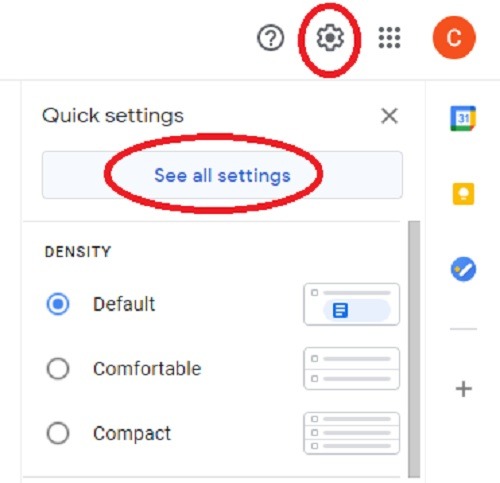
Log in to your Gmail account. Click the Settings icon at the top-right corner and choose All Settings.
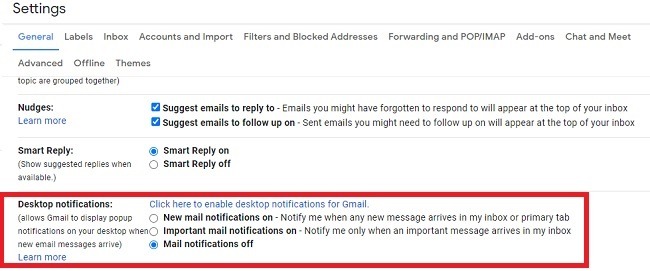
Scroll down under the General section until you see “Desktop Notifications.” Select whether to receive notifications for all messages or just important mail.
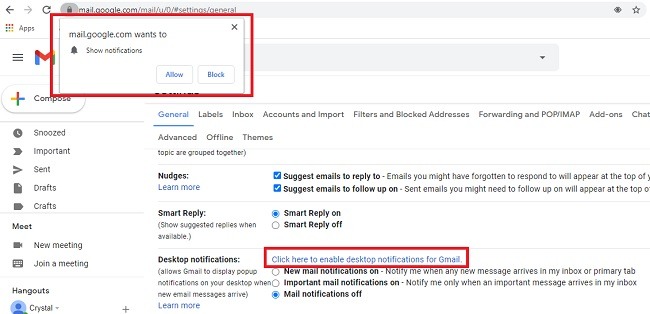
Click the “Click here to enable desktop notifications for Gmail” link. This sends a request to Chrome to allow notifications in your browser. Choose Allow when the box appears.
Scroll to the bottom of the screen and click “Save Changes.” If you test it and nothing happens, you’ll need to allow notifications from your browser from within your operating system. You can turn on app-specific settings and manage how they appear on both Mac and Windows.
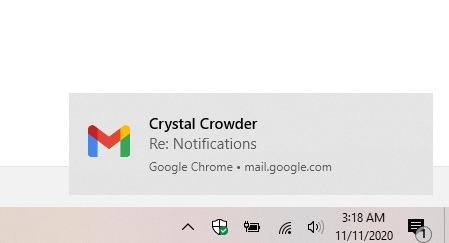
In Windows, the notification looks like the following image.
Use Checker Plus for Gmail
If you’d like more ways to customize the notifications, you’ll need an extension. One of the more popular and reliable extensions is Checker Plus for Gmail. It has over a million users and is regularly updated.
Log in to your Gmail account in Chrome. Download Checker Plus for Gmail. Confirm you want to add the extension to continue the installation.
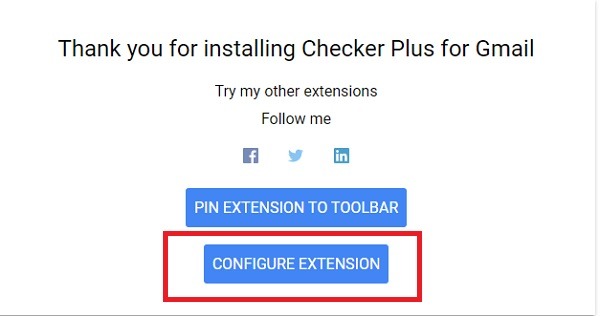
When it’s installed, click Configure Extension on the new screen that appears.
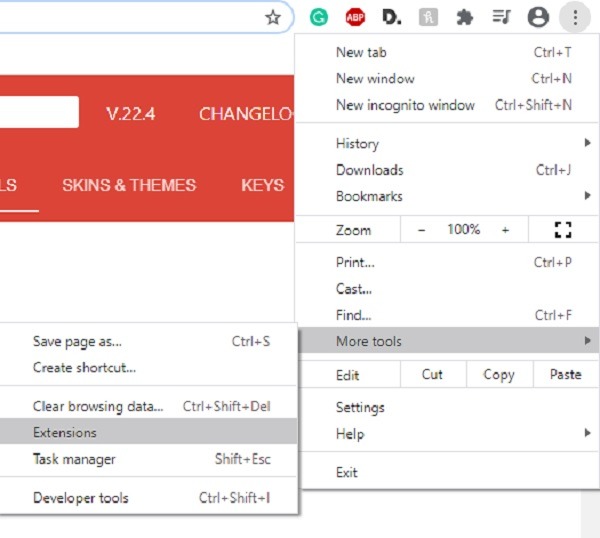
You can get to the settings at any time by going to “Settings -> More Tools -> Extensions” from within Chrome. Choose Details under the Checker Plus extension and select “Extension Options.”
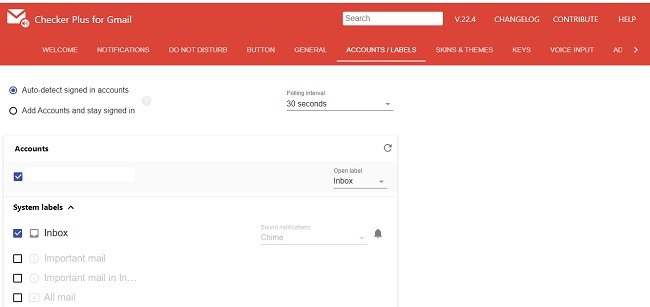
Once in the extension’s settings, go to Accounts/Labels. You can either auto-detect signed in accounts or manually add accounts to stay signed in to get notifications. You can also choose which labels you want receive notifications for.
When you’re logged in, you will have two new icons: a red Gmail icon on the top-right corner in Chrome and a blue bell icon on your desktop taskbar. These two will function together, depending on whether you have a Gmail window open.
You can use the other settings to customize the sounds, do-not-disturb times, multiple notifications, and even keyboard shortcuts.
When you receive new mail, you’ll hear a sound. Or, turn on the desktop notifications under the Notification tab in the extension’s settings to see a pop-up desktop notification.
Checker Plus is a flexible and effective tool for email tracking. In addition to its notification features, it supports multiple accounts, assigning photos to contacts and monitoring custom Gmail labels. Despite these many features, it runs in the background without affecting your computer’s overall performance. The Options page is well-organized with a tabbed interface that’s straightforward and easy to understand.
Whether you’re a new or seasoned Gmail user, this extension will prove useful any time you need immediate alerts for new email. It takes a few minutes to set up and saves time and effort that you’d rather spend on something else.
If you want even more control over Gmail, consider creating your own Gmail desktop app that gives you access offline.