Just because your PC meets the recommended system requirements of a game and reaches the required FPS doesn’t mean you’ll have a smooth gameplay experience. There is another metric that is arguably more important than high FPS: frame time. Let’s learn what frame time is and how to stabilize it for the best gaming experience.
Importance of Frame Time
FPS is the total number of frames generated per second, and frame time is the total time in milliseconds a single frame takes to generate. In a perfect setup, 60 FPS will have 16.67 ms frame time (1000 ÷ 60). For smooth gameplay, this frame time needs to stay consistent, like 16.67 ms for 60 FPS or 6.94 ms for 144 FPS. If the frame time isn’t consistent, then you’ll notice stutters that can be very disruptive.
During gameplay, inconsistent frame time manifests as tiny drops in FPS, like 60 FPS dropping to 52-55 FPS for a second. While it might not seem much, the human brain is very good at tracking consistency and expects the game to play at the set FPS (like 60). Even a small change of 5-10 FPS leads to a clear stutter.
An inconsistent frame time means that, for some reason, your PC is unable to generate frames in time.
Tracking Frame Time
To confirm there is a problem, you need to track frame time during gameplay with a dedicated tool. We recommend the free CapFrameX tool for this purpose. To run the test, open CapFrameX, launch your game, and cap the FPS to your preference.
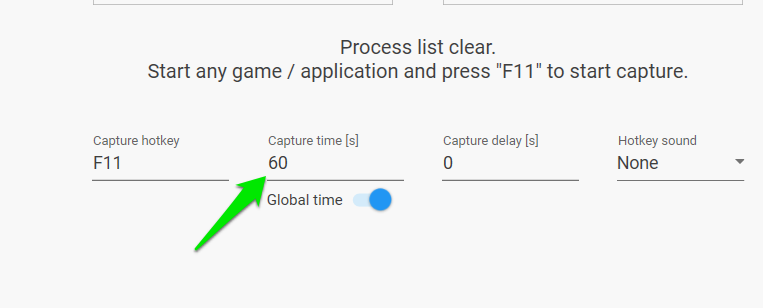
Set Capture time to 60s, move to the game screen, and press F11 to start recording. Now, play the game as you normally do, just don’t enter any menus or other static screens.
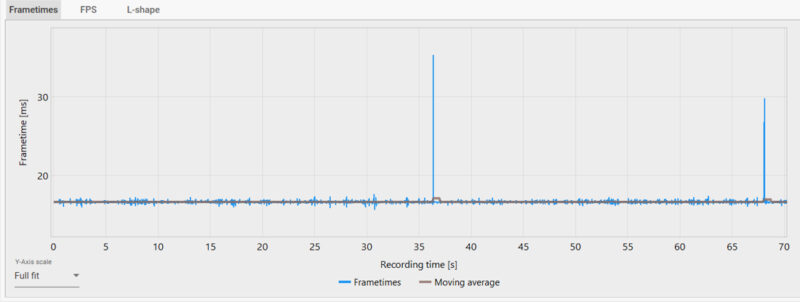
After 60 seconds, open CapFrameX and move to the Analysis tab. Here, you’ll see the Frametimes graph with frame time shown as a blue line. If frame time is consistent, this blue line will constantly stay near the brown line (average frame time). While a few big vertical spikes aren’t a cause for concern, back-to-back multiple spikes mean frame time is inconsistent.
More importantly, there is a bar chart below showing frame time consistency. To confirm frame time behavior, the value should be like this:
- P95: This is the consistent frame time; it should be the same as your FPS.
- Average: This should be almost the same as your FPS (1-2 less is acceptable).
- P5 and P1: This can be 2-3 FPS lower than your expected FPS.
- 1% Low Average: 10-20% drop in total FPS is acceptable here, i.e., 6-12 fewer FPS for 60 FPS.
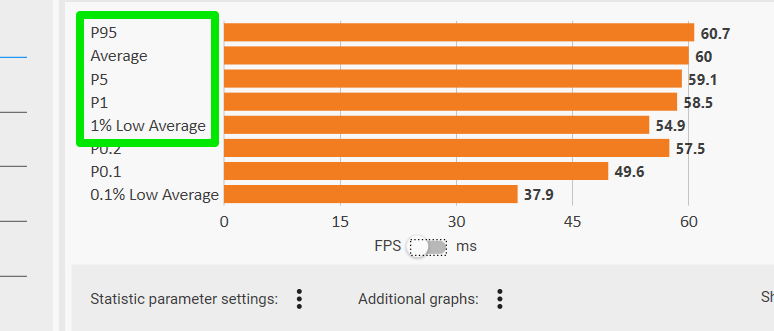
Theoretically, all of these values should match your FPS cap, but realistically, some variance is expected as long as it’s within the limits listed above.
Ways to Stabilize Frame Time
If you find your frame time unstable, it’s probably due to your PC’s limited resources or unoptimized configuration. Below are some ways to stabilize frame time:
Ensure CPU or GPU isn’t a Bottleneck
First, you need to make sure your CPU or GPU isn’t a bottleneck and can handle the game. If any of these components are struggling to keep up, then it will cause frame time inconsistency. You can refer to our guide on checking CPU and GPU bottlenecks to confirm this and find ways to avoid it.
There is also a chance that RAM capacity and bandwidth can become a bottleneck. Make sure you have sufficient RAM and installed in a dual-channel setup for best results.
Cap Frame Rate Properly
For optimal setup, you should cap the FPS to monitor refresh rate, but you should choose a method that offers the most stable frame time. If your GPU and monitor support adaptive sync, like G-sync, then utilize that to match FPS and refresh rate. Otherwise, cap the FPS in the GPU’s settings, like in Nvidia Control Panel or AMD Radeon settings.
Software cap is better than the in-game cap as it’s more consistent across games. You can even use Rivatuner to create custom caps.
Enable Anti-Lag in GPU Settings
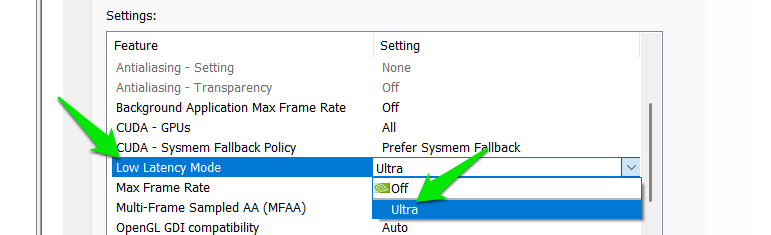
Both Nvidia and AMD GPUs have an anti-lag feature to reduce input delay by decreasing the number of pre-rendered frames. This feature also decreases frame time and minimizes stutters if your GPU and CPU can handle the game. Here’s a guide to enable the anti-lag feature in both Nvidia and AMD settings.
Play in Full Screen Mode with Optimizations Disabled
It’s recommended to play games in full screen as it bypasses the Windows Desktop Window Manager to provide better game performance. You should further disable full-screen optimizations for an even smoother experience. Both of these tips will help stabilize frame time.
Experiment with Hardware-accelerated GPU scheduling
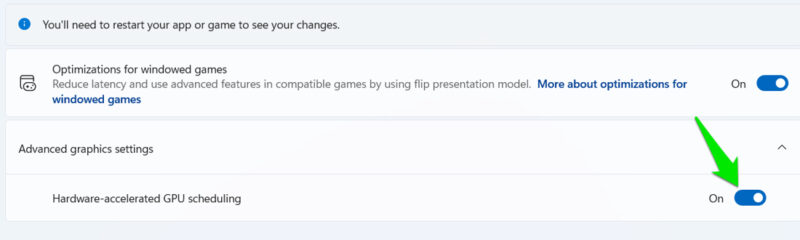
Hardware-accelerated GPU scheduling (HAGS) can offload some CPU tasks to the GPU and manage them better. This can lead to better frame generation if your CPU was the cause. However, it can also negatively impact frame time if the GPU is the cause of instability. Experiment with enabling/disabling this feature to see what works best. In Windows Settings, go to System → Display → Graphics to manage it.
High FPS is easy to get, but it’s crucial to have a stable frame time to be competitive and have an immersive gaming experience. Advanced users can also use these registry hacks for gaming that will help stabilize frame time and improve other factors that contribute to a smoother gaming experience.