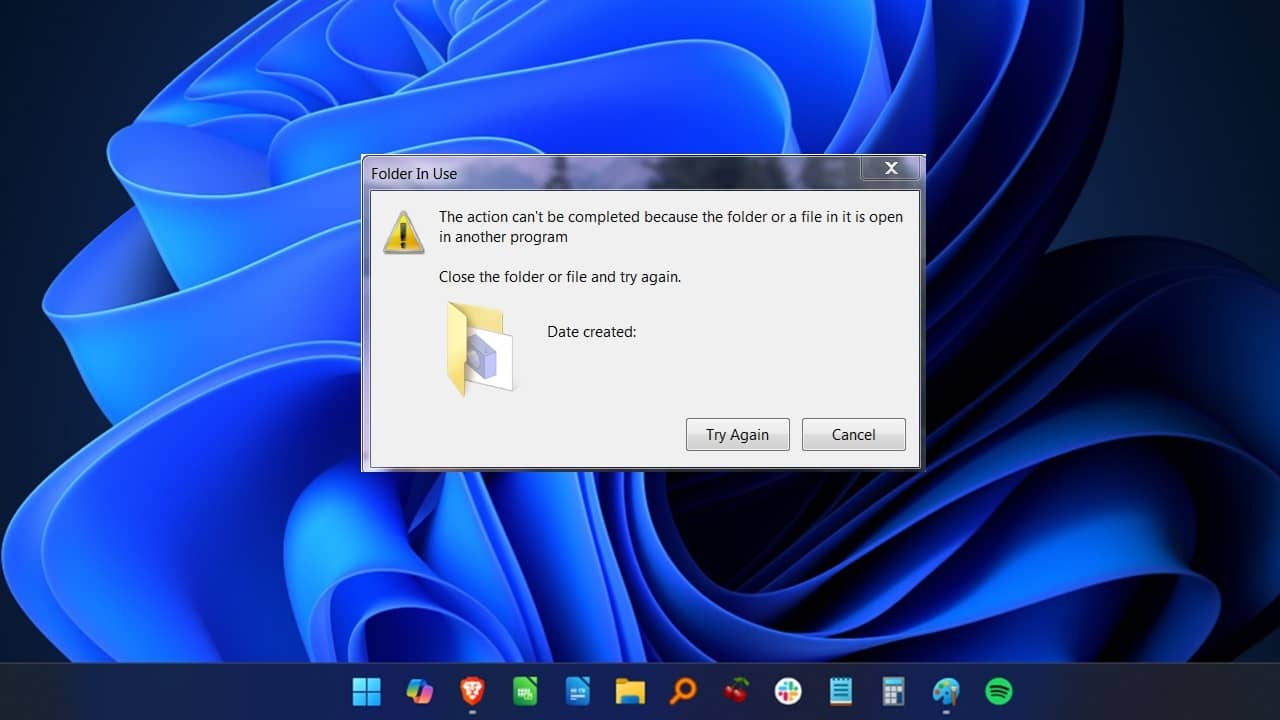
Have you ever tried to delete a file or move it to another location and encountered an error that states, “Action cannot be completed because the file is open in another program,” even though you have not opened the file in any program? It’s more common than you might think, and here are several possible solutions.
Quick Fixes
Before diving into too much troubleshooting, try these quick fixes to end the error:
- Restart your PC. This may close other apps or services using your file.
- Check if your anti-virus is currently scanning. It may be scanning the file, folder, or app.
- Disconnect from the Internet. Files may be trying to sync to cloud services like OneDrive or Google Drive, causing them to lock.
1. Check Whether the File Is Open on Another Computer
If your computer is connected to a local network – either at home or in the office – then it’s possible the file you’re looking to close is open elsewhere on the network (possibly even by accident!).
If you suspect that the file may be open on another computer on the network, you don’t have to go through the awkwardness of asking around the office or messing around blindly on other computers.
Open the Start menu and search for computer management. Click the result.
In the Computer Management window, click System Tools -> Shared Folders -> Open Files in the left pane.
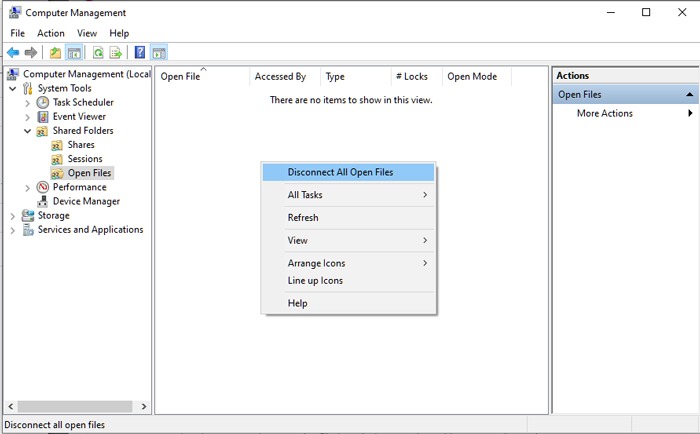
If you see the troublesome file listed, right-click on it and select Close. Alternatively, click an empty space, and select Disconnect All Open Files from the menu that appears to close all open files.
2. Locate the File in Task Manager
If the file’s open in a specific program, you may be able to use Task Manager to solve the “File is open in another program” error.
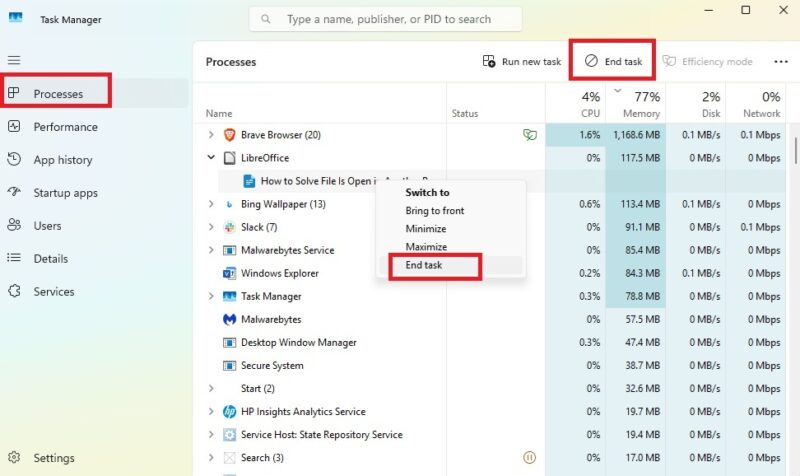
Press Win + X and select Task Manager. Click the Processes tab if it’s not already open. This lists everything that’s currently running on your PC.
Select the file (or the program commonly associated with it), and click on End Task above the task list. Or, right-click the file/program and select End Task.
Try deleting the file again. If it still doesn’t work, move on to the next step.
Tip: can’t access Task Manager because it was disabled by your system’s administrator? Learn how to reverse the situation.
3. Restart File Explorer through Task Manager
Instead of ending the task, this solution tries to restart the process. Before you do this, make sure you’ve saved all open files.
Press Win + X and select Task Manager. Open Processes. Either scroll or use the search box to locate Windows Explorer. Right-click it and choose Restart. You used to be able to end and start it over, but with Windows 11, you can only restart it through Task Manager.
If nothing happens, try rebooting your PC to restart Windows Explorer that way.
4. Turn Off the Caching of Thumbnails in Hidden thumbs.db Files
Microsoft has admitted in the past that the thumbnail cache relating to files and folders can cause the “File is open in another program” error, so tackling this aspect can help resolve the error.
Press Win + R to bring up the Run window. Type gpedit.msc, then hit Enter. If you don’t have Group Policy Editor, use these steps to enable it. If you can’t enable it, skip to the Delete Thumbnails and Stop Caching in Windows Home section.
In the left pane, expand User Configuration -> Administrative Templates -> Windows Components -> File Explorer.
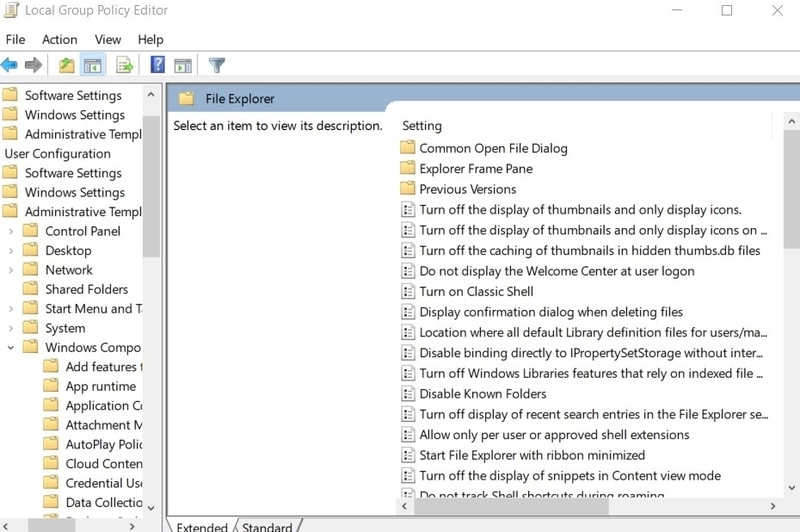
Go to the right pane, and double-click on the Turn off the caching of thumbnails in hidden thumbs.db files option.
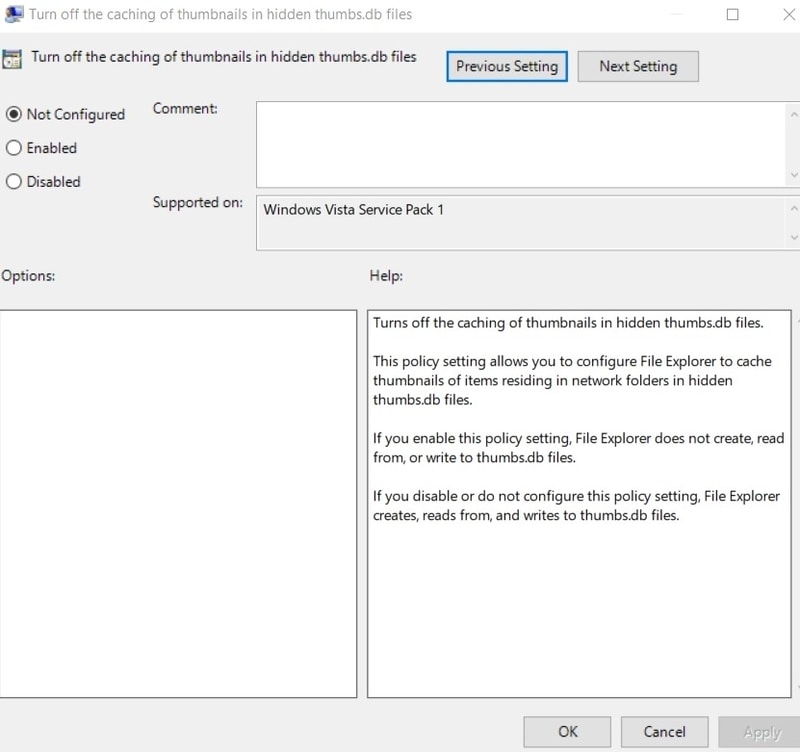
Turn on Enabled. Click Apply and OK to save your settings.
All the thumbnails in File Explorer will now be disabled, allowing you to carry out the desired action on the file. You can re-enable the thumbnails by following the above steps and changing the policy back to Not Configured.
If you ever need to reset Group Policy settings after making numerous changes, use these steps.
Delete Thumbnails and Stop Caching in Windows Home
Open your Start menu, type cmd, and select Run as administrator.
Ensure that you’re using the same drive Windows is installed on. Typically, this is the “C” drive. If not, just type cd drive letter (where drive letter is your drive letter) and press Enter.
Enter the following command, and press Enter again:
del /ash /s thumbs.dbWait until the files are deleted before proceeding. Type exit to leave Command Prompt.
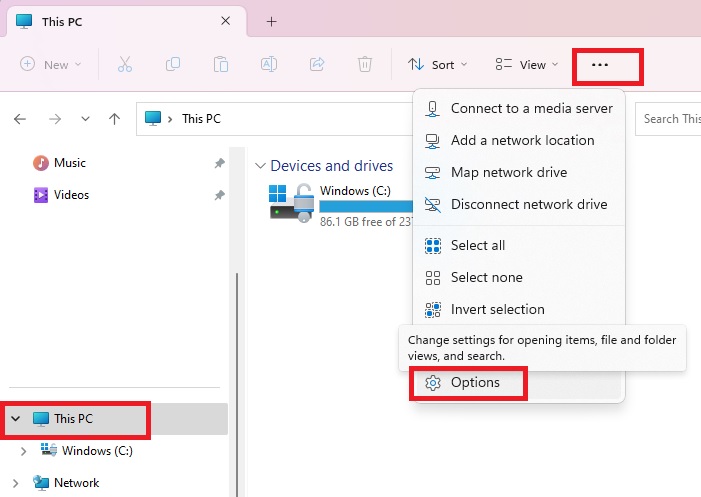
Open File Explorer, and select This PC. The following steps will stop your PC from creating thumbnails.
Click the three dots beside View and select Options.
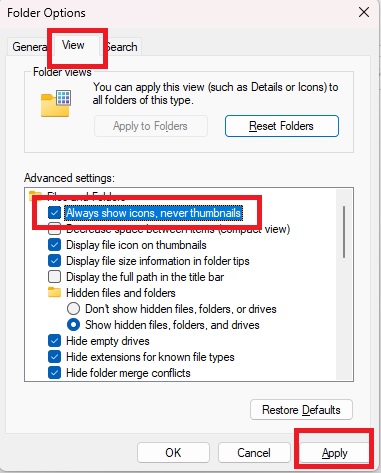
Click the View tab, and check Always show icons, never thumbnails. Press Apply to save your changes.
5. Delete Temporary Files
Temporary files are stored on your computer every time you modify a file in any manner. These temporary files may be preventing you from moving or deleting the related files, which may lead to a “This action can’t be completed, as file is open” message. It’s a good idea to delete these temp files regularly.
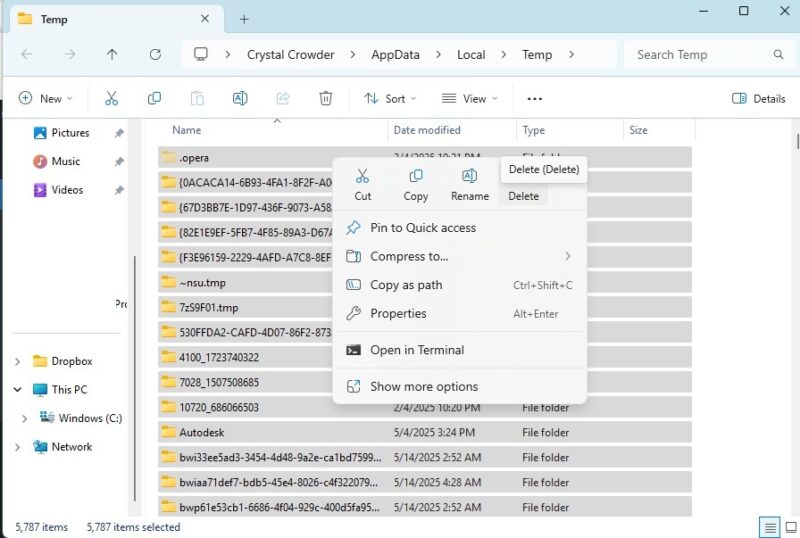
Press Win + R to bring up the Run window. Type %temp% into the input bar, and press Enter.
When the Temp folder opens, press Ctrl + A to select all the files, and delete them together.
6. Check the Folder for Viruses
If none of the above methods work, the problem may be more serious. There may be a virus associated with the file that is preventing you from making changes to the file. Run the file through your antivirus software to locate any virus or malware it might contain.
If this does turn out to be the case, isolate the file using your antivirus software, and delete it before it can infect other files.
7. Empty Your Recycle Bin
Whether you’re getting a “File is open in another program” or “This action can’t be completed as file is open” error, your Recycle Bin could be to blame. If you’re a person like me who never empties the little trash can on your desktop, it could be overflowing with deleted files. File Explorer hates it when your Recycle Bin is too full, so empty it to see whether that solves your problem.
Right-click on your Recycle Bin and click Empty Recycle Bin.
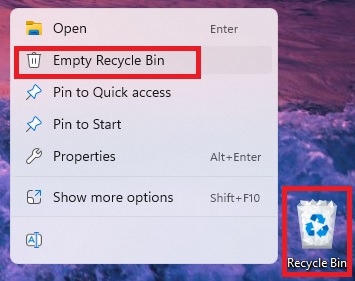
It may take up to a minute to fully delete everything. Once you don’t see any crumpled paper in the bin, it’s done. Try opening or interacting with your file again.
8. Check for Hard Disk Problems
If your hard drive is starting to fail, you may run into “File is open in another program” errors. There are multiple tools, including a few built-in Windows tools, that will check your hard drive’s health. Run a scan with one or more of these tools to see if there’s a problem. If it’s failing, back up all your files immediately to prevent losing anything.
9. Stop All Background Processes With Resource Monitor
Even if you don’t open a program, it may automatically start with Windows or alongside another program. Since it’s running in the background, you won’t even realize it’s open. One of these background processes could be associated with your file, even after you’ve closed it.
Instead of trying to figure out the culprit, let the Resource Monitor do it for you.
Open the Run window, type resmon.exe, and click OK.
Open the CPU tab in the Resource Monitor, and expand Associated Handles at the bottom.
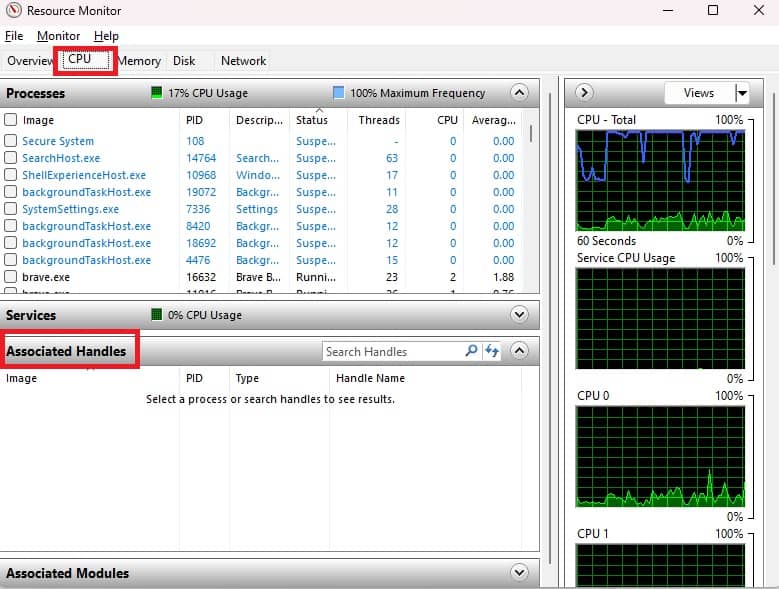
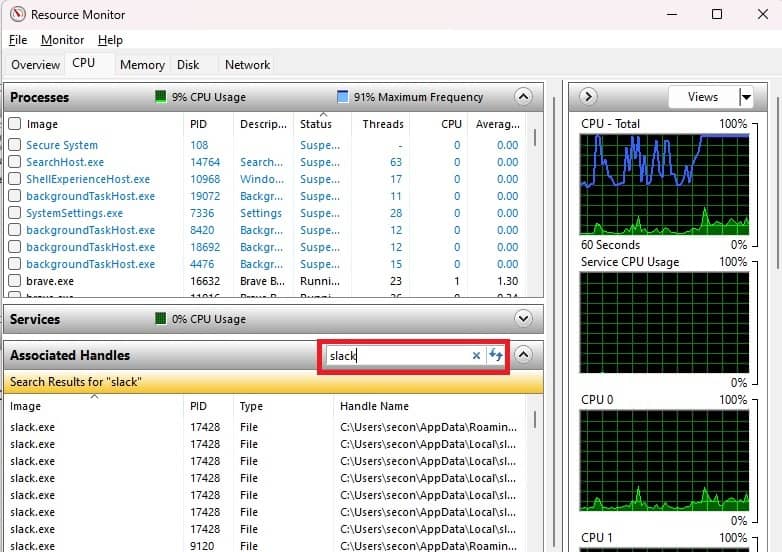
In the Search Handles box, type the name of your file or folder. You’ll see a list of every process associated with the term. If nothing appears, then it’s not a background process issue.
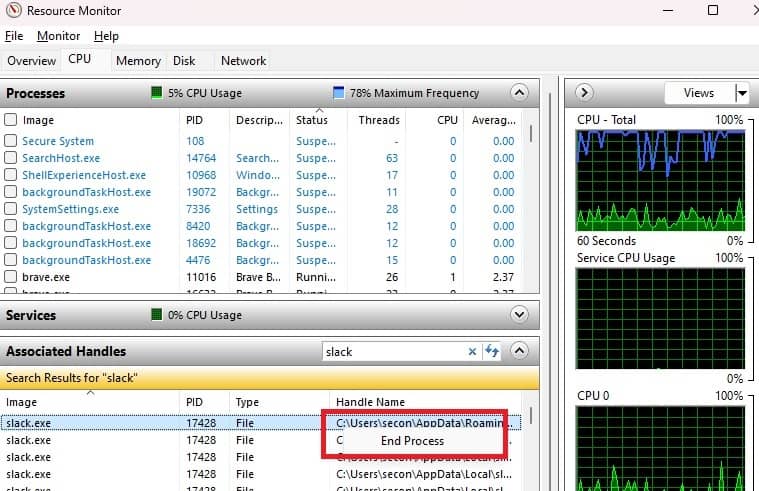
Right-click any process you want to stop, and select End Process.
9. Use File Locksmith in PowerToys
PowerToys isn’t included with Windows by default, but it’s an incredible collection of free tools from Microsoft. One of those tools is File Locksmith, which helps you get control back over a file.
Download and install PowerToys, if you don’t already have it. Right-click the PowerToys icon in your notification tray and click Settings. You can also find PowerToys in your list of apps in the Start menu.
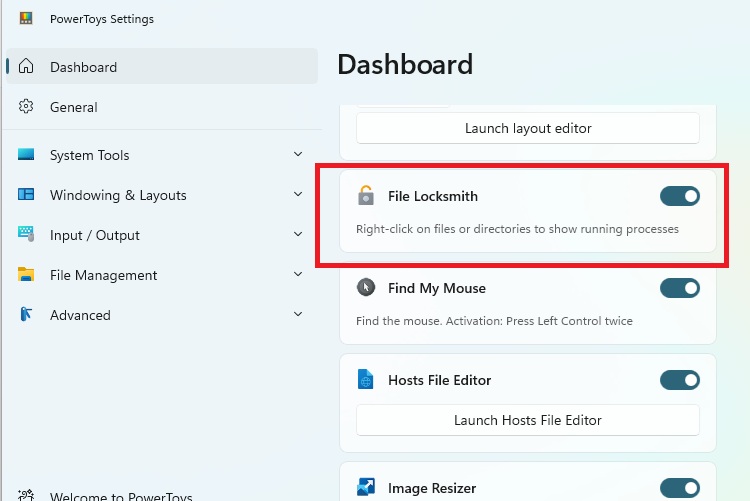
Locate File Locksmith and ensure it’s turned on. If not, toggle it on.
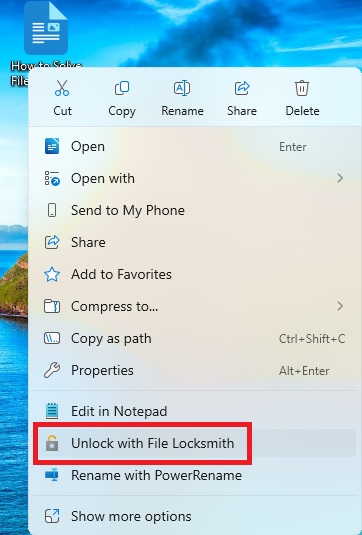
Right-click the file that won’t open and select Unlock with File Locksmith. If you don’t see this option, restart your PC. PowerToys may not have completed its installation without a restart.
This shows a list of apps/services using the file. Right-click an item and choose End Task. Press the Reload icon near the top right to reload tasks to ensure nothing else is using your file.
11. This Action Cannot Be Completed Because the File Is Open In …
If your error message includes a specific program name, there are several options to try:
- Close the program, and restart your PC. This helps if the file is just hung up in the program.
- If you still can’t edit, open, or delete the file, try booting into Safe Mode. This stops many background processes and other issues that may be interfering. Try deleting the file while in Safe Mode, and restart your PC.
- Check to see whether any duplicate files have been created. This mostly happens if your file is open in your browser. Duplicate files have (1), (2), etc., beside the file name.
12. Copy and Delete
If nothing else works, try to copy the file. Even if a file is open, you should still be able to copy and paste it to a new location. Don’t try to cut, just copy. Then, delete the original. You’ll likely have to force delete it since it’s locked.








