For me, working in the terminal often felt slow and frustrating. I spend precious minutes or even hours switching between Google and my terminal just to find the right command or figure out the syntax for a script. It constantly broke my focus and made even small tasks feel tedious. Then I discovered ShellGPT, which changed everything. I can now describe what I want in plain English, and it instantly generates the exact shell command or snippet I need. Tasks that used to take twenty or thirty minutes now take just seconds. In this article, I’ll demonstrate how ShellGPT makes my terminal experience more enjoyable.
Installing ShellGPT on Linux
ShellGPT requires Python 3 and pipx. You can install them with the following command:
sudo apt install python3-full python3-venv pipx -yAfter this, run the following command to make sure you can use pipx-installed apps from the terminal:
pipx ensurepathFinally, install ShellGPT globally using pipx:
pipx install shell-gpt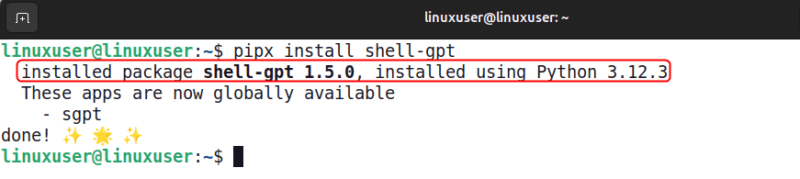
ShellGPT itself is free, but using OpenAI for AI responses requires a small payment. You can also run local AI models with ShellGPT at no cost, which is useful if you want to avoid any charges. ShellGPT is similar to Gemini CLI, and is a good alternative if you are looking to avoid Google at all cost.
To use OpenAI, generate an API key at the OpenAI platform. Then, set it in your environment. You can use the following command to set the API key for the current session only:
export OPENAI_API_KEY="specify-your-api-key-here"To set it permanently, specify the above line of code in the “~/.bashrc” or “~/.zshrc” files, then apply changes using the following command:
source ~/.bashrcAfter this, run the following command to verify that ShellGPT is properly installed on your system:
sgpt --help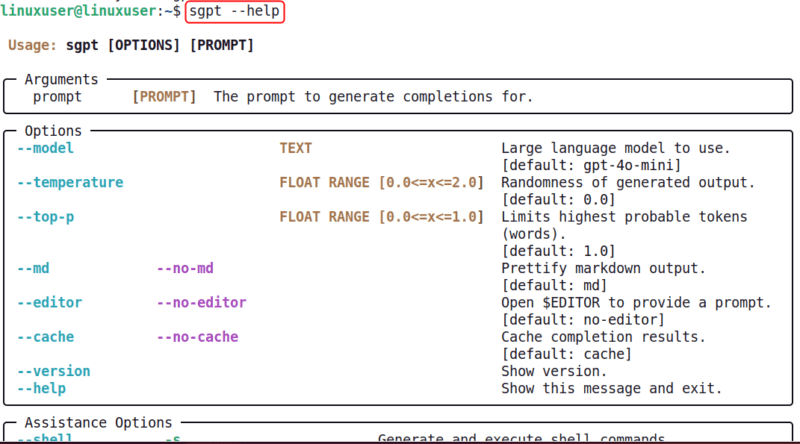
Now we’re ready to turn our words into terminal commands.
Using ShellGPT for AI Queries
I often had to switch between the terminal and a browser just to find the right commands or solutions. Now, I can ask general questions and get answers directly from the terminal.
sgpt "What is Dockpeek?"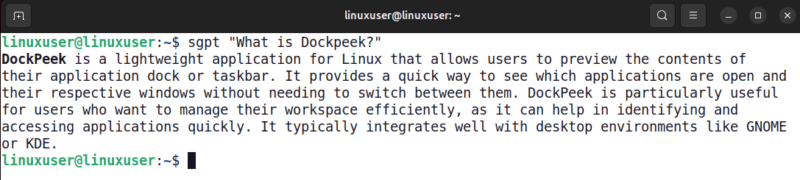
It saved me time, reduced context switching, and made working in the terminal feel much smoother and more intuitive.
Running Commands Directly from Plain English
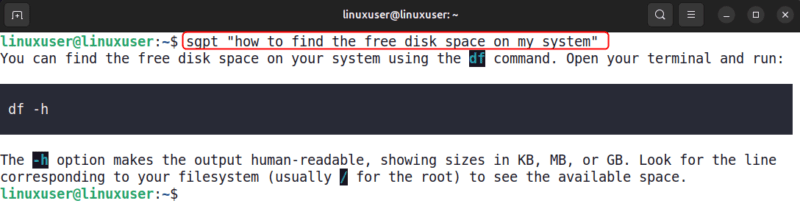
I used to waste time trying to remember all the terminal commands, often breaking my focus and slowing down even simple tasks. With ShellGPT, that stress is gone. Now, I can just type what I want in simple English:
sgpt "how to find the free disk space on my system"ShellGPT explains the command and shows exactly what to run. This not only saves time but also deepens my understanding of the commands.
ShellGPT goes beyond just explaining commands. If I want to execute commands directly, I can use the -s option:
sgpt -s "find free disk space on my system"Here, -s runs the command immediately, skipping explanations.
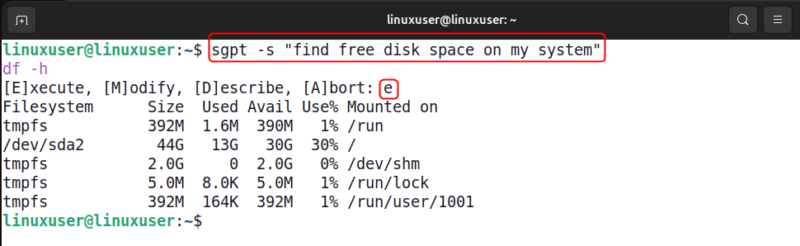
This flexibility lets me decide when I need guidance and when I just want results.
Generating Commands Without Explanation
Sometimes I only need the command itself, without extra text. ShellGPT makes this effortless as well. For example, to remove a Docker image, I typed my instructions with the -c option and ShellGPT turn my words into ready-to-use commands:
sgpt -c "how can I remove a Docker image"This saves me the effort of searching forums or tutorials.

Chatting With ShellGPT
Multi-step tasks are used to disrupt my workflow, causing lost focus and repeated steps. ShellGPT’s chat mode has solved that problem for me. It lets me stay in a single conversation and build each step naturally:
sgpt --repl chatNameFor example, I created a session for disk-related tasks and kept asking follow-up questions. ShellGPT remembered the context, guided me step by step, and let me stay focused in one place:
sgpt --repl disk-info 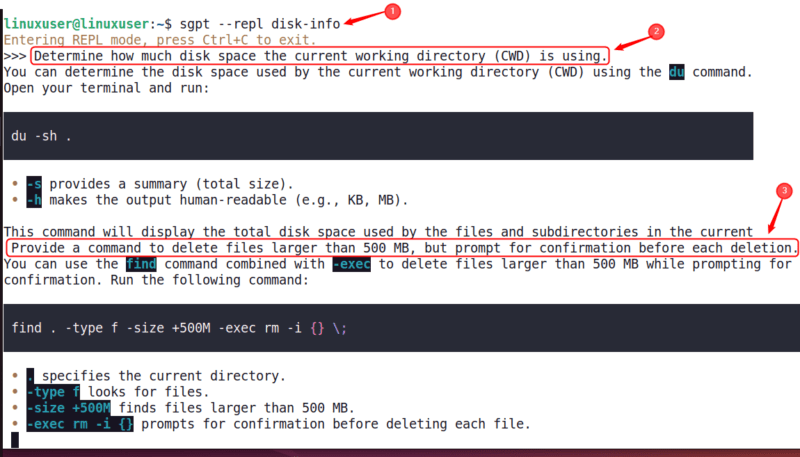
This feature has genuinely simplified my workflow for complex tasks.
Automating Repetitive Tasks with Bash Scripts
Before ShellGPT, even small automation scripts took time. I had to think through logic, check syntax, and troubleshoot errors. Now, generating scripts is fast and simple:
sgpt "Write a bash script to rename all .txt files in Downloads to include a date prefix"ShellGPT produces a complete, ready-to-use script in seconds. I can review it, modify it (if needed), and use it immediately.
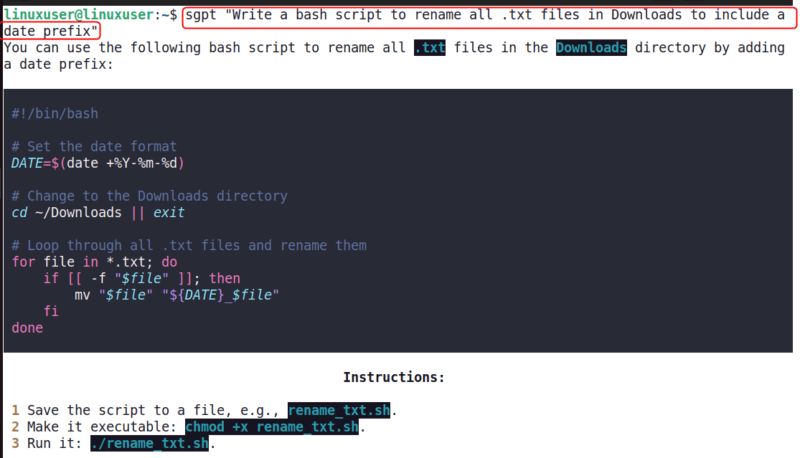
Troubleshooting and Debugging Commands
I often face small command problems in the terminal that interrupt my flow. Tasks like copying files, moving directories, or avoiding overwrites often required constant double-checking. With ShellGPT, I can fix these mistakes instantly:
sgpt "Fix this command: cp *.txt /backup/ without overwriting existing files"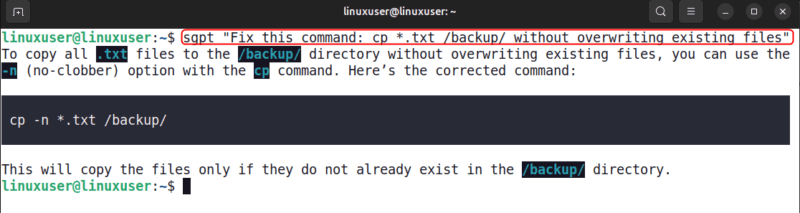
As I started relying more on ShellGPT in my daily workflow, I also became more careful about how I use it. Early on, I realized that blindly running generated commands, especially the destructive ones, could be risky. Now, I make it a habit to quickly review every command before executing it. This small step has saved me from potential mistakes more than once.