

Tired of copying and pasting page URLs into Twitter and Facebook boxes to share the content with your followers? Microsoft Edge has a solution for you. This top-end browser from Microsoft comes with a host of cool features that make it a fun browser to use. The sharing feature, for example, allows users to easily share web content via social media, email, and through other apps and services. In this guide we’ll show you how to share web content using the Edge browser.
How to share a web page in Microsoft Edge
The Edge browser allows you to easily share a web page, and the sharing options vary depending on the apps installed on your system. The following is how to share a web page.
1. Launch the Edge browser from the Start Menu or from the Quick Launch. You can check our article on how to add the Quick Launch bar in Windows 10.
2. Navigate to the web page you’d like to share.
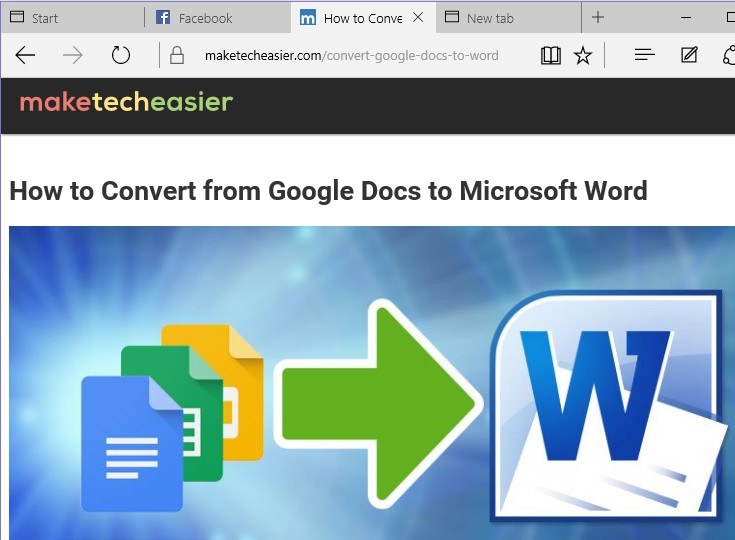
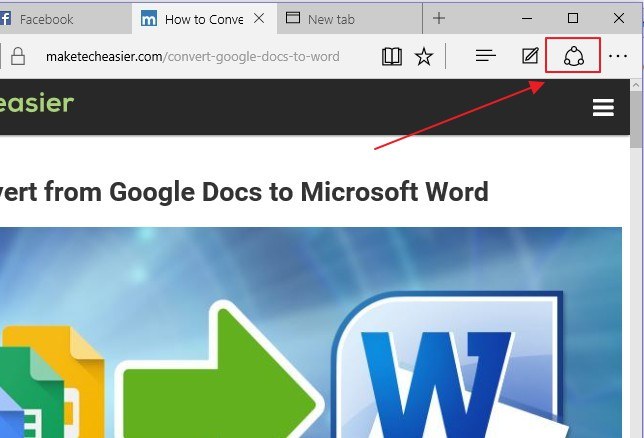
3. On the top-right corner of the Edge browser, click on the “Share” icon. The design of the icon may be different depending on the version of Windows 10 you are using.
Clicking the icon will open a menu with all the apps you can use to share the page. Again, your sharing options vary depending on the apps installed on your system.
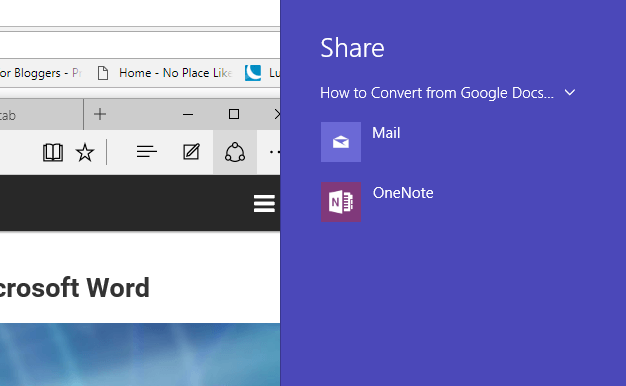
4. Choose the channel through which you want to share the link. Edge supports sharing via apps such as Twitter, Facebook, Mail, One Note and more.
How to share a screenshot using the Edge browser
At times you might want to share just a section of a page rather than share a link to the entire web page. To share a screenshot we use the Web Note tool in Edge. The following will show you how.
1. Navigate to the page you want to take a section from. While on this page, click the Web Note icon (sitting just next to the share icon) to launch it.
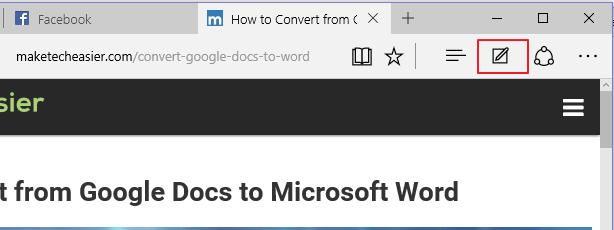
2. A Web Note toolbar will open. Navigate to the clip button and select it.
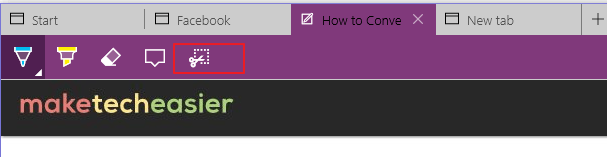
3. Click and hold the clip button, then drag it over the area of the page you want to capture a section from.
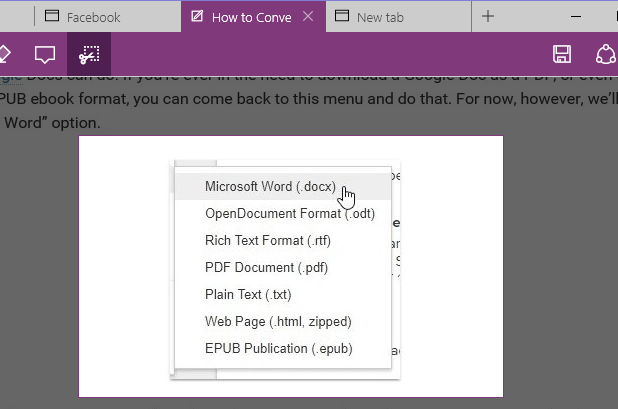
4. Lastly, click the share button and choose the app through which you want to share the screenshot.
Steps to pin apps to the top of the share menu
If you have a favorite app that you often use to share content via Edge, you can pin it to the upper part of the “share menu” for ease of access. To do so, follow the steps below.
1. Launch the Edge browser from the Start menu, Quick Launch, or desktop.
2. Navigate to the top-right corner of the Edge browser and click the share icon.
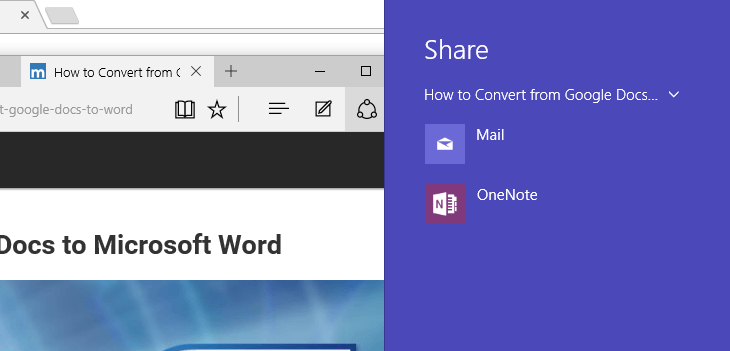
3. Select the app that you’d like to pin.
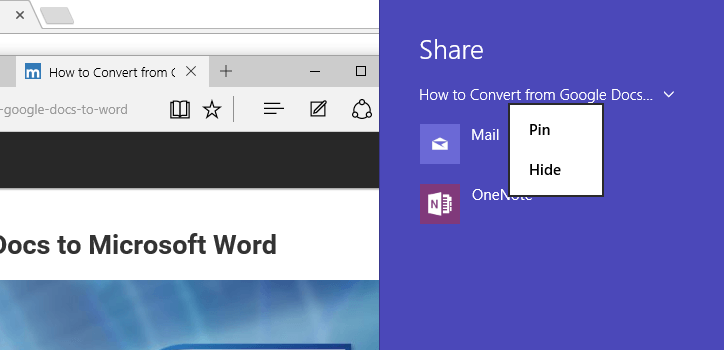
4. Right-click the app and click “Pin” to complete the task.
Conclusion
The Edge browser has received several improvements since the introduction of the first version in 2015. While the new features such as the ability to set tabs aside provide a smooth browsing experience, it’s important to know the hidden functionalities such as how to share web content or manage passwords in Edge.
Was this article helpful? Feel free to comment and share.