Google’s Find My Device has long been a trusted tool for locating lost devices, including Android phones, smartwatches, compatible earbuds, and more. Now, with a recent update, the app introduces a new feature: location sharing. Whether you want to share your whereabouts with friends or keep track of loved ones, here’s how to start using this handy new feature.
Good to know: learn how you can find a lost Bluetooth device.
How to Share Your Location with Google Find My Device
This feature has already been available in the Find My app on iPhone and iPad for a while now, and now Google is finally also offering it for Android devices.
Sharing your location with someone is possible via the Find My Device app. Since this update to Google Find My Device is relatively recent, you should first ensure you’ve updated the app. Open the Google Play Store and navigate to Google Find My Device. If you see an Update button underneath, press it to access the app’s latest version.
Then open the Find My Device app on your phone and log in to your usual Google account. Next up, switch to the new People (Beta) tab at the bottom.
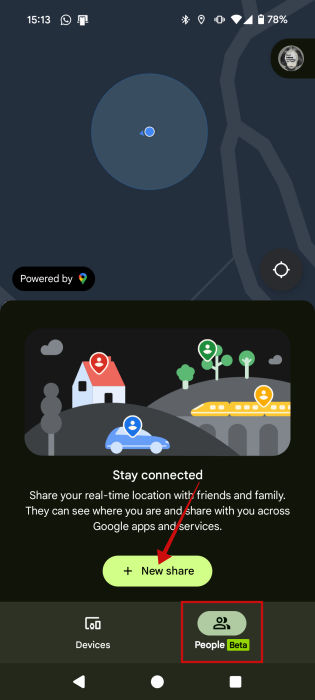
Press the New share button at the bottom of the screen in the Stay connected card.
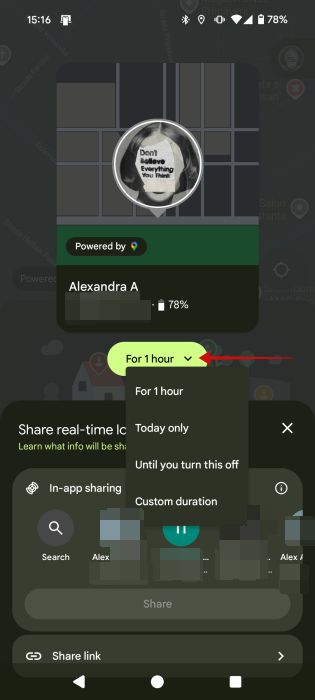
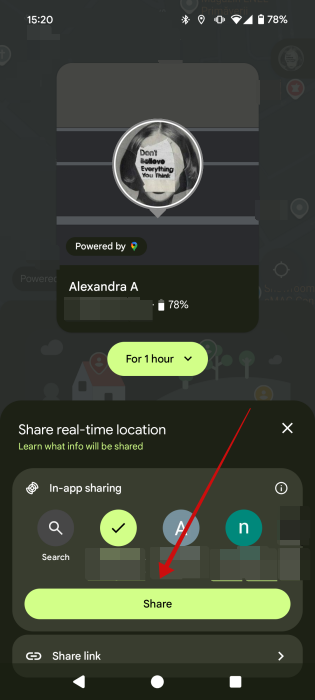
On the next screen, decide how long you want to share your location. By default, Google will share your location for 1 hour. Depending on the scenario, you might need a quick share or a longer amount, which you can set under custom duration.
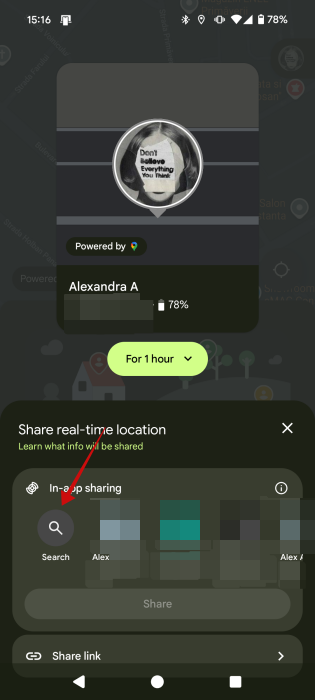
Next up, select one of your contacts under In-app sharing. You’ll notice that the options include only contacts with associated Google accounts. You will see some suggestions based on your interactions, but if you can’t find the contact, just use the Search button.
Once you’ve selected a contact or more, press the Share button.
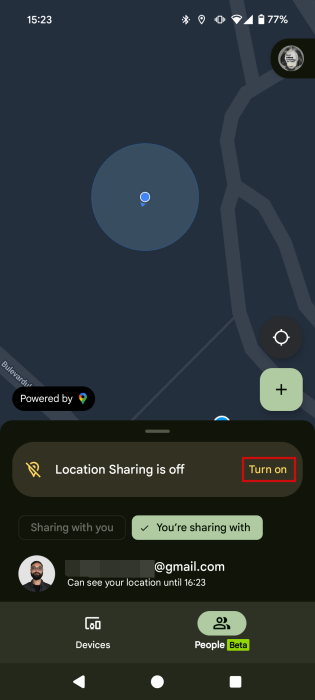
Now you should see the person you’ve shared your location with appear below.
Note: if you haven’t enabled on Location Sharing, you can do so from within the app by tapping on Turn on.
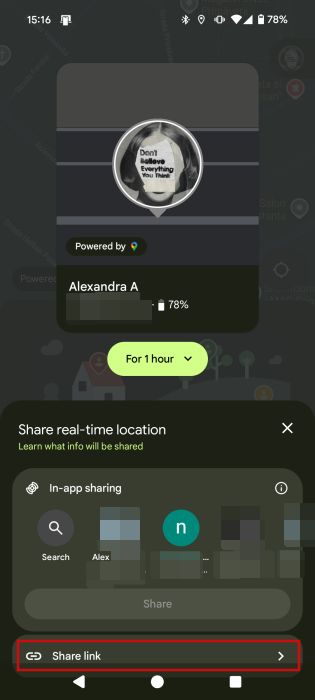
Alternatively, you can opt to Share a link. In this case, keep in mind that anyone with a link will be able to see your name/photo, and location. If you want to proceed, press Share in the pop-up.
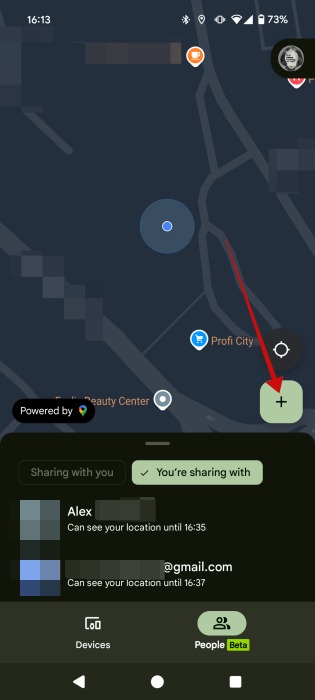
In case you wish to share your location with another person (after adding the first), press the + button.
Tip: did you know there’s a similar Find My Device functionality for Windows computers? Here’s how to take advantage of it.
Viewing Someone’s Location with Google Find My Device
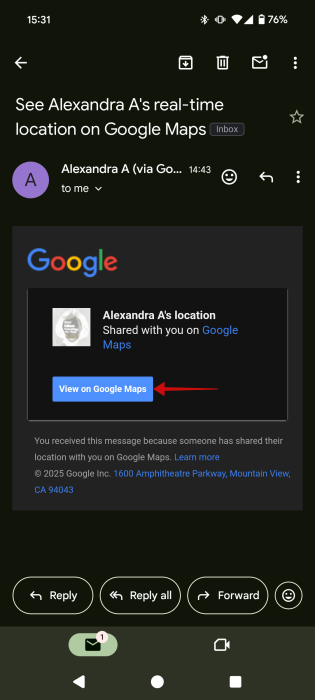
When someone shares their location with you via Find My Device, Google will notify you via email. You can open the email and press on the View on Google Maps button to view your contact’s location in a browser window.
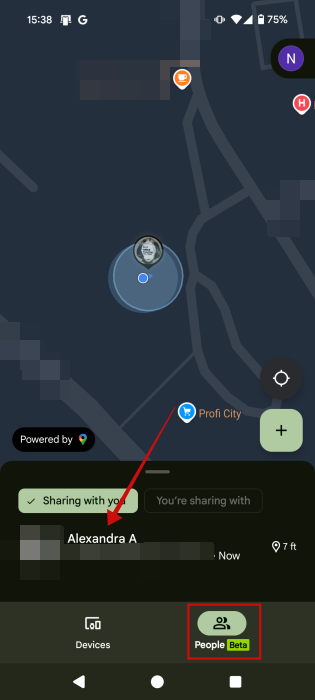
Or, if you have the Find My Device installed on your phone, just open the app, and you should see the other person’s location on the map under the People tab. Multiple people can share their locations with you at the same time.
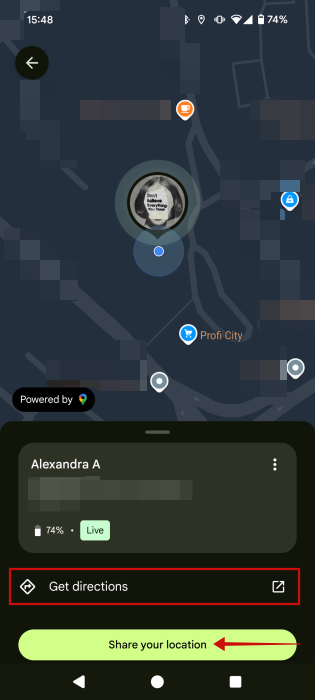
Press on one of the names visible in this list. On the next screen, you can opt to Get directions to their location. Alternatively, you might also want to Share your location with them.
Your loved one’s location is also visible from Find My Device on PC. You’ll just have to be logged in with your Google account to view it. Switch to the People tab, and it should be right there.
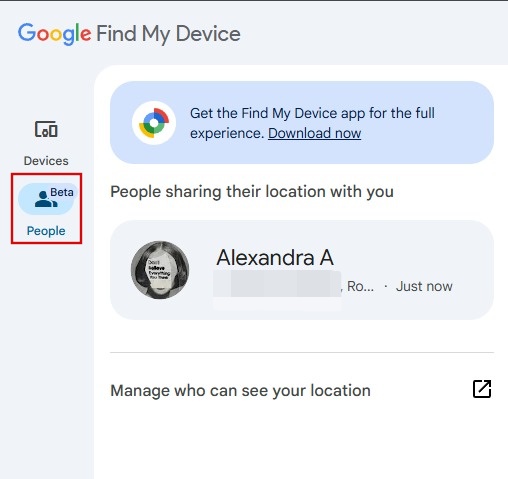
Note: you can’t initiate a location sharing session from Find My Device on PC.
How to Stop Sharing Your Location Using Find My Device
If you’re done sharing your location, select an email address from the list of people in Find My Device.
Press the Stop sharing button.
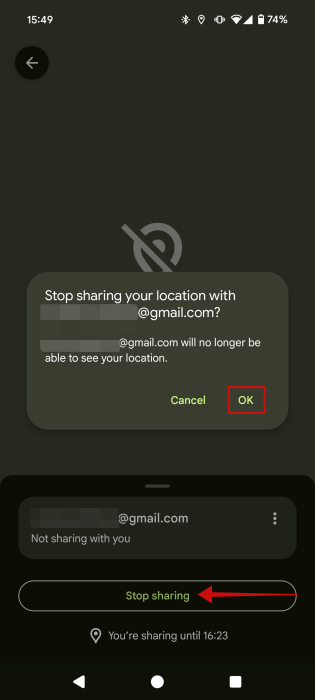
Tap OK in the pop-up to confirm.
FYI: this is how to enable flash notifications on your Android and never miss an alert again.
Stop Notifications When Sharing Location with Find My Device
When you share your location with Find My Device, Google will send out notifications to the contacts you shared with when you move away from or back to the initial location. Well, you can opt to disable these notifications.
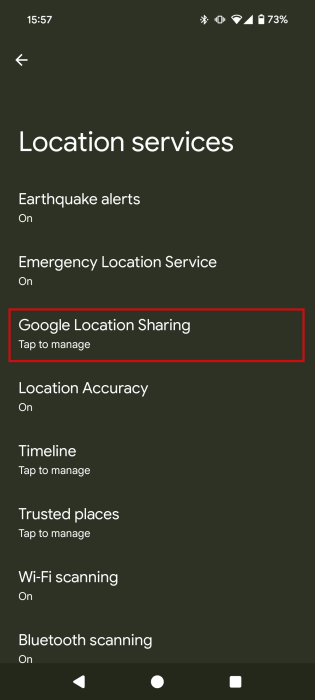
Go to your device’s Settings -> Location -> Location services -> Google Location Sharing.
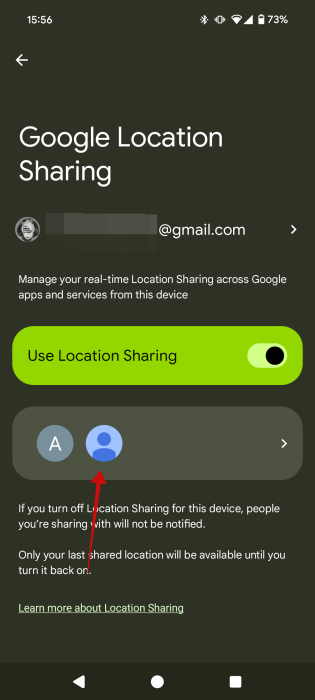
Press on the profile pictures shown below the Use Location Sharing toggle.
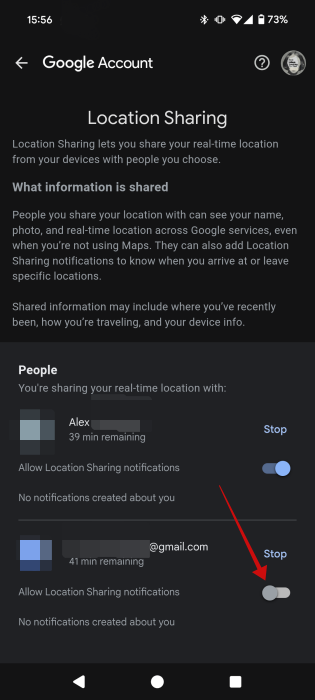
Turn off Location Sharing for the wanted account.
If you want to check what else you can do with Google’s Find My Device, check our post on the matter, which also includes information regarding Apple’s Find My. On the other hand, if you’ve lost a Samsung Galaxy phone, here’s how to retrieve it.








