


We all have our favourite way of sharing images on the Internet. From social media to image hosts, getting an individual picture out for all to see has never been easier. When it comes to large amounts of pictures, however, things get a little troublesome. Some social media sites have a maximum amount of images you can upload in one post, meaning you have to wrestle with limitations to get them to your friends and family. It’d be much easier if you could create an album of these images and then just share a link to it on social media, wouldn’t it?
Thankfully, the popular image host Imgur supports this. Using their album feature, you can assign multiple images under one album, then share the album as an individual link without having to reupload the images to every website. Here’s how it works.
Making an Album
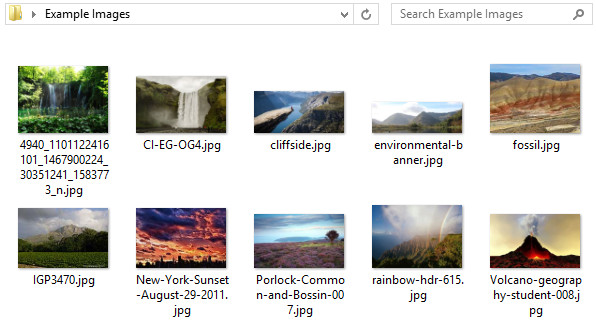
First, you need to collect the images you want to upload in one easy-to-access place. In this example I’ll be aiming to share this album of ten photos with my friends, so I’ll put them all in one spot.
Next, head over to Imgur. You can do this by going to www.imgur.com. While it’s not essential, it is recommended you make an account before uploading your album. This means your album will be associated with your account and allows you to easily add, edit, and erase photos from it.
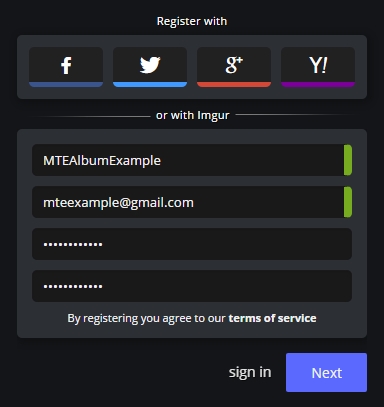
Now that you have a user account, you can make albums and have them saved to your username. You can do the following steps without an account, but you’ll lose valuable control over the album, such as setting its visibility.
Creating an Album Using Drag and Drop
Now that you’re ready to make your album, creating one is incredibly easy. Go to the main Imgur front page, select all your images you want to upload in your image folder, and then directly drag them into the browser window, like the following image.
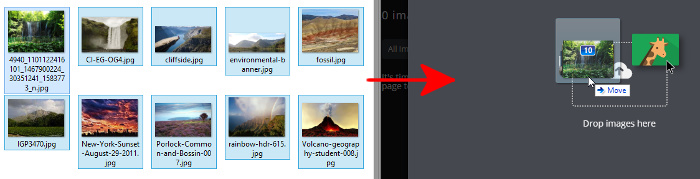
Imgur will upload all of these images to your account and also sort them into an album for you. Before you edit the album any more, give it a distinguishing name so you can easily find it later.
Creating an Album Manually
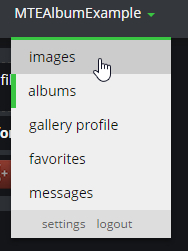
If dragging files doesn’t work out well for you, you can make an album manually. You can do this by hovering over your name at the top-right and clicking “images.”
Here, click “Add Images” and select the images you want.
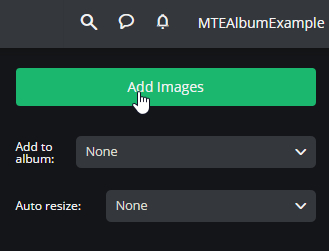
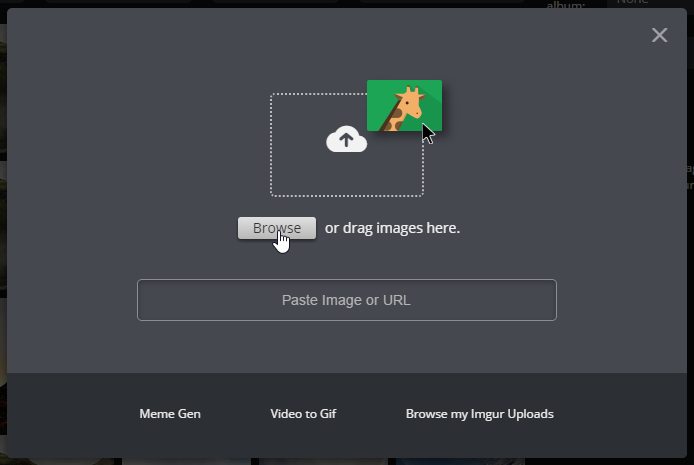
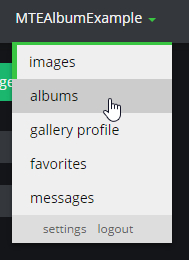
Once you’re done uploading the images, hover over your name on the top-right and select “Albums.”
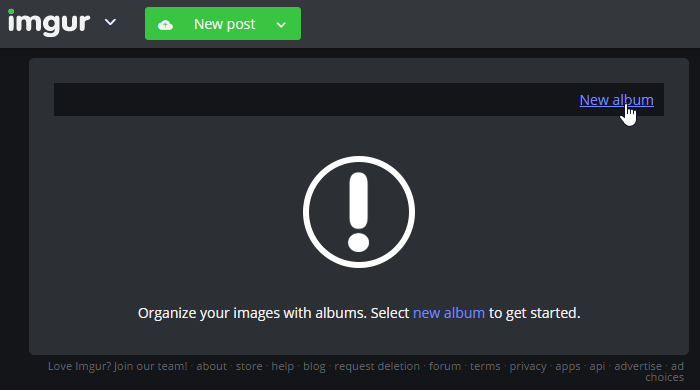
Here, click “New Album.”
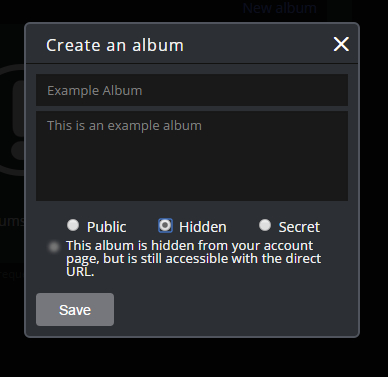
You can name your album here and give it a description. You can also set its visibility settings here. “Public” means people can see it on your Imgur profile. “Hidden” means people need a direct link to view it. “Secret” means only you can see it, regardless of whether someone else has a direct link.
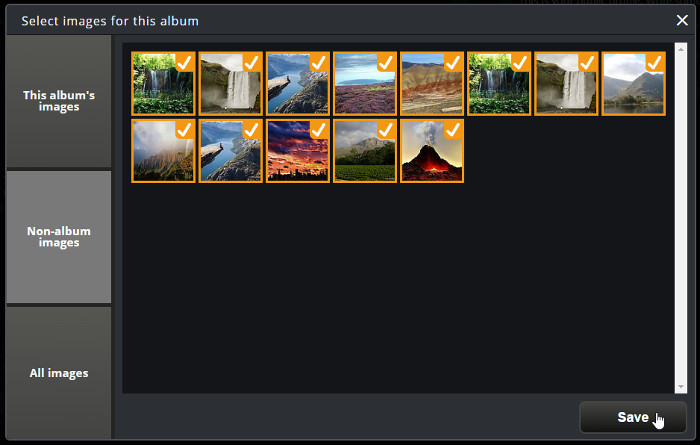
Once created, it will ask you to add images to the album. Select all the images you uploaded earlier, then click Save.
Describing and Sharing Your Images
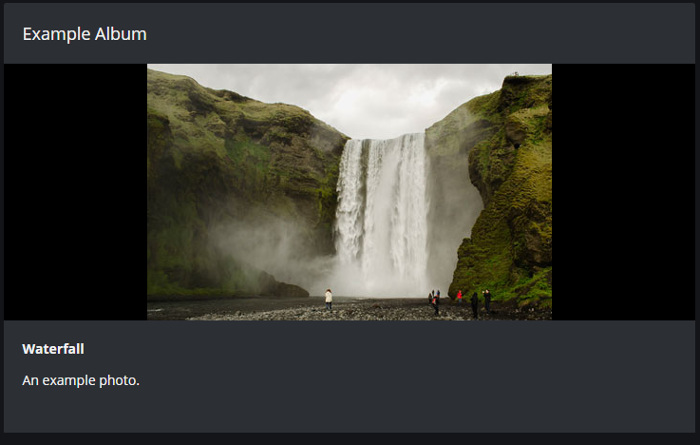
Either route you take, you’ll now have a named album full of pictures. You can then go through your album and add titles and descriptions for each image in case you want to talk about them a little.
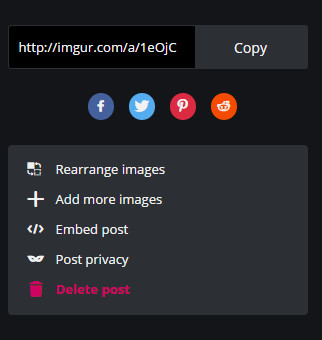
In order to share this album online, you can use the sharing tools on the right. It supports a few social media platforms as well as the ability to direct link it wherever you like.
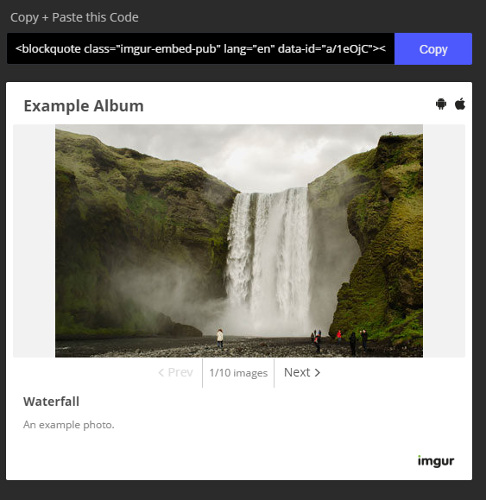
Even better, if you want to host the album on a website, you can use the “embed post” feature. This will give you a code you can then paste where you wish to show the album. You can also see a preview of how it’ll look on your website.
Sharing Is Caring
Sharing images and photos is a well-supported aspect of social media, but handling huge quantities of images can still prove tricky. With Imgur’s album functionality, however, you’ll be able to easily create albums to share with family, friends, or anyone you want to share them with.
Do you have a favourite way of displaying large groups of images at one time? Let us know below!