

For most of us, Spotify has long since replaced compact disks (CDs) and other hard-copy music mediums. The online music platform lets you search and play virtually any song, podcast, recording, or playlist. If you want to share a playlist with friends or family, you can do that too! You can even share a collaborative playlist so that your loved ones can help you add more songs to the mix.
Tip: is your Spotify web player not working? We have the solutions!
[mte_toc]Sharing Your Playlist on the Desktop App
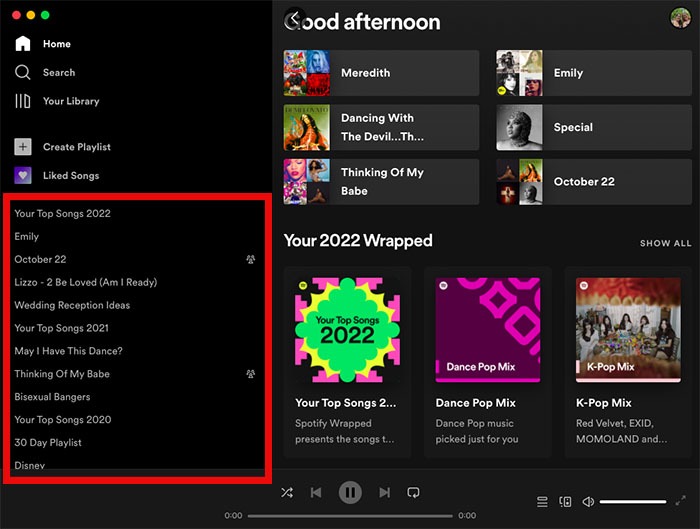
- Open your Spotify Desktop app.
- In the menu on the left, select the playlist you want to share and click to access it. (Note: You can also use the “Create Playlist” button to make a new playlist.)
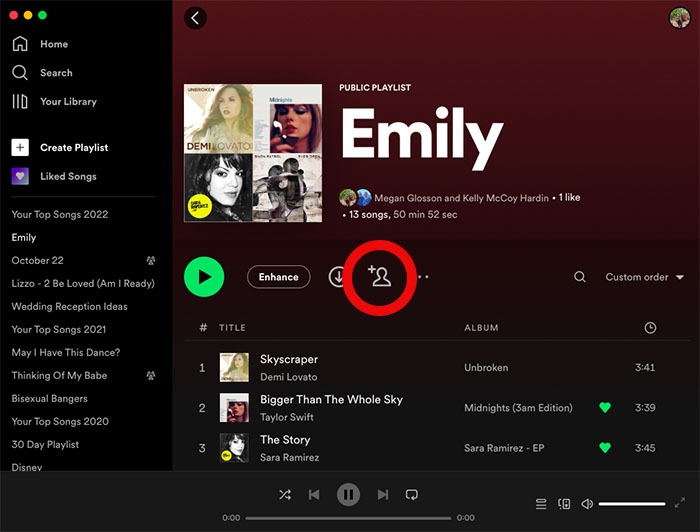
- When the playlist opens, click “Invite Collaborators” (the silhouette icon with a plus sign) to create and copy a unique link to the playlist, which you can share with those you’d like to add as collaborators.
- When you share the link, the recipient will be directed to join the playlist. From there, you will be able to control the access as a collaborator from the playlist menu.
Good to know: Trying to decide between music streaming services? Read our comparison of Spotify vs. Apple Music.
Sharing Your Playlist on the Spotify Mobile App
- Open the Spotify app.
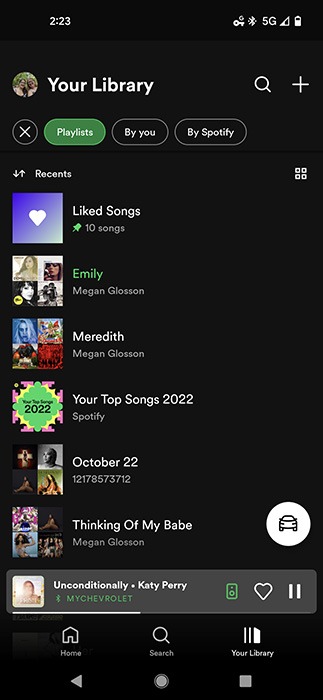
- From the Home screen, go to “Your Library.”
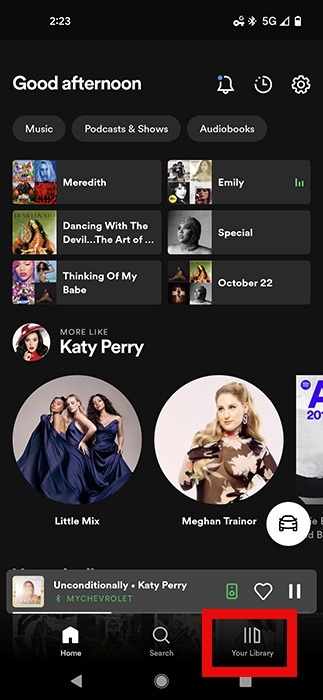
- Tap the playlist you wish to share from your list of playlists and albums. (Note: You can also tap the Create Playlist icon (the plus sign (+) in the upper-right corner of the screen) to make a new playlist.
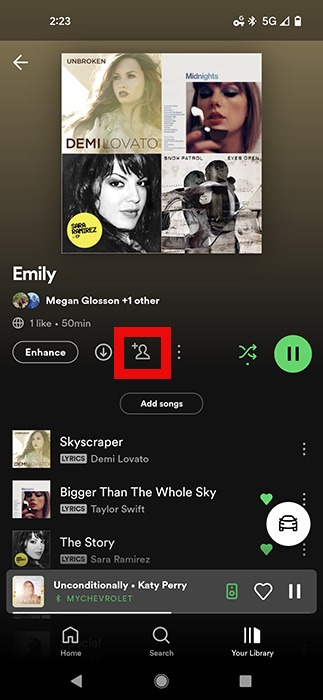
- Once the playlist opens, tap the Invite Collaborators icon (the silhouette with a plus sign).
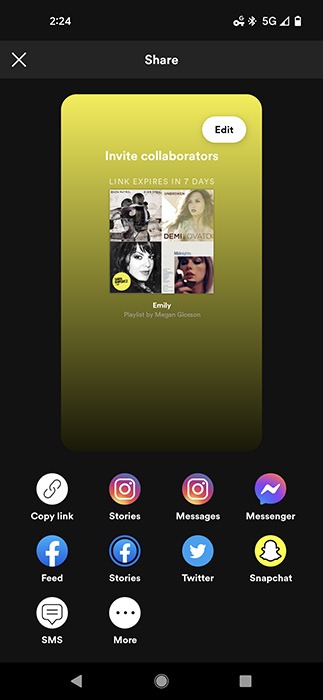
- Choose your preferred method to share the playlist, then wait for the other person to click the link to join the playlist.
Helpful hint: Do you have duplicate songs on your playlist? Find out how to remove them.
Sharing Your Playlist on the Web
- Go to https://open.spotify.com/ and log in.
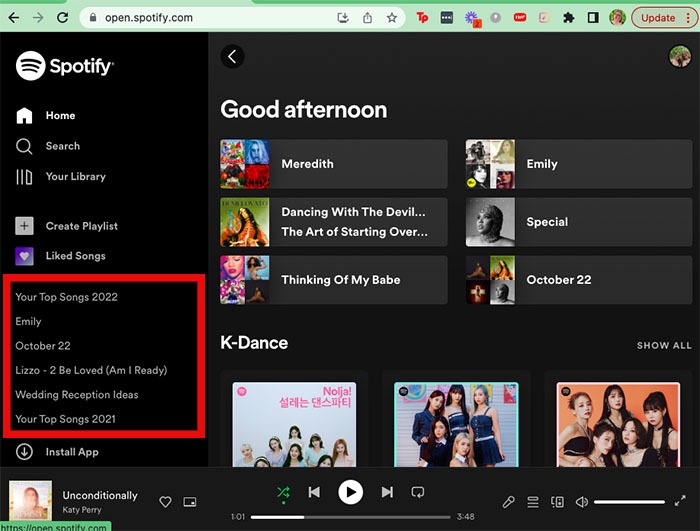
- In the menu on the left, select the playlist you want to share. Click to access it. (Note: you can also use the “Create Playlist” button to make a new playlist.)
- Click More Options (three dots) next to the Play button.
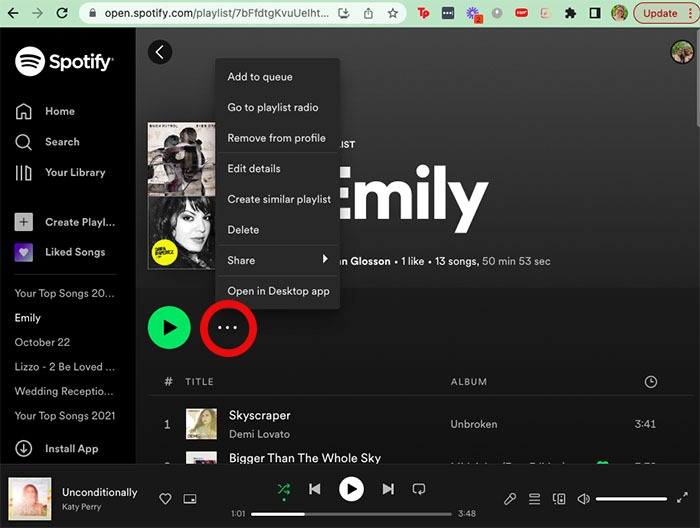
- Move down and hover over “Share,” then select “Copy Link to Playlist.”
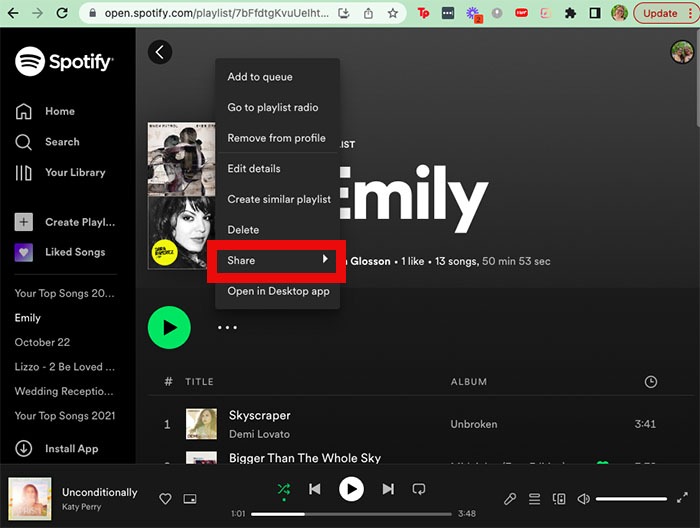
- Once you have copied the link, you can share it with others through email or any messaging platform.
Sharing an Individual Song From Spotify
- Open Spotify from anywhere and locate the song you wish to share.
- Press More (three dots to the right of the song), then “Share.”
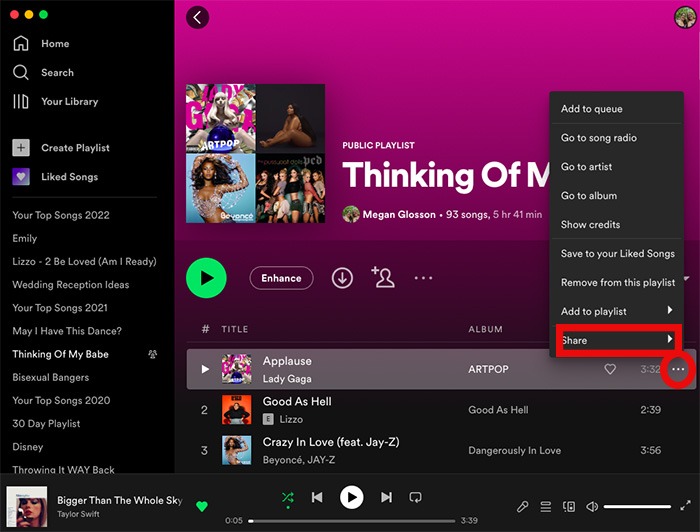
- From here, you can copy the song link and share using your preferred method.
Tip: If Spotify just isn’t your thing, check out these Spotify alternatives.
Frequently Asked Questions
Does someone need a Spotify account to join a collaborative playlist?
Yes, all users who wish to collaborate on the playlist will need a Spotify account. However, you can sign up for free, and users do not need a paid Spotify subscription to view or add songs to your playlist.
Can I remove a collaborator from a playlist?
Yes, you can! From the desktop or mobile app, navigate to the playlist where you will remove the collaborator and click on the list of collaborators. Next to each one, there is an option to remove a collaborator or user from the playlist.
Can I save a collaborative playlist someone else created to my library?
Yes, you can save any public playlists to your library, even if you didn’t create it. To do this, go to the playlist and press the heart icon to add it to your library.
Image credit: Pexels. All screenshots by Megan Glosson.