


How many times have you been asked to create a password for a website? Ok, honestly, how many of those passwords are the same? If you’re like many others, you use the same password because it is overwhelming to remember a large number of strong passwords. There is a way to secure all of your passwords with strong passwords while only having to remember one “master password.” LastPass is one web app that makes it possible.
In this tutorial we will show you how to set up LastPass on your computer.
Setting Up LastPass
1. To get started, go to www.lastpass.com.
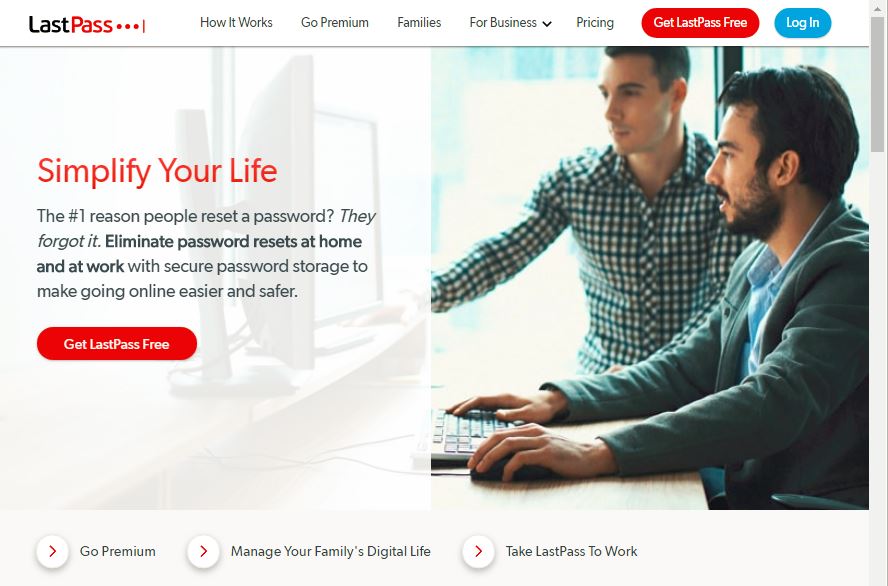
2. Click on “Get LastPass Free,” and then click on “Add extension.”
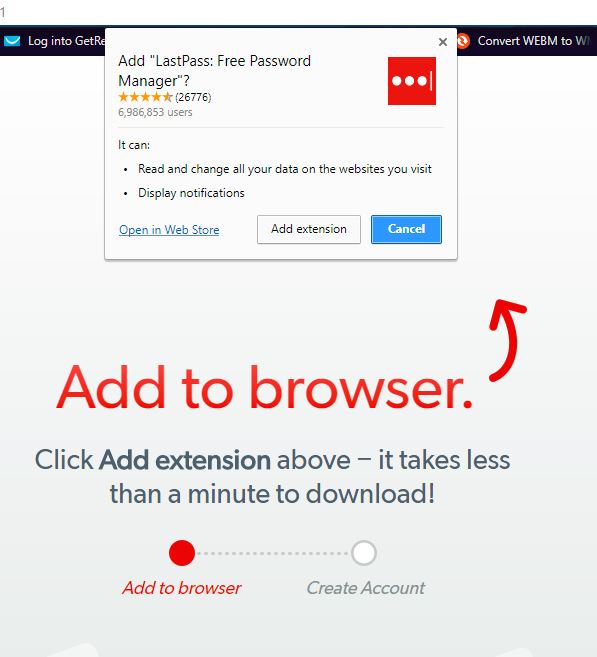
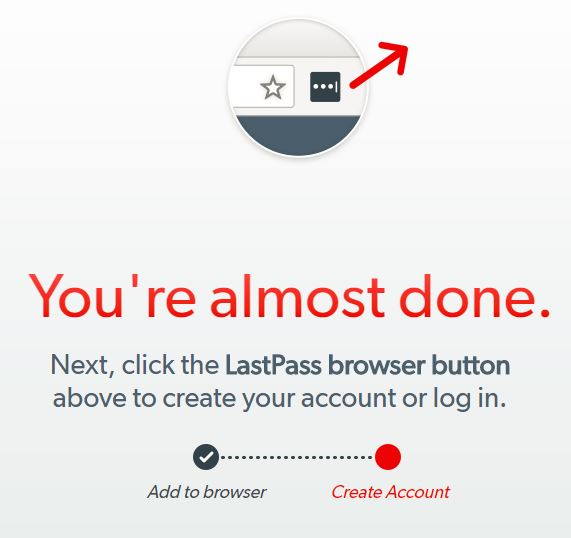
3. There will be a box with three dots in the very top-right corner of the browser. Click on that to create your account.
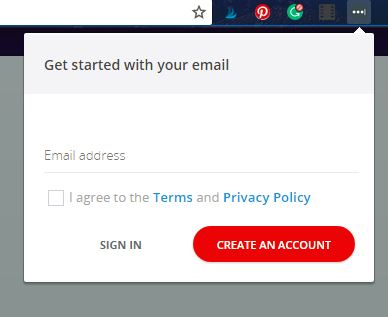
4. Enter the email you want to associate with LastPass. Click the box for the terms and privacy policy once you agree to them, then click “Create an Account.”
Adding Websites
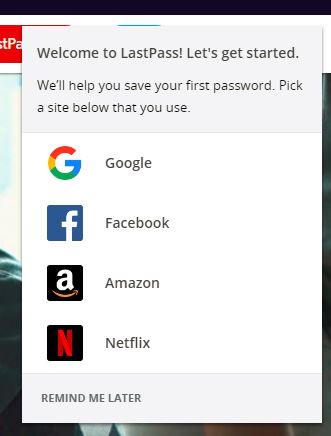
LastPass will give you a list of popular websites you may want to work with first. You can choose one of those or click “Remind me later.”
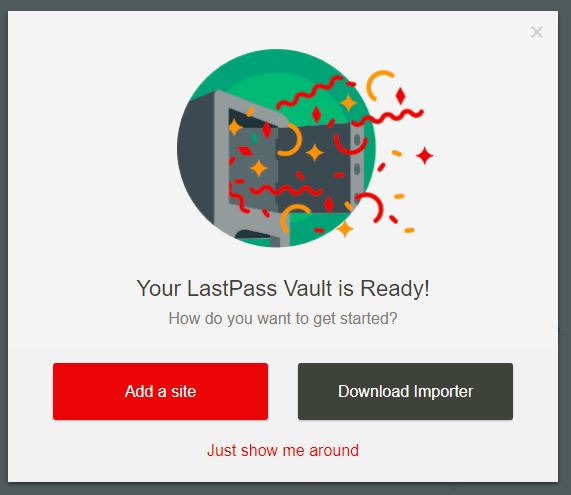
You may see this graphic, or the site may direct you to your vault, which is the main page where your information is displayed. Click “Add a Site” or on the red “+” sign at the bottom of the vault page.
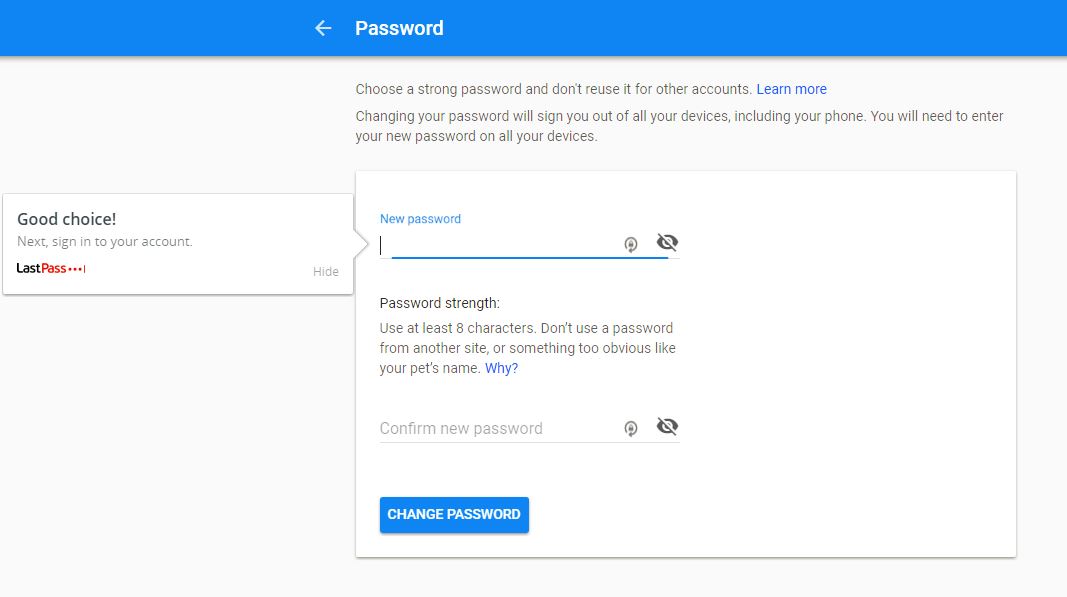
Choose a site to add to your LastPass Vault. I used my Google Account for this example (and updated my password while I was there). Your website may have different steps to take than what is displayed below.
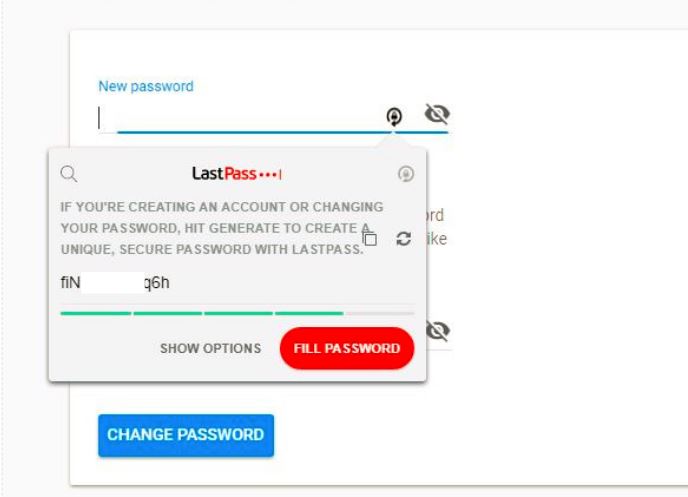
When you are adding the new password, you can type it into the box or have LastPass create a strong, secure one for you by clicking on the first symbol at the end of the password box. Once the app generates the password, click “Fill Password.”
To add this site and its password to your LastPass Vault, you need to enter your email in the box that appears in the top-right corner and then click “Add.”
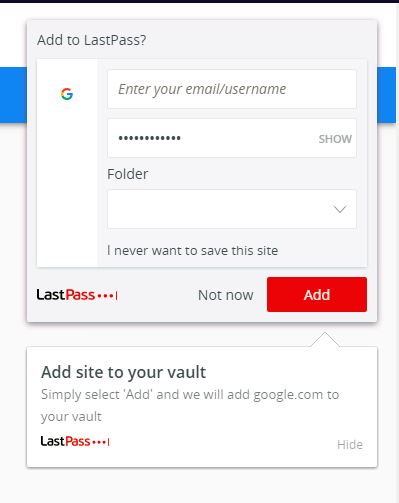
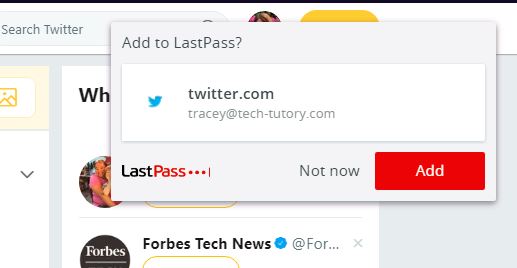
To add another site, all you have to do is access the site and find the option to change the password. After you’ve chosen a new one, the box you see here will appear. Click to add it to your vault.
Saving Other Information
LastPass does more than just save passwords. It can save other important information so you always have it at your fingertips when you need it.
When you click the “+” sign at the bottom of your main vault page, these options will appear.
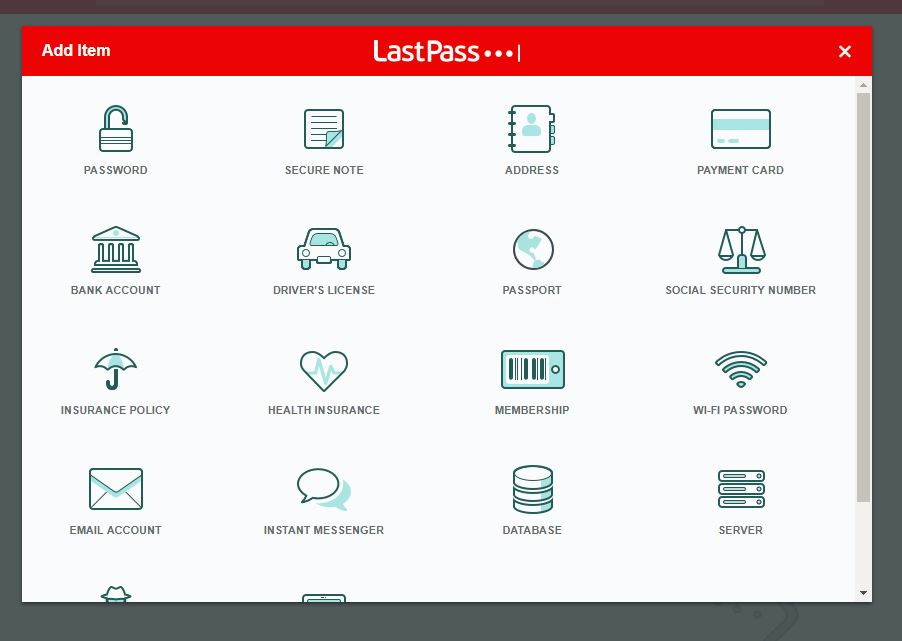
Select the one you want to add and fill in the data. An icon for the data will appear in your vault. Don’t worry – it only shows partial information so no one can view it over your shoulder.
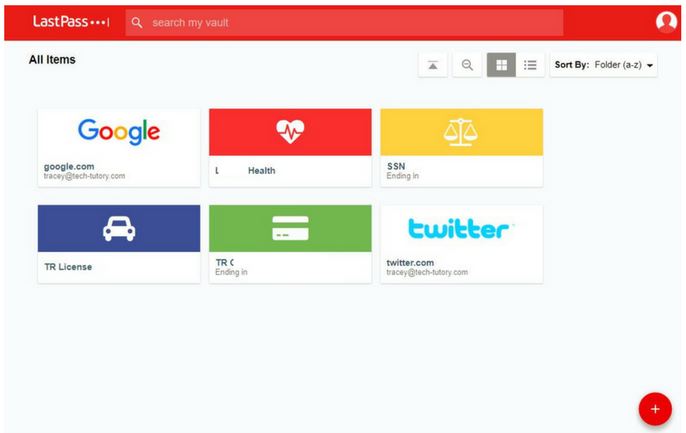
Organizing Your Information
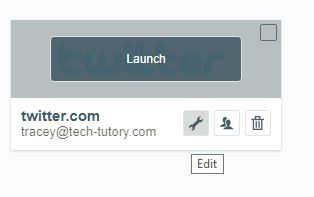
You can sort your data into folders for easier access. To do so, just select a site and hover over the icon, and then click on the wrench to edit your information.
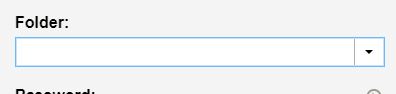
You can type a new folder name directly into the box, and it will create your folder. That will also make the folder available in the dropdown menu when you add new sites to your vault.
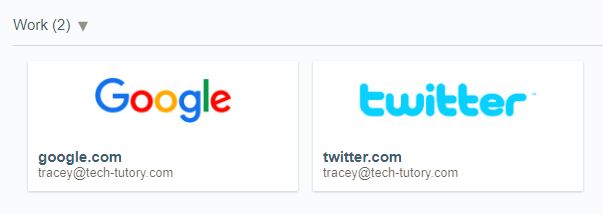
Here you can see how I added a folder for work sites. The program now lists these sites separately from the other information at the top.
Any time you create or change a password while using that browser, LastPass will ask you if you want to save it. That reminds you to use a secure password and keep it in your vault.
You can also use the security challenge option you see in your vault. It will take you through the necessary steps to better secure your passwords.
Conclusion
Once you have the password manager installed and your passwords updated, you may want to explore other features of LastPass like using multi-factor authentication, sharing passwords with other people, granting emergency access to your account to another member of your family, and securing private notes.
Using a password manager will help you create and use more secure passwords, and therefore you will be less likely to be hacked. Once you’ve installed LastPass, you can rest easier knowing your information is more secure than ever.