
Wiki.js is a powerful open-source wiki platform built on Node.js. It supports both Markdown and WYSIWYG editing, real-time collaboration, version control, and flexible authentication options, including Google and LDAP. In this guide, we’ll show you how to set up Wiki.js with Docker so you can get your wiki up and running in just a few minutes.
Install Wiki.js Using Docker Compose
Using Docker and Docker Compose, it is incredibly easy to set up wiki.js. First, create a directory named “wikijs-docker” and access it using the cd command:
mkdir wikijs-docker && cd wikijs-dockerAfter this, create a “docker-compose.yml” file in any text editor:
nano docker-compose.ymlAnd then, paste the following content in this file:
services:

  db:
    image: postgres:16
    environment:
      POSTGRES_DB: wiki
      POSTGRES_PASSWORD: wikijsrocks
      POSTGRES_USER: wikijs
    restart: unless-stopped
    volumes:
      - db-data:/var/lib/postgresql/data

  wiki:
    image: ghcr.io/requarks/wiki:2
    depends_on:
      - db
    environment:
      DB_TYPE: postgres
      DB_HOST: db
      DB_PORT: 5432
      DB_USER: wikijs
      DB_PASS: wikijsrocks
      DB_NAME: wiki
    restart: unless-stopped
    ports:
      - "80:3000"

volumes:
  db-data:
Save and close the file, and then start the containers using the following command:
docker compose up -d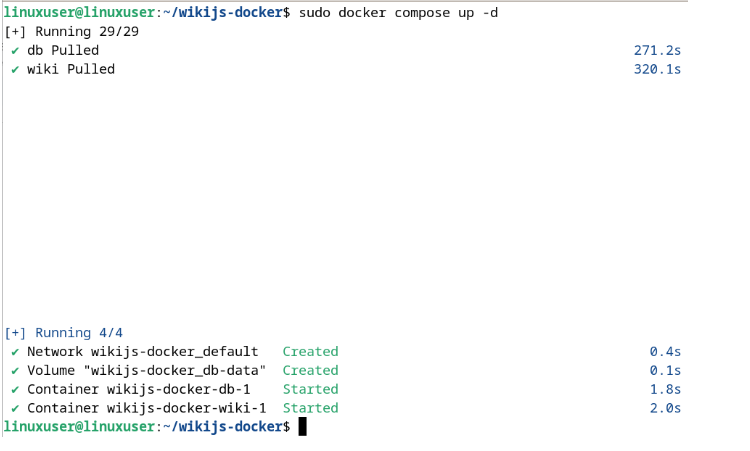
Once the setup finishes, open wiki.js in your browser at http://localhost. Specify the admin account details and click the Install button to begin the installation:
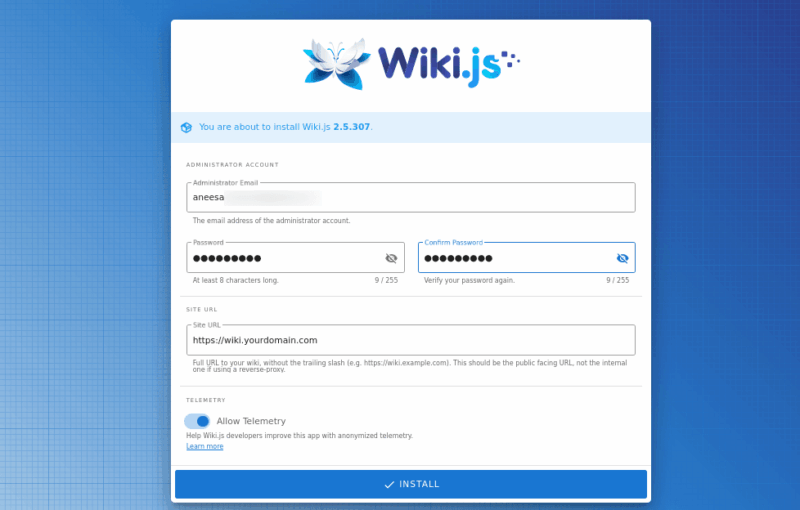
After installation, enter your credentials to log in.
Creating and Managing Pages in Wiki.js
Now you can create the home page to start adding content or access the administration panel to manage settings, users, and features:
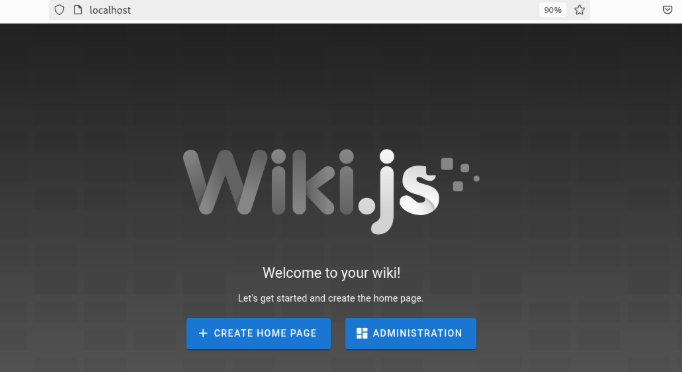
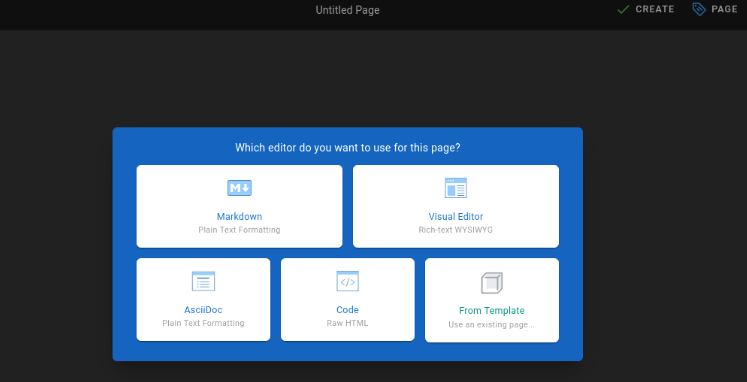
If you click the Create Home Page button, you’ll be asked to select an editor for the page. Select the one based on your preferences and requirements:
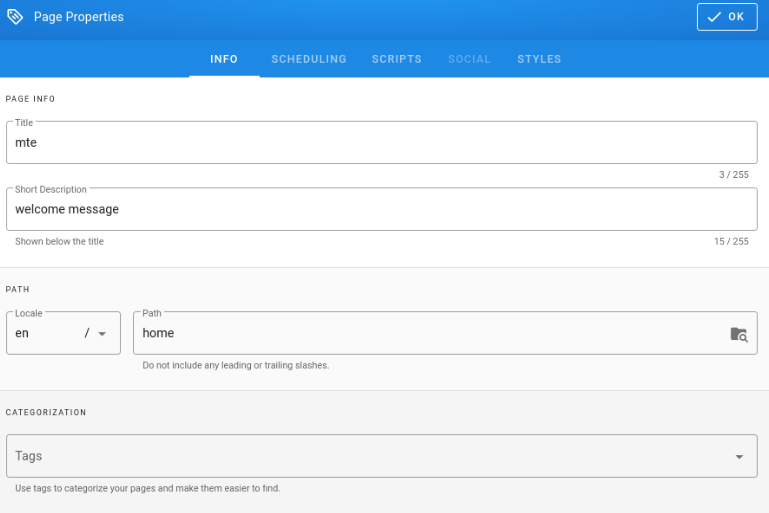
Specify the page properties and click on the OK button to create a new page:
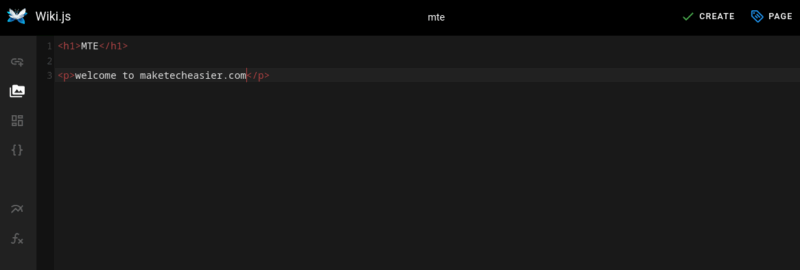
Write whatever you want and click the Create button to create the page:
Manage and Organize Content
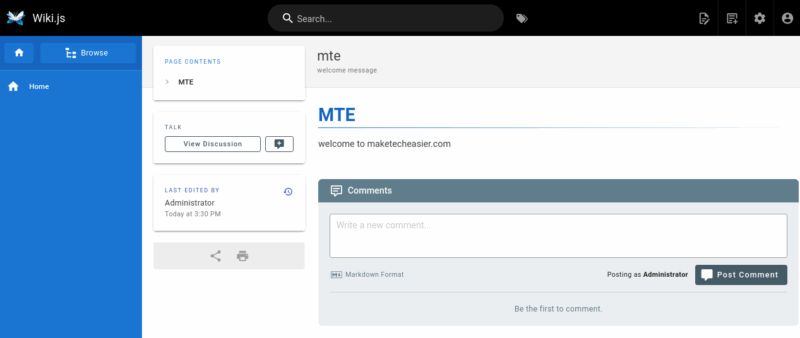
On the dashboard, you can view and edit existing pages, create new pages using your preferred editor, and organize your content by moving, renaming, or deleting pages. You can also add tags to categorize content effectively. Additionally, the sidebar and search bar make it easy to quickly navigate to specific pages within your wiki:
Wiki.js Site Settings
In the Wiki.js administration panel, you can configure site settings such as locale, navigation, themes, and tags. These options help define the global configuration of your Wiki.js instance.
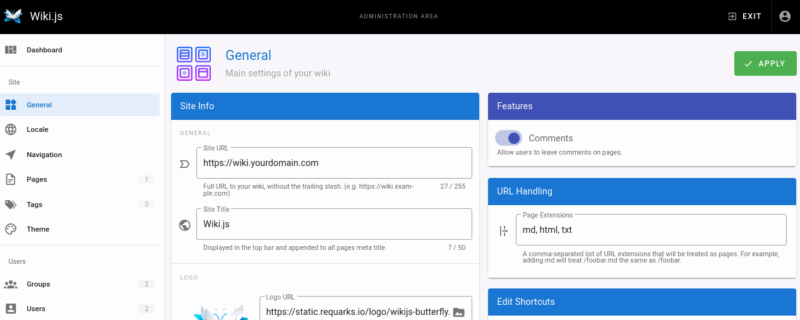
You can configure basic site-wide settings in the General tab, such as site title, description, default homepage, and site visibility (public or private):
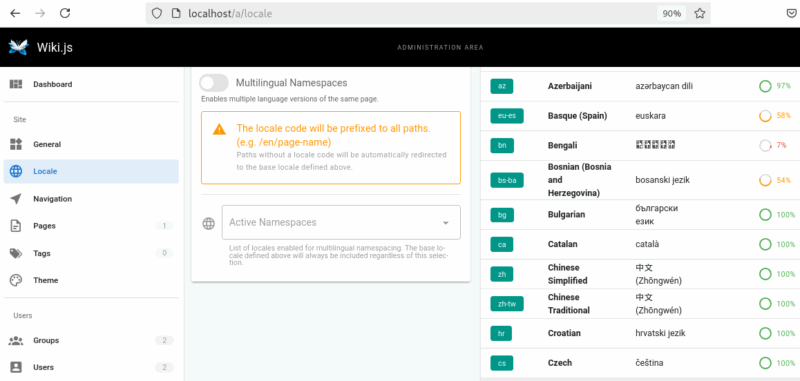
Navigate to the Locale tab to set the default language, timezone, and date/time formats used across the site:
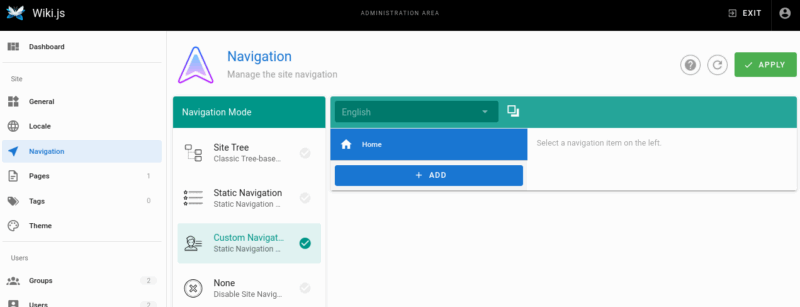
To manage the structure of your wiki’s menus and control how users browse content, go to the Navigation bar.
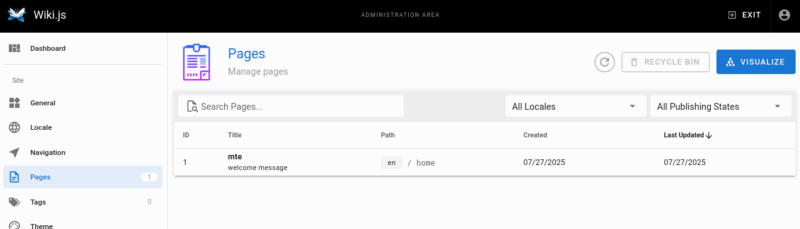
In the Pages tab, you can view, manage, and organize all the wiki pages. You can create new pages, edit existing ones, or manage page hierarchy.
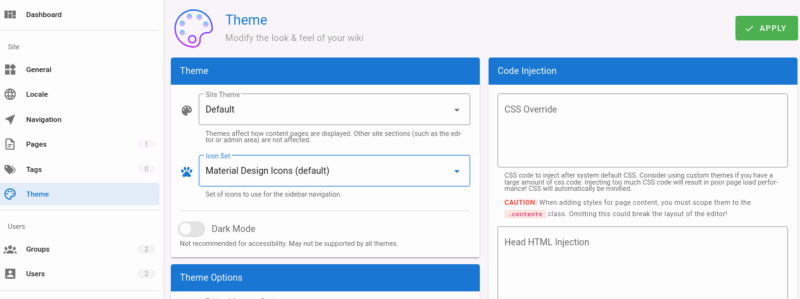
You can also create and manage content tags under the Tags tab to help categorize pages and improve searchability. Similarly, you can modify the look and feel of your wiki from the Theme tab. For example, you can modify the site logo, colors, fonts, and layout themes.
Manage Groups on Your Wiki
In the Groups section, you can create user groups, assign members, and set group-level permissions to control access. Use groups to organize users by role and manage their access consistently across your wiki.
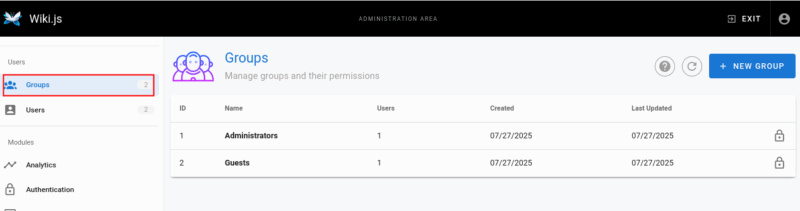
You can click on a particular group to update its settings, permissions, page rules, and manage users within that group. The Settings tab allows you to configure options like the redirect URL upon login.
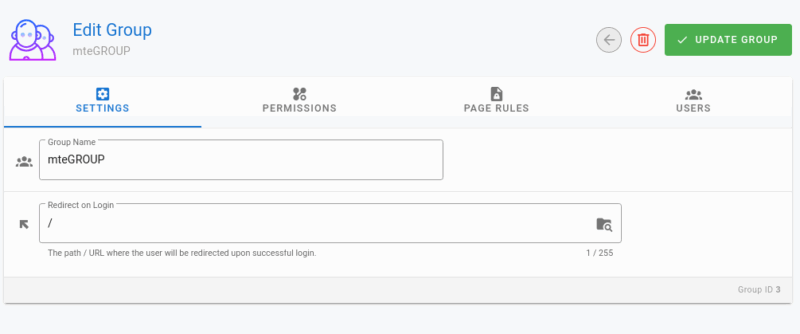
Moreover, you can navigate through the Permissions, Page Rules, and Users tabs to control what the group can access and which users are assigned to it.
User Management in Wiki.js
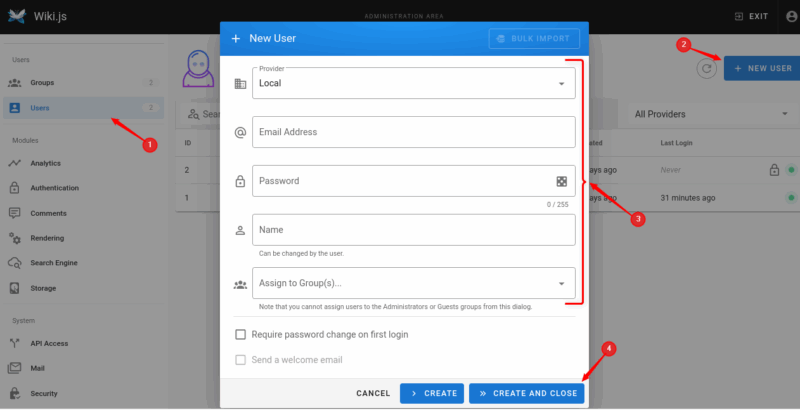
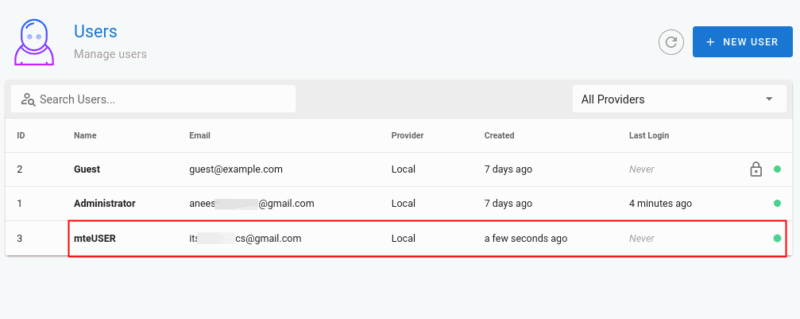
To create a new user, go to the Users section, click the NEW USER button, and specify the required details.
After this, click the CREATE or CREATE AND CLOSE button to create a new user:
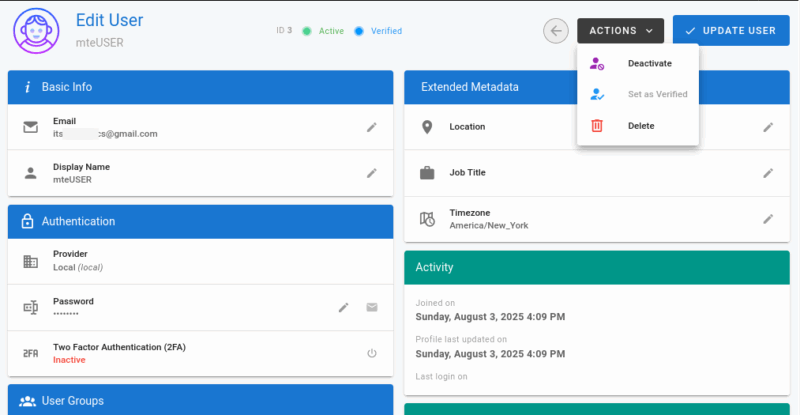
Click on a specific user to view and edit their profile, assign them to user groups, set authentication methods like passwords and two-factor authentication, and manage their status using actions such as Deactivate, Verify, or Delete:
You can also update their basic info, extended metadata (like location and job title), and monitor their activity history:
Manage Your Wiki Modules
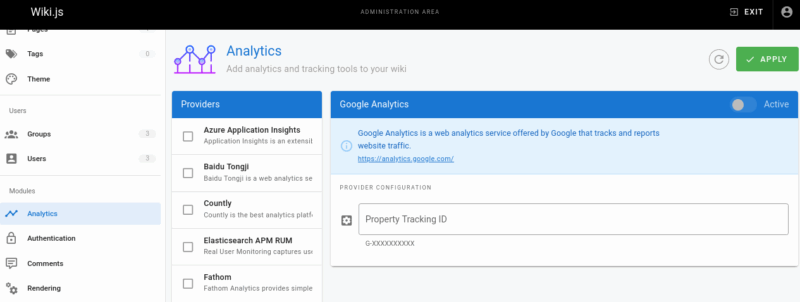
Modules are optional features that enhance Wiki.js functionality. For example, the Analytics module allows you to enable and configure integrations like Google Analytics to track user behavior and traffic on your wiki.
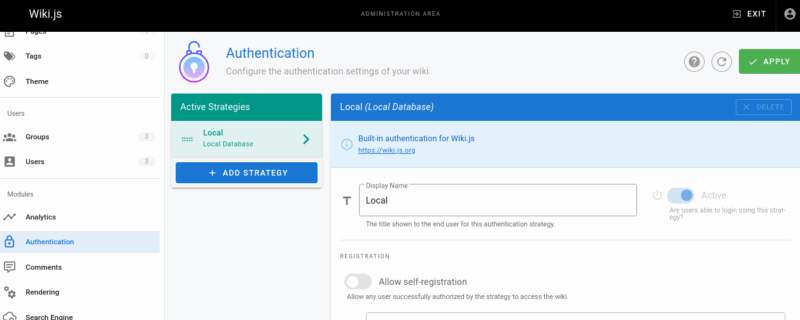
Use the Authentication tab to set up and manage authentication providers (like local login, LDAP, OAuth) and configure login options.
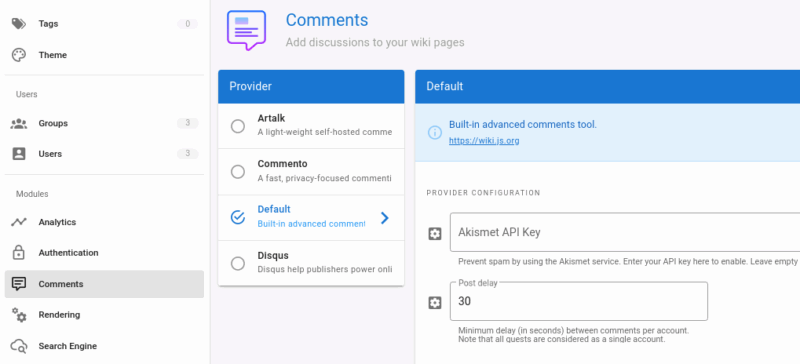
You can enable or disable the commenting system and choose how users interact with page discussions.
System Configuration
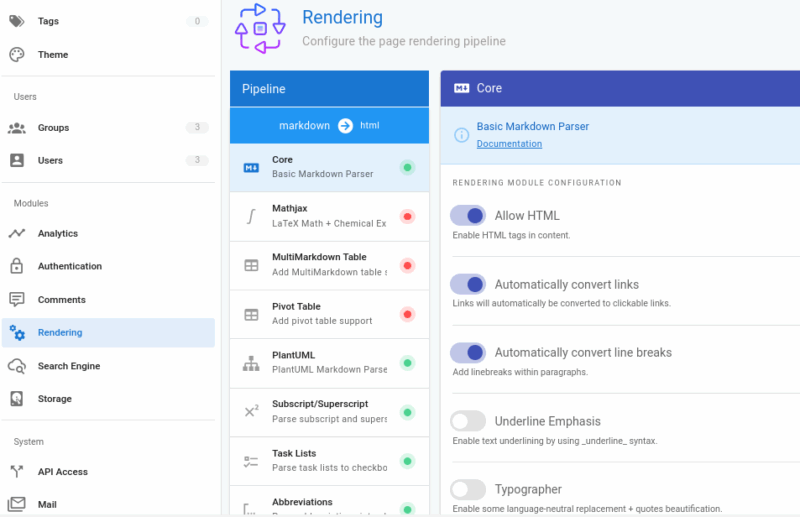
You can also manage how content is rendered, searched, and stored by configuring rendering engines, search indexing, and storage options. For example, you can navigate to the Rendering tab to customize how content is rendered, such as Markdown engine settings or support for diagrams, math expressions, etc.
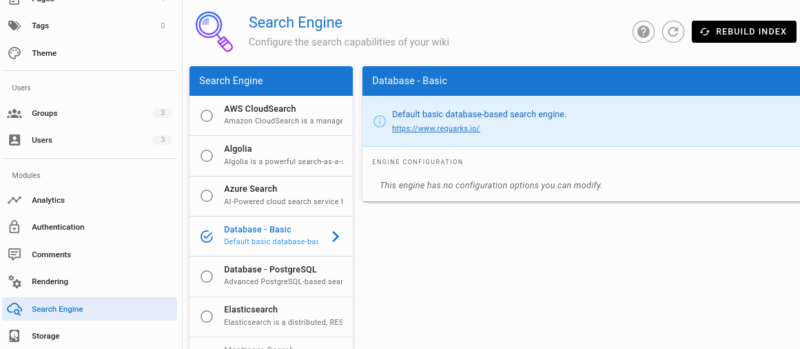
In the Search Engine section, you can configure internal search indexing options and integrations with search engines:
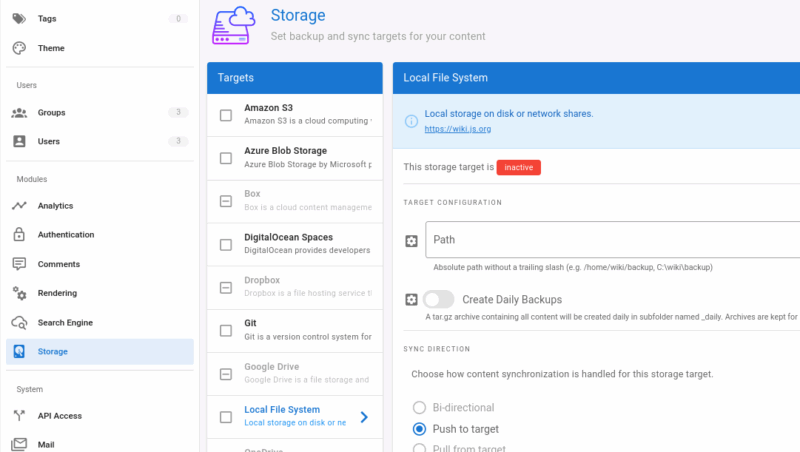
Go to the Storage section to set backup and sync targets for your content. Here, you can manage where and how media and page attachments are stored (local filesystem, AWS S3, etc.):
Manage Security & Connectivity
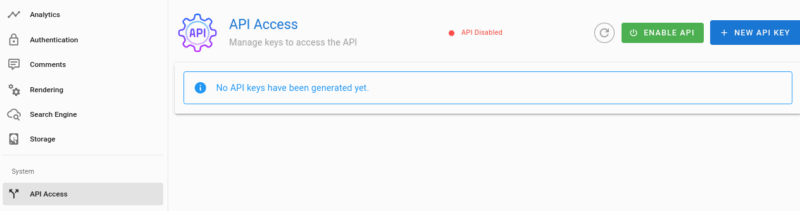
You can manage security and connectivity by configuring API access, setting up email for notifications, adjusting security policies, and enabling SSL to secure your Wiki.js site. For example, you can manage API tokens to integrate Wiki.js with external systems or your own custom applications:
We can set up outgoing email settings to handle notifications, invitations, and password recovery in Wiki.js.
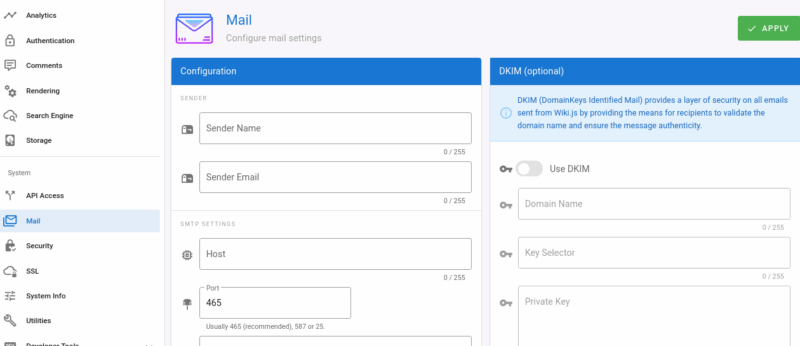
You can configure Security settings like session timeouts, password policies, and access restrictions.
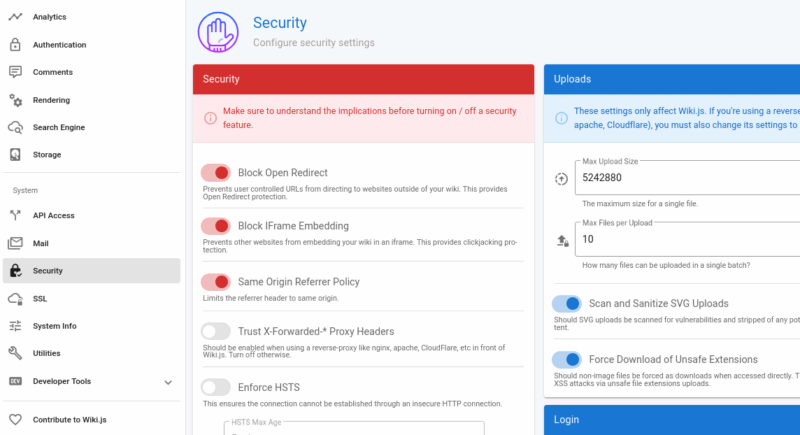
Apart from this, you can set up SSL/TLS certificates to secure your Wiki.js site with HTTPS.
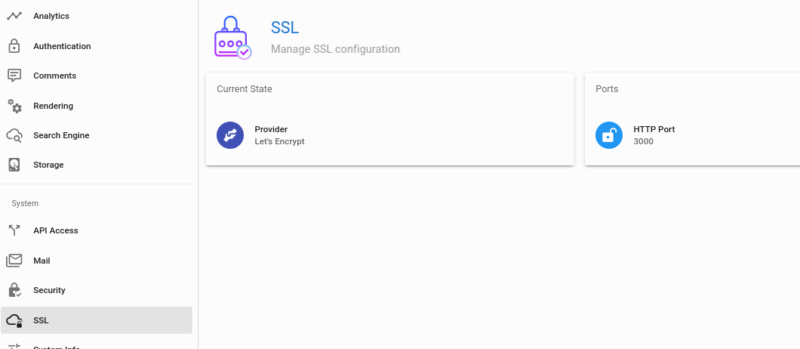
Other than that, you can confirm your Wiki info, such as view system diagnostics, server details, and runtime environment stats, from the System Info section.
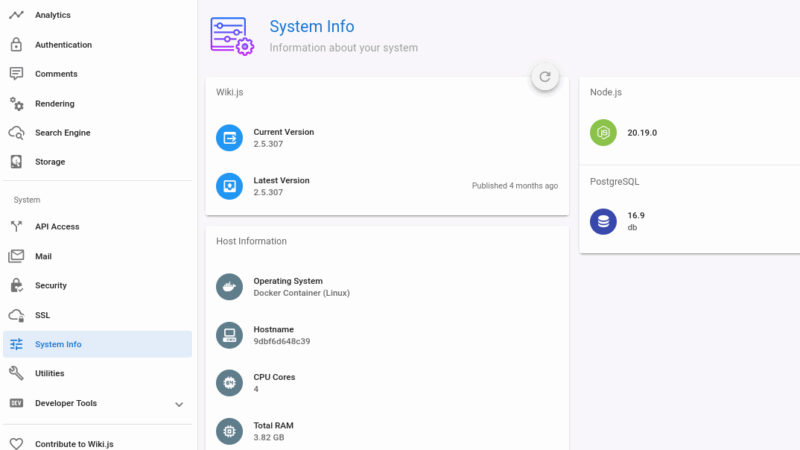
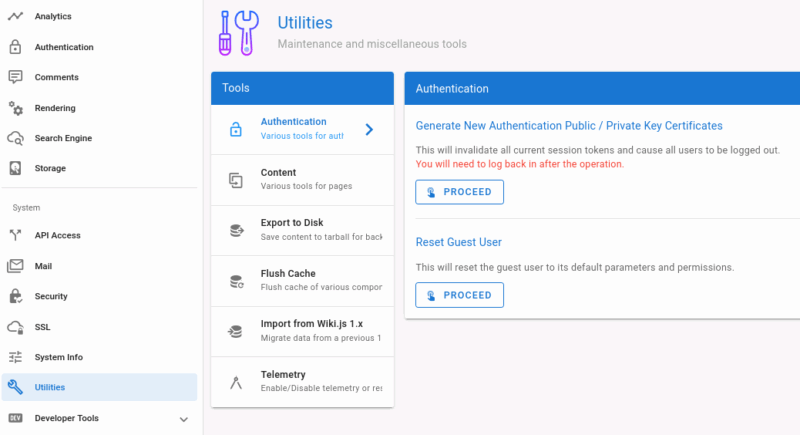
You can perform maintenance actions like reindexing the search, clearing caches, or resetting configurations from the Utilities tab.
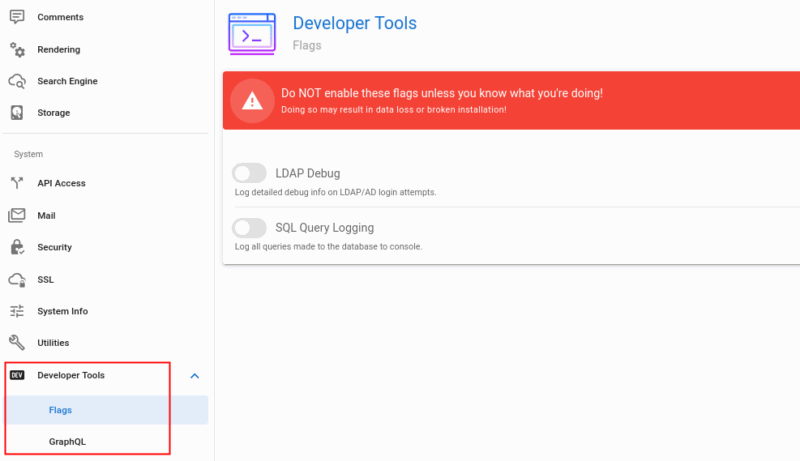
Finally, the Developer Tools let you access advanced tools like GraphQL playground, debugging logs, or custom scripts:
Now that you’ve learned how to set up Wiki.js with Docker, you can use it to build internal documentation, team wikis, or even public knowledge bases with ease. If you’re still weighing your options, check out our DokuWiki vs Wiki.js comparison to see which platform is the right fit for your project.








