
Do you want to code from anywhere without having to bring your laptop everywhere you go? You can try code-server, a powerful self-hosted app that brings the full functionality of Visual Studio Code to your web browser. Instead of relying on third-party cloud IDEs, you can set up a code-server on your homelab server and access it securely from any device. Setting up code-server ensures a consistent and accessible development environment, while your code and data stay under your control.
What is Code-Server and Why Self-host It?
Code-server runs VS Code on a remote server, letting you access it via a web browser. It works like the desktop version, supporting auto-completion, debugging, Git, and extensions. It’s perfect for low-powered devices like tablets or Chromebooks, as all development happens on the server. This keeps your setup consistent and accessible from anywhere.
Self-hosting gives you full control, privacy, and the ability to customize your environment, from using your own domain and enabling HTTPS to manage user access and scaling resources.
Good to know: Mastering VS Code keyboard shortcuts can boost your productivity. Check out this handy cheat sheet to get started!
Set Up code-server on Linux
Installing code-server is easy. We will be using Docker for the installation.
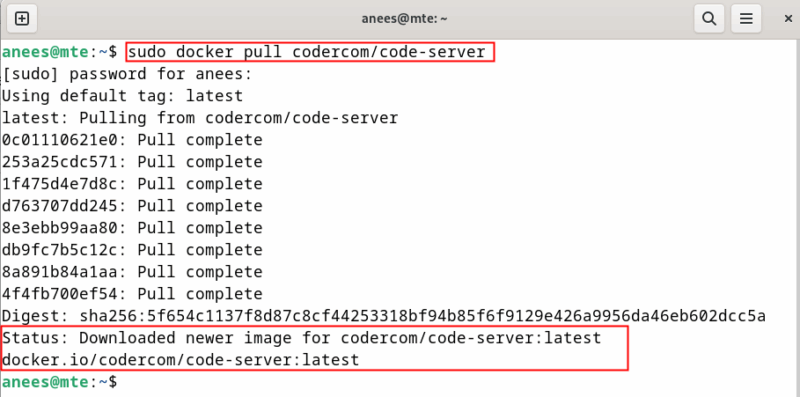
Run the following command to download the official code-server image from Docker Hub:
sudo docker pull codercom/code-serverIt ensures you have the latest version of the image available locally before creating a container.
Next, start a new code-server container in the background with a custom password and persistent storage:
sudo docker run -d --name code-server -p 8443:8080 -v "$HOME/code-server-data:/home/coder/project" -e PASSWORD="my_password" codercom/code-server
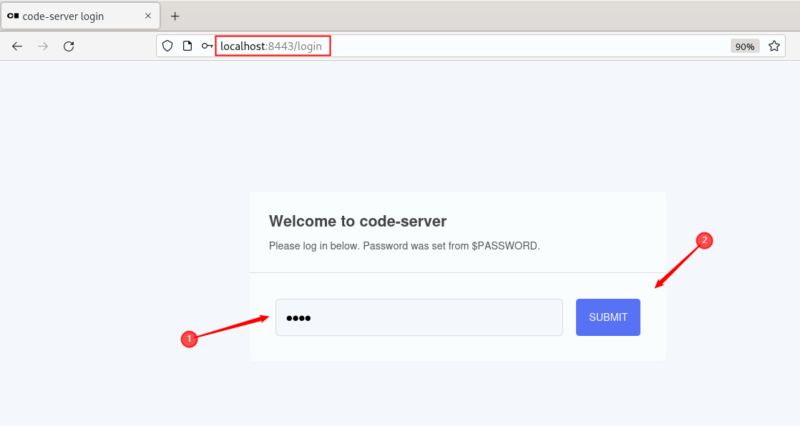
After setting up the code-server, you can access it from your browser by typing http://localhost:8443. Enter the password you set in the docker run command and click the Submit button to login to code-server.
Get Started With Code Server
Once you log in, you’ll see an interface that looks just like the regular desktop version of VS Code. Here’s a quick overview of what you’ll find:
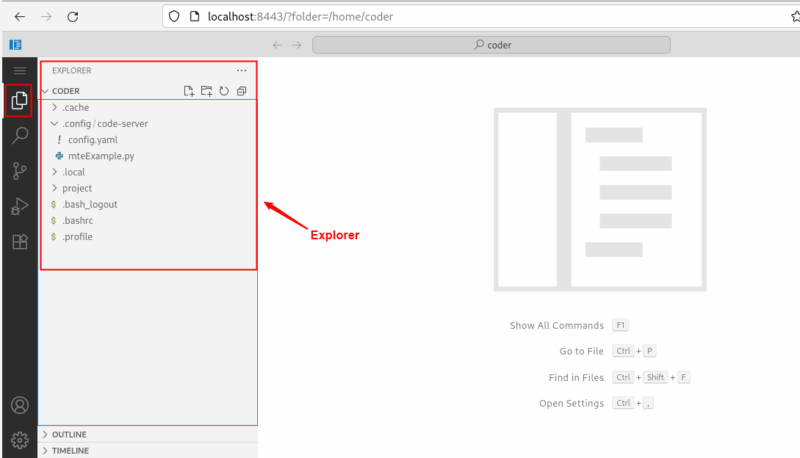
File Explorer
Explorer helps you navigate through your project. You can browse through folders, open files, create new ones, and manage your project structure with ease.
Editor
The editor is the center area and serves as your main workspace. When you open a file, it appears here.
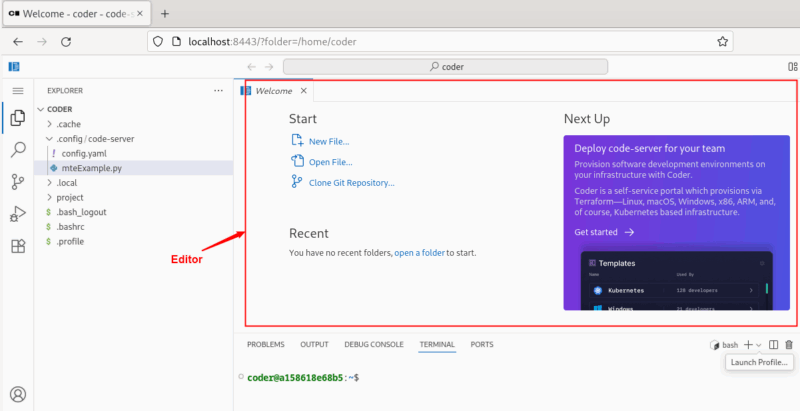
Here, you can write, edit, and format code just like in the desktop version of VS Code.
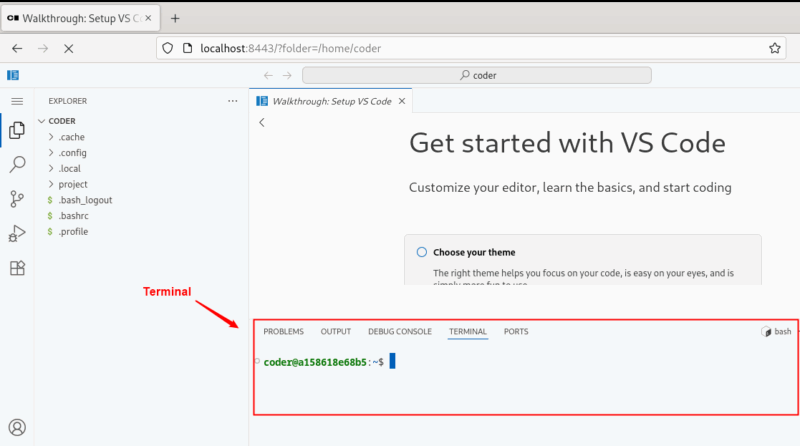
Terminal
The terminal is located at the bottom of the code server. You can open it from the top menu “Terminal -> New Terminal” or by pressing Ctrl + `.
You can also use the keyboard shortcut key Ctrl + Shift + C to access your terminal within code server.
Extensions
The extensions feature is what make the VS Code great. You can use the Extensions tab (sidebar icon) to browse, install, and manage VS Code extensions such as linters, themes, and language support.
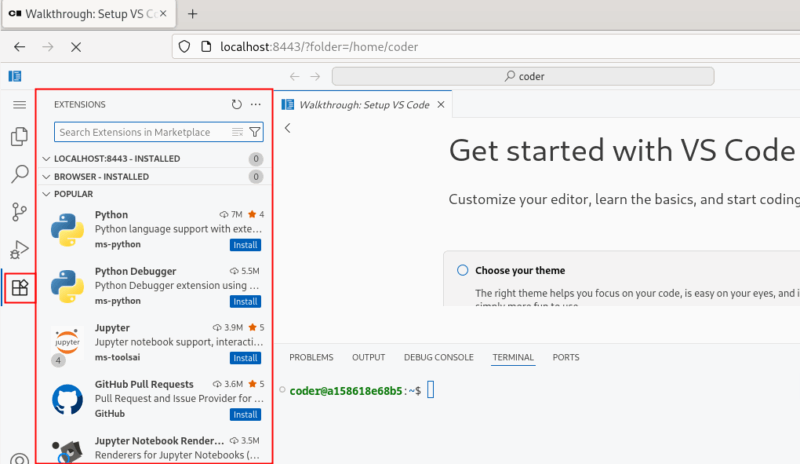
You can search for an extension using the search bar, then install and activate it instantly to add new features or enhance existing functionality.
Customizing Your Browser-based IDE
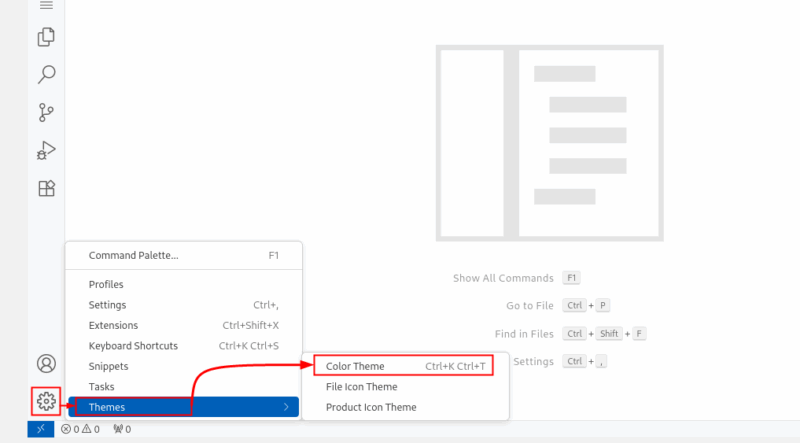
Now you can customize code-server according to your preferences, such as installing extensions, changing themes, updating settings, or modifying the configuration files. For example, to set a new theme, you can click on the gear icon in the lower-left corner, hover over Themes, and choose Color Theme from the menu:
Now, a list of available themes will appear. Click on a theme to preview and apply it.
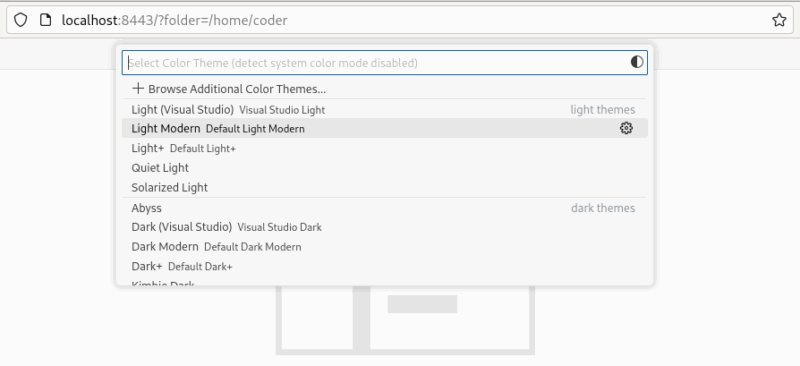
Moreover, you can easily install your preferred theme from the Extensions tab and activate it right away.
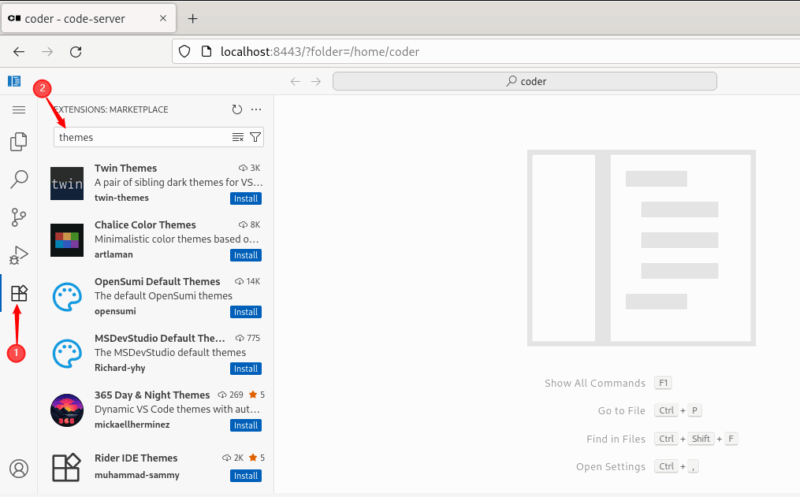
Similarly, you can customize other code server settings as well. To do this, simply click the gear icon and select Settings.
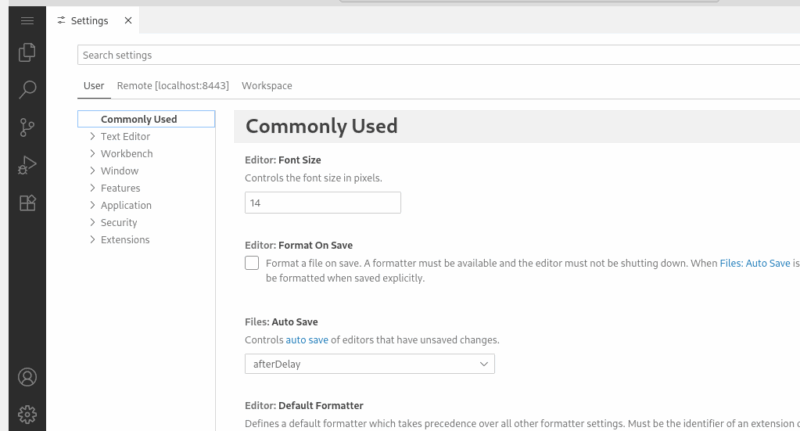
From here, you can customize editor behavior, font size, format, and much more.
Create and Run Your First Program in code-server
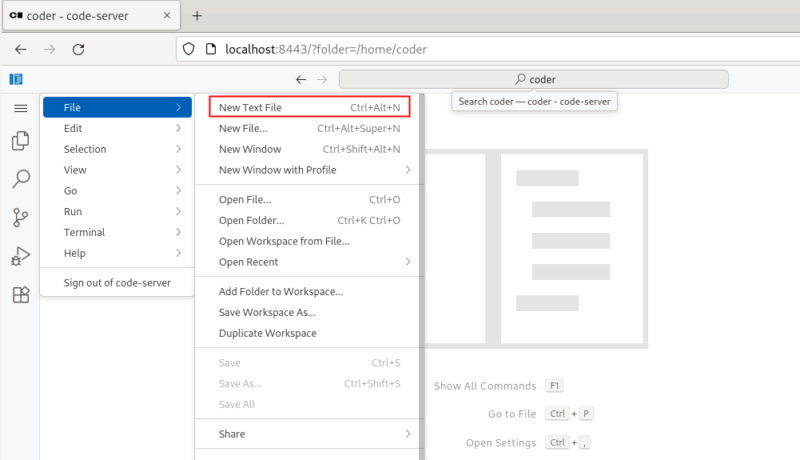
Create a new text file from the Explorer panel or by pressing the shortcut key Ctrl + Alt + N:
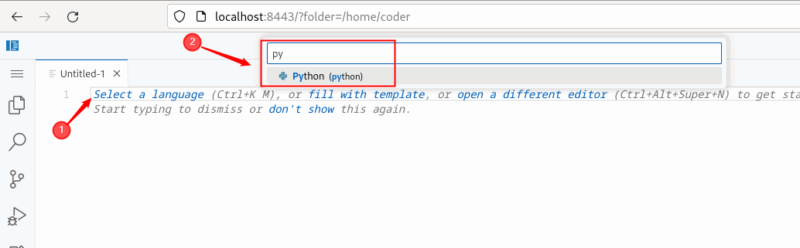
Click on Select a language or press Ctrl + K, then M to select the desired language, such as Python.
Now, paste the following code into it to print “Welcome to maketecheasier.com” three times on the console:
for i in range(3):
    print("Welcome to maketecheasier.com")
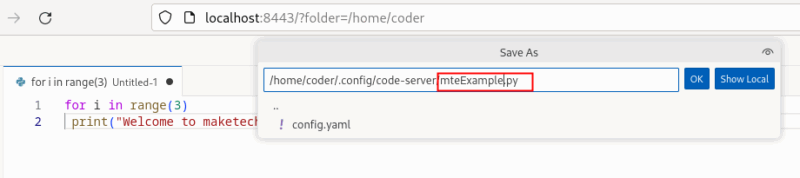
Before executing this program, make sure Python is installed. After this, press Ctrl + S to assign the file an appropriate name, then click OK to save the file:
Now, press Ctrl + ` to open the terminal and then run the Python script using the following command:
python3 mteExample.py
Now that code-server is up and running on your Linux system, you’re ready to take full advantage of browser-based development. You can customize your environment with themes and extensions, create and run code in different programming languages, and even secure access with a custom domain and HTTPS. As a next step, consider exploring how to integrate Git workflows, enable SSL for production use, or expand your homelab with other web-based tools like JupyterLab, Docker, or Portainer for a more powerful and flexible development setup.








