In response to the increased scrutiny around children’s use of AI chatbots, OpenAI has introduced Parental Controls for ChatGPT. This marks the company’s first attempt toward giving parents more control over how their kids engage with the AI. In this post, we walk you through activating Parental Controls in ChatGPT.
Good to know: ChatGPT can also run apps inside its interface. Here’s how it works and why it matters.
Why Parental Controls Are Needed in ChatGPT
Since its launch in 2022, ChatGPT has proven itself to be a powerful tool for boosting productivity and advancing human understanding. But as the technology evolves and adoption soars, many are questioning whether its safety frameworks are evolving fast enough to keep up.
This is particularly concerning, especially when you consider that children have had unrestricted access to ChatGPT since the platform first launched. The risks aren’t hypothetical either. One California family has filed a lawsuit claiming that the chatbot encouraged a teenager to take his own life, even providing detailed instructions on how to do so.
With kids increasingly relying on ChatGPT for emotional support and life advice, a growing number of experts are questioning just how much harm these systems might be capable of causing if left unchecked.
In light of these concerns, ChatGPT’s new Parental Controls are a timely addition to help strengthen user safety. Even more so, as OpenAI itself openly acknowledged that while safeguards like crisis helpline referrals are provided, they tend to be most effective during brief interactions but can become less dependable in longer conversations, where the model’s safety responses may begin to fade.
Tip: check how to personalize ChatGPT 5 to be more like ChatGPT 4o.
How to Set Up Parental Controls in ChatGPT
Parental controls are available on both ChatGPT for web and in the mobile apps. To begin, open ChatGPT and log in with your parent account.
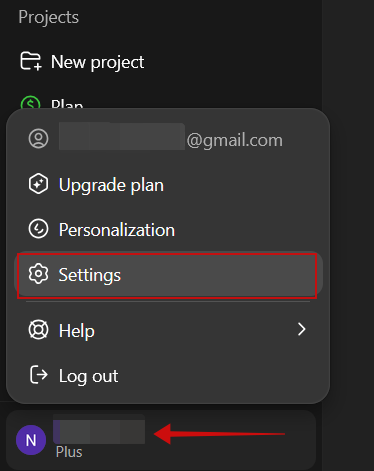
Click on your name in the lower right corner of the display. Select Settings from the pop-up menu.
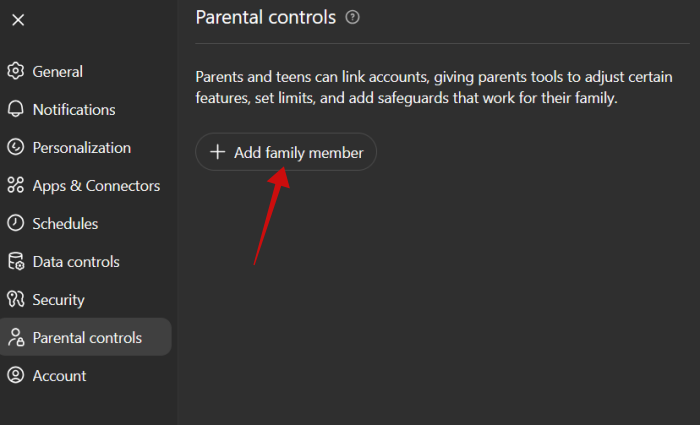
Select Parental Controls in the new window. Next, click or tap on Add a family member.
If you’re doing this from the mobile app, press the two bars in the upper right corner of the display.
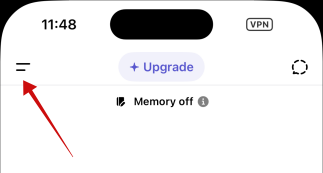
Tap your name at the bottom to go to Settings -> Parental Controls and then press the Add family member button.
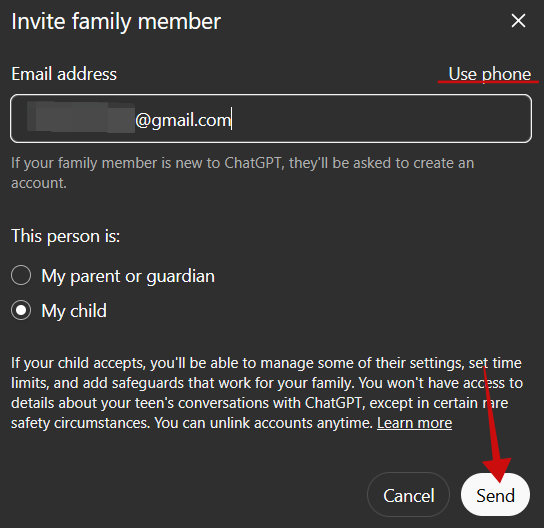
The next step is to input your child’s email address or phone number and press Send.
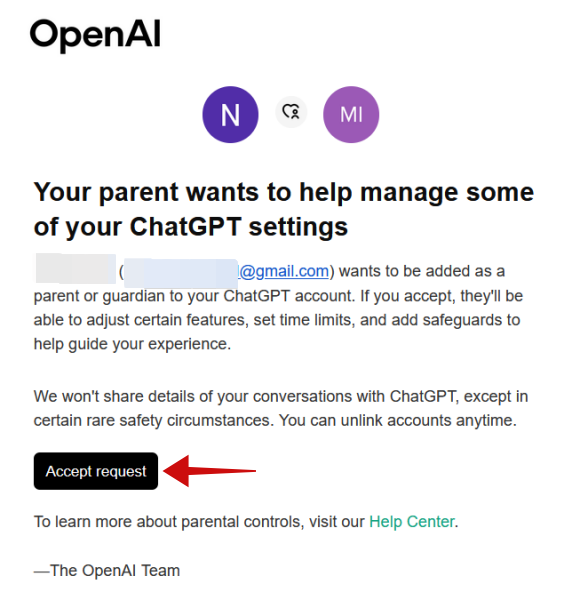
Next, tell your child to verify their email account. A message from OpenAI should be waiting. Ask them to click the Accept request button.
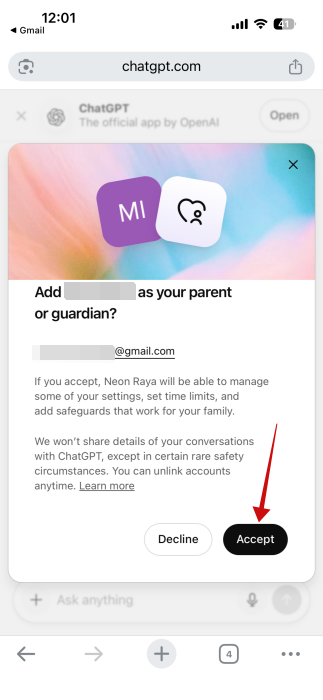
This will redirect the child to a new web page where they will be asked to log in with their own account. Next, press Accept in the pop-up, and it should connect the accounts.
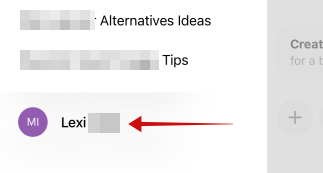
On the parent device, if you go to Parental Controls now, you will be able to see your child’s name under your own account.
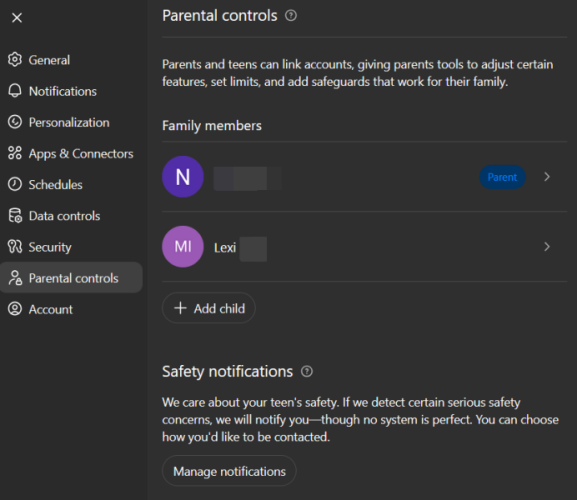
Note: a child can also initiate a pairing with a parent account.
Manage a Child’s Interactions with ChatGPT
Once the child account has been added, the parent can start managing their settings.
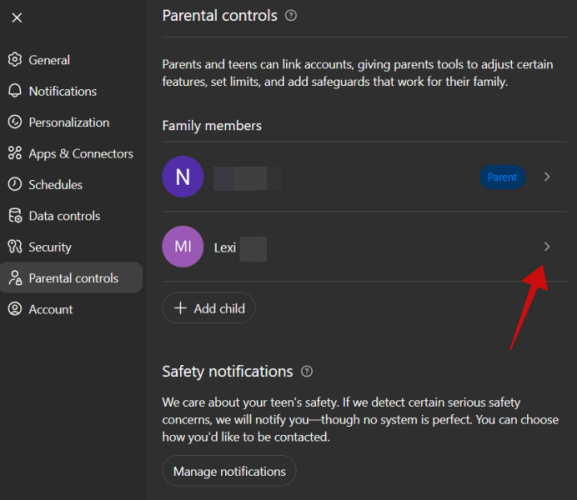
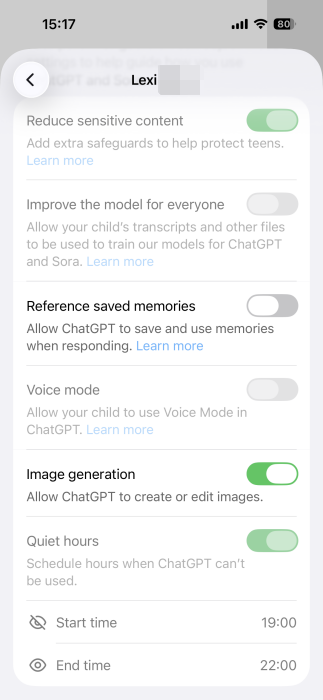
Click the child account to start. You’ll find options that allow you to control your child’s interaction with ChatGPT as well as Sora, OpenAI’s new AI video generation app.
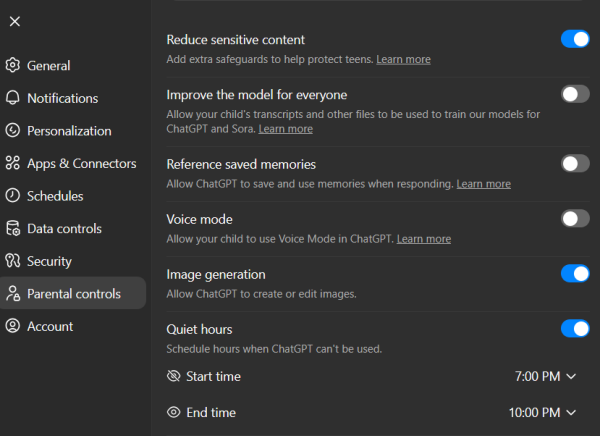
- Reduce sensitive content: this is on by default, and it helps lower exposure to graphic content, viral challenges, sexual, romantic, or violent roleplay, as well as extreme beauty ideals. We recommend that you keep this enabled.
- Improve the model for everyone: this is to allow OpenAI to use your child’s transcripts and files to train models for ChatGPT and Sora. It’s best if you turn this off.
- Reference saved memories: ChatGPT can remember details between chats, making responses feel more personalized and relevant. But to discourage an emotional connection from forming between your child and the AI chatbot, we suggest leaving this option off, as it is by default.
- Voice mode: allows your child to interact with ChatGPT using their voice. This might result in the child starting to view the AI as a real person they can always chat with it, so it’s probably best to have this option disabled as well.
- Image generation: lets the child create or edit images. While this option might seem innocuous, keeping it off could reduce the risk of your kid engaging in concerning trends such as creating non-consensual or explicit content of their peers or promoting distorted body image and unrealistic standards.
- Quiet hours: allows parents to set a schedule for how much time children can spend on ChatGPT. Toggle on the option and set a Start time and End time.
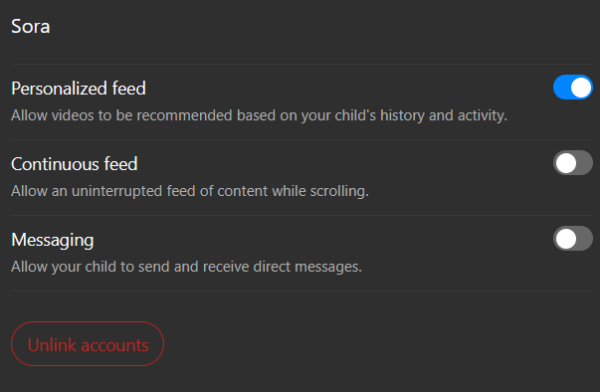
- Personalized feed: if your child uses Sora, this feature ensures they have access to a feed of videos based on their activity and history.
- Continuous feed: enables children to view an uninterrupted feed while scrolling. To encourage breaks when using the app, we recommend turning this feature off.
- Messaging: lets children receive direct messages in the Sora app. For safety reasons, this option should be disabled.
The child’s account will mirror these settings automatically and cannot alter them.
Getting Safety Notifications
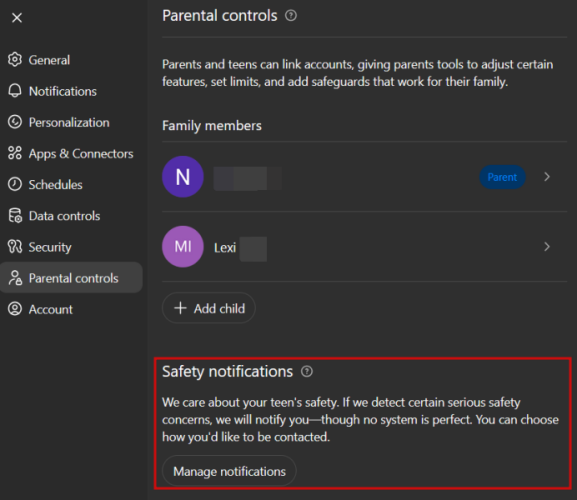
Perhaps more importantly, ChatGTP lets parents enable something called teen safety notifications. If the AI chatbot detects certain serious concerns, it will sent out an alert to the child’s parent complete with available resources.
In Parental Controls on the parent device, click the Manage notifications button at the bottom in the Safety notifications section.
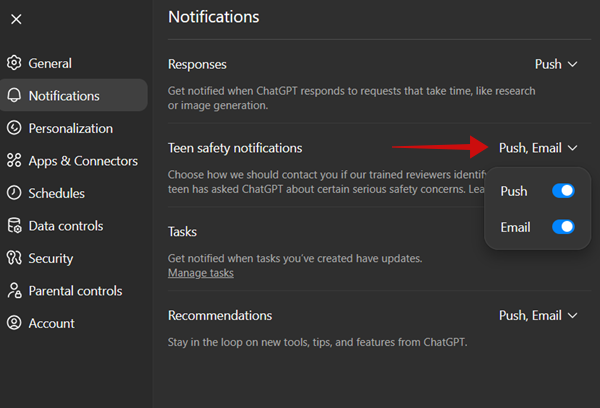
Check Teen safety notifications and make sure both Push and Email notifications are on. In some regions, an SMS option might also be available.
Parents should note that even if they can control what features are available for ChatGPT for their child, they won’t have access to their kid’s conversations. An exception would be in cases where signs of serious safety risks are detected.
Unlink Accounts in ChatGPT Parental Controls
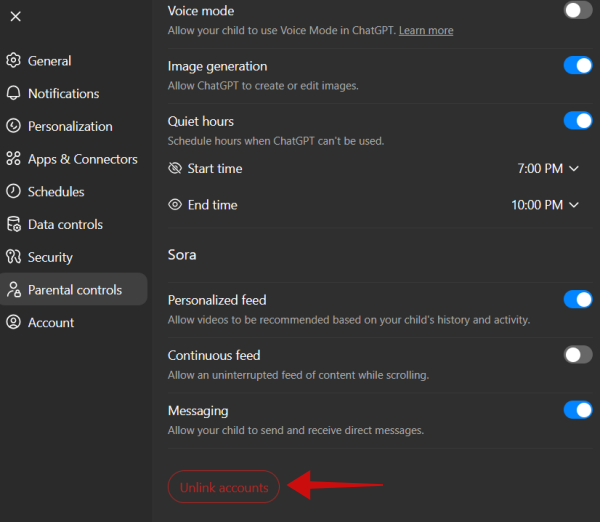
If you ever need to unlink a child account in ChatGPT, navigate to Parental Controls on the parent’s device.
Select your child’s account. Click Unlink accounts at the very bottom.
ChatGPT has become such an integral part of our daily lives that the phrase “Google it” is now slowly being replaced with “ChatGPT it”. If you’d like to have the AI chatbot waiting for you at the ready, learn how to set ChatGPT as your default search engine.








