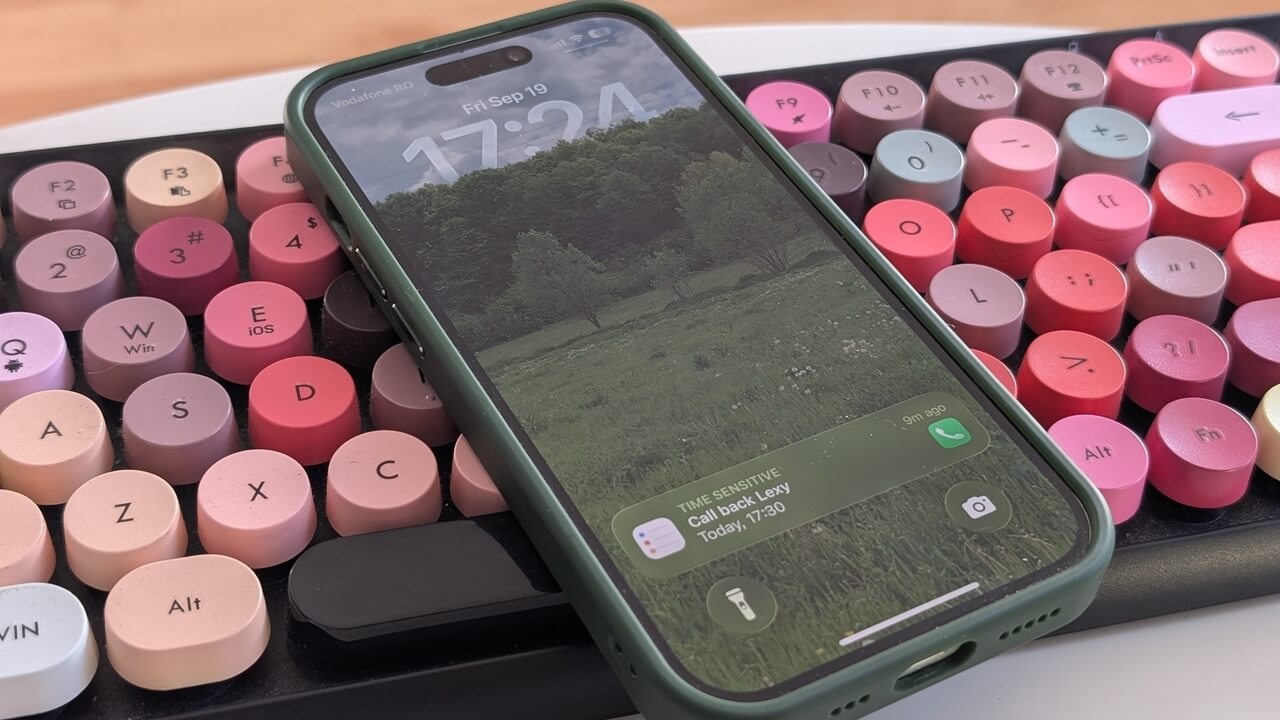
If you always tend to forget to reply to miss calls, Apple just made life easier for you. The iOS 26 update brings a clever feature that helps you remember to ring people back. Life gets busy, and forgetting to return calls happens to the best of us, but this new feature makes it effortless to stay on top of things. Here’s how to take advantage of it.
Good to know: here’s how you can record calls on iPhone and transcribe them too.
Setting a Call Back Reminder on iOS
Firstly, make sure your phone is updated to iOS 26. The option won’t show up if you’re not running the latest iOS version on your phone. Check Settings -> General -> About for that. Just in case you ever need to, here’s how to cancel an iOS update in progress on your iPhone.
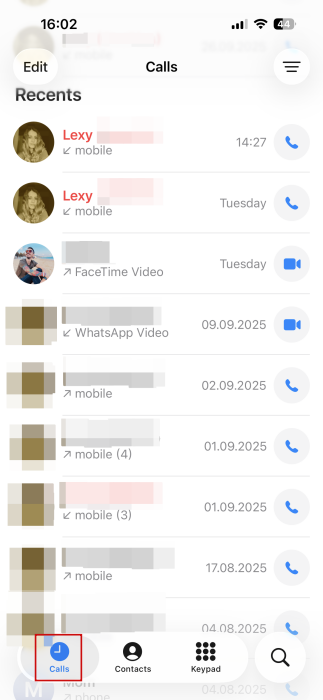
Next up, go to the Phone app and switch to the Calls tab at the bottom. Check to see if you have any recent missed calls. They should appear in red scattered through the calls you’ve taken.
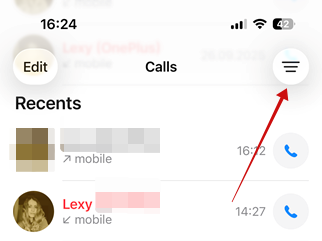
On the other hand, if you wish to view all your missed calls, tap on the menu button in the upper-right corner.
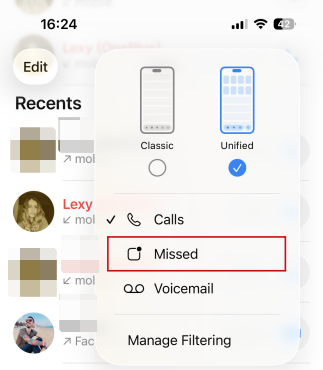
Tap Missed.
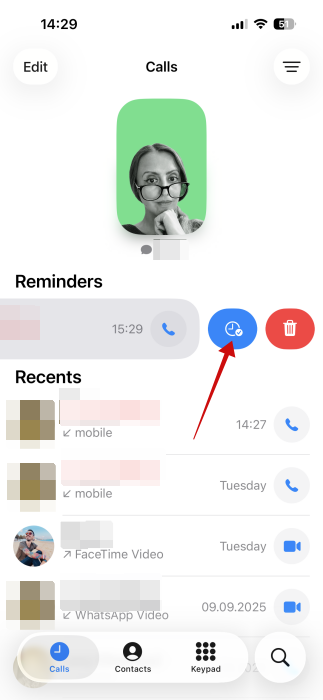
Once you identify a missed call, swipe on it to the left, just as you would if you wanted to delete it. Instead, press on the blue clock icon to set a call back reminder.
Note: you can find the same call back option for calls that went through!
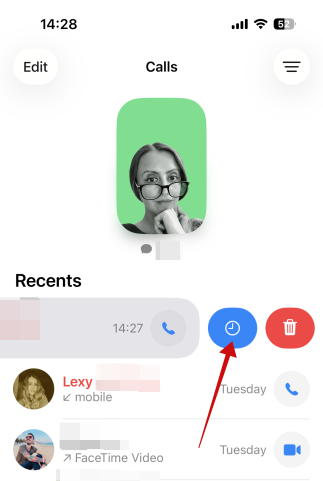
Select one of the options available, such as Remind Me in 1 Hour.
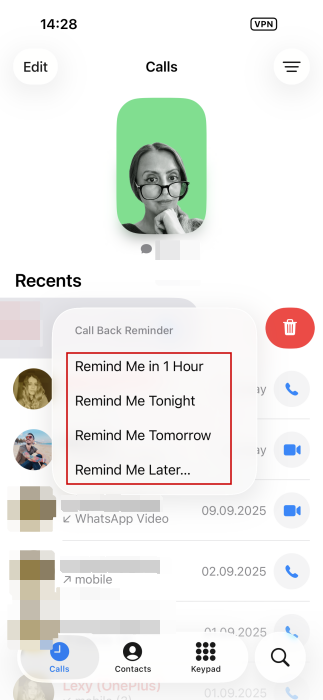
Opting for Remind Me Later will open a new screen where you can add more details, starting with date and time. If you want, you can add a note so that you don’t forget to discuss a certain topic.
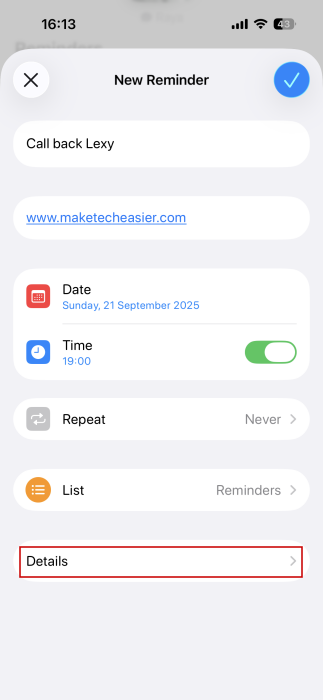
Tap on Details at the bottom to add even more details. For instance, you can opt to get an Early Reminder, a feature I think is particularly useful, especially if you’re preparing to call someone back in a professional context and you need to prepare a bit in advance. You can also set a Priority for the reminder to make sure you don’t lose track of it among the dozen other reminders and notifications.
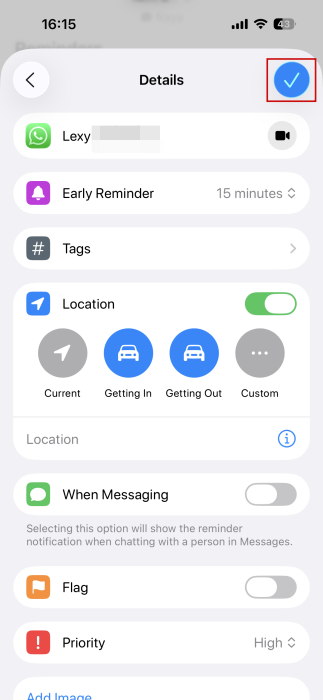
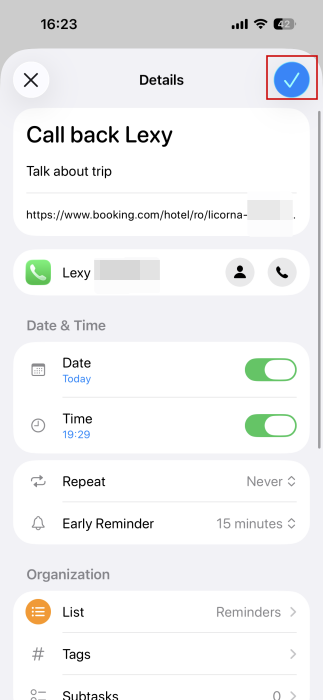
Finally, tap on the checkmark icon in the top right to save your reminder.
Now, back in the Phone app, you should see your reminder appear at the top of the screen.
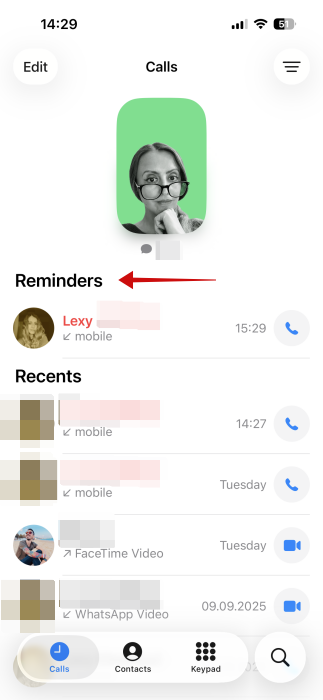
Once the timer you’ve set expires, you should receive a notification on your phone alerting you that it’s time to call that person. If you’ve set an Early Reminder, the notification will appear multiple times.
Tip: here’s how to easily delete multiple contacts from your iPhone.
How to Edit Call Back Reminders on iPhone
In case you need to make a few changes to the call back reminder, reopen the Phone app and find the reminder you’ve already created. Swipe left on it and tap the blue icon.
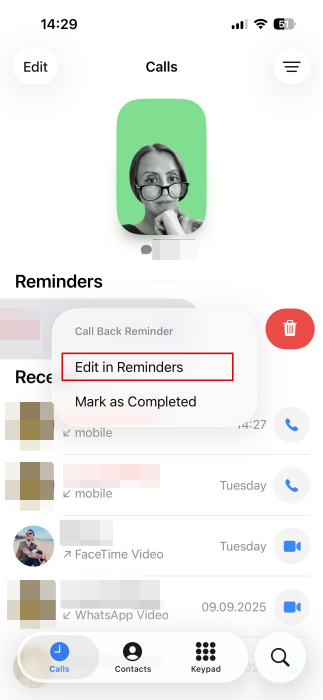
Select Edit in Reminders in the menu that shows up.
This will open the reminder in the native Reminders app on your iPhone (which is also available on Mac). Make your edits or add more info.
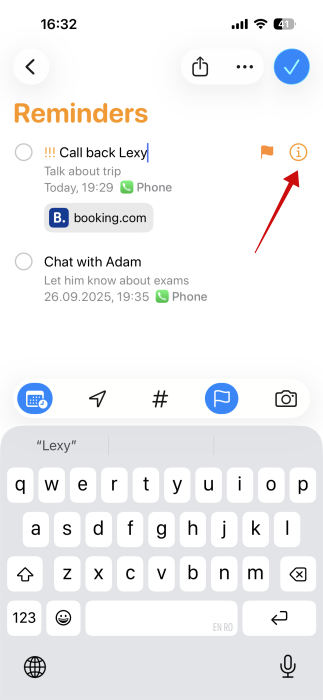
You can also edit call back reminders directly from the Reminders app. Find your reminder, tap on it, and press the i button that appears on the right.
Remove or Delete Call Back Reminders on iOS
If you don’t need a reminder anymore, open the Phone app. Find your reminder in the top section and swipe on it to the left. Tap the blue icon and select Mark as complete. This will effectively remove it from the Reminders section in your Phone app, as well as the Reminders app.
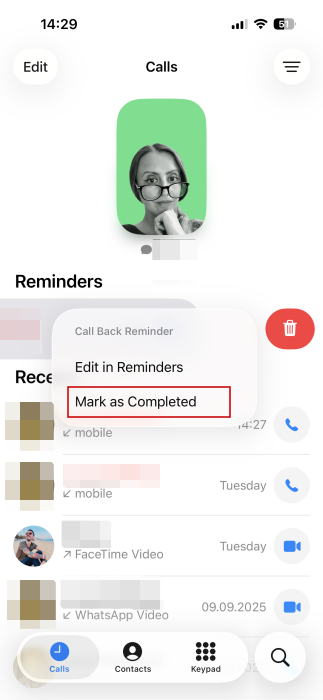
Note: if you fail to complete the reminder in time, it will still show up at the top of your Phone app, highlighted in red.
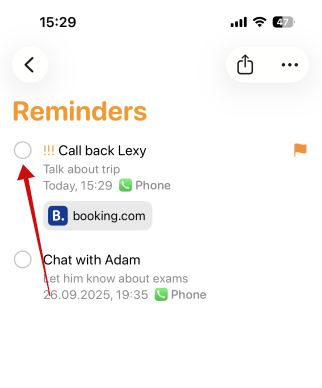
Alternatively, check the task in the Reminders app to remove it from view.
On the other hand, if you wish to delete several call back reminders, you can do so in the Reminder app. Tap on the three dots in the upper-right corner.
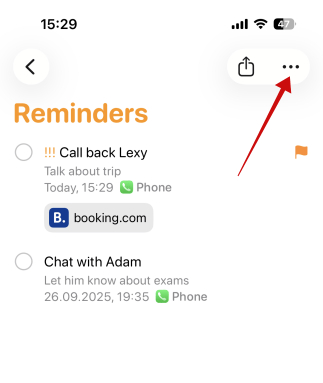
Tap on the Select Reminders option.
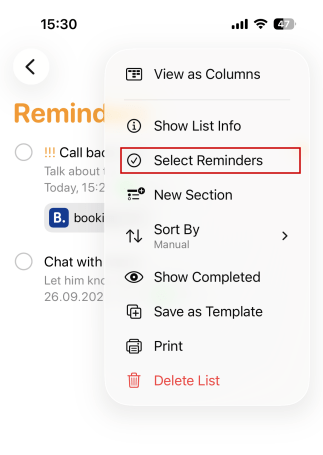
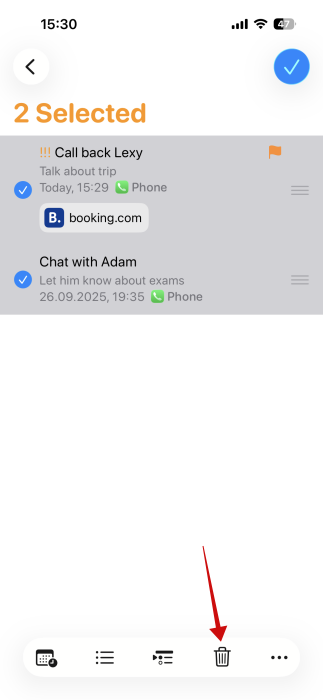
Select your reminders you want to delete and press the trash icon at the bottom.
If you recently upgraded to the latest iOS version, there are plenty of more new features like this to take advantage of. However, if you’re not a fan of iOS 26’s Liquid Glass animations, check this post to see how to tone them down.








