
Let’s be honest – most of us are using ChatGPT so often that it might as well be our homepage. If you’re constantly opening it to ask questions or get help with tasks, why not make it your default search engine? It’s possible to do now. This guide walks you through the steps of making ChatGPT your default search engine on both desktop and mobile browsers.
Good to know: learn how to add a Copilot tab in your Microsoft Ede browser.
Set ChatGPT as Default Search Engine on PC
Chrome
On Chrome, you can set ChatGTP to handle your searches by default via an extension. Navigate to the Chrome Web Store and find the ChatGPT search extension. Install it on your PC. Press the Add extension in the pop-up that appears.
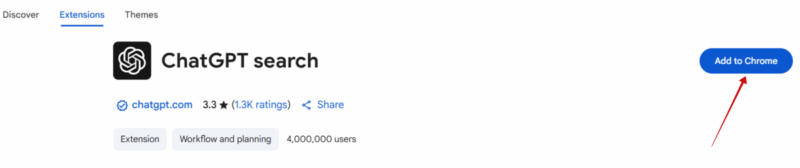
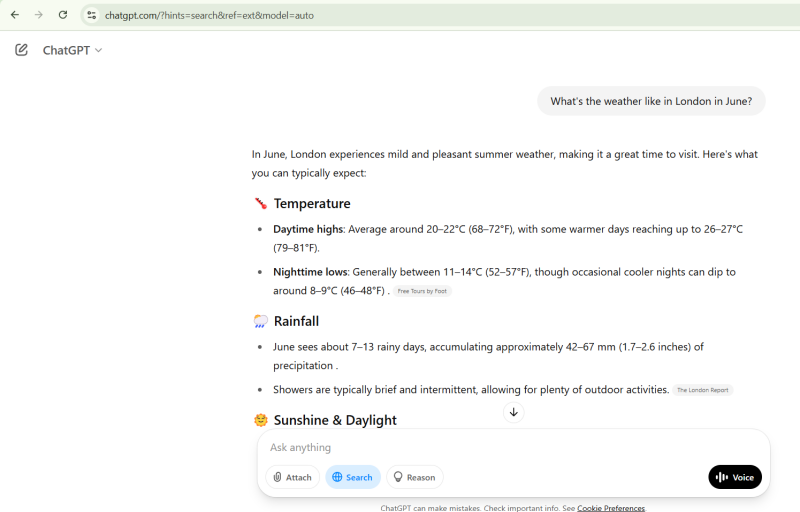
That’s it. You are all set now. Open a new tab in Chrome and type in a question in the address bar at the top.

Your question/query will automatically be submitted into ChatGPT.
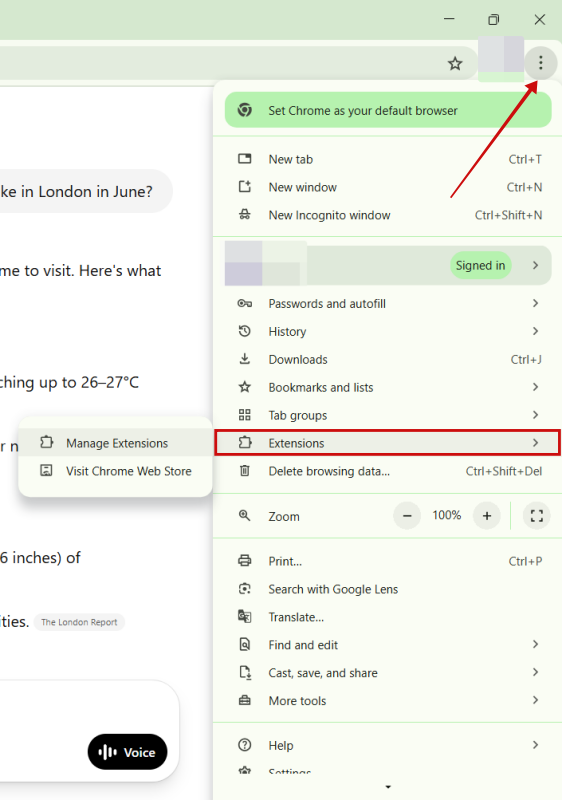
In case you need a quick break from ChatGPT’s helpful eyes and ears, click the three dots in the upper right corner and go to Extensions -> Manage Extensions.
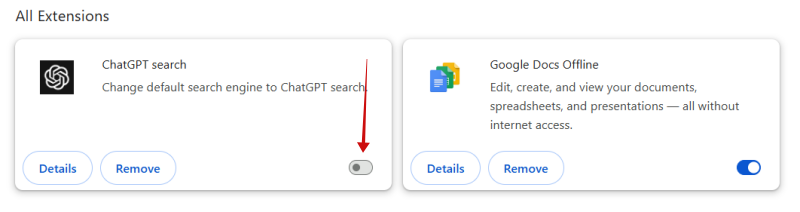
Turn off the toggle at the bottom of the extension’s card.
Microsoft Edge
Being a Chromium browser, setting ChatGPT as your default search engine in Microsoft Edge is pretty similar to Chrome.
You’ll need to navigate to the Chrome Web Store in your Edge browser and search for the ChatGPT search extension. If you’ve never installed a Chrome extension in Edge, click the Allow button in the pop-up that appears.

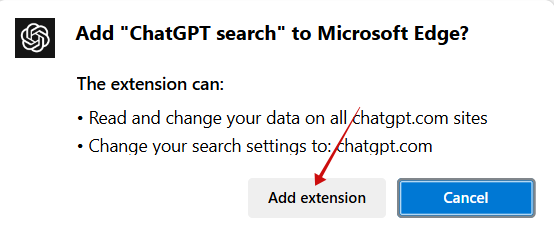
Press the Get button on the extension page and then hit Add extension in the pop-up.
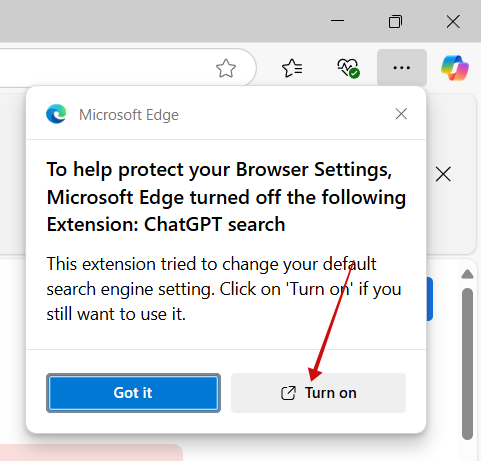
Edge will automatically disable the added extension. To turn it back on, make sure you tap Turn on in the pop-up on the right.
Now, you’re ready to type in your query in a new tab and ChatGPT will pick it up immediately.
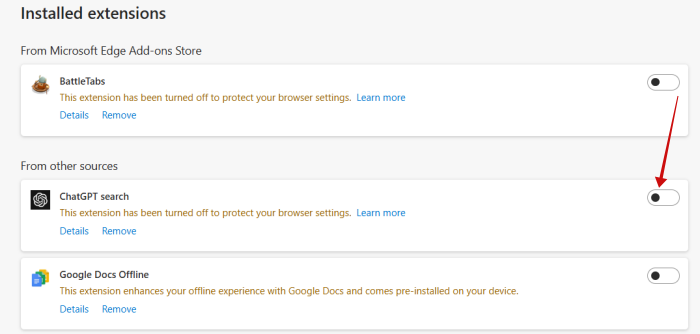
If you want to get a break from ChatGPT, go to Settings -> Extensions -> Manage Extensions.
Disable the toggle next to ChatGPT search.
Firefox
Adding ChatGPT as your default search engine is a bit trickier in Mozilla Firefox, but it can be done.
Open a new tab and navigate to about:config. Tap on the Accept Risk and Continue button that appears on the page.
In the search bar at the top, copy/paste the following: Browser.urlbar.update2.engineAliasRefresh. Press the + button on the right.

Double-check the variable is set to True.

Next up, press the hamburger menu in the upper right corner and click Settings.
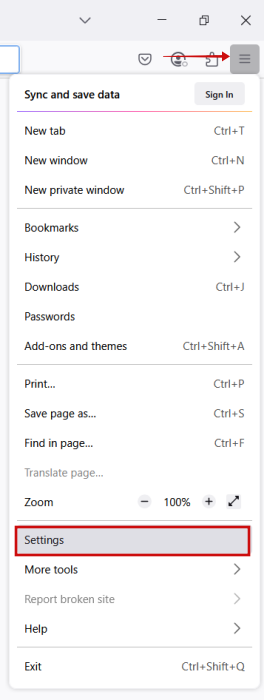
Go to Search on the left. Click Add.
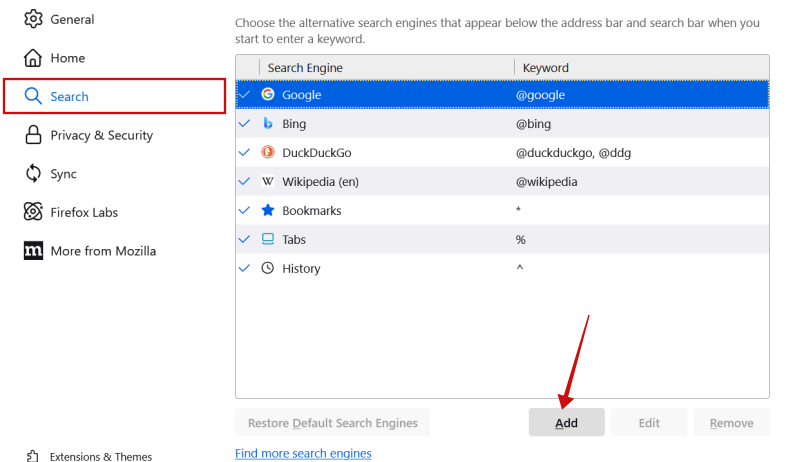
Now add the following:
- Search engine name: ChatGPT
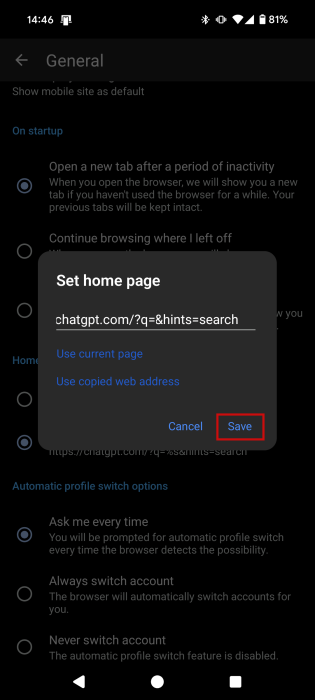
- Engine URL: https://chatgpt.com/?q=&hints=search
- Keyword: @ChatGPT
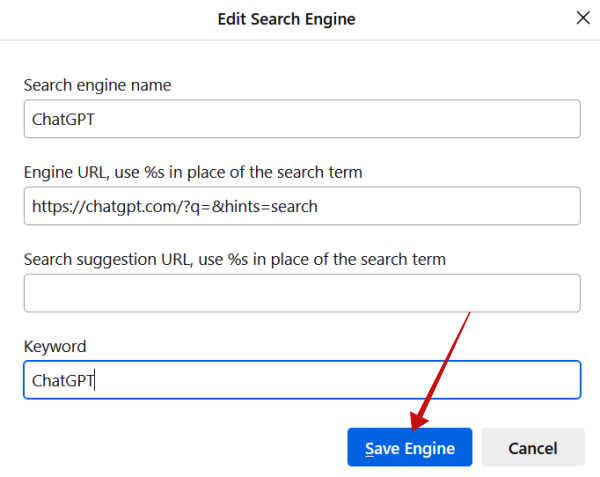
Click on the Add Engine button.
Now, click the Default Search Engine drop-down men and select the newly added ChatGPT option.
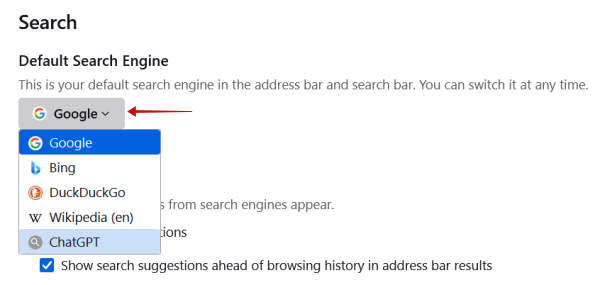
Finally, your search queries will now open in ChatGPT.
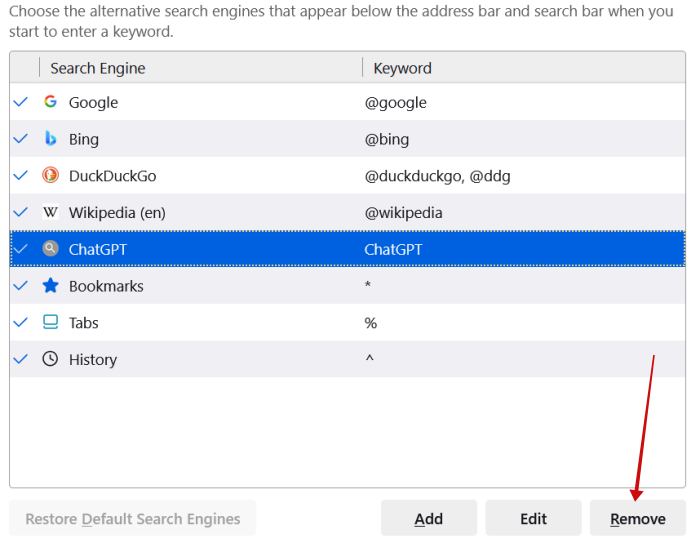
If you need a break from ChatGPT, unfortunately you can’t pause it. Your sole solution is to delete the search engine you’ve manually added, by going to Settings -> Search, clicking ChatGPT and pressing Remove.
Tip: get acquainted with the new Firefox AI link preview option to simplify your browsing.
Set ChatGPT as Default Search Engine on Android
Since Chrome on Android doesn’t support extensions, you won’t be able to set ChatGPT as your default search engine. On the other hand, you can do so in other browsers.
Firefox
On Firefox for Android, tap the three dots on the lower right (or upper, depending on your configuration) and select Settings.
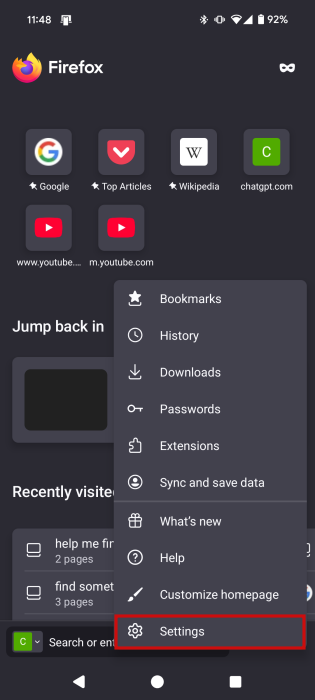
Go to Search.
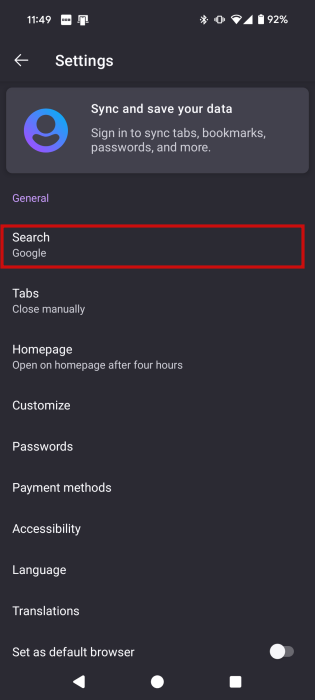
Tap on Default search engine.
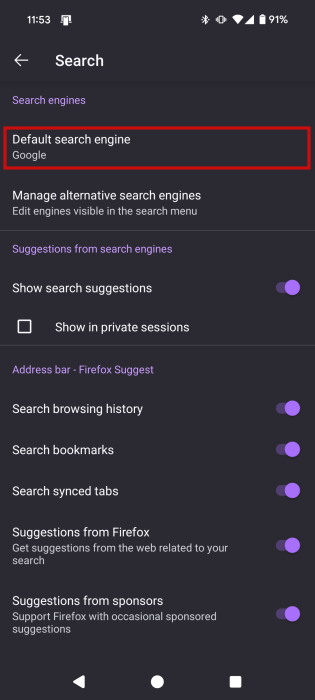
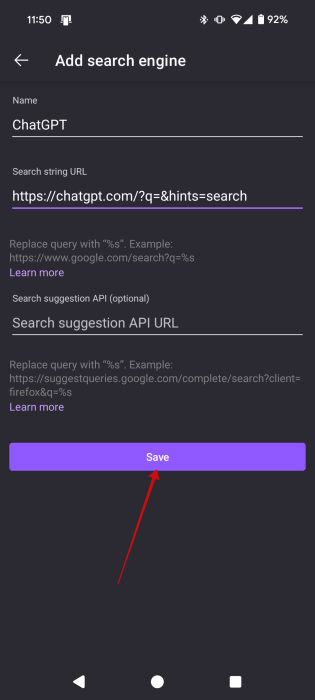
At the bottom, press on + Add search engine.
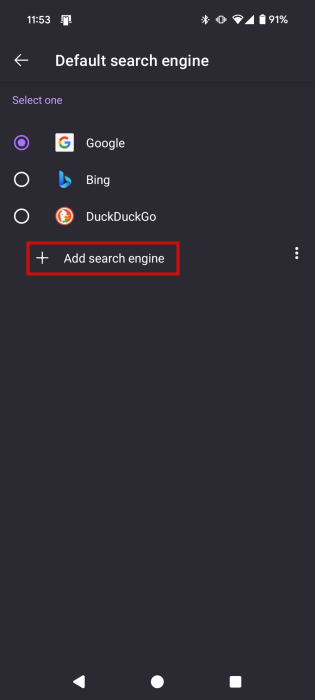
You can use the same configuration as above, then press Save.
Now, switch to the ChatGPT option.
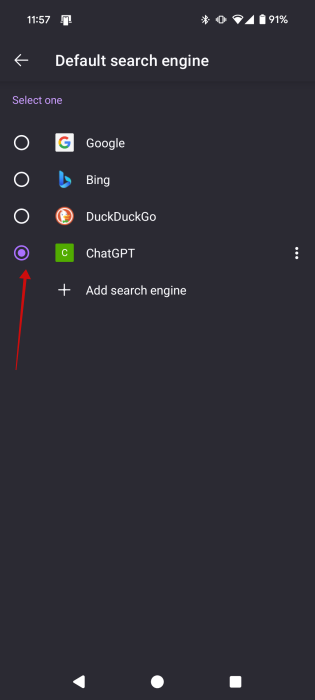
That’s it. You can now search using ChatGPT directly from your new Firefox tab.
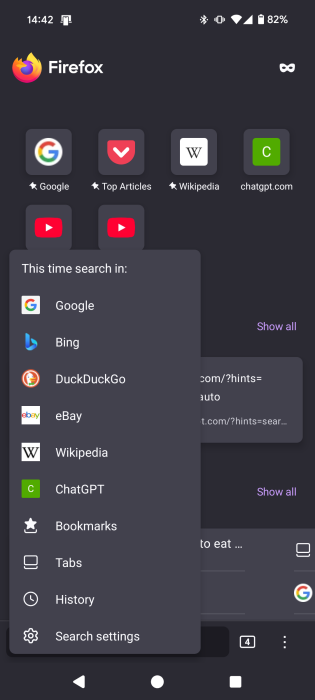
When you wish to perform a quick search using a different search engine, tap on the small C on the left to the address bar to switch engine.
FYI: did you know that you can install any add-on in Firefox for Android with this trick? Learn here how to do this.
Edge
On Microsoft Edge for Android, you can’t add another search engine. What you can do, however, is add ChatGPT search as your home page in Edge.
Open Edge and press on the hamburger menu in the lower right.
Select Settings.
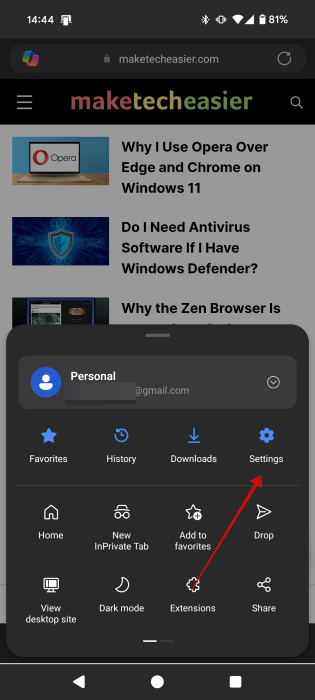
Go to General.
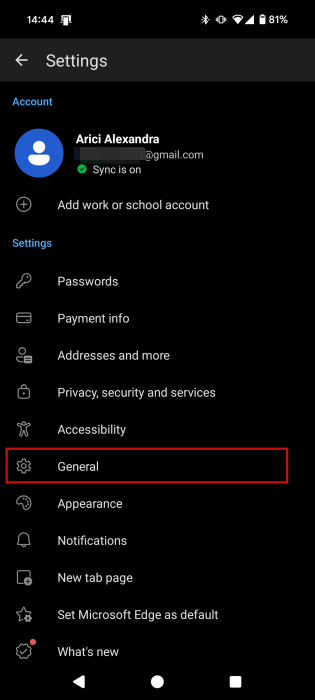
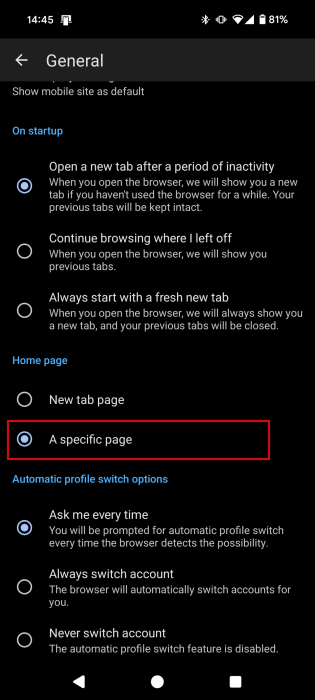
Find the Home page section. Check the A specific page option.
Add the ChatGPT search link and press Save.
Now, whenever you access your Home page in Edge, you’ll be automatically taken to ChatGPT search. You can access the Home page by pressing the hamburger menu and then Home.
To remove ChatGPT, go back to Settings -> General and switch to New tab page under Home page.
Set ChatGPT as Default Search Engine on iPhone
It’s surprisingly easy to add ChatGPT as your default search engine in your iPhone/iPad’s native Safari browser.
After making sure you have the latest version of ChatGPT installed on your phone, open the Settings app and navigate to Apps -> Safari.
Tap the option for Extensions.
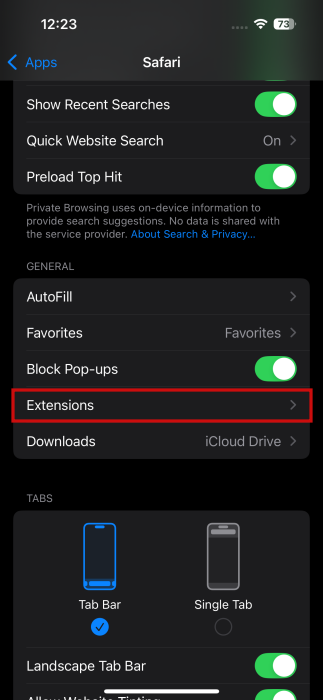
Select ChatGPT Search (which should already be there.)
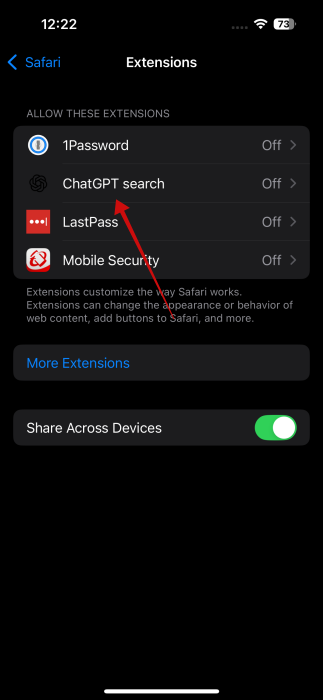
Toggle on the Allow Extension option.
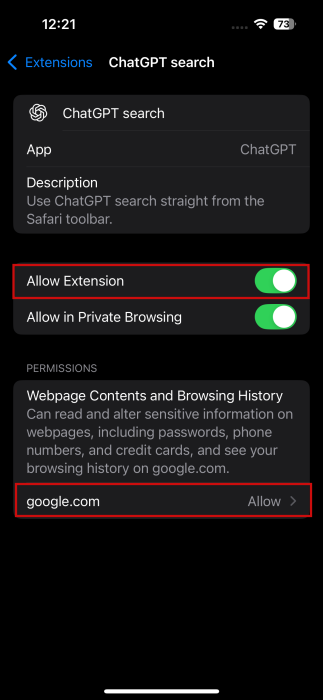
Under Permissions, tap Google.com and change the setting to Allow.
If you want to revert to your old settings, simply disable Allow Extension.
ChatGPT is getting more versatile by the day. For instance, find out how to use ChatGPT Search as your new shopping companion. Alternatively, it might also come in handy to you to know how to use ChatGPT to reverse location search photos.








