
Bing does one thing better than every other search engine – the daily Bing wallpaper. The beautiful scenes are a nice contrast to Google’s nothingness. And, if you really love those images, make them your Windows desktop background.
Set Daily Bing Wallpaper Using Bing App
The easy, and official, way to set the daily Bing wallpaper as your desktop wallpaper is to use the Bing Wallpaper app. Just make sure to uncheck the boxes trying to dupe you into switching your various defaults to Bing, unless you do want to switch over to Bing, which is okay.
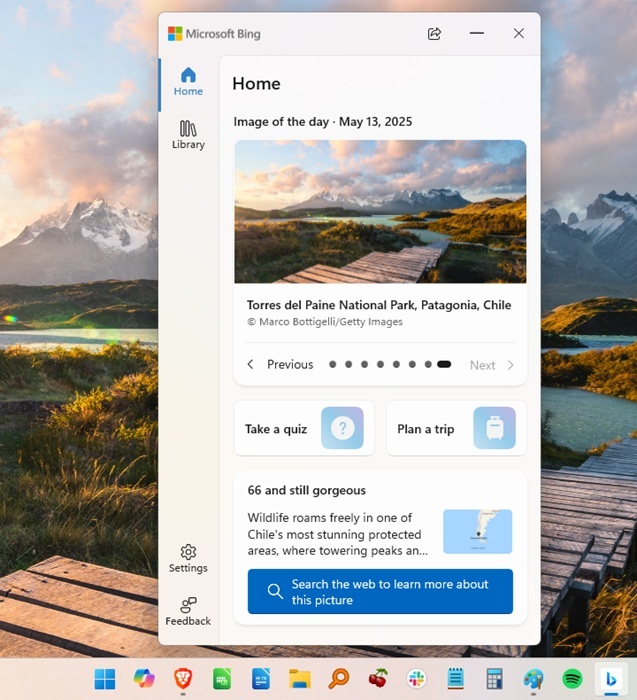
Once you’ve installed the Bing Wallpaper app, it sits in your system tray and should apply the Bing wallpaper of the day automatically.
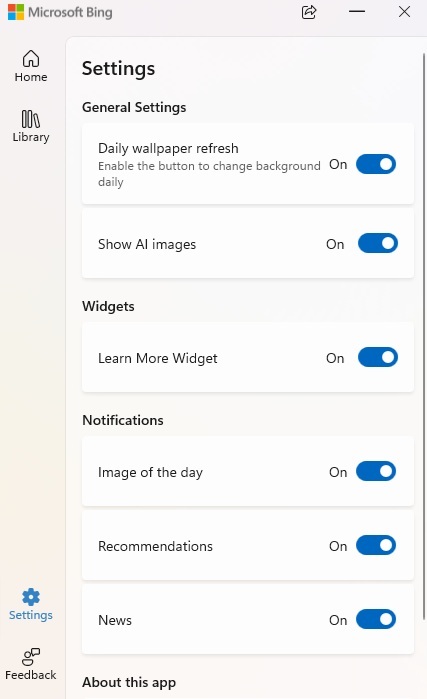
Want to know more about your wallpaper? Just click the Bing Wallpaper icon (small blue b) in your notification tray to open the app. Click Settings at the bottom of the app to change your preferences, such as whether the wallpaper changes daily or not or whether you want AI images included.
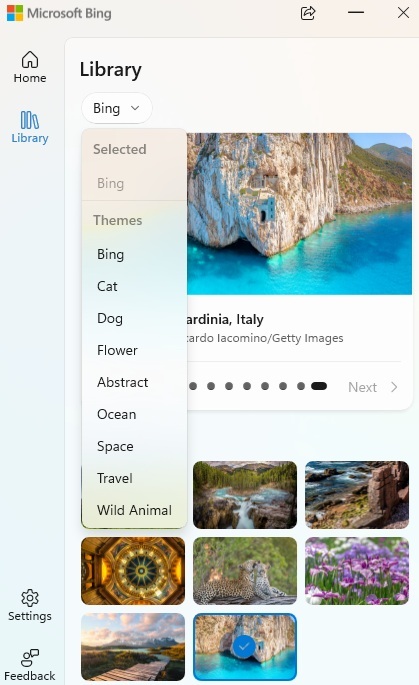
But, one little feature most users overlook is the Library. I love Bing’s daily wallpapers, but sometimes I want something different. Click Library and use the drop-down box to view various categories beyond Bing, such as Cat, Flower, and Ocean. You can also select from multiple previous wallpapers in each category.
Use Dynamic Theme to Set Daily Bing Wallpaper
The second option to get Bing daily wallpapers is to go to the Microsoft Store and get this little app called Dynamic Theme.
Open Dynamic Theme and you’re greeted with an interface that looks almost identical to the Windows Personalize settings screen.
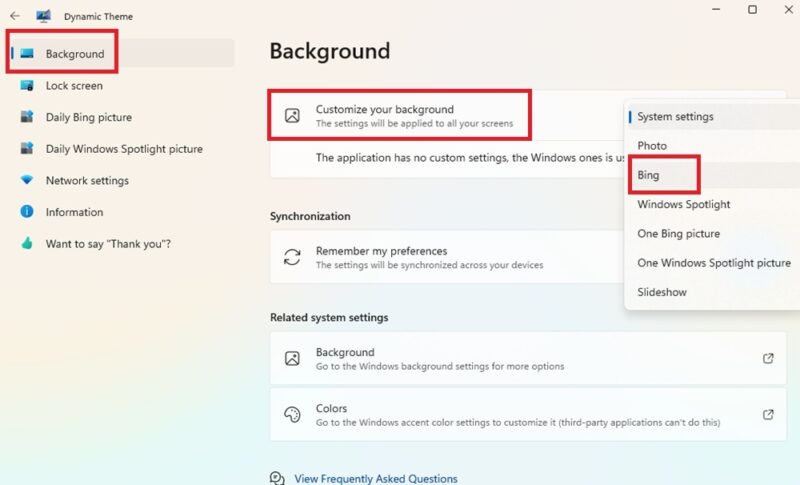
The left pane features multiple ways to customize your lock screen and desktop wallpaper. But, for the Bing Wallpaper, click Background and switch Customize your background to Bing.
You can also change a few other settings here. By default, the wallpaper changes daily. But, if you don’t want to change that frequently, select Pause the daily update and choose your frequency. You’re also able to change the time of day the wallpaper changes.
If you don’t see your wallpaper change immediately, press Update in the Background tab to update it.
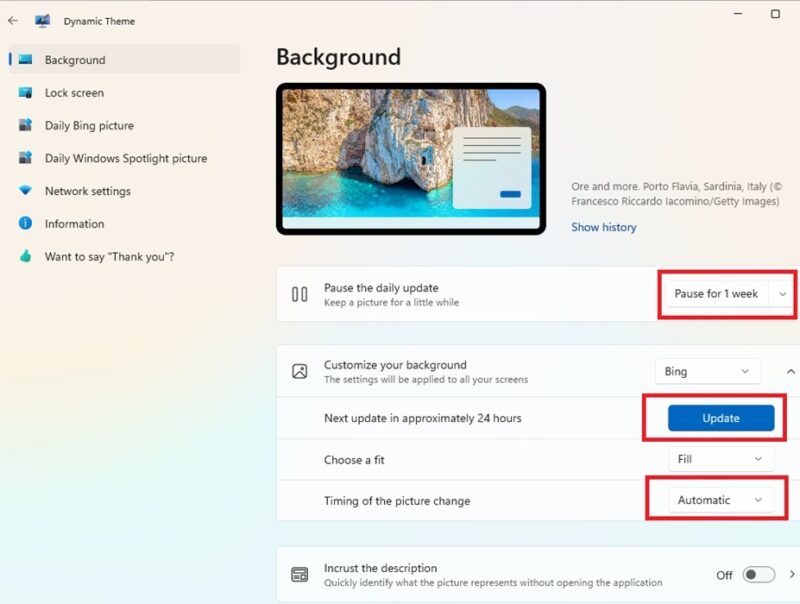
You’re not limited to just Bing, though. Use the drop-down box beside Customize your background to switch things up. Select your own photos, a rotating library of images on your PC, a single Bing picture (scroll through to pick an option), Windows Spotlight (what shows up when logging into Windows), or a single Windows Spotlight image (scroll to pick the one you want).
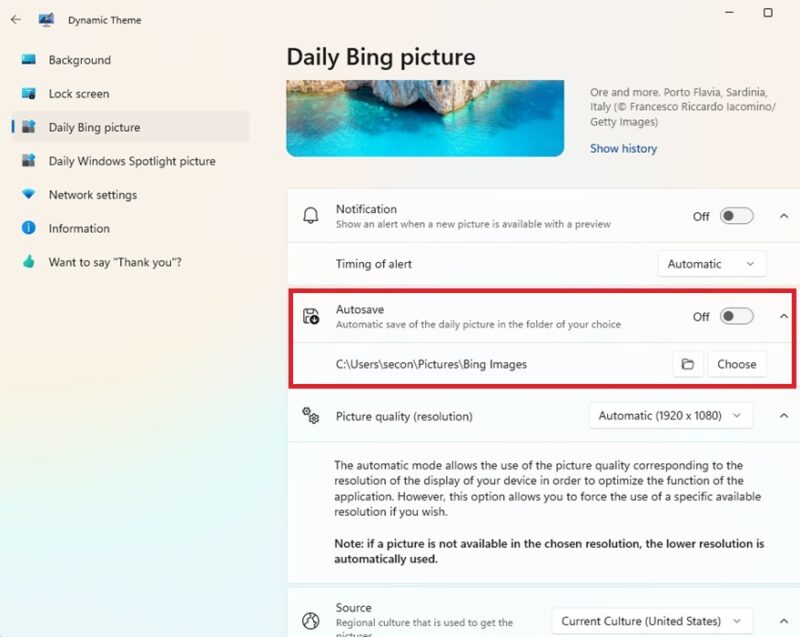
As an added bonus, Dynamic Theme lets you save Bing wallpapers and Windows Spotlight pictures to your desktop to use later, if you want. Click either Daily Bing picture or Daily Windows Spotlight picture in the left pane. Turn on Autosave and select a folder to store the images.
Manually Saving Wallpapers From Bing
I get it. Downloading yet another app might not be what you’re after. Or, maybe you just like certain Bing wallpapers. Just check Bing daily and manually download the wallpapers you want. Yes, it’s legal and okay with Microsoft. Just pay close attention to the rules – only use the images you download on your desktop, not for any commercial use.
Open Bing in your favorite browser (obviously Microsoft would prefer you use Edge) and hover your mouse over the name of the wallpaper under the right side of the search box. Click the Download button and choose where to save it. I’d recommend renaming it too as the default name isn’t descriptive at all.
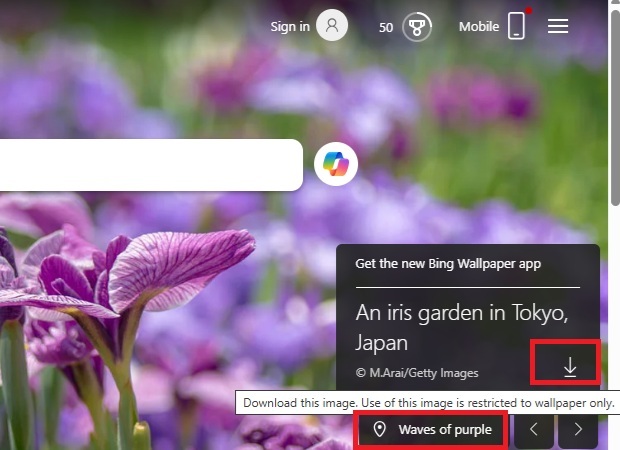
Use the arrows beside the wallpaper name to switch to other recent wallpapers. Download those too if you want.
Right-click any image you’ve downloaded and select Set as desktop background.
Prefer Windows Spotlight images? Manually save those as well.
Changing Windows Wallpaper Settings
No matter how you’re getting the daily Bing wallpaper, you may want to adjust a few Windows wallpaper settings to improve your experience.
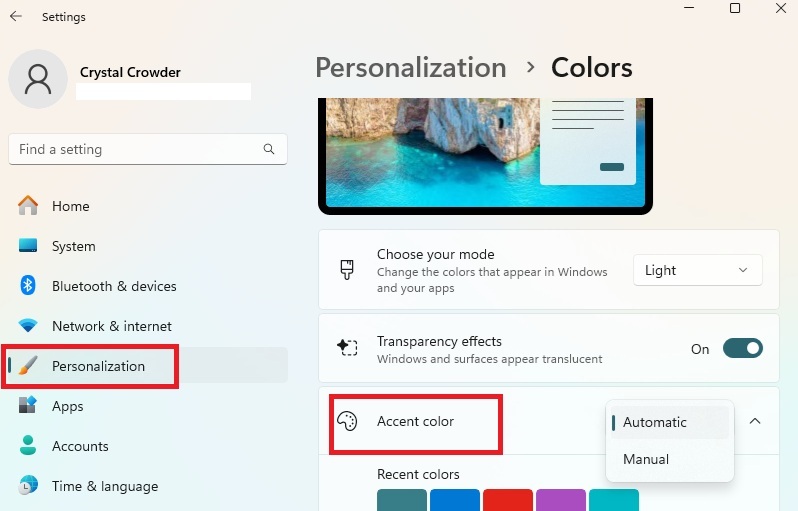
Start by automatically changing your Windows accent color (task bar, Start menu, etc) to match your wallpaper. Press Win + I and select Personalization -> Colors. Change Accent to Automatic.
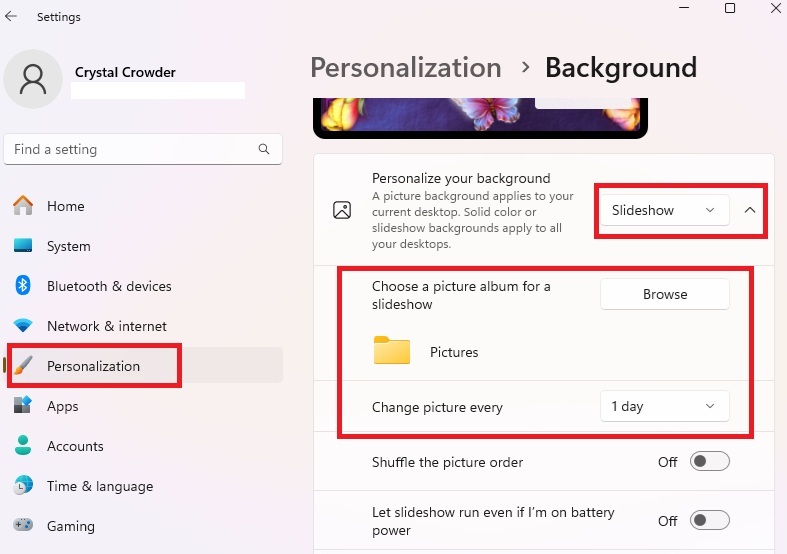
If you’re manually downloading Bing wallpapers, press Win + I and select Personalization -> Background. Select Slideshow from Personalize your background. Choose the folder where you saved your wallpapers and set the frequency you want them to change.
Adding Bing Wallpapers to Android, Roku, and More
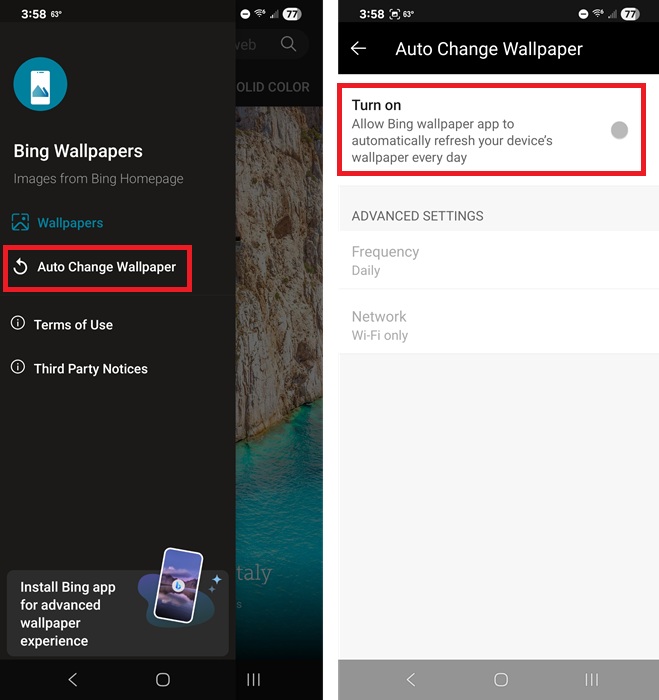
Absolutely love wallpapers from Bing and want to use them beyond your desktop? For Android, download Bing Wallpapers. Tap the hamburger menu at the top left and tap Auto Change Wallpaper. Turn the setting on and choose your frequency. Alternatively, tap any wallpaper image in the app (including in the Gallery section) and tap Set at the top right.
For iOS, you could use Daily Bing Wallpaper, but it’s glitchy. It’s best to just manually save each wallpaper you want to use.
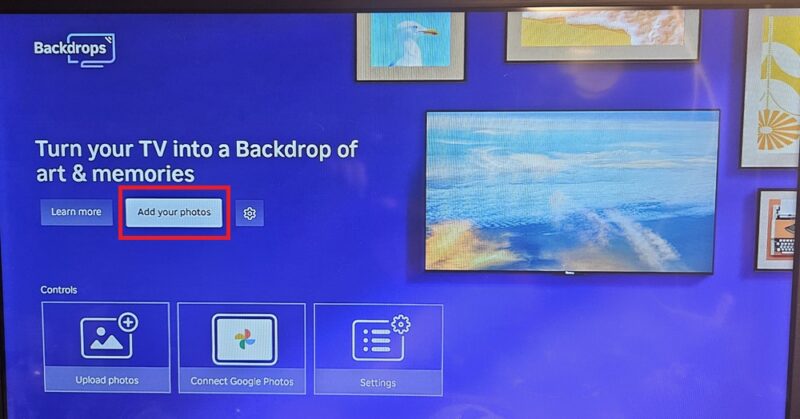
If you have a Roku device, search for and download the Backdrops app. Open it and select Add Photos. Select your source. The easiest method is uploading downloaded wallpapers to a folder on Google Drive.
For Amazon Echo and Google Nest displays, save your Bing wallpapers to either Amazon Photos or Google Drive and set up your display as a photo frame.
Now that you’ve changed your desktop wallpaper, customize your login screen as well. You could even spice up your Windows screensaver.








