

Want to create a signup for your blog? Or do you need to organize an event for your office and need everyone’s information? With Google Forms you can create an online form in minutes and send it via email or even embed it on your blog post. While creating a form is super easy, sending email notifications to yourself and to the person signing up is a little trickier.
In this post, we’ll breakdown the steps so you can automate the process.
Step 1: Create Form
First, create your Google Form. For this post, we’ll use a very simple form.

Step 2: Set notification
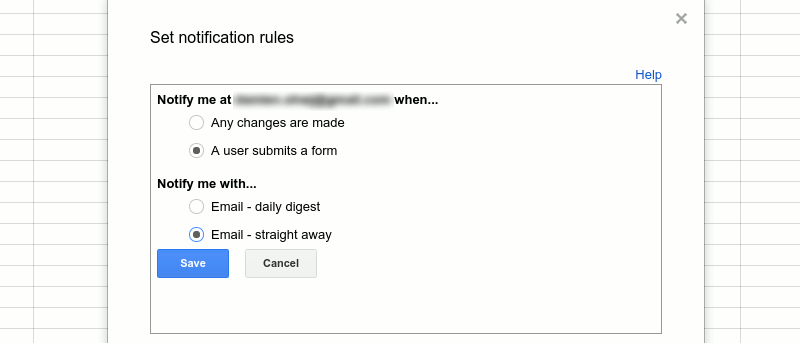
Go to the spreadsheet where all the responses are stored. Simply click on “View Responses.” Once you’re in the spreadsheet, click on “Tools” and choose “notification rules” on the drop-down. Remember this notification is going to be sent to your email and not to the user who’s signing up. This step is convenient, as it keeps you from manually checking the activities on your form.

Now you can choose when to send the notification and how often. If the form requires urgent response, I’d recommend choosing “Email – right away.”

Step 3: Add code for confirmation email
You may also want to send a confirmation email to the user once he or she submits the form. It can be a short email saying that you’ve received the information. It also assures the user that you’re working on the details submitted.
This part requires a bit of coding. Don’t worry though; it’s super simple! First, on the responses spreadsheet, click “Script editor.”

Next, choose Blank Project since you will be using your own code for this specific form.

Although you have chosen a blank page, there might be preloaded codes. Make sure to delete all of them and start with a clean slate. Now copy and paste this code:
function myFunction(e){
    var userName = e.values[1];
    var userEmail = e.values[2];
    var date = e.values[3];
    var subject = "Form Submitted";
    var message = "Thank you," + userName + "for choosing " + date;

MailApp.sendEmail (userEmail, subject, message);
}
Note: The above code assumes that your first field is “User name”, second field is “user email” and third field is the “Date”. You have to change the value accordingly if your input field order is different.
Do you want to know how these codes were generated? Watch this video from Jeff Everhart. He gives a detailed explanation of how the values are assigned.
Step 4: Set up trigger to send confirmation emails automatically
Another very important piece of the puzzle: set up the trigger. Once you’re done with the code, it’s time to tell the spreadsheet when to send the confirmation email. Go to “Resources” and choose “Current Project’s Trigger.” You’ll then be routed to this screen:

Choose the options as indicated in the photo. Upon hitting save, you’ll need to authorize to run this code.

Click on “Continue” to finish setting up the code and the trigger.
Step 5: Test code
Don’t share your Google Form with the public yet. This last step is extremely crucial, so you can fix everything before your form goes live. Go back to your form and click “View live form.” Next, fill out the form and make sure to hit “Submit.”

Open your Gmail account. In your inbox you should have the confirmation email with the subject “Form Submitted” or whatever subject you’ve written. This was the email that I received when I tested the form and the confirmation code.

As you can see, it looks really bare. However, you don’t need fancy codes right away. After testing the code and having it be fully functional, you can then add more HTML codes to the email’s body.
Google Forms is a convenient and extremely useful tool to almost everyone, most especially to huge websites and businesses who are constantly running surveys.