With reports of a massive PayPal breach, now’s the time to secure your PayPal account. Even if you’re not affected, putting protections in place is the best way to ensure another breach won’t leave your financial data vulnerable.
PayPal Denies New Breach
Currently, PayPal is denying there’s a new breach in 2025. Instead, the company claims the login credentials being sold on the dark web as Global PayPal Credential Dump 2025 are from a previous 2022 breach.
The seller claims the nearly 16 million records are new. So far, no outlets have positively confirmed whether the breach is from 2022 or a new 2025 breach.
The records include plaintext emails and passwords, giving buyers full access to users’ accounts.
Back in 2022, PayPal required all users to change their passwords to protect their accounts. Affected users also received two years of free credit monitoring. You can also monitor your credit using free credit score websites.
Instead of waiting for full confirmation about a possible new breach, take action now to secure your account just in case.
1. Change Your PayPal Password
The first step is to change your password. Ideally, pick something you’ve never used anywhere else. Also, ensure it’s not similar to your previous passwords. I know far too many people who change passwords simply by adding a new number or letter to the end.
To help you create a secure password, take a look at how password crackers work. The harder you make it to guess, the more secure your account.
Finally, avoid any personal details in your password. Skip birthdays, portions of your email address, names, your home address, phone number, etc. These are all too easy to guess, especially if hackers know anything else about you.
2. Set Up 2FA on Your Account
If you haven’t already, set up two-factor authentication (2FA) on your PayPal account. You have to do this via a web browser, not the PayPal mobile app.
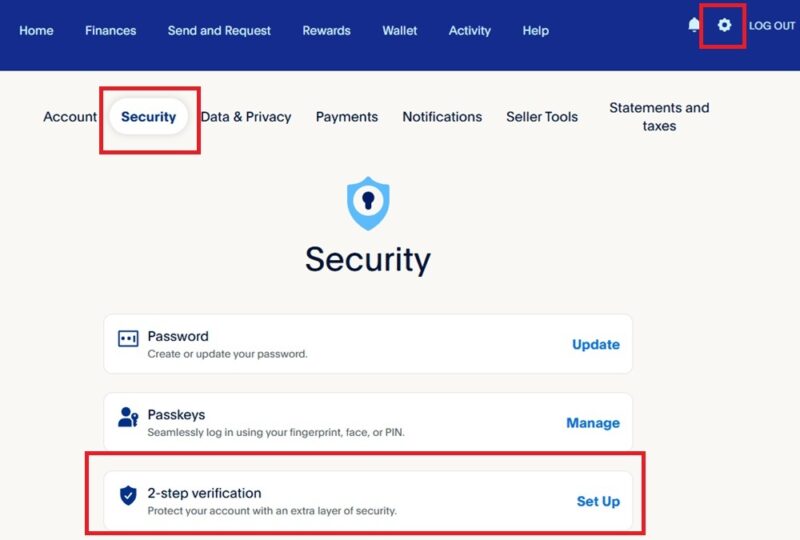
Login to your account and click the Settings icon (gear/cog) at the top right. Select the Security tab. Click Set Up next to 2-step verification. Choose your desired method, such as an authenticator app, and follow the prompts.
3. Switch to Biometric Login
Biometric passwords are a perfect way to secure your PayPal account. They need your actual fingerprint to login. Mix this with 2FA to lock down your account even further.
On the PayPal website, go to Settings (gear/cog icon), select Security tab, and choose Passkeys. From there, follow the prompts. The exact method will depend on your device and browser. Some devices/browsers don’t support passkeys at the moment.
4. Check Recent Logins
Even if you’ve changed your login details, hackers may have already gotten into your PayPal account before you took action. Review recent logins regularly for any suspicious activity.
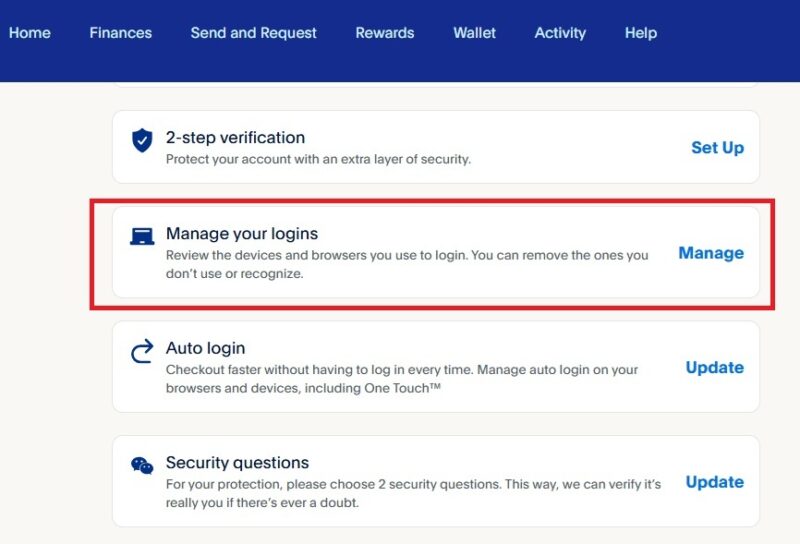
Go to Settings -> Security -> Manage your logins. If you see any devices or browsers that aren’t you, click Remove. PayPal then requires an extra step to log in, such as verifying your identity via the security questions you set up during your account creation.
5. Link Credit Cards Versus Debit Cards
I know this isn’t always possible, but it’s easier to dispute charges with your credit card issuer than with a debit card. With a debit card or bank account, money leaves your account immediately. Even if you contact your bank, they may not be able to revert the transaction.
6. Set Up Notifications
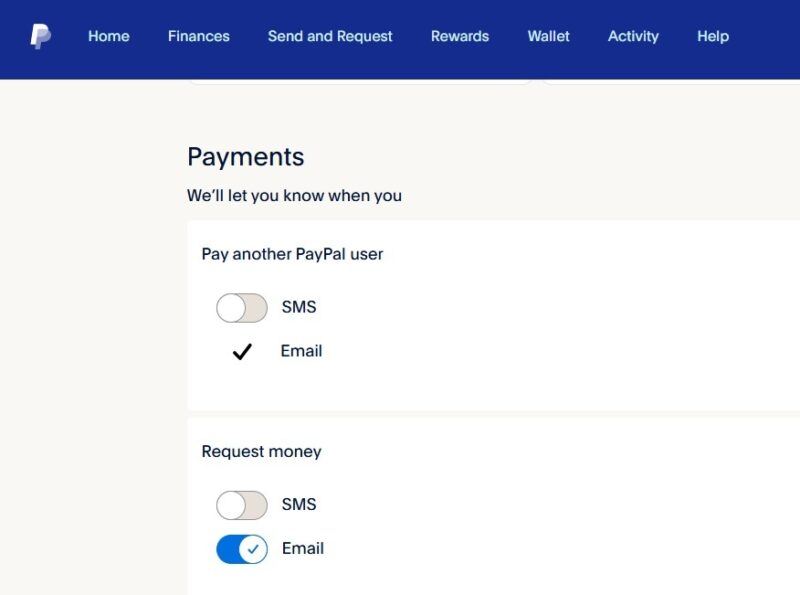
Every time you make a purchase or send money, PayPal can send you a notification. A simple way to secure your PayPal account is to turn on these notifications. Then, if anyone tries to use your account without your knowledge, you’ll be notified immediately.
Go to Settings -> Notifications. Choose whether you want to receive notification by SMS and/or email. I recommend turning on all notifications.
7. Remove App Permissions From PayPal
When you pay on certain sites/platforms, you may be linking your PayPal account for future use. This makes it easier to pay quicker in the future. However, if hackers gain access to any linked accounts, they also get access to your PayPal account.
Check app permissions regularly to ensure your account isn’t linked anywhere it shouldn’t be. Also, remove any sites/platforms/apps you don’t want linked.
Go to Settings -> Data & Privacy -> Permissions you’ve given. Click Remove beside any app you want to end access for.
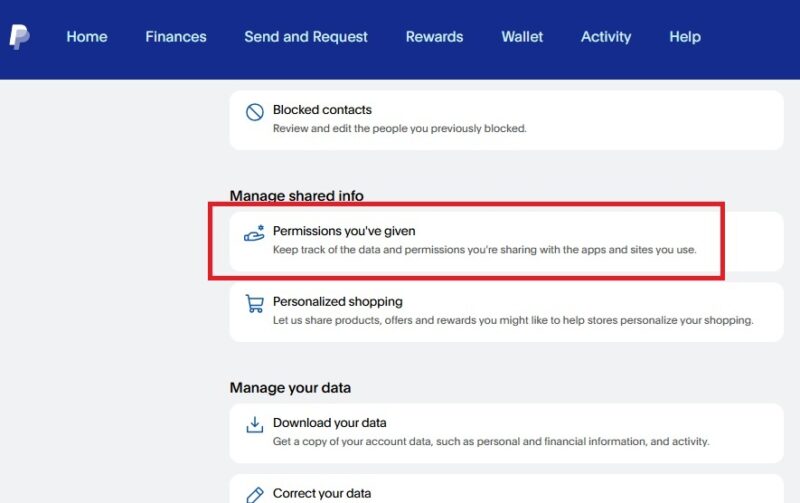
You can still use PayPal in the future on any sites you remove.
If you don’t trust PayPal to keep your data secure, consider PayPal alternatives to send and receive payments. Just make sure friends, clients, and platforms use these alternatives too. You can also use dark web scanners to see if you’re a victim of a data breach.








