Many desktop users rely on the familiar Ctrl + F (Cmd + F on Mac) shortcut to quickly find words on webpages. If you do most of your browsing on an iPhone, you’ve probably wished for an equally simple solution. While there’s no physical keyboard on your mobile device, your iPhone still offers a faster way to search within a page, one that’s often not immediately obvious, but easy to use once you know what to do.
The Feature That Acts Like Ctrl+F on iPhone and Why It Feels Clunky
When using a computer, Ctrl + F allows you to instantly search for keywords on a webpage, no matter which browser you’re using (as well as PDF or documents), allowing you to save time when navigating long texts.
On a mobile device, this familiar keyboard shortcut takes the form of the Search in Page feature, available in most mobile browsers. However, accessing it often means navigating through menus. If you’re unfamiliar with the browser, in a hurry, or simply need to search frequently, it can be quite inconvenient. As it turns out, there’s a faster alternative that’s built right into your iPhone.
The Better Way Nobody Talks About
Your iPhone’s native browser, Safari, is the key to solving this inconvenience. In fact, you can easily search a web page directly from the address bar.
Type the word you wish to search for, and then look at the bottom of the suggestion menu. Select the On This Page option (last one) and voilà. Safari will highlight every instance of the word, allowing you to easily navigate between them. Safari can also open PDFs, and you can use the same trick to search the page.


By the way, this works even in Reader Mode, so it won’t pose a problem if you’re constantly using it on Safari.
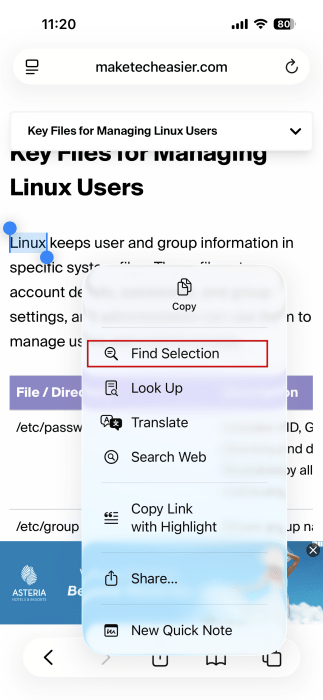
There’s another method you might find useful if you’ve already started reading and come across a term you’d like to locate elsewhere on the page. Long-press on the word to select it and then tap on Find Selection in the context menu that appears at the top. Safari will immediately highlight the terms for you.
It Works in Most Mobile Browsers for iOS
While many iPhone users stick to Safari, others might prefer alternative browsers, in which case here’s how to change the default browser on your phone.
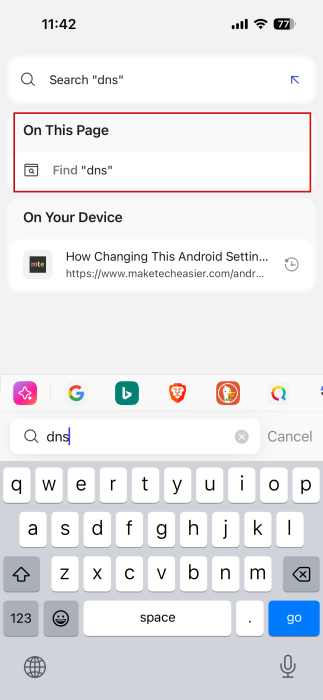
As such, if you use Brave, you’ll be glad to know that searching for keywords through the search bar, as in Safari, is available. Actually, it’s even more convenient, as the On This Page result appears at the top.
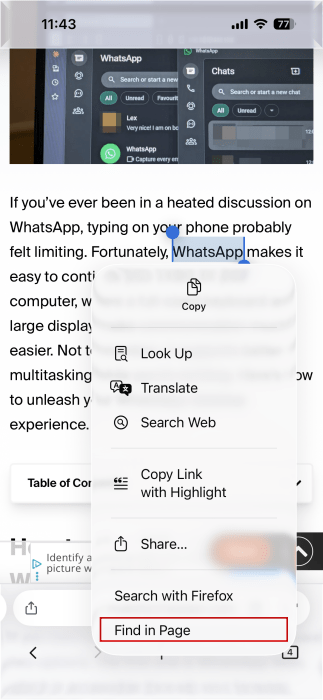
On Firefox, it’s possible to access the Find in Page option through the context menu after selecting a word in the page.
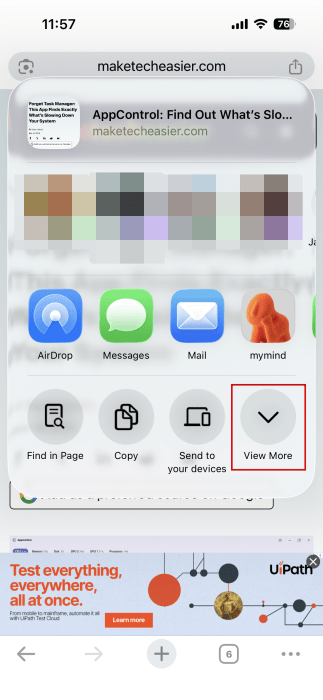
Interestingly, neither of these options is available for Chrome on mobile. Instead, the simpler way to search a webpage is to tap the Share button in the address bar and then select Find in Page from there.
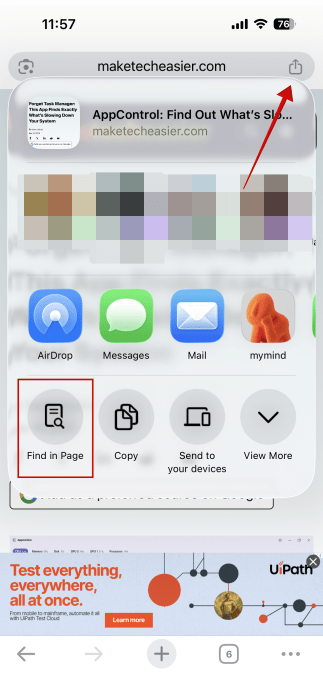
By default, you will need to press View More to find the option. However, you can move the option to the front of the third row.
Tap View More and swipe to the bottom of the list, where you should find Edit Actions.
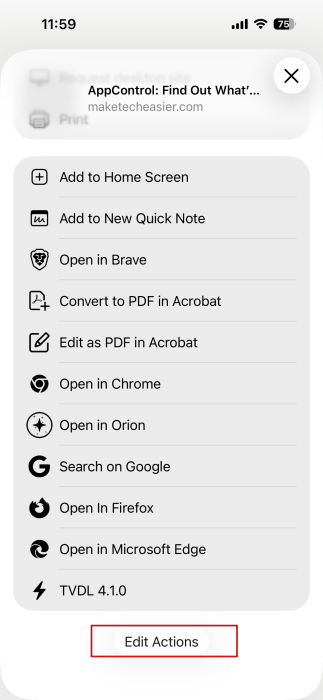
Add Find in Page to the Favorites section.
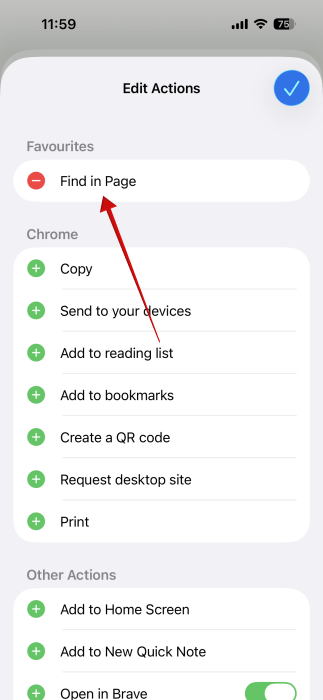
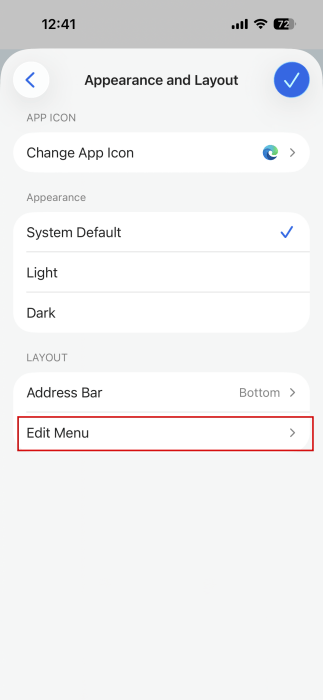
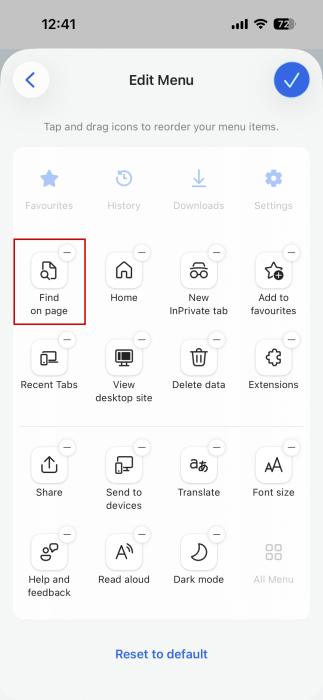
If you prefer using Microsoft’s Edge browser on your iPhone, you should know that the above tricks won’t work. As it stands, your only option is to move Find on Page to the front of the browser’s option menu. You can do this by tapping on the hamburger menu and selecting Settings.

Go to Appearance and Layout → Edit Menu and bring Find on Page to the first available position.
If you’d like to explore alternative browser options for mobile or PC, check out these speciality browsers that are worth checking out.