
Math doesn’t have to be daunting, especially when your iPhone (or iPad) can do the heavy lifting. Tucked away inside iOS is a full-featured scientific calculator, ready to help you solve complex problems at lightning speed. In addition, with Apple’s recent Math Notes feature, jotting down calculations and getting instant answers has never been easier. Here’s how to unlock these handy tools on your Apple device.
Good to know: need to measure the distance between two points? One of these mobile apps can help you do it.
Accessing the Scientific Calculator on iOS
With the arrival of iOS 18, Apple has introduced a new way to easily switch between the standard calculator view and the more powerful scientific view. Better yet, the Calculator app with all its advanced tools has also made its way to iPadOS 18.
Note: Ensure your device is updated to the latest software before attempting this.
Open the Calculator app on your iPhone, and you should notice a new calculator icon in the last row.
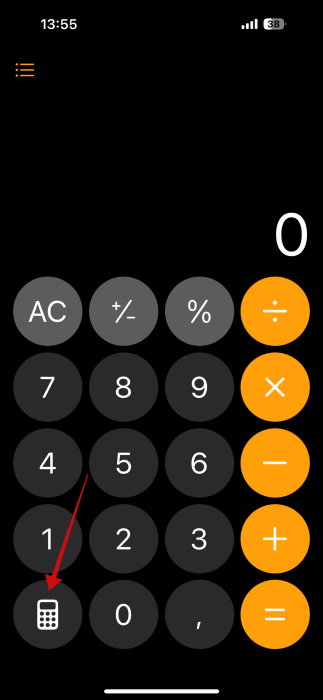
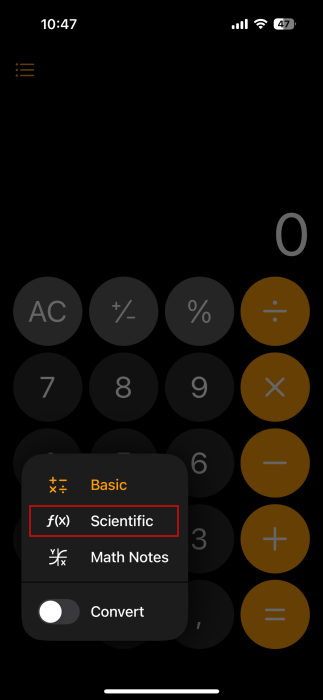
Tap on it and select Scientific. This will automatically switch to the more advanced calculator hidden on your phone. This is available in portrait mode as well as landscape.
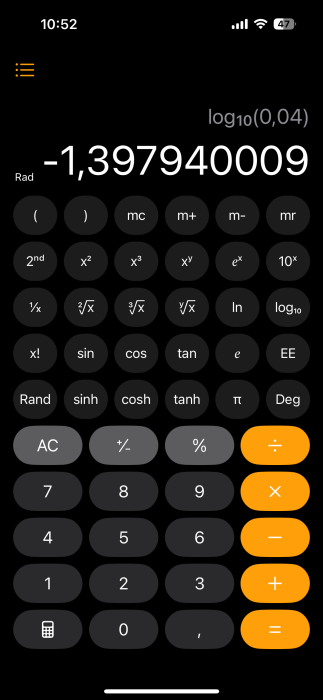
With the Scientific calculator, you have access to all sorts of advanced features for solving equations, such as:
- Work with stored values
- Use exponential functions
- Use logarithmic functions
- Include trigonometric and hyperbolic functions
- Use radians or degrees
- Generate a random number between 1 and 0
In this latest version, the calculator now displays the entire expression, and the answer pops up directly below when you tap the equal (=) button. This way, you always know exactly which solution goes with which calculation.
When tackling lengthy problems that require multiple steps you might require to remember previous operations. You can do this by bringing up your calculation history hidden in the menu icon in the upper left corner.
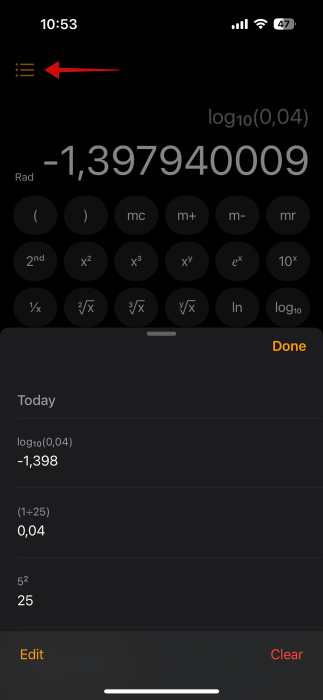
Select any previous calculation to instantly reinsert it into your Calculator app.
Tip: lean how to make your keyboard bigger on iPhone or iPad and make typing easier.
Level Up Problem Solving with Math Notes
Another hidden gem you might have missed is Math Notes, also available via your Calculator app on iPhone or iPad. This tool is especially handy for iPad users with a stylus, but you can also scribble calculations using your finger on your iPhone. Whether you’re a student or tackling a professional/personal project, you now have a powerful math aid at your fingertips to help you with your pursuits.
Note: Check here for more apps that are essential for a student to have.
All you have to do is write down the equation and draw the equal sign, and the answer will appear immediately.
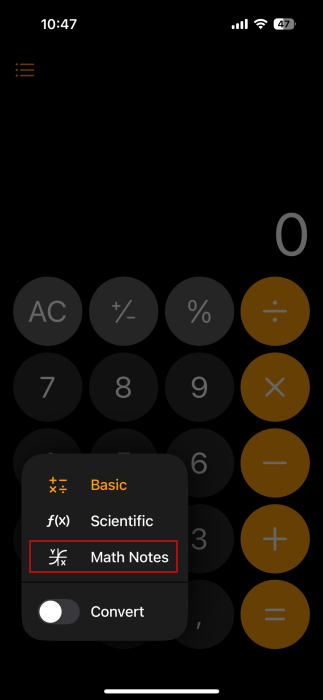
In the app, tap the calculator icon at the bottom of the screen and select Math Notes.
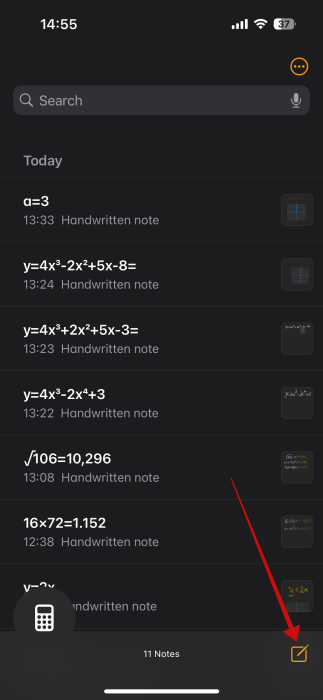
On the next screen, tap on the new note symbol on the bottom right.
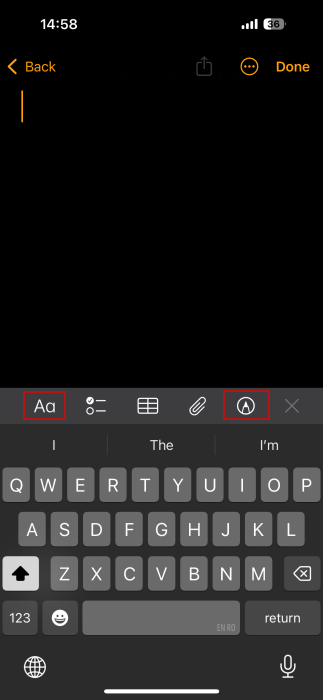
Select the pencil icon and choose a pen/brush to write with. You can also select the Aa icon to input the equation using your virtual keyboard. Start writing/typing the expression.
Performing simple calculations
With Math Notes, you can perform simple basic arithmetic calculations such as 16×72 or (10+60)4. Just drawing the equal (=) sign will reveal the answer.
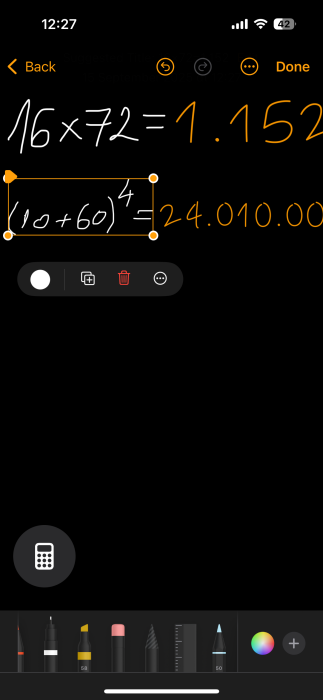
Tip: you can resize the calculations so the result can fit in the page in portrait view.
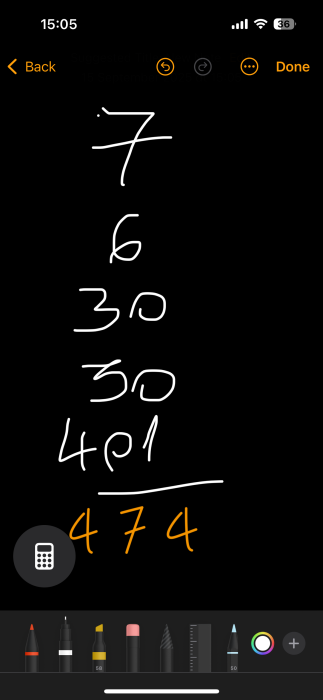
Another option is to stack the numbers, draw a horizontal line underneath to add them, or place another symbol besides each one to perform different calculations.
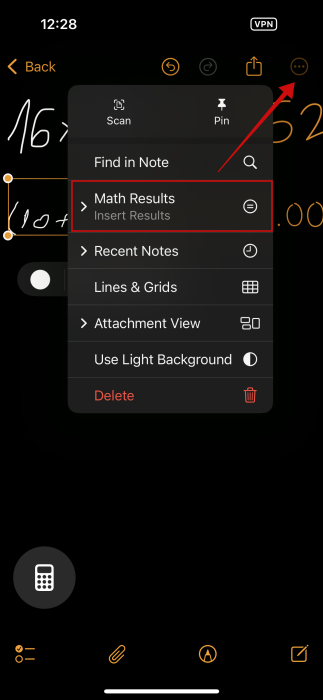
If you can’t see the result after drawing or typing on the equal button, tap the three dots in the upper right corner and select Math Results.
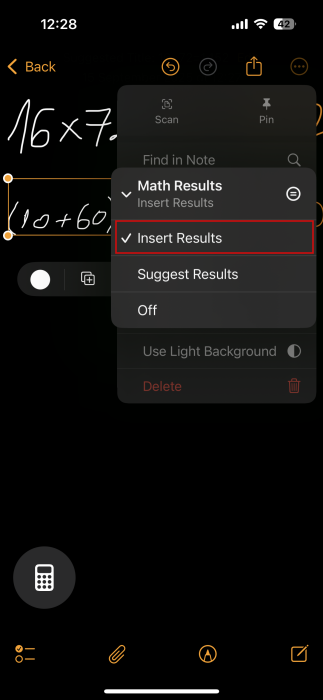
Make sure Insert Results is ticked.
Solving equations
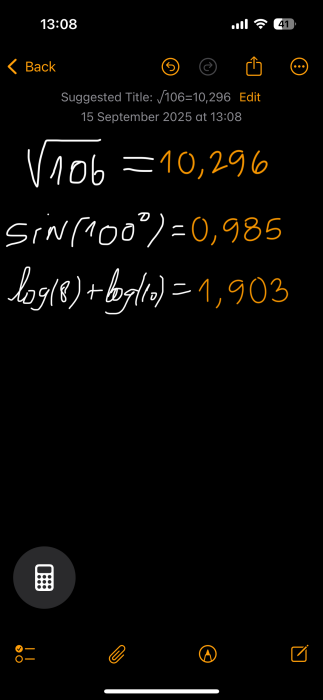
You can get Math Notes to solve simple equations, such as finding the square root of 106. Plus, Apple’s tool is equipped to handle basic trigonometric, logarithmic, and exponential functions, along with essential calculus operations.
If you made a mistake writing, press Done to finish writing/typing. Then long-press on the part you want to delete. A tiny context menu should pop up on top of the selected text. Select the area you want to remove and press Delete.
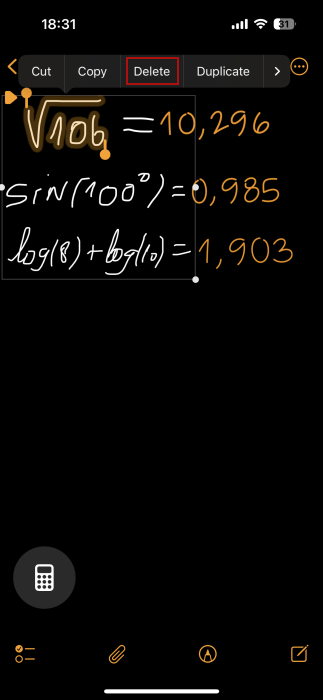
Then activate the pen so you can write again. The result will update accordingly.
If you typed the equation using your keyboard, tap next to the number you want to delete to bring the cursor there. Adjust the data.
Using variables and inserting graphs
You can also use variables in expressions and equations when using Math Notes. Declare a variable by entering a letter or word, followed by an equal sign and the value or expression you want to assign. To use the variable, just reference its name in your equations.
Note that Math Notes processes your input from the top left corner to the bottom right, so the variables need to be assigned first.
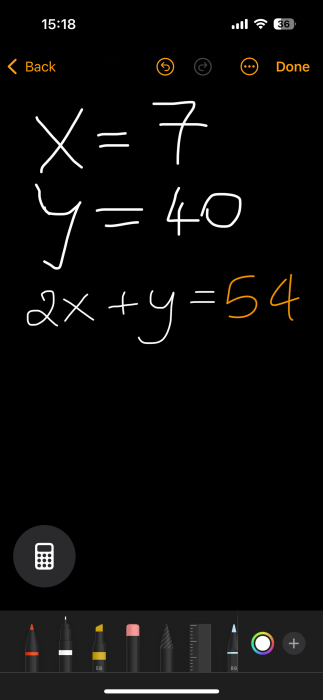
In addition, app can generate graphs directly from your expressions. When you enter an equation with variables on either side of the equal sign, a pop-up panel will appear with the Insert Graph option.
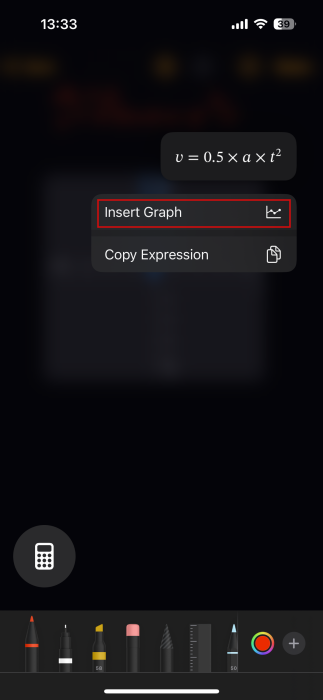
Tap it to add the visual to your note.
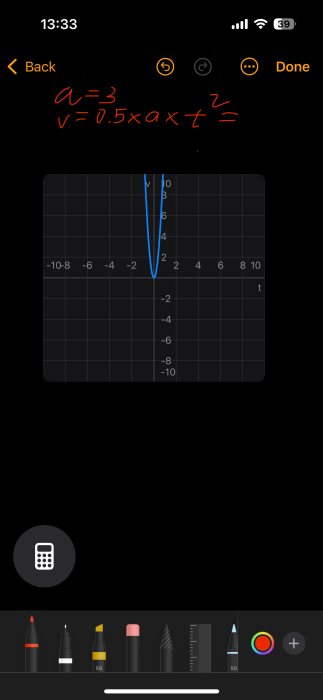
Making conversions
Apple’s Math Notes also supports conversions. Write something like this in your note: 60lbs=. The conversion will be performed instantly.
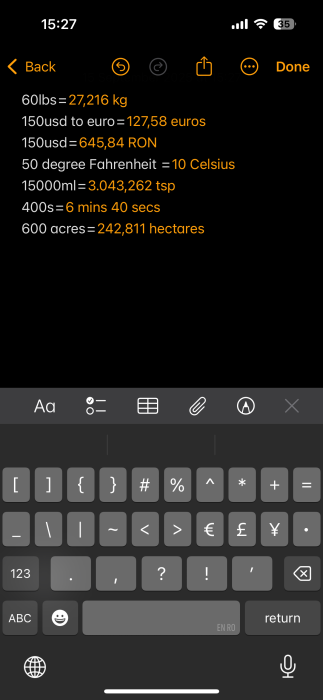
You can convert nearly any type of unit, including angles, area, force, fuel, length, pressure, speed, temperature, volume, weight, and more. As an added bonus, Math Notes even supports currency conversions.
Keep in mind, conversions default to the units or currencies commonly used in your region. If you’d like to convert to something different, write, for example, “USD to EUR”.
Access Your Calculations from the Notes app on iPhone
Math Notes syncs seamlessly with the Notes app on your iPhone/iPad via iCloud, so you will be able to easily access your math scribbles from Notes.
Open Notes on your iOS device and check for the Math Notes folder. Here you can find everything you’ve worked on so far.
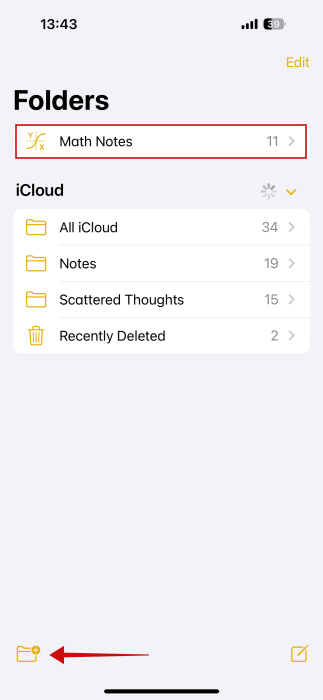
You can also open a new page in the Notes app and write new calculations from there, with full access to the same Math Notes features.
If you’re new to the Notes app, here are a few extra features you’ll want to explore to make the most of this versatile tool.








