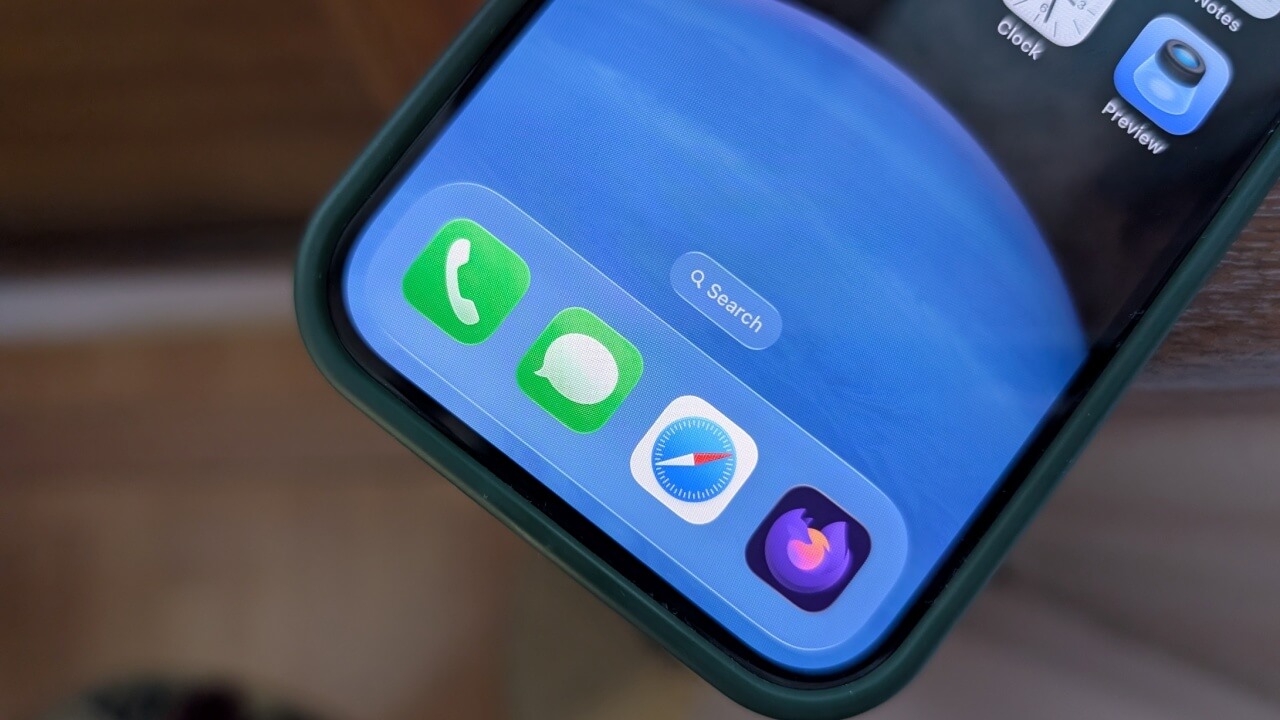
Safari is my go-to browser on iPhone, and I’m always on the lookout for extensions that can improve the experience. That’s how I came across a Firefox Focus extension built specifically for Safari. I installed it on a whim, but it ended up delivering far more value than I anticipated.
Why Safari with Firefox Focus Beats Running Two Separate Browsers
For those unfamiliar, Firefox Focus is a standalone mobile browser built with privacy and security at its core. As such, private browsing is enabled by default.
Firefox Focus also specializes in blocking ad trackers and analytics that monitor your activity across the web as well as social media. It also removes ads by default to deliver a cleaner browsing experience. Supported by Mozilla, a long-standing advocate for online privacy, Firefox Focus is an interesting browser alternative.
Although Firefox Focus exists as a standalone app on iOS, integrating it directly in Safari via an extension is, in my view, the better solution if you tend to rely mostly on Safari.
While this setup won’t save space on your device (you still have to download Firefox Focus due to the way Safari extensions work), you’ll be able to enjoy key Safari benefits alongside Firefox Focus’s privacy perks.
For instance, Safari’s tight integration with iOS gives you seamless access to services like iCloud Keychain, Apple Pay, and more, and with Firefox Focus as an extension, you’ll retain all these conveniences while adding Focus’s privacy protections on top – all in one package.
Additionally, Safari offers advanced features like a robust bookmarking system, PDF markup tools, distraction control, tab grouping, syncing with other Apple devices and more. These are capabilities Firefox Focus doesn’t provide, so for a full browsing experience it’s better to stick with Safari.
The Best of Both Worlds
To integrate Firefox Focus in your Safari browser, first, you will need to add the extension.
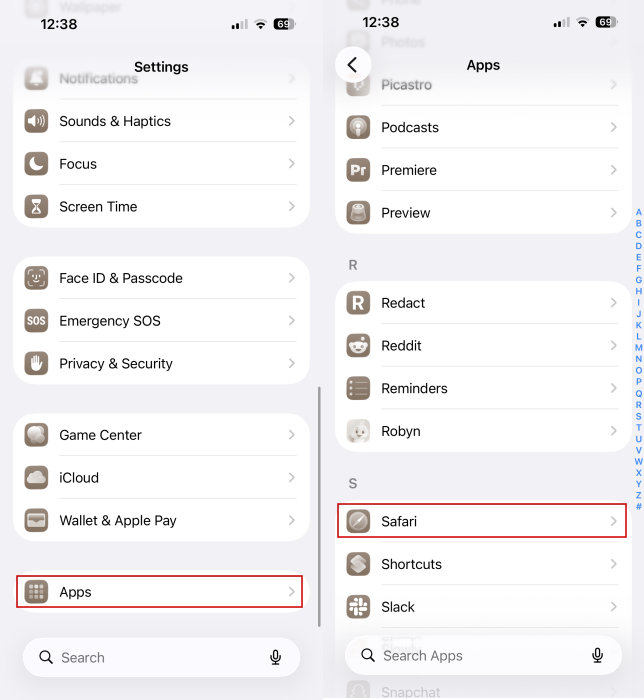
Open the Settings app on your phone and navigate to Apps -> Safari.
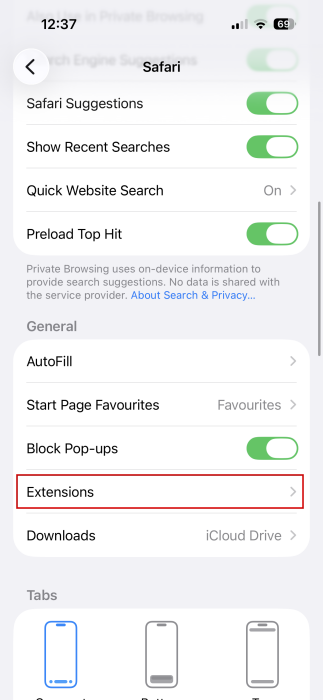
In the General section, tap Extensions.
Swipe down at the very bottom and tap on More Extensions.
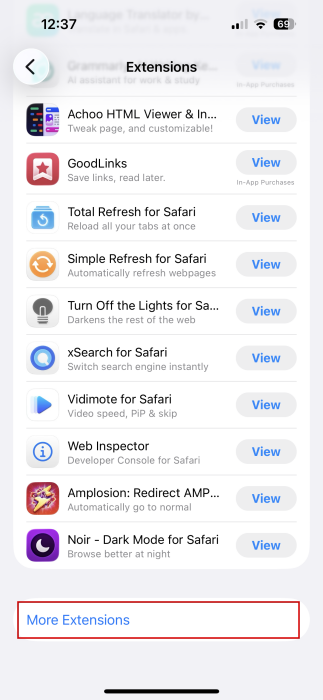
Search and install Firefox Focus. Note that adding an extension in Safari requires you to download the actual app. The extension is bundled within the app. You can’t install the extension as a standalone component, as with other browsers.
Once the app is installed, you should see it appear in Safari’s Extensions section in Settings. Toggle Firefox Focus from there.
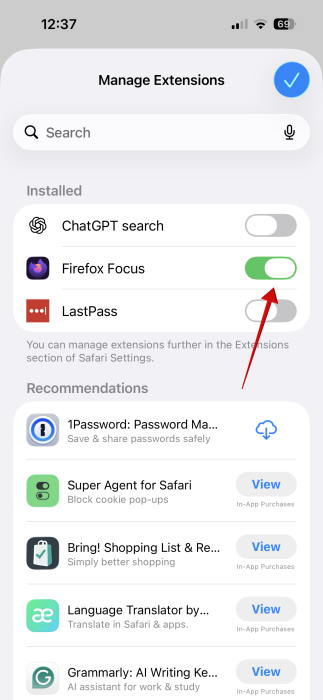
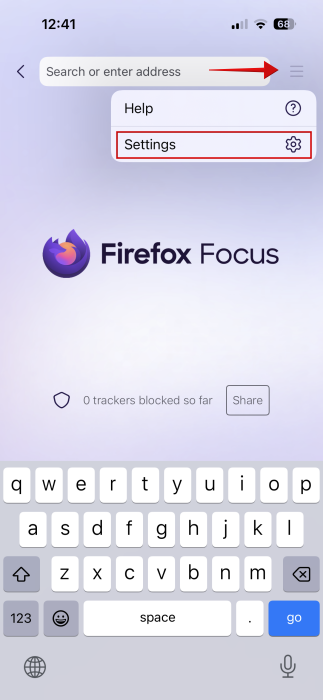
You can also enable the extension from Firefox Focus itself. Install the app from the App Store. Then open it and tap on the hamburger menu in the upper right. Select Settings.
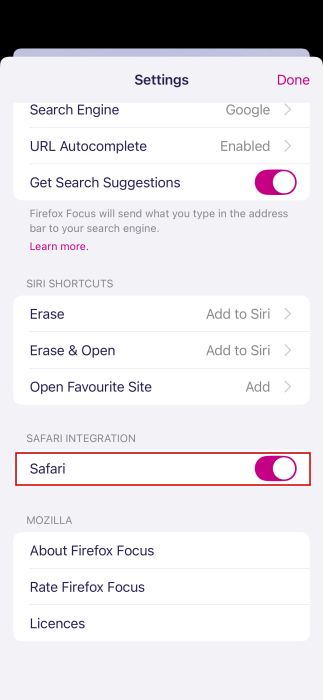
Toggle on the toggle next to Safari in the Safari integration section.
Now, there’s one more thing left to do. Open Safari and tap on the stack icon in the address bar.
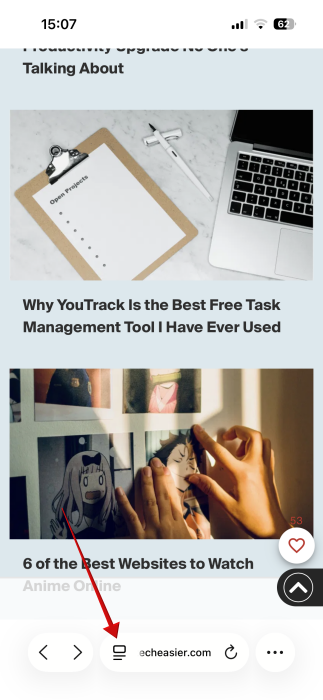
Select Turn on Content Blockers.
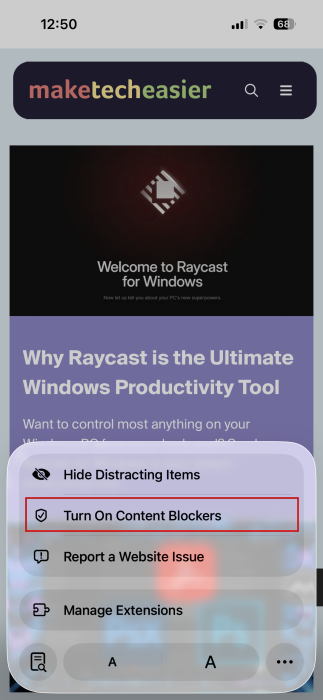
Now, Firefox Focus should start working in the background. You’ll notice (most) ads are gone, and the app’s tracker blocking features will be activated as well.
However, in its current form, the extension doesn’t allow you to modify any of its settings. While from the app, you can change various aspects, such as what type of trackers and scripts to block, you won’t be able to do so with the extension. That said, in my view, the extension’s default settings are more than enough.
Safari has its own tracker blocking feature, but a quick comparison between Safari and Firefox Focus while browsing the same websites for a few days revealed the latter a clear winner in terms of tracking protection effectiveness.
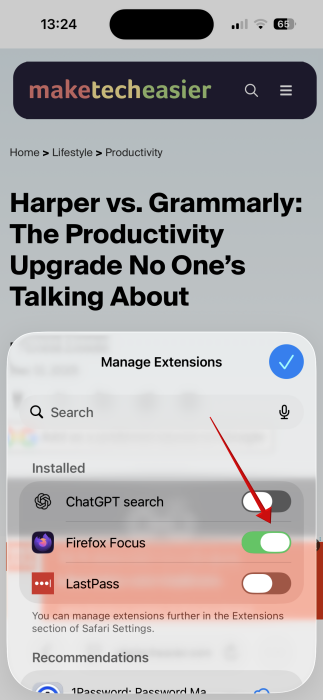
In case you need to, you can quickly turn off the extension by pressing on the stack icon in the address bar and selecting Manage Extensions.
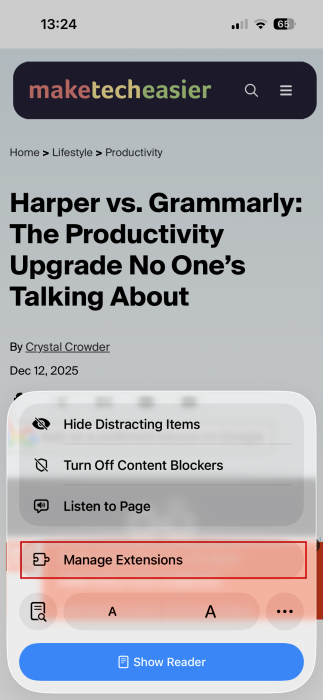
Then just turn off Firefox Focus from there.
For more Safari tips, check our guide on how to create profiles in Safari on iPhone, iPad, or Mac.








