Java is one of the most commonly used programming languages. It remains a core component of enterprise software, web development, desktop applications, and Android coding. In Windows, you can run Java programs from the Command Prompt for quick compiling and execution. Use this guide to get started.
Verify Java Installation
Before you can run a Java program on your computer, you’ll need to have Java installed, which you can verify as shown.
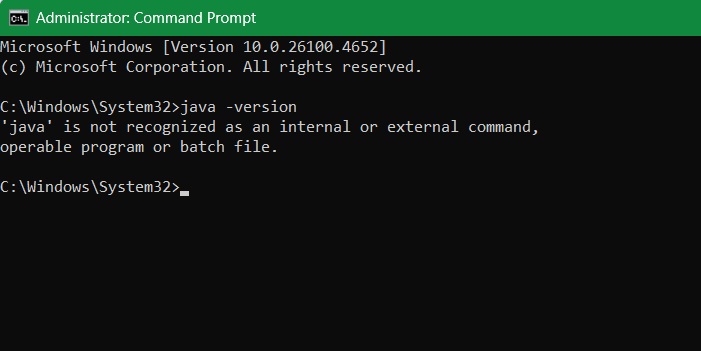
Open Command Prompt in Administrator mode, and type: java -version. If Java is present on your system, you will see its version info number.
Otherwise, “java” would fail to be recognized an external or internal command. This means you have to install it manually.
Also read: you can use the Command Prompt to find and open PC files.
There are multiple ways to install Java in Windows. The easiest way is to use WinGet software.
Install Java in Windows Using WinGet
You can pick out the latest Java version on its official Oracle webpage. At the time of writing, it’s currently Java 24. But we will install the latest Long-Term Support (LTS) version, Java 21, as it’s more stable.
Open Command Prompt or PowerShell in administrator mode, and run the following.
winget install Microsoft.OpenJDK.(Version number)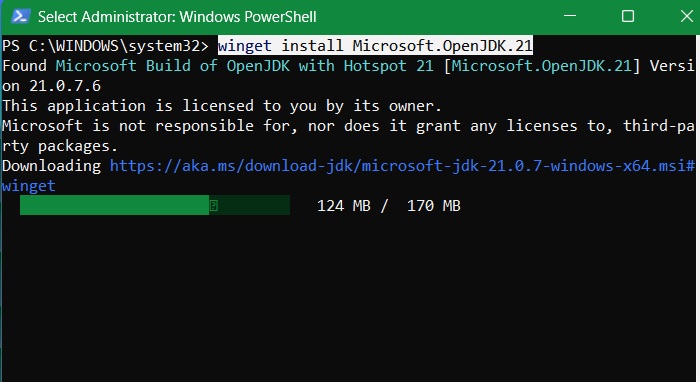
Some additional programs such as the Microsoft Build of OpenJDK will be installed within the same window.
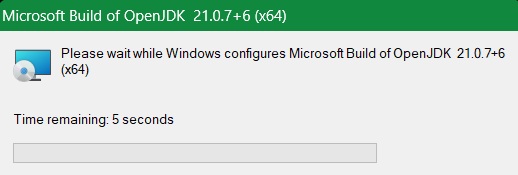
Eventually, you will see a Successfully installed status.
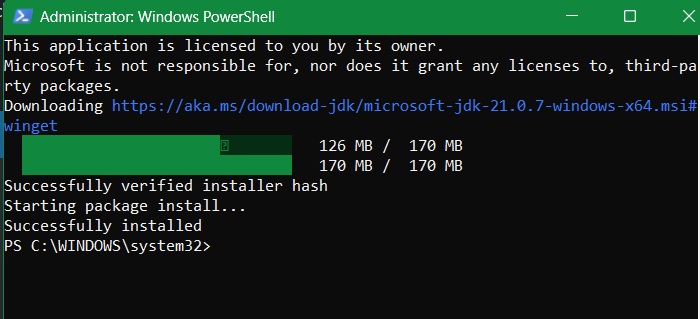
Related: check how to fix WinGet is not recognized in Windows problem which takes care of all its issues.
Conventional Installation of Java Development Kit (JDK)
The Java Standard Edition Development Kit (JDK) is its dedicated compiler. It’s an essential tool for developing in Java on any platform.
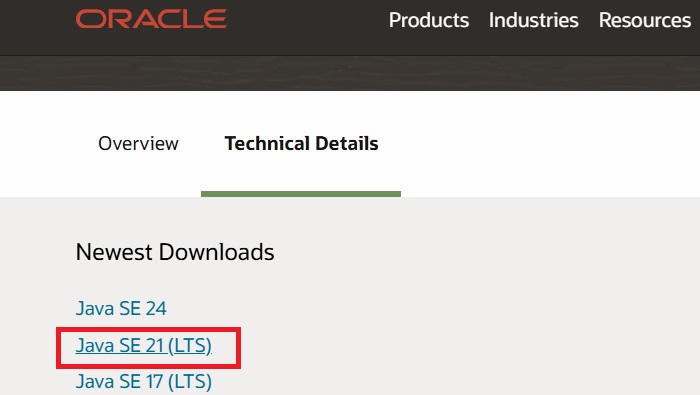
Go to the official page and click on the newest Java SE download version to begin. Again, we will pick the latest LTS version for stability.
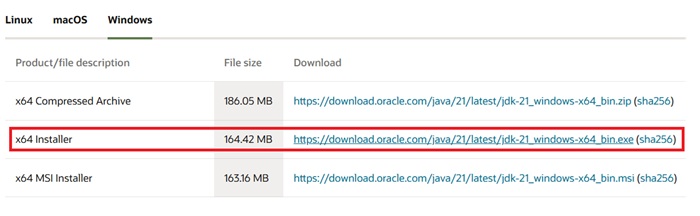
In the Windows tab, download any of the following: an x64 installer (shown in the screen), an x64 compressed archive, or an x64 MSI installer.
Note: if you have just simple use for Java software, avoid downloading the “Java SE Development Kit for Java SE subscribers,” which is on the same download page. If you wish to use Java’s JRE installation for Microsoft Windows, it has been moved to another page.
Run the installer as you would for any other program and follow the instructions. If you don’t have an Oracle account, you will have to finish registration first.
Note the Windows location where Java is being installed, which is usually Program Files. It will come in handy later when you’re trying to run Java from the Command Prompt. You can also check it from the File Explorer location once installed.
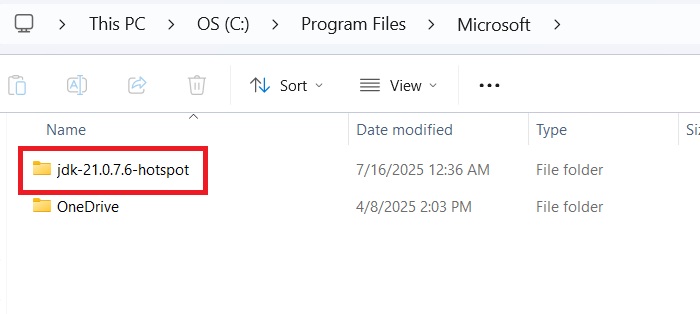
The installation should be over in just a few seconds. If it is taking a long time, close all of your other apps from Task Manager and reinstall the software.
You will see a Successfully Installed status in the end.
Related: learn to enable copy-paste in the Windows Command Prompt.
Running a Java Program From the Command Prompt
Create a simple Java program like the one below using Notepad or another text editor.
public class HelloWorld
{
    public static void main(String[] args)
    {
        System.out.println("Hello, World!");
    }
}
Make sure to save the file with the extension “.java” rather than “.txt.”
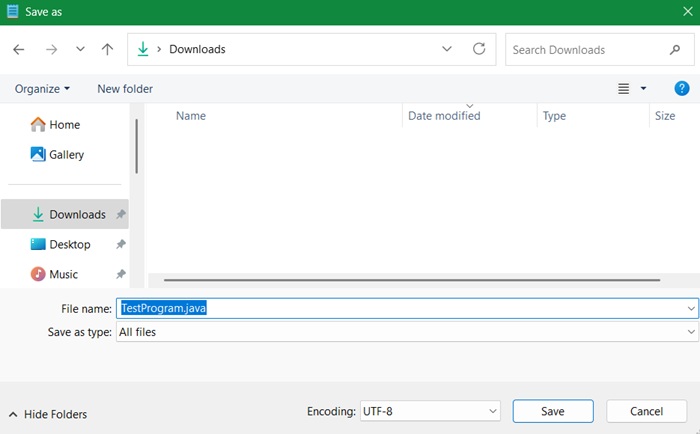
Open the Command Prompt from the Windows Start Menu, and don’t forget to run it as Administrator.
Use the cd command to change your working directory to the directory containing your Java program. You can change all your Java-related settings in Windows within this folder.
cd Documents[Java-program-folder]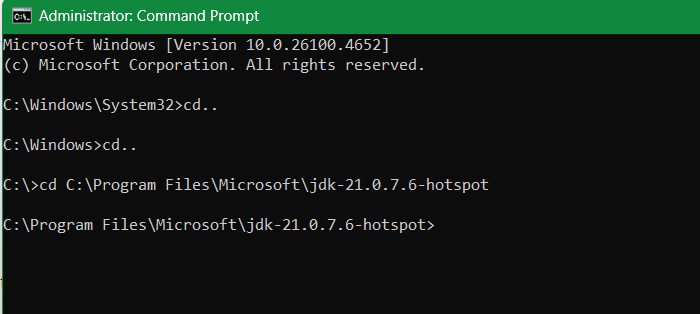
In the past, you had to change the directory path to reflect the current version of Java while pointing to the bin folder inside. This is no longer necessary. Now all you have to do is navigate to the precise folder where you have saved the .JAVA file.
Compile the Java program with the javac command as shown below.
javac "Program Name".java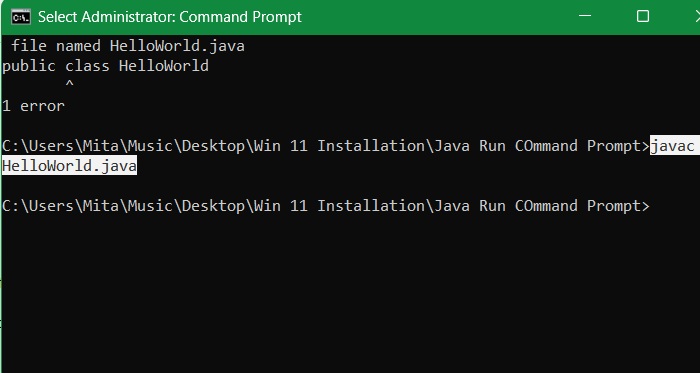
Be warned that you won’t see anything happen. However, if you use the dir command, you’ll notice a new file in your directory ending in the “.class” extension, indicating the program has been compiled.
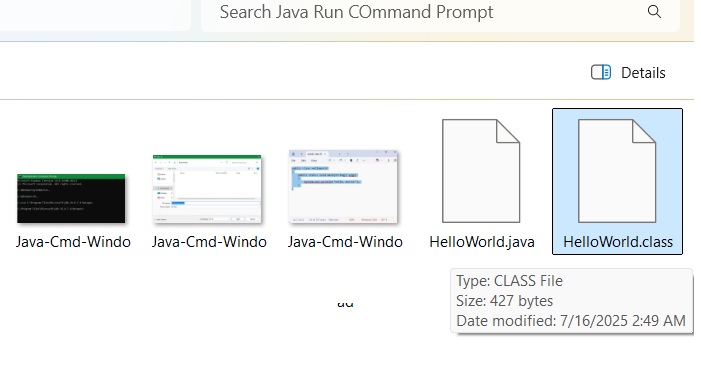
Use the java command to run your program:
java "Program Name"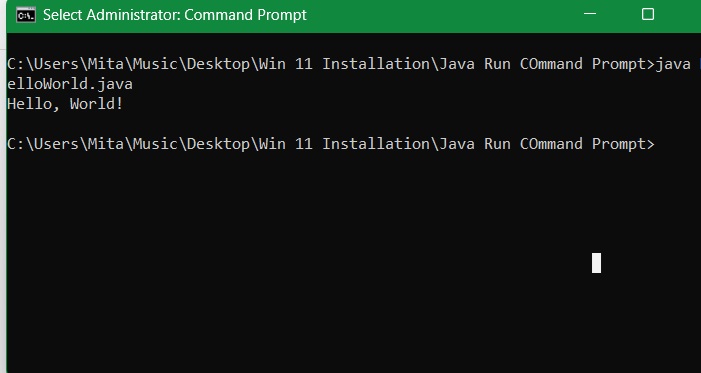
You’ll see the program run within the Command Prompt window.
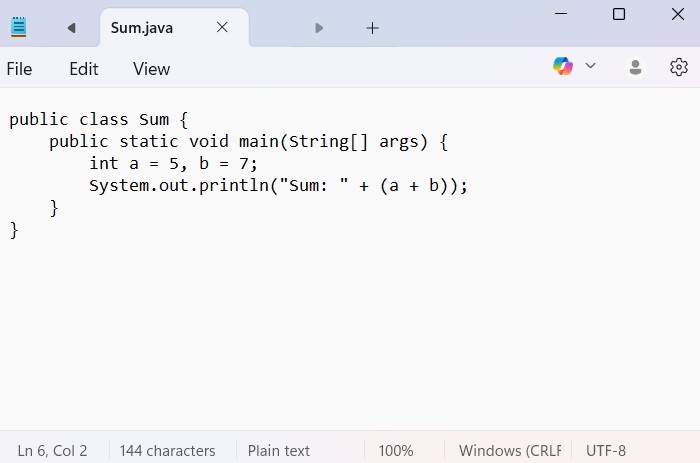
There are many things you can do with Java right from within the Command Prompt. For example, Java can be used to add, subtract, multiply, and divide any list of variables. All you need to do is create a simple program using Notepad, and watch it happen anytime in Command Prompt.
public class Sum {
    public static void main(String[] args) {
        int a = insert value, b = insert value;
        System.out.println("Sum: " + (a + b));
    }
}
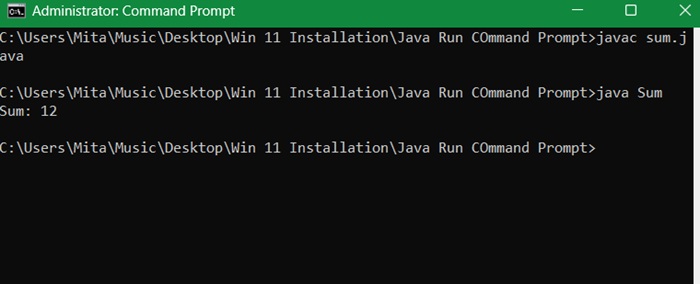
Now, go back to the Command Prompt and compile the Java program using javac followed by using the java command. It will display the summation value.
After you start working with Java in Windows Command Prompt, here are a few other very simple Java commands that you can figure out easily as a newbie.
javac *.java: compile all the java files saved in a folderjavac Timenow.java: display local time on your cmdjavac -Xlint Hello.java: display warnings while compiling a program
Related: learn how to use Windows Defender from the Command Prompt.
Setting a Permanent PATH for Java Folder
The above command doesn’t set your Java compiler PATH permanently. It sets the environment variable for that session, but that change will be removed.
Setting your Java compiler PATH permanently is handy if you want your compiled Java programs to run smoothly after a PC reboot. This helps launch the requested programs quickly from the Command Prompt window.
Follow the steps below to change your PATH variable for all future sessions.
Open Control Panel -> System and Security from the Start Menu and click System. Search for Advanced System Settings. Go to Advanced tab and click the Environment variables button.
Select the Path variable, then click the Edit button.
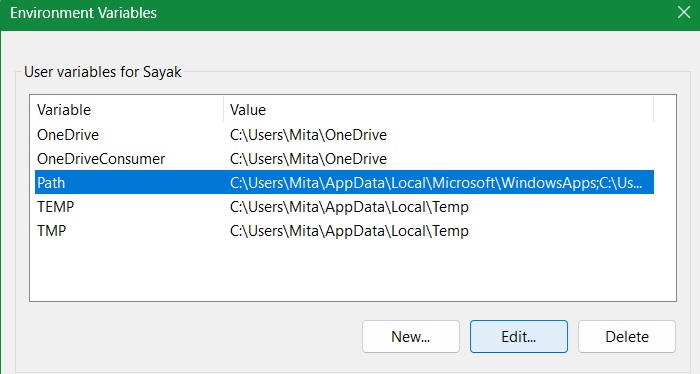
Click New to add a new directory to your path.
Paste the directory path for Java Development Kit into the text box. Again, make sure you’re using the Java Development Kit (JDK) directory and not the Java Runtime Environment (JRE) directory next to it.
You will now find JAVA_HOME added as one of the system variables that you can directly point to.
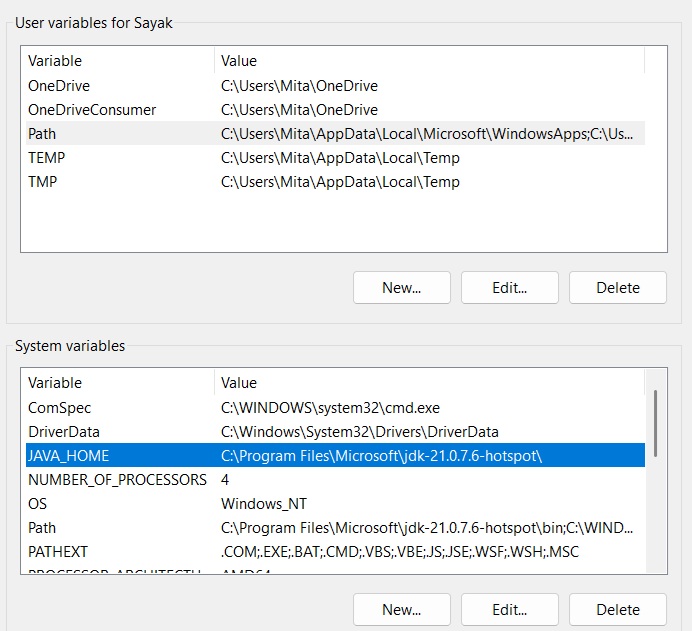
Lastly, click OK to commit to the change.
Frequently Asked Questions
How can I fix “You don’t have permission to save in this location” while saving Java files?
Some users may get a “You don’t have permission to save in this location” error while saving Java files in Windows. Even though you are the administrator of your PC, this error shows up out of nowhere. To fix the problem, right-click the Java folder’s Properties and navigate to the Security -> Advanced -> Select User or Group.
In the Advanced Security settings for Java, change the Owner from System to whatever user account you have used to log in to the device. You can determine the correct name from Check names. Just enter the text, such as Desktop, Administrator, or Users, to enable full permissions to the folder. Click OK and save the changes.
How can I fix “Java is not recognized as an internal or external command” in Windows?
The best way to fix “Java is not recognized as an internal or external command” is to add Java’s bin directory to your computer’s path, as covered above.
Windows Command Prompt doesn’t show the results of Java command. How can I fix it?
If your Windows Command Prompt doesn’t show the results of a Java command you’ve entered, there are two solutions: run the Command Prompt in Administrator Mode or find your “Java.exe” file in the folder location and open its Properties. Then, navigate to the Compatibility tab where you will have to uncheck the Run this program as an administrator option.
What is the difference between Java and Javascript?
Don’t confuse Java with Javascript, as they are two different entities:
- Java came before Javascript. It was founded by Sun Microsystems in 1991-1995. Javascript was founded later by Netscape, an old browser company. Basically, Javascript is a very lightweight version of Java and still commonly used in browsers.
- Java is a compiled program, whereas Javascript is interpreted.
- Java is a static typed program, whereas Javascript is dynamically typed.
- Java uses classes, and Javascript uses prototypes.








