
Want to install and run your favorite Android apps smoothly on your Linux desktop? Give Waydroid a try! Waydroid uses a container-based architecture that lets you run Android applications with near-native performance and deep integration into your Linux system. This guide explains how to use Waydroid on Linux.
Note: To use Waydroid, your system must be running on a Linux host. This is essential because Waydroid creates a virtual Android environment, and it cannot run inside another virtual machine. It requires direct access to the system’s kernel-level features, which are typically not available in virtualized setups.
Introduction to Waydroid
Waydroid is a container-based solution that boots a complete Android system on your Linux computer. Unlike clunky emulators that hog resources, Waydroid runs Android apps natively using Linux containers (LXC). It’s lightweight, fast, and integrates apps directly into your desktop.
Waydroid works on many Linux distributions and CPU types. It also leverages Android’s Mesa technology to improve graphics performance by allowing the container to access the host system’s GPU, ensuring apps run smoothly.
Waydroid Installation
Before beginning the installation, make sure you have a Wayland session enabled (Ubuntu 22.04+). To verify that your system is running Wayland, open a terminal and enter:
echo $XDG_SESSION_TYPE
This command displays your session type. Also, verify that your system is updated and that you have installed the necessary prerequisites, such as curl:
sudo apt update && sudo apt install curl ca-certificates -yNext, add the official Waydroid repository:
curl -s https://repo.waydro.id | sudo bash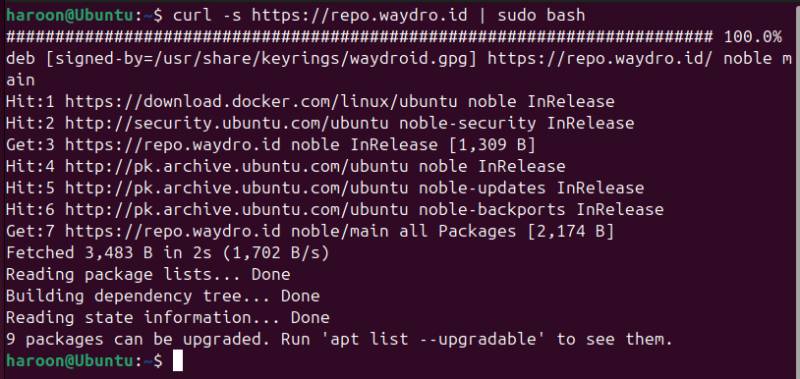
If your distribution is not automatically detected, you might need to specify your version manually. (for example, use -s jammy for Ubuntu 22.04)
Finally, install Waydroid with this apt command:
sudo apt install waydroid -yAfter installation, you can launch Waydroid from your Applications menu.
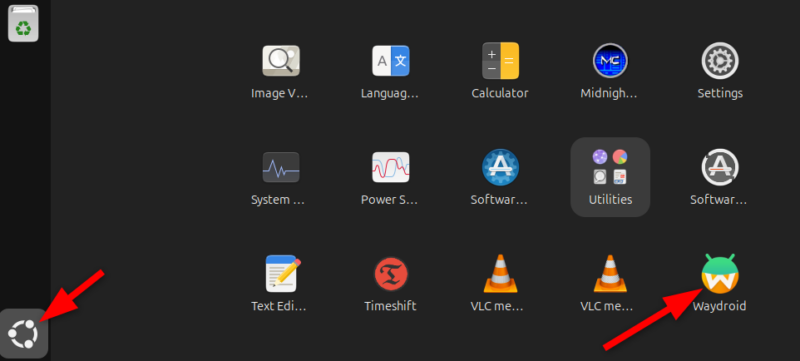
If you are running Fedora, install Waydroid with the DNF package manager:
sudo dnf install waydroidNote: On other distributions like Arch Linux, the installation process and commands differ slightly. Refer to the official Waydroid documentation for complete details regarding your distribution.
Setting Up Waydroid
When you start Waydroid for the first time, a setup window may prompt you to download an Android image. This image is the Android system that runs inside the container. You can choose between a Vanilla image (without Google services) or GAPPS (with Google Play Services).
Select GAPPS if you want to install applications from the Google Play Store. After choosing your preferred image, click Download and wait for the process to finish.
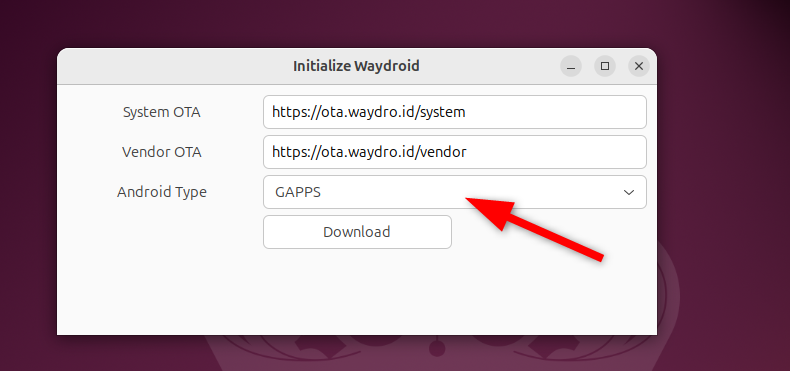
Once finished, click Done, and Waydroid automatically launches. If not, you can relaunch Waydroid from your menu. It may take some time, but a virtual Android environment will appear shortly.
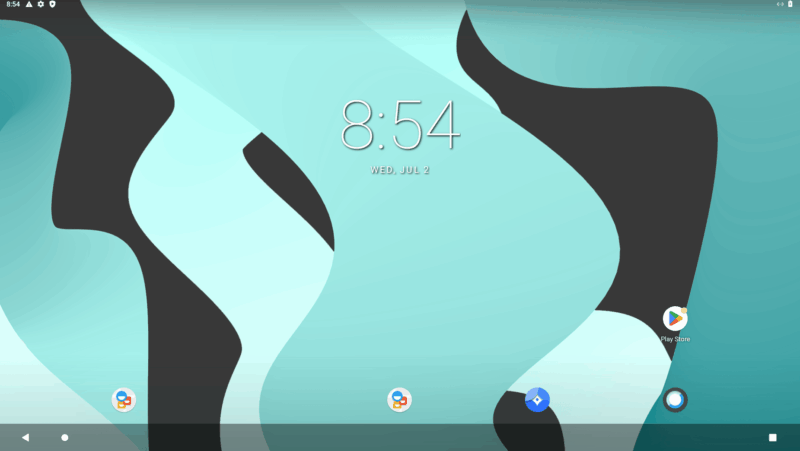
By default, the device is not trusted, so you must register it to use the Google Play Store. To register the device, open your Linux terminal and enter:
sudo waydroid shellOnce inside the Waydroid shell, run the following command to retrieve your Android ID:
ANDROID_RUNTIME_ROOT=/apex/com.android.runtime ANDROID_DATA=/data
ANDROID_TZDATA_ROOT=/apex/com.android.tzdata
ANDROID_I18N_ROOT=/apex/com.android.i18n sqlite3 /data/data/com.google.android.gsf/databases/gservices.db "select * from main where name = \"android_id\";"
The command returns a string of numbers – copy this value.
Next, visit the Google Uncertified Device Registration page, paste your Android ID, complete the robot verification, and click Register.
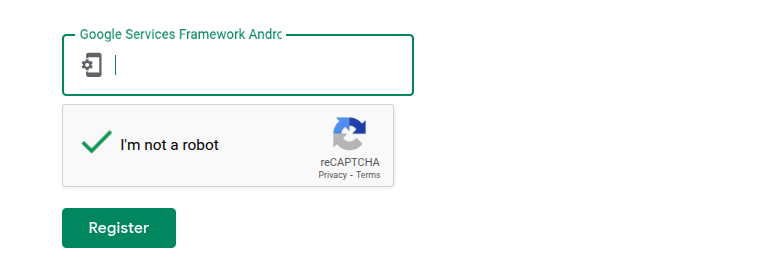
Finally, close and reopen Waydroid, or simply run the following commands one after another:
waydroid session stop
waydroid session start
Your device is now registered, and you can install and use Android apps, including those from the Google Play Store.
Installing Android Apps on Waydroid
If you opted for the GAPPS image during setup, you can launch the Google Play Store directly from Waydroid. Simply log in with your Google account and install the applications just as you would on an Android device.
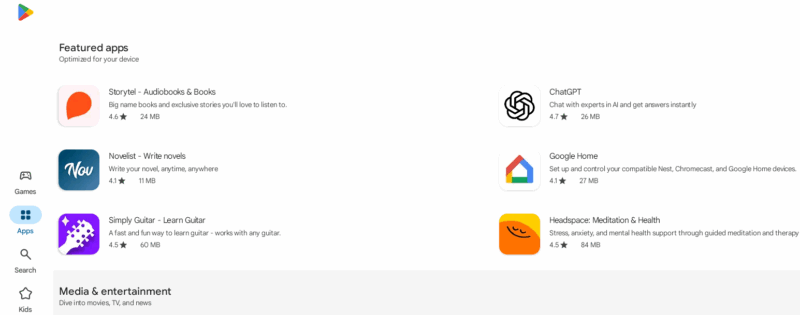
To remove an app, follow the same steps as you would on your Android device, such as clicking Uninstall.
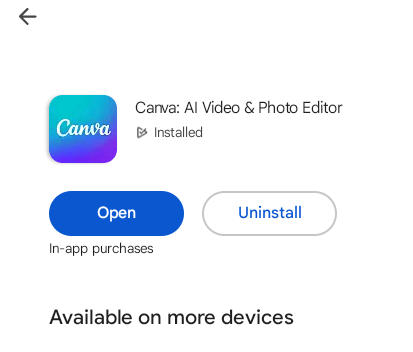
This straightforward process makes managing apps as simple as on your mobile device.
If you do not use the Google Play Store, you can install apps manually using APK files or by using other app stores such as F-Droid, which often offer lightweight and privacy-focused apps.
To install an APK, download it from a trusted source. Then, open your terminal, head over to the folder where you saved the APK, and run:
waydroid app install your_app.apkReplace your_app.apk with the actual file name. The installation should complete within seconds.
Final Thoughts
Waydroid is just one method for running Android apps on Linux. You may also consider using an Android emulator, a virtual machine, or Android Studio to create a personal Android Virtual Device (AVD).








