What we like
- Strong parental controls via the Bark app
- Kid-safe design that doesn’t allow access to app stores, social media, or unrestricted browsing
- Clear call audio for approved contacts
- Bluetooth compatibility for optional headphone use
What we don’t like
- Text messaging is unreliable, especially with RCS messages from Android devices.
- Parents can’t view photos taken with the watch, only rely on Bark’s AI monitoring.
- No access to real-time GPS tracking, unlike some competitors
When my oldest child got their first phone last fall, their younger sibling instantly wanted a device of her own. My teenager needed it – we’d reached the point where after-school rehearsals, band practices, and social hangouts made communication essential. But for my youngest? She just wanted to feel included, and maybe send a few voice messages to Grandma.
We weren’t ready to hand over a full-fledged smartphone just yet, but still wanted her to feel connected and safe. This is where the Bark Watch enters the scene. A kid-friendly smartwatch with built-in parental controls, GPS tracking, and basic calling features – sounded like the perfect middle ground between walkie-talkies and a phone plan. But does it actually deliver on safety and simplicity?
What’s The Bark Watch?
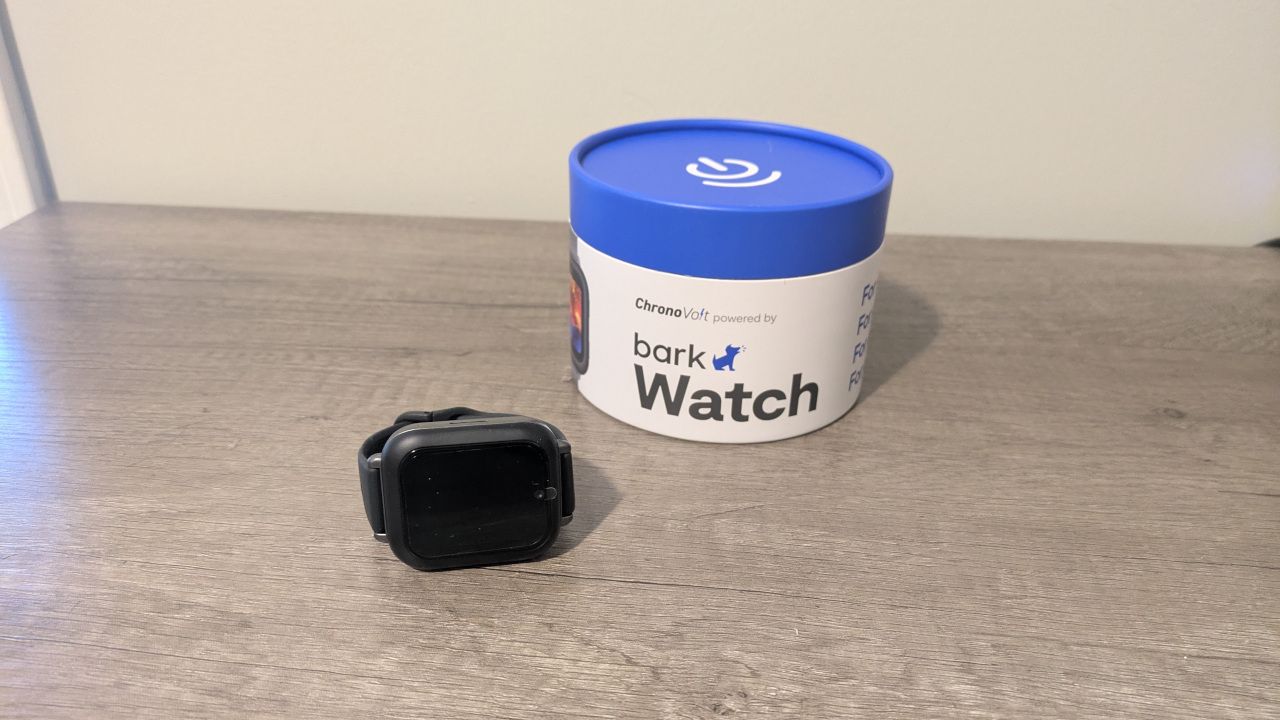
The Bark Watch is a subscription-only device that works with Bark’s specialized device network. Unlike most other smart devices, you cannot buy the device outright, nor can you move it to any mobile network. Instead, you pay $15/month for the device plan, plus an extra $7/month for the first 24 months of the contract to cover the cost of the device. Once the device is paid off, you continue paying $15/month for as long as you use the device.
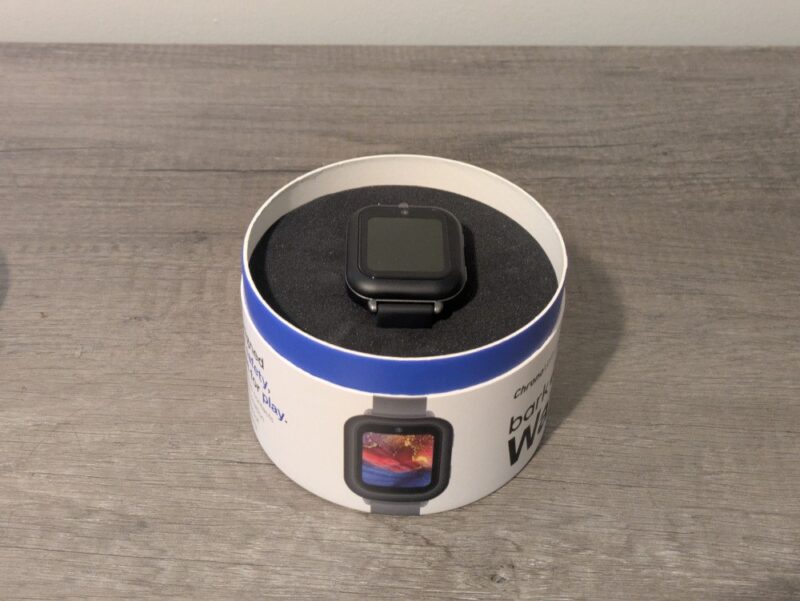
Inside the box, you’ll find the Bark Watch itself, a charging cable, a setup guide, and a pre-installed SIM card. The watch features:
- A 1.4″ touch screen
- Built-in 5MP camera
- SOS button
- GPS tracking
- Wi-Fi and Bluetooth connectivity
- Water-resistant casing
It runs on a custom version of Android, designed for child-safe interaction and streamlined parental controls.
Setup and Configuration
To turn the Bark Watch on, long-press the top right button (the power button). Once it powers up, you will first be asked to sign in to a visible Wi-Fi network. The watch may begin a firmware update after this, but it only took a few minutes during my test.
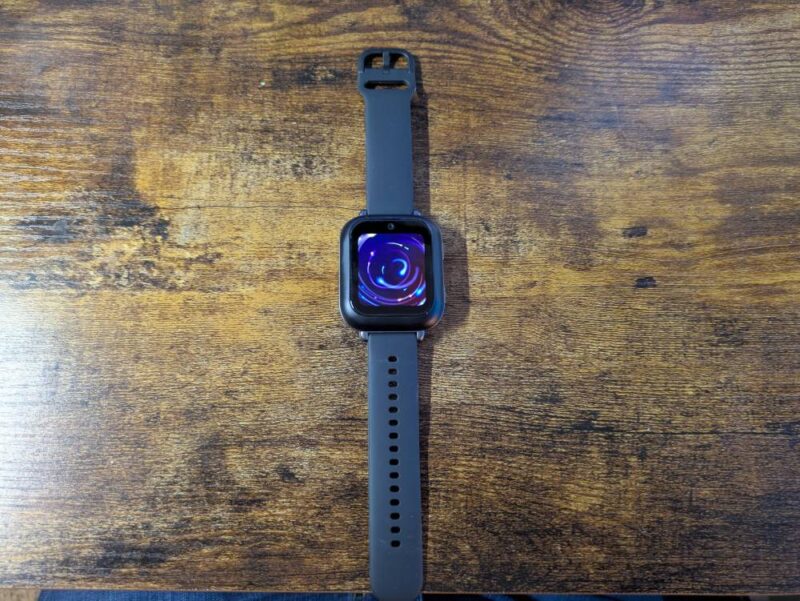
After the watch is fully powered on and updated, the watch prompts you to scan a QR code using the Bark Parent app to link it to your account. If you ordered the watch directly from Bark, you will use the same account information you established during the order process. Otherwise, you will need to set up an account from scratch, which will also take a few minutes.
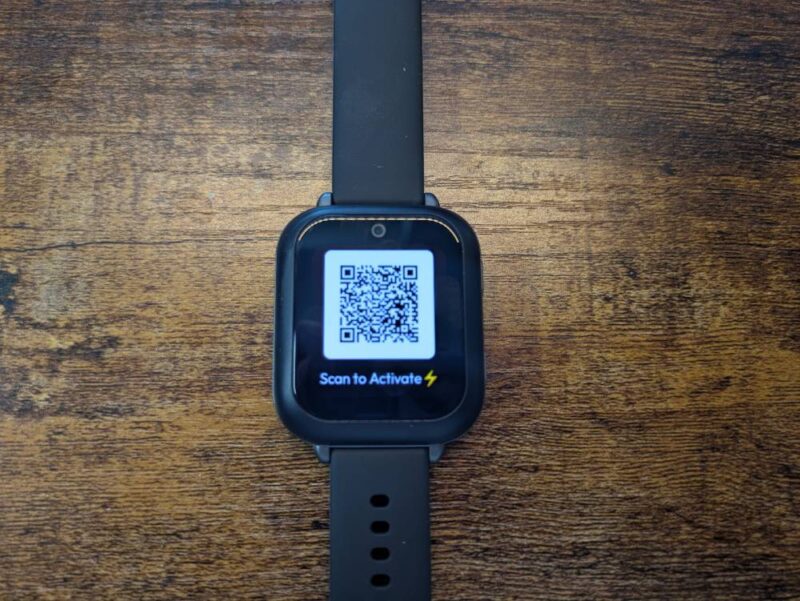
In my case, I already had a Bark account that I used to test parental control options for Android devices, and this caused some trouble during the initial setup. Thankfully, Bark’s tech support was helpful and resolved the issue within 24 hours.
Using the Bark App
One of the benefits the Bark Watch boasts about is its parental controls, which parents can access from any Android or iOS device.
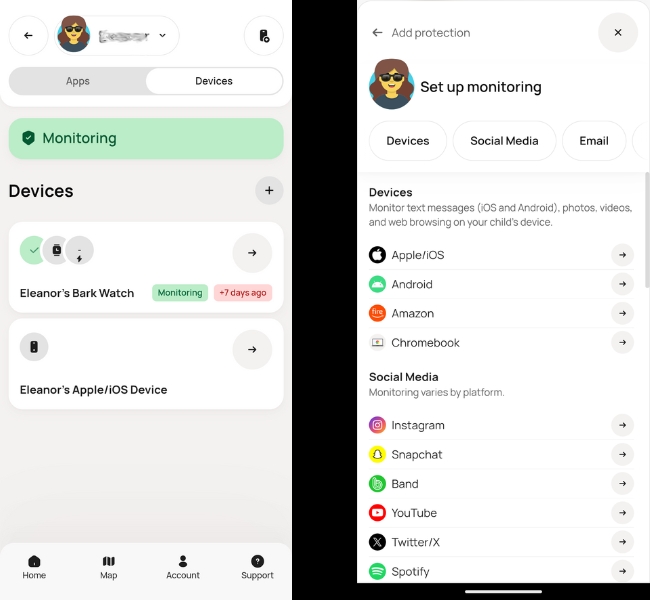
The Bark app gives control over nearly every aspect of your child’s devices (Bark Watch or otherwise), including:
- Contact Management: Approve or block contacts to ensure your child communicates only with trusted individuals.
- Text, Photo, and Video Monitoring: Automatically scan your child’s messages and media for potential risks like bullying, inappropriate content, or online predators.
- GPS Location Tracking: Monitor your child’s location at any time, with options for location alerts and check-ins. Note: This feature does not provide real-time location tracking like other parental control apps.
- SOS Emergency Alerts: Receive immediate notifications if your child uses the SOS feature on their watch.
- Screen Time Management: Set schedules to control when your child can use the watch, helping to establish healthy digital habits.
- Website and App Blocking: Restrict access to inappropriate websites and apps to ensure a safe online experience.
- Customizable Watch Faces: Allow your child to personalize their watch with various watch face options.
- Device Location Sound: If the watch is misplaced, use the app to play a sound on the device to help locate it.
- Activity Monitoring: Track your child’s physical activity, including step counts, to encourage a healthy lifestyle.
- Parental Alerts: Receive notifications for potential issues detected by Bark’s monitoring system, such as signs of cyberbullying or exposure to inappropriate content.
Bark Watch Features and Shortcomings
After you set up the watch and establish all the control settings you want, it’s ready for your child to use. The Bark Watch is meant to be simplistic and a way for children to communicate with parents and other family members. Therefore, it doesn’t offer all the features of a typical smartwatch, making it a great introductory device for younger children.
Basic Calls, But Limitations on Text Messaging
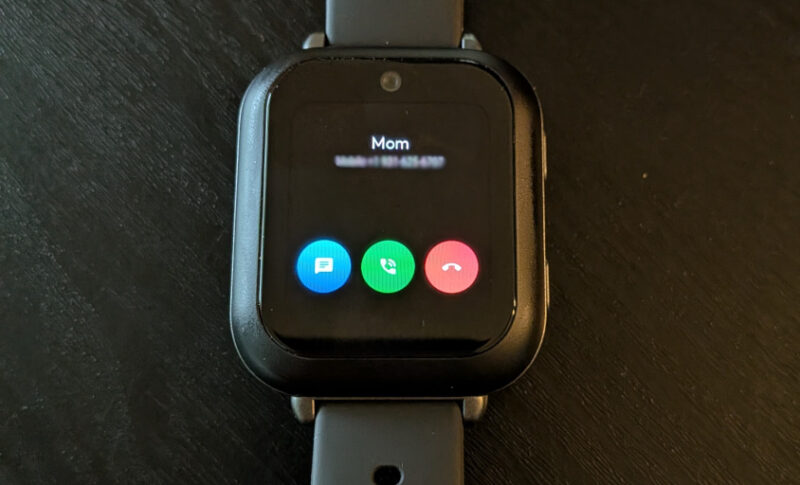
The Bark Watch supports phone calls and text messages, but only between the device and contacts a parent has added to the child’s contact list. The watch can make outgoing calls and receive calls, and the audio quality is surprisingly clear.
Text messaging, on the other hand, has some issues. While I could receive all the messages sent from the watch during initial tests, the messages I sent back were never received. When I researched the issue, I learned the Bark Watch doesn’t do well with RCS messages (which my Android device defaults to using), and none of the recommended fixes worked.
5MP Camera, But No Image Access
The Bark Watch offers a basic, 5 megapixel camera to take photos. The picture quality is not great in comparison to smartphones, but it gets the job done. You can send picture messages to contacts, or view images in the watch’s built-in gallery.
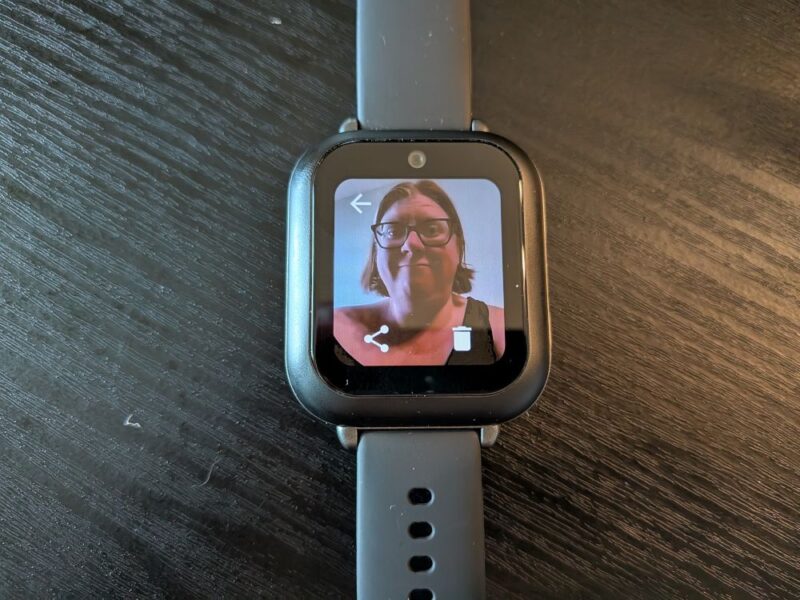
Unfortunately, parents cannot view photos taken with or saved to Bark Watch. Bark says its software “monitors” images for anything inappropriate, but this isn’t the same as viewing the images yourself as a parent.
In fact, the only way to view images taken with the Bark Watch is through the watch’s gallery. There’s no way to download images onto a cloud or store them externally unless you first send them to another device and download them from your messages. To me, this makes the camera all but useless, unless you’re asking the child to send you specific images of where they are or what they’re doing.
Bluetooth Connectivity
Like most other modern devices, the Bark Watch supports Bluetooth connectivity. With this, you can pair headphones for calls and video recording. While these headphones aren’t necessary, it is a nice benefit for families who may be using the watch in public spaces.
GPS Location Tracking and Other “Perks”
Bark insists their watch is a great option for parents because it supports location tracking, message monitoring, and other safety features. However, my testing found nearly all of these “perks” to be useless, especially for parents who want control and real-time information.
For starters, the “location tracking” requires your child to either arrive at a location you have added to your account’s list of “locations” or use the “check-in” option to share their location with you. This means that, if your child is outside of these zones or unwilling to provide location tracking on their end, you can’t determine where they are.
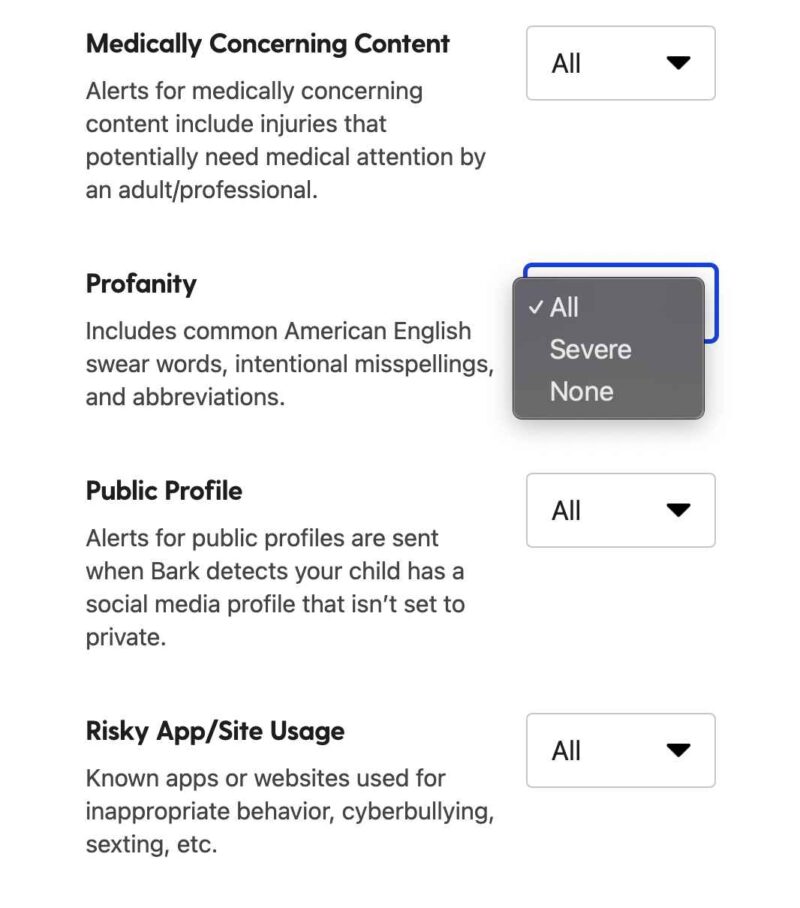
Additionally, the “monitoring” it provides isn’t what you would think. Unlike other parental control apps, Bark doesn’t give parents access to messages sent and received from the Bark Watch. Instead, it lets you select from a list of monitoring sensitivities that Bark can scan communication for. If it picks up on something it believes falls in one of these categories, it will alert you.
My Honest Opinion of the Bark Watch
For a young child, the Bark Watch could be a great first step to using a smartphone or similar device. It supports the most basic calling and text message features, but doesn’t let the child download problematic apps or explore the open internet.
However, the text messaging issues and other limitations mean other options would ultimately give parents better control and communication, especially given how sophisticated Google Family Link and similar parental control programs have become. That being said, the price point is definitely much cheaper than a traditional cell phone plan, even when you’re just adding a line to an existing contract.
If you need something basic and can work around the kinks, it’s a viable option. In the case of my family, I much prefer the amount of control I have over my oldest child’s cell phone than what the Bark Watch offers, but to each their own.
Subscribe to our newsletter!
Our latest tutorials delivered straight to your inbox