
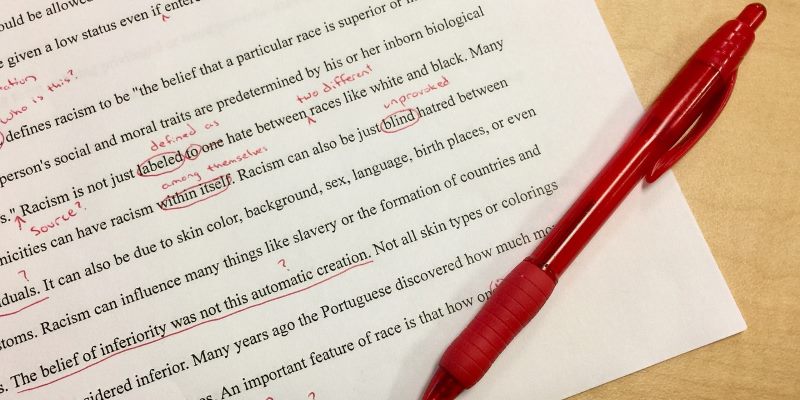

One of the bigger benefits for working on a document in the cloud is the ability to share it in real time. No longer do you have to pass around edits to try to maintain a coherent document; now everyone can chip in on the same document and even edit it at the same time. While very useful, there are issues that naturally arise with multiple people editing the same document. One day you might open up the document to find that a lot of edits have taken place, some of which you disagree with!
Thankfully, with any good software that allows collaborative editing, there’s a way to find out who made what changes and revert them back to a previous version. Here’s how to do it in Google Docs.
Also read: How to Add a Written Signature to Google Docs
Viewing Edits
In this example we’ll be analysing a document that underwent edits. Someone tried to add an image to this article about Tutankhamun, but in doing so they accidentally deleted a paragraph above the image that discussed his early life and parents.
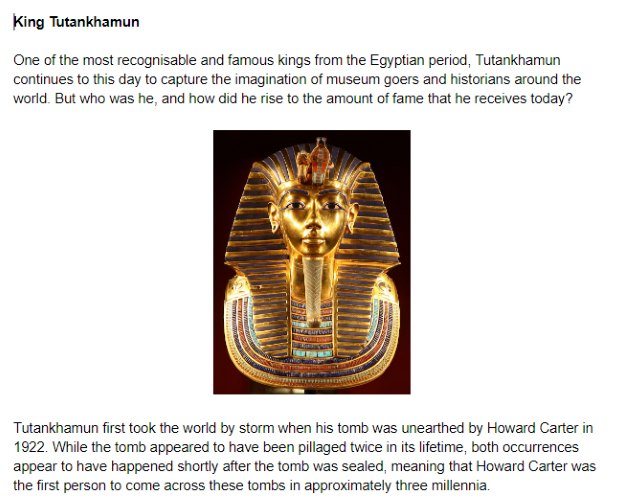
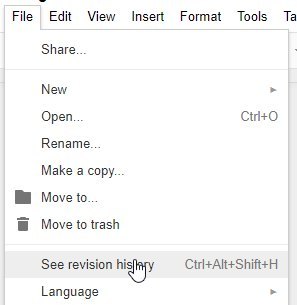
Thankfully, we can still recover the paragraph, even though it’s been deleted. First, click “File,” then “See revision history.” You can alternatively press the hotkey “Ctrl + Alt + Shift + H,” although this may be hard to remember!
The revisions history will pop up. What’s happening here is that Google Docs “remembers” different states of the article as it’s being written. It also logs who wrote what entry, so you can look back and see who edited the document.
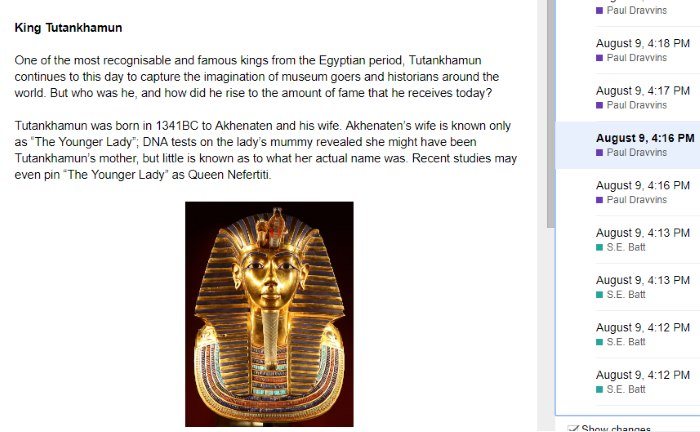
If we go through the history, we can see that our document was edited by Paul:
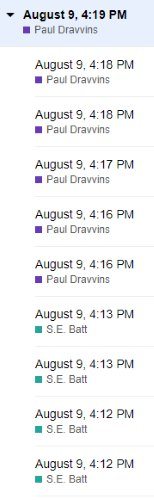
We can click each revision to see the changes that were made in that version of the document’s history. Note that you need to click the “Show changes” tickbox at the bottom of the revision history to see them.
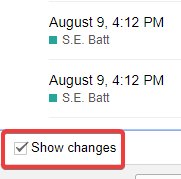
When looking at the changes within a revision, any text that was edited will be coloured in the same colour as the user who edited it. In this case, Paul’s colour is purple, so all his edits will show up purple. Coloured text with a line through it is what the user deleted, while coloured text without a line through it is what got added.
Going through the edits, we can see the moment Paul accidentally deleted our paragraph:
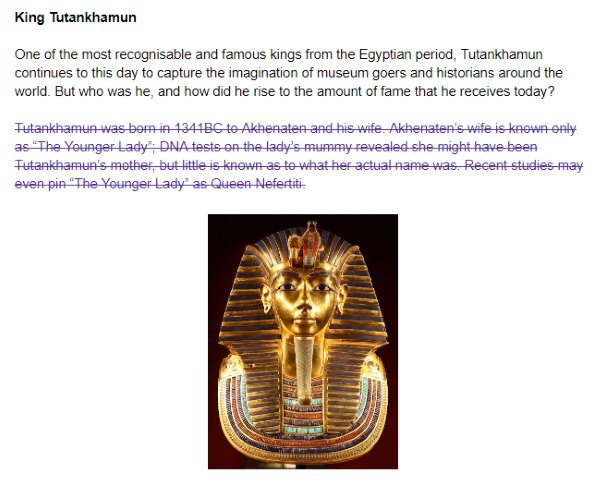
Now that we know when the edit was made, it’s time to recover it!
Restoring Revisions
First, we’ll select the revision just before the paragraph was deleted.
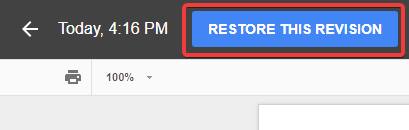
Now, at the top left, there’s a button called “Restore This Revision.” Click this.
Then, click “Restore” in the popup that appears.
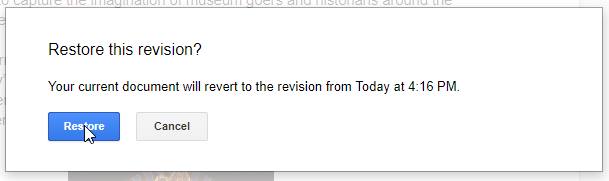
The document now reverts back to its old state. Note that any revisions made after this specific revision’s point in time are still saved. Going back to an older revision won’t automatically erase or overwrite any revisions that came afterward. We can use this to transfer the content added in the newer revisions into this one, so we can keep the deleted paragraph while also making sure our collaborator’s work is still intact.
Google Doc’s “Suggestion” Feature
In the future if you want to avoid these headaches, tell your authors to enable “Suggesting mode,” You can do this by clicking the box at the top-right that says “Editing” and changing it to “Suggesting.” At the time of writing, there’s no way to force authors to use this mode, so you’ll have to ask them to manually do so. If you’re both editing the file at the same time, you could do this over the document’s chat.
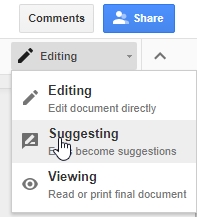
When people edit the document with suggestions enabled, the changes will show up as a suggestion rather than an actual edit. This means you can’t physically delete text; if you try, Google Docs will simply mark the text for deletion. Likewise, if you add anything, Google Docs will add it as a suggested addition to the article. A log of each edit will appear on the right and allows the author to explain their edits if they want to.

In order for the changes to become “real” they have to be accepted or declined. This is done by the boxes that appear to the right of any changes.
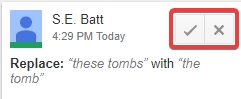
If you click the tick box, the edit is accepted and implemented into the document proper. If you click the cross symbol, the change is reverted to what it originally was. In the above example if our collaborator was using suggestions to make their edits, we could have accepted the addition request for their image and paragraph and declined the deletion request for our own paragraph. Much easier!
Editing Edits
When collaborating with others, it can be frustrating to see important parts accidentally deleted or changed. With the revisions history you can relocate the last ideal state of the document and revert back to it. Even better, with “Suggestions” mode turned on, you can go through each change and approve or decline it as you see fit.
Do you regularly use Google Docs to collaborate on documents? Let us know below!