If you are facing issues on Microsoft Edge, like slowdowns, crashes, or glitches, resetting is often an easy fix. However, there are multiple ways to reset it with varying impact, so you need to pick the right method to reset Microsoft Edge. This guide lists all the ways to reset Microsoft Edge to solve problems.
Note: these methods can delete Microsoft Edge data (including passwords), so make sure you create a backup of all the important data before deleting it.
Clear Browsing Data
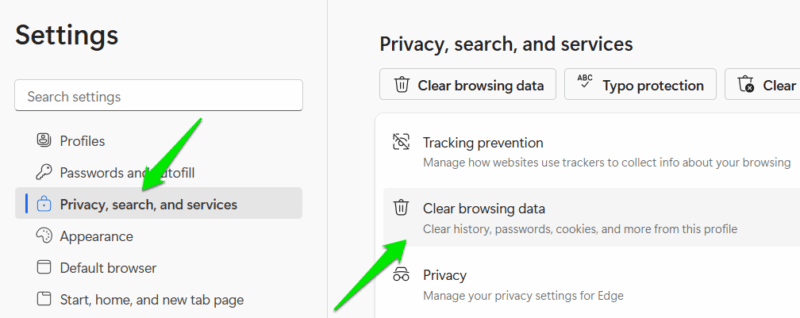
Before we completely reset Microsoft Edge, it is better to go with a soft approach and see if that solves the problem. Clean all the data stored in Edge and see if it works. To clean all the data, click on the main menu inside Edge (three horizontal dots) and select Settings from it.
Select Privacy, search, and services in the left panel, and then click on Clear browsing data.
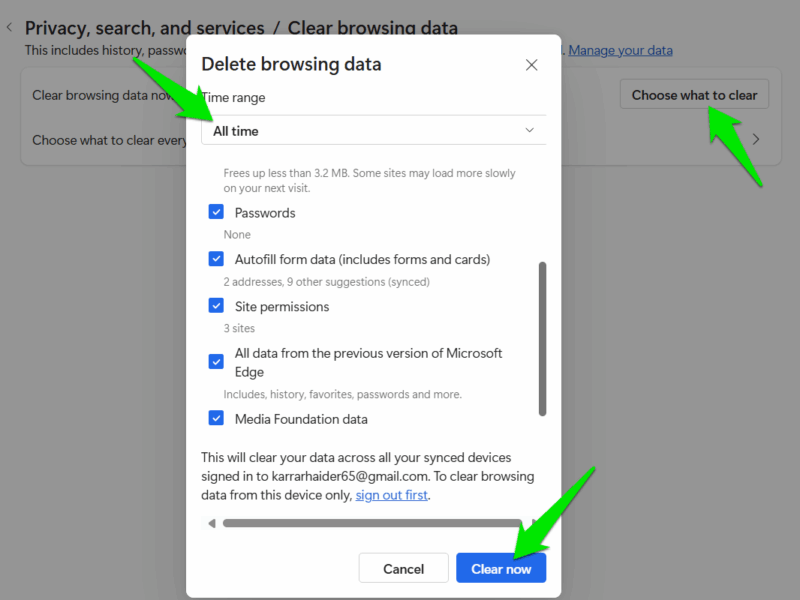
Click on the Choose what to clear button, and fill checkboxes next to all the data options. Make sure All time is selected in the Time range dropdown menu. Hit the Clear now button, and all selected data will be cleared.
After that, restart the browser and see if the problem you were having is solved; if not, go for the other methods below.
Reset Microsoft Edge Settings
If you think the problem is caused by an incorrect configuration in Microsoft Edge, you can reset its settings. This will keep your data (except temporary data), but all the changes to its settings will be reset. It will also disable all the extensions to find out if the problem is caused by one of the extensions.
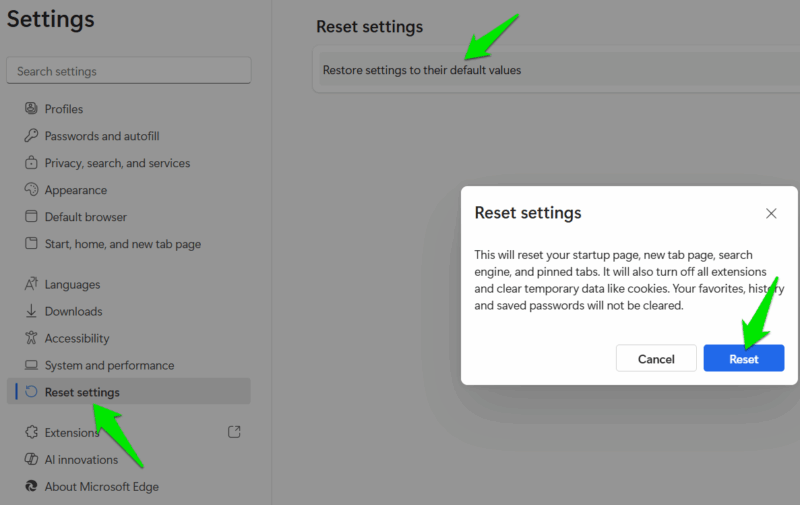
To reset settings, open Microsoft Edge’s Settings and click on Reset settings in the left panel. Now, click on Restore settings to their default values and then click on Reset. This will reset all settings.
Reset User Profile Data
You can also reset the user profile completely if you think the user data is causing the issue. This process will delete all your data and reset any changes made by you. You’ll have to start over with a new user profile. Here’s what you need to do.
Close Microsoft Edge, open the Task Manager, and make sure none of the Edge processes are open (end them if you find any).
Afterward, press the Win + R keys and enter %localappdata%\Microsoft\Edge in the Run dialog to open the User Data folder. You can either delete this folder or rename/move it (to restore later if needed) so Microsoft Edge doesn’t find it.
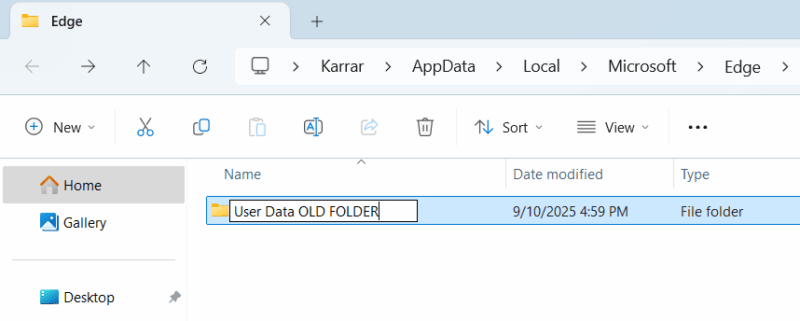
That’s it, now when you’ll open Microsoft Edge, it will ask you to set up a new profile from scratch. If you ever need to restore the old profile, delete/move the new one and rename the old one as User Data. However, keep in mind that any data synced with your Microsoft account will also sync with the new user profile when you log in.
Reinstall Microsoft Edge
As a last resort, you can also uninstall Microsoft Edge and then reinstall it, which should get rid of any problems it had. Uninstalling Microsoft Edge is a little tricky, but not impossible. You can either force-uninstall Microsoft Edge or enable DMA features in Windows and then uninstall it like any other app.
Once uninstalled, visit the Microsoft Edge download page to download and install it like any other browser. Afterward, Edge will launch like it’s running for the first time on your PC.
Resetting Microsoft Edge completely should only be used as a last resort to solve your problem. It should not be used to solve basic problems, so search for a solution online before going for this option. You can also check our guides for common problems like Microsoft Edge not responding or Edge using too many resources.








