
Renaming a local and remote Git branch is a common task that keeps your project organized, especially as it grows. Descriptive and meaningful branch names help clarify the purpose of each branch. Moreover, it reduces confusion among team members and helps everyone work more efficiently. In this guide, we will demonstrate how to rename a local or remote Git branch.
What is a Git Branch
A Git branch is a flexible pointer that references a particular commit in your project’s history. Think of it as a marker that allows you to work on different parts of your project, such as new features, bug fixes, or experiments, without changing the main codebase. This way, you can develop and test new ideas without disrupting the stable version of your project.
Branches in Git enable you to manage different lines of development within a single project, which makes it easier to work on multiple tasks simultaneously. Git branches are essential for teamwork, allowing individuals to develop on their separate branches without disrupting others’ work. Branches keep the code organized, allowing for testing new ideas while keeping the main branch clean.
Git branches ensure that any unstable or unfinished code is kept separate from the main code. This approach stops unfinished or untested features from being added to the main branch. It keeps your project’s main codebase stable and ready for production. After the work on a branch is finished and tested, it can be safely merged into the main branch.
Related: Learn how to create a branch in Git.
Advantages of Renaming a Git Branch
Renaming a Git branch helps us better describe its purpose, follow team naming standards, fix errors or typos, reflect changes in the branch’s focus, and improve collaboration. For example,
- Renaming a Git branch can help clarify its purpose, such as changing feature-x to bugfix-x for better accuracy.
- It ensures the name follows team naming conventions like feature/ or bugfix/, making the project more organized.
- Clear and specific names also improve teamwork by reducing confusion.
- Renaming helps fix typos or incorrect terms and keeps branch names professional.
- If the branch’s focus shifts, updating the name keeps it relevant and easy to understand.
How to Rename a Local Branch in Git
Whether you want to fix a typo or give the branch a more meaningful name, Git makes it easy to update your branch name without affecting your work. Renaming a local Git branch is simple and can be done in a few steps.
Begin by listing all the branches in your repository to view the existing branch names:
git branch -a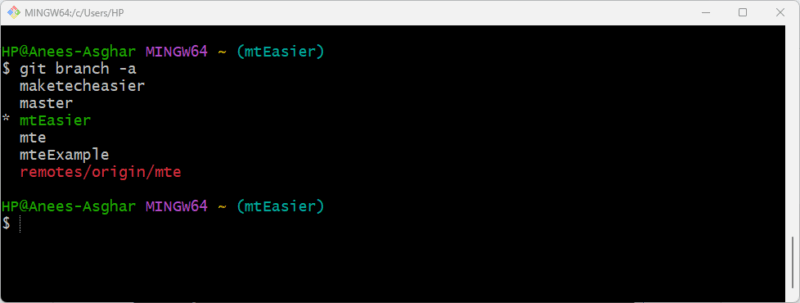
Now switch to the branch that needs to be renamed. For this purpose, use the git switch command as follows:
git switch branchNameReplace the branchName with the targeted git branch that you want to rename.
git switch mte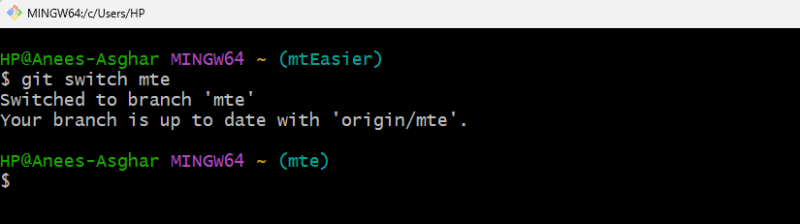
After switching to the branch you want to rename, use the git branch command with the -m option to change its name:
git branch -m [updatedBranchName]For example, we renamed the “mte” branch to “mteUpdated”, as shown below:
git branch -m mteUpdated
You can confirm the branch rename by using the following command:
git branch -a 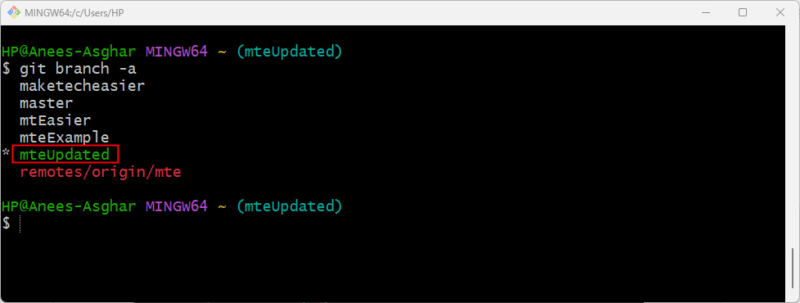
The result shows that the current branch was renamed successfully, but the remote branch still has its original name. Let’s go through the following section to learn how you can change the name of a remote git branch.
How to Rename a Remote Branch in Git
Git doesn’t let you rename a branch directly on the remote repository. Instead, you have to remove the old branch name from the remote. After that, you push the renamed branch from your local system to the remote. This way, the name of your remote branch will be updated.
First, check the list of branches to make sure the branch is named correctly:
git branch -a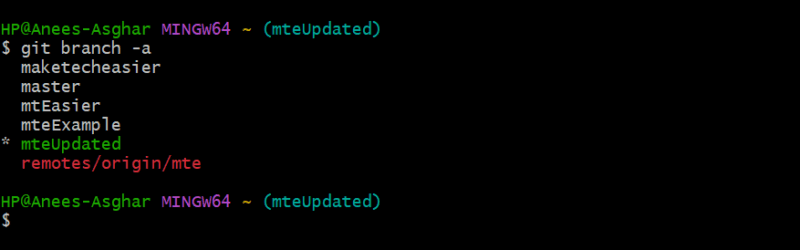
Alternatively, you can use the git branch -r command to list only remote branches. After this, use the following command to remove the old branch name from the remote repository:
git push [remoteRepository] --delete [oldBranchName]Replace “remoteRepository” and “oldBranchName” with the remote repository and old branch name, respectively:
git push origin --delete mteThe old branch has been deleted successfully:
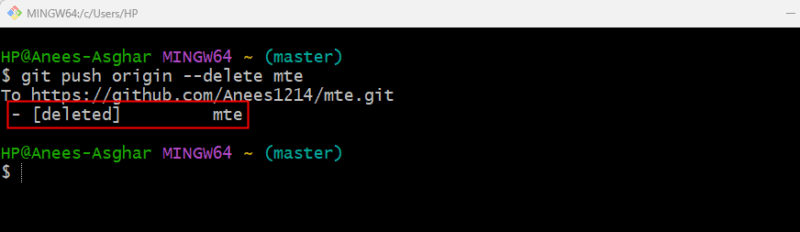
Once the old branch is deleted, you can push the renamed branch to the remote and set it to track the upstream branch using the command:
git push -u origin newBranchNameFor example, we push the “mteUpdated” branch to the remote repository:
git push -u origin mteUpdated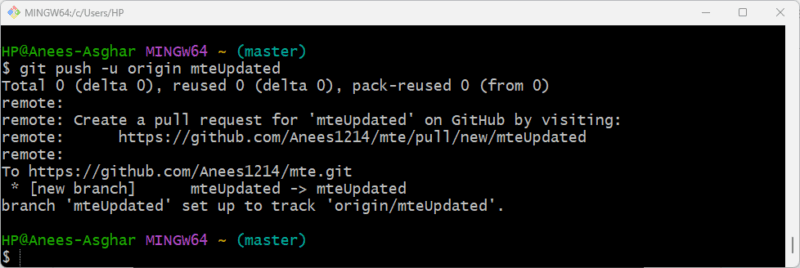
Finally, list the remote branches to ensure that the branch has been successfully renamed:
git branch -r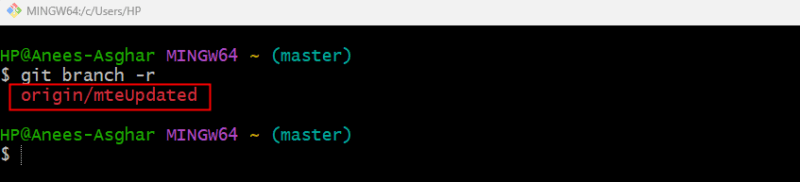
You’ve now learned how to rename both local and remote branches in Git. Renaming branches, whether locally or remotely, is an essential task that maintains a well-organized, clean, and easy-to-manage project. If you’re just getting started with Git, it’s a good idea to follow good practices from day one. This will give you a better understanding of how Git functions and help you avoid typical errors. For a full introduction, you can explore a beginner-friendly guide to learn Git step by step.








