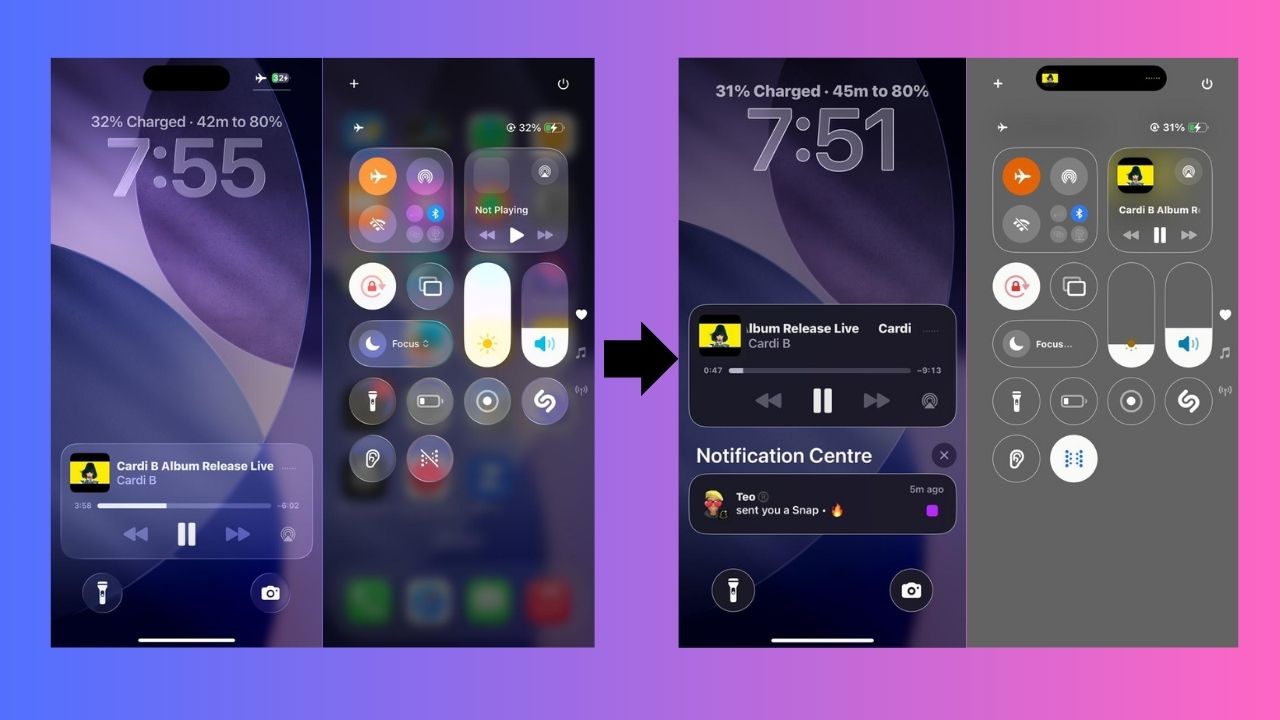
While Apple’s latest Liquid Glass design in iOS 26 is flashy and futuristic, not everyone loves it. The constant animation may look slick at first, but it can drain your battery and make your iPhone feel sluggish. If you’d rather simplify, here’s how to reduce iOS 26 animations and make your phone feel more like yours.
The Problem with Liquid Glass
Liquid Glass in iOS 26 feels like Apple doubling down on visual spectacle and premium. It brings fluid, glassy effects everywhere, from app switches to home screen swipes. However, these glossy transitions and motion effects come at a cost.
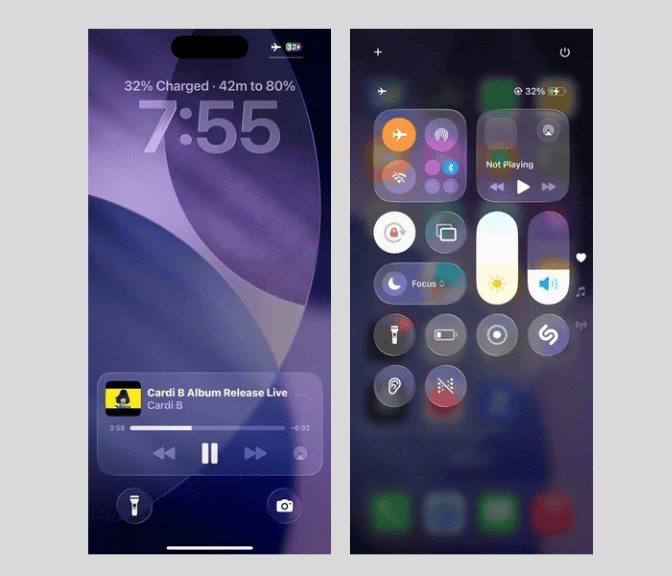
First, animations use extra processing power. On older iPhones, this can make the interface feel sluggish instead of smooth. Second, they drain battery life faster because the GPU works harder to render all that motion.
Apple seemed to design for the latest Pro models, leaving users with mid-range or older iPhones in the dust. These animations spike power use and lag on anything but top-tier hardware.
Finally, not everyone reacts well to constant visual movement. Hence, reducing iOS 26 animations isn’t just a nice-to-have; it’s a fix for real frustration.
If you’ve ever customized your iPhone icons to cut clutter, you’ll see how these changes build on that for a cleaner phone.
Core Settings to Reduce Motion
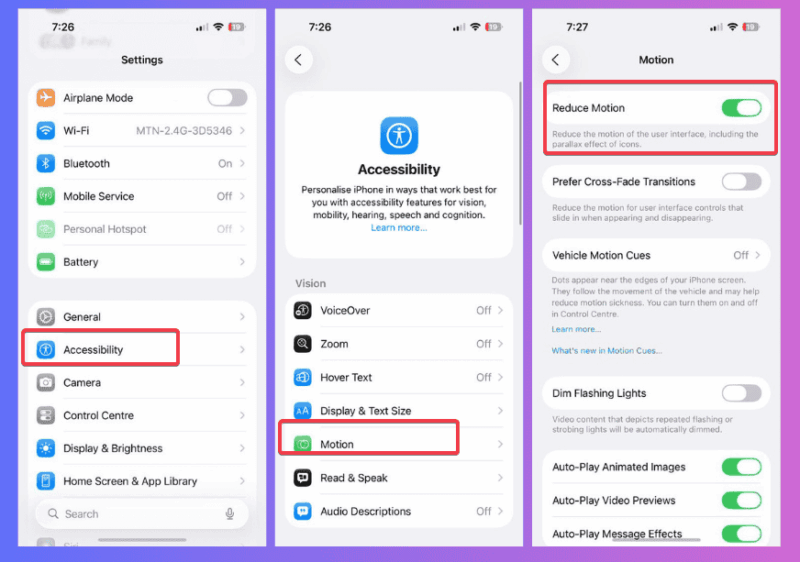
If the nonstop movement is too much, the most effective setting is to Reduce Motion. You’ll find it under Settings -> Accessibility -> Motion. Toggle it on to cut parallax effects and flashy zooms for simple fades. Immediately, your phone will feel steadier, and navigation will be instant.
Next, flip off Auto-Play Message Effects. Those surprise explosions and balloons in iMessage might be fun occasionally, but constant animation can be more irritating than entertaining. By the way, here’s a guide to animate text and emoji in Messages for controlled fun, rather than chaos.
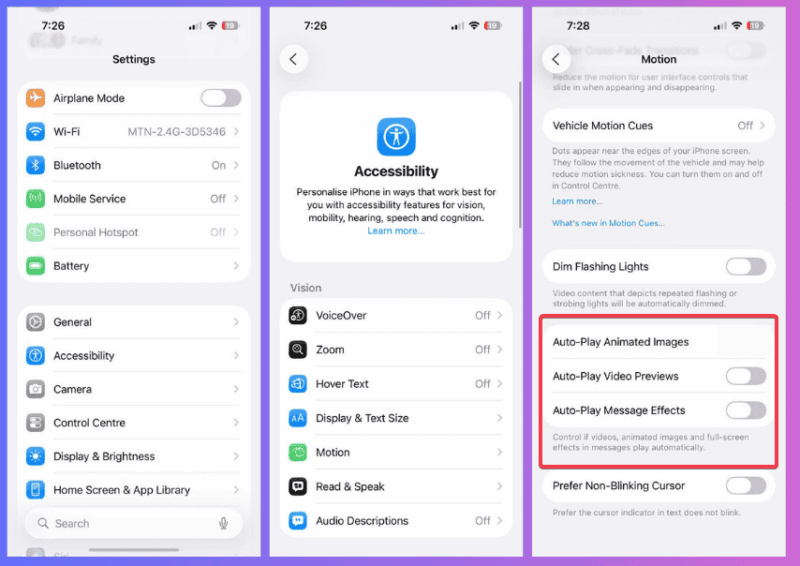
Also, disable Auto-Play Previews and GIFs from moving in the background. Safari and apps won’t preload looping clips anymore, saving data and preventing distractions. Reducing iOS 26 animations like these keeps things snappy without losing the iPhone’s charm.
Tip: If the lag persists, pair this with hiding apps from your lock screen.
Visibility and Comfort Tweaks
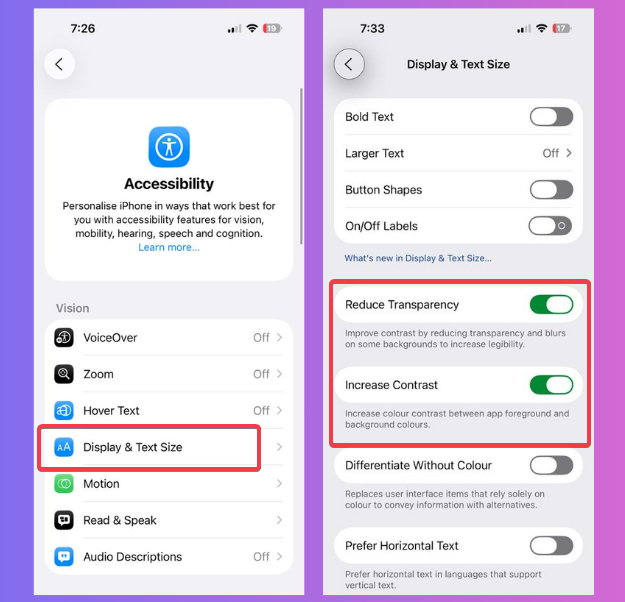
Reducing motion is only the start. Liquid Glass can also blur text and strain your eyes. Locate Settings -> Accessibility -> Display & Text Size, and tweak these for clarity.
Enable Reduce Transparency to make menus and icons solid, not see-through. This makes reading way easier. Also, turn on Increase Contrast for bolder edges on buttons and texts, so icons pop without guessing games. These visibility tweaks tie right as a way to reduce iOS 26 animations by stripping the visual noise.
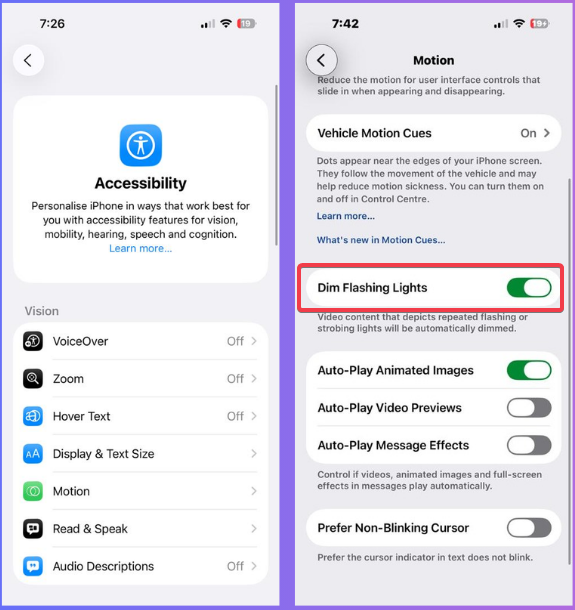
For comfort, turn on Prefer Non-Blinking Cursor in Motion too. New in iOS 25, this option steadies your typing cursor, removing that annoying flicker. If contacts show as numbers instead of names after tweaks, try this fix.
These changes are small, but they reduce eye strain during long typing sessions. Also, they reveal Apple’s default leans towards aesthetics, and if you want clarity and comfort, you have to take matters into your own hands.
Other Accessibility Settings and Why They Matter
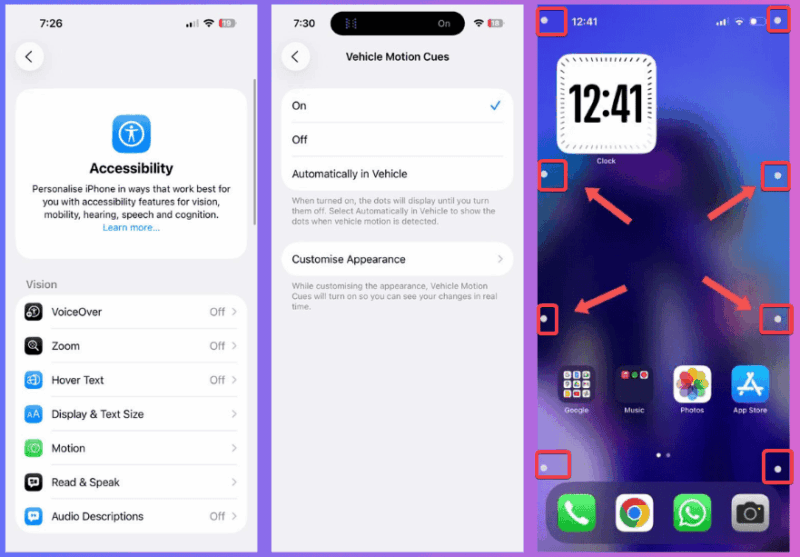
Don’t stop at motion; explore more options for a tailored iOS 26. Enable Vehicle motion cues to counter motion sickness with little on-screen dots that pop up to match physical movement.
Dim Flashing Lights automatically reduces strobing visuals in videos and apps. And on ProMotion iPhones, limit frame rate to 60Hz instead of 120Hz under Motion to save battery and reduce motion blur.
These aren’t flashy, but they show Apple’s awareness of real-life user discomfort, even if they’re buried deep under Accessibility.
Why bother? Because iOS 26’s defaults assume everyone wants the full spectacle. Reducing these animations ensures the OS matches your needs, whether for speed, health, or just peace. They’re practical fixes for a system that puts style ahead of comfort.
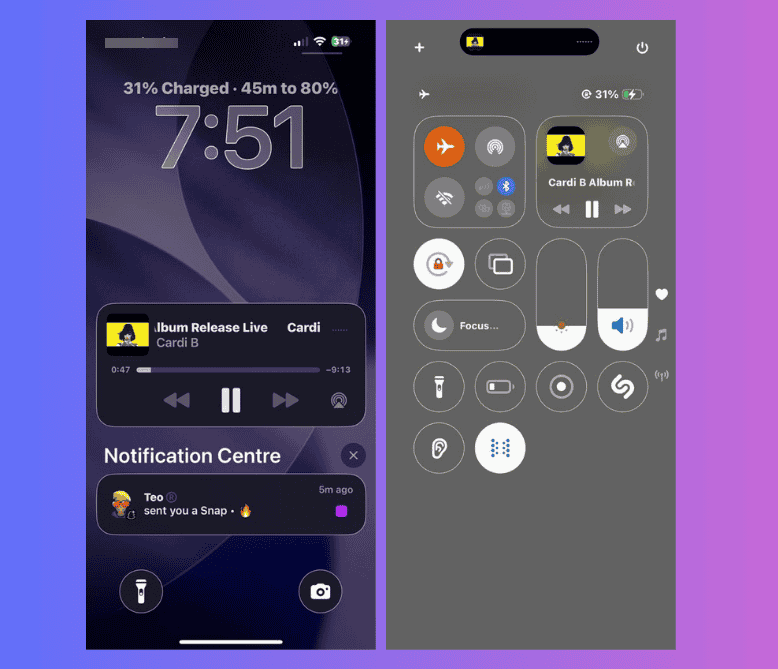
In the end, Liquid Glass is Apple’s latest attempt to dazzle, but not everyone wants their phone to be a light show. These tweaks transform iOS 26 from overwhelming to welcoming. Test them one by one, and you’ll wonder why Apple doesn’t make them default. Got your own hacks? Drop them in the comments.








