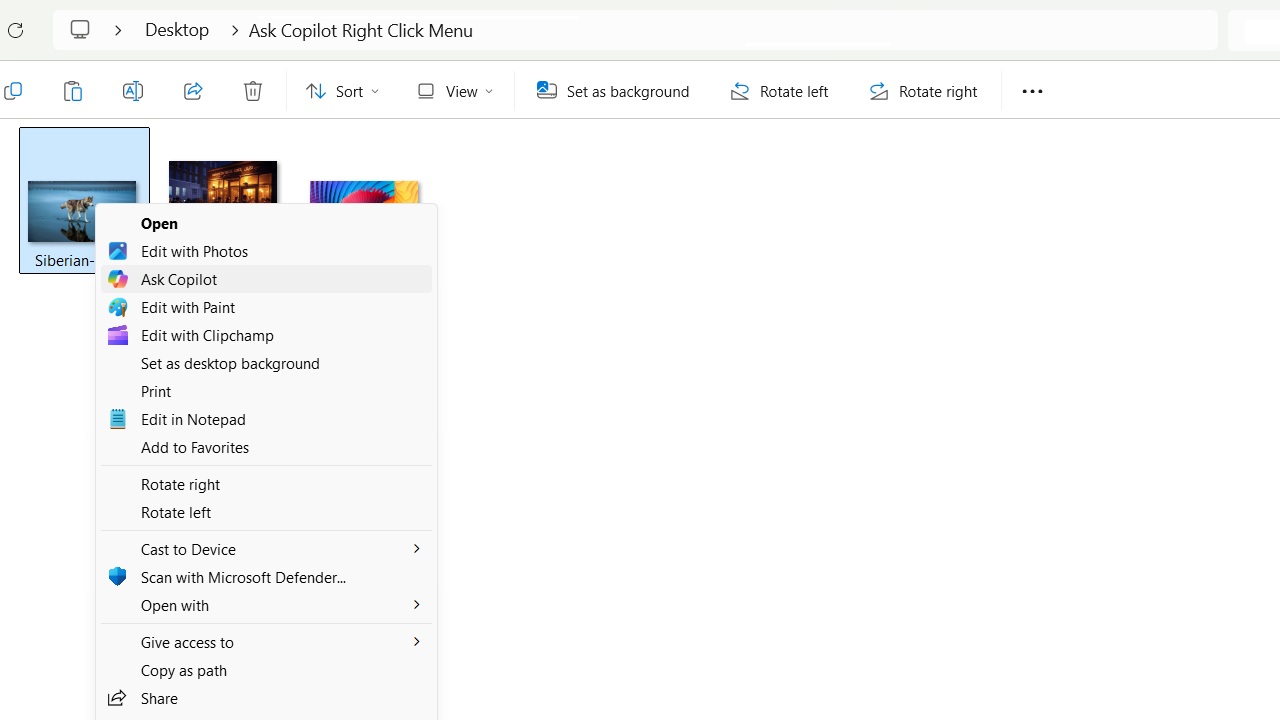
Microsoft is pushing Copilot into every corner of Windows 11. From the taskbar to the search bar, it’s almost everywhere. Since May 2025, it has introduced an “Ask Copilot” item within the right-click context menu. Many Windows users don’t like it, either because they rarely use Copilot or because they don’t want an extra item in the right-click menu.
Here’s how to remove “Ask Copilot” from the Windows 11 context menu without uninstalling the application.
Disable “Ask Copilot” Through Registry Edit
As the context menu is editable, it allows you to remove “Ask Copilot” from view by modifying its registry entry for the Copilot shell extension.
Press Win + R, and type regedit. This opens the registry editor. Go to:
HKEY_CURRENT_USER\Software\Microsoft\Windows\CurrentVersion\Shell ExtensionsRight-click on Shell Extensions, and select New -> Key, and name it Blocked.
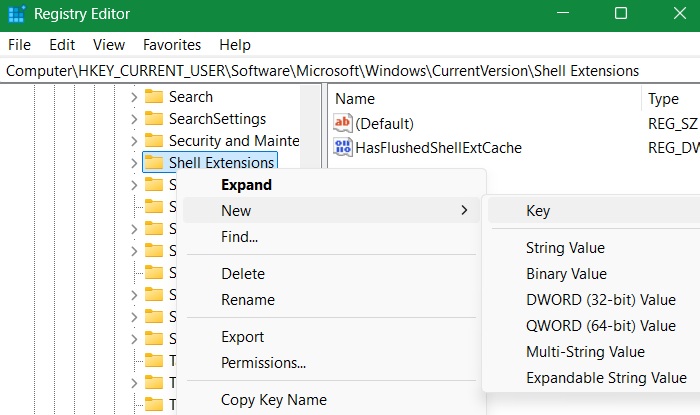
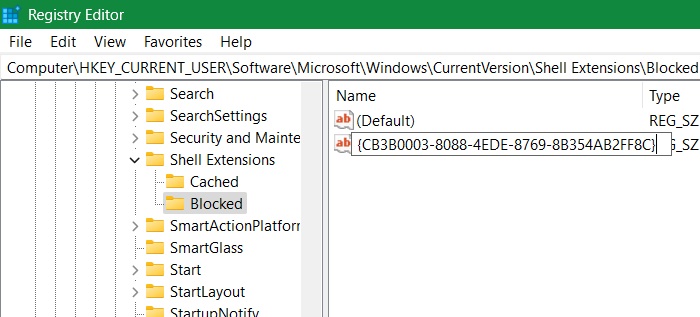
Go inside Blocked, and right-click to create a new String Value named {CB3B0003-8088-4EDE-8769-8B354AB2FF8C}.
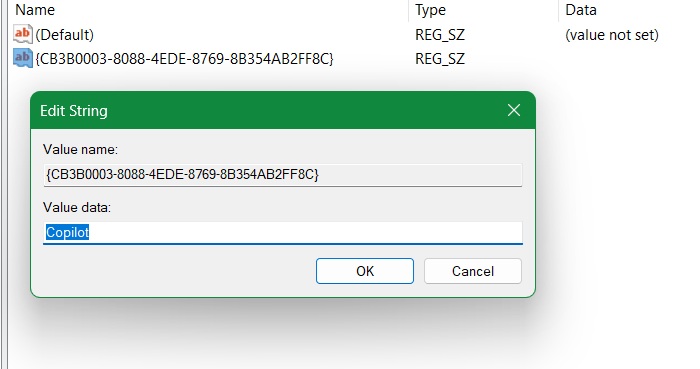
Right-click this string value entry and set its Value data to Copilot. (You can also use Ask Copilot.) Click OK to finalize the edit.
Reboot your PC and you will no longer see the “Ask Copilot” menu in the right-click options.
The above method only hides the “Ask Copilot” item from view without disabling it entirely, allowing you to use it by clicking Show more options.
Tip: try using the Command Palette method in PowerToys to directly access the registry key by simply copy-pasting the entire registry path.
Use a Notepad REG File to Remove “Ask Copilot”
Notepad .reg files can automate registry changes. It is one of the best ways to show and hide files in the context menu.
Open Notepad in Administrator mode from the search bar. Click File -> New Window. Copy-paste the following in the new Notepad window:
Windows Registry Editor Version 5.00
[HKEY_CURRENT_USER\Software\Microsoft\Windows\CurrentVersion\Shell Extensions\Blocked]
"{CB3B0003-8088-4EDE-8769-8B354AB2FF8C}"="Ask Copilot"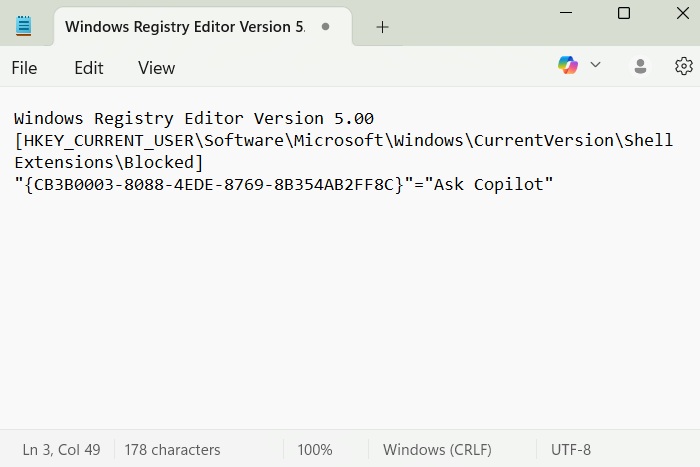
Save the Notepad document as a .reg file. Give it a name that you can remember, like “Remove-Copilot.reg.”
Double-click the file. It will seek your permission to add the entry into the registry editor. Click Yes to approve.
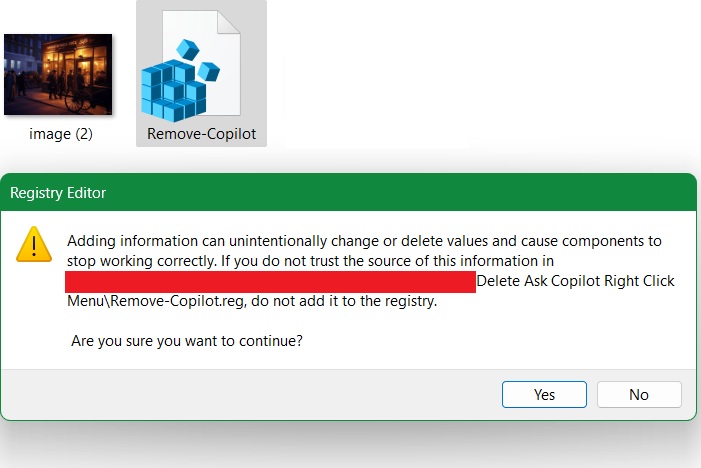
Further, you should get a message that “the keys and values have been successfully added to the registry.” Click Yes, and after that, the “Ask Copilot” option will no longer be visible in the Windows 11 right-click menu.
Also read: learn how to enable AI actions, a separate AI feature in Windows 11.
Use Local Group Policy Editor to Hide “Ask Copilot”
Windows 11 Pro/Enterprise users can permanently hide “Ask Copilot” from the Local Group Policy Editor.
Using the Run command, Win + R, type gpedit.msc. Navigate to User Configuration -> Administrative Templates -> Windows Components -> Windows Copilot.
Double-click the Turn off Windows Copilot entry on the right side. It will open a new window where you have to select Enabled, followed by Apply -> OK.
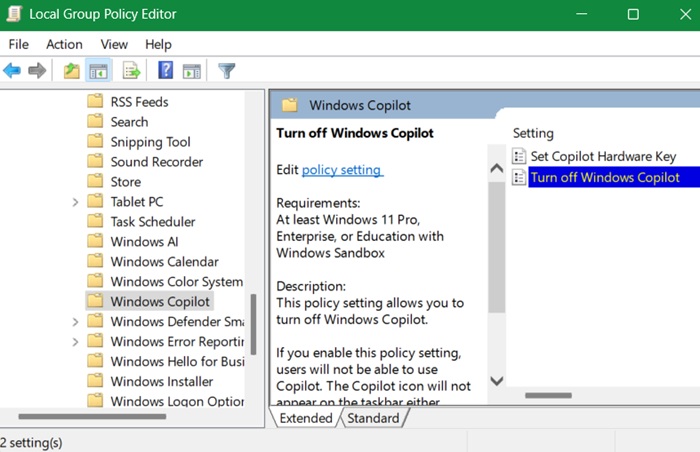
Turning off Windows Copilot in Group Policy fully removes it from the right-click context men. However, the best part is it also hides it in other Windows apps, such as Notepad.
If you’re tired of seeing Copilot actions like “Summarize” or “Rewrite” in every Windows application, they will now be greyed out.
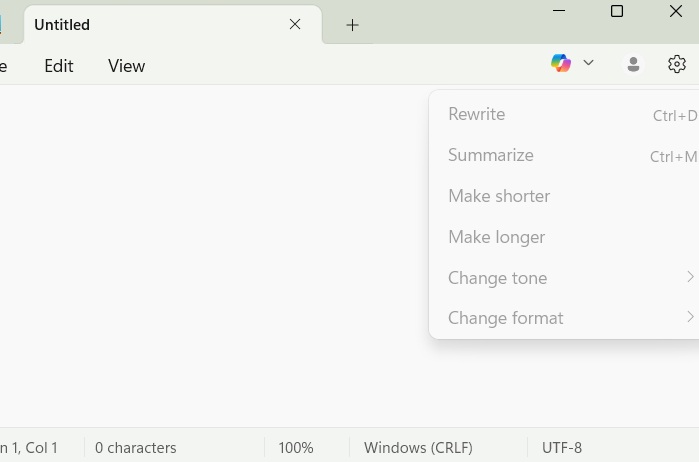
You can still launch Copilot from the search menu or pin it to the taskbar if needed, but it will no longer be an integral part of your Windows 11 experience.
Use a Third-Party Context Menu in Windows
Here’s an easy method for Windows users who don’t want to tinker with their registry editor or have access to Group Policy. You can simply use a third-party context menu in Windows 11 and ensure “Ask Copilot” is not a part of it.
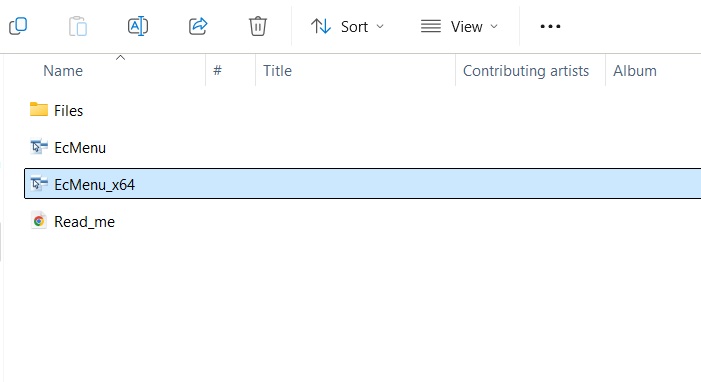
Easy Context Menu, as the name suggests, is a very easy tool to achieve this objective. Download it from the official link, and extract the ZIP file. Click the “x_64” menu, which will open a list of context-menu items.
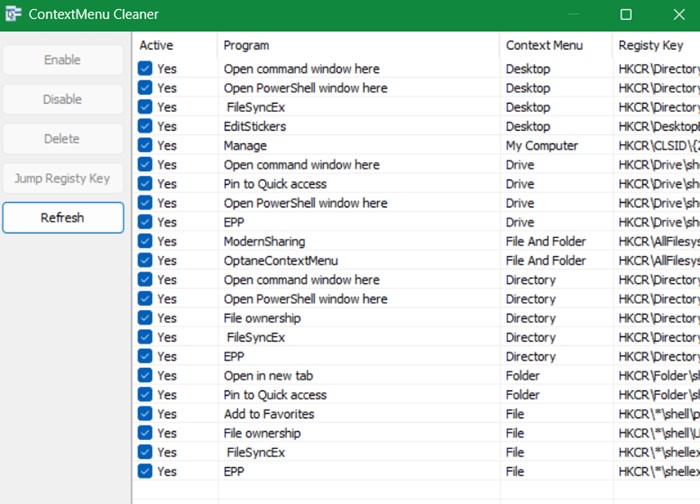
Go to File -> Context menu cleaner. This list has all the items in your right-click context menu. If you find Ask Copilot, you can remove it here.
We have seen all the different ways to remove “Ask Copilot” in Windows 11 right-click menu. You might also want to know how to remove apps from the “Open With” list in the right-click setting,
The Copilot app offers many useful features, and since future Windows updates are tied to it, uninstalling it may not be a good idea right now. It allows you to control your Android phone from your desktop and, if you’re a frequent user, serves as an interface for enhanced, natural-language search results in the Edge browser








