Discord’s Windows app is known to steadily gobble up RAM as you use it. Since many people run Discord alongside RAM-hungry activities like gaming, you will want to rein it in. While you cannot stop Discord from using more memory over time, you can slow that growth or reset its usage with the tweaks below.
Why Discord Consumes a High Amount of RAM
The Discord app is an Electron app, which basically means it’s a Chromium-based browser. So, like a browser, it consumes a lot of RAM that keeps increasing as you use it more. It opens up separate processes for big tasks like UI, chats, voice/video, channels, etc. The servers are like new tabs in a browser, each interaction saving data in the RAM.
Discord stores all the data in RAM to make it faster for you to view content and interact like it’s a native app, not a web app. Therefore, the following solutions focus on decreasing the amount of data it caches in RAM.
Disable Hardware Acceleration
With hardware acceleration enabled, Discord uses the GPU to handle graphical tasks like UI rendering, video encoding/decoding, screen-share frames, etc. It uses a dedicated GPU process and keeps graphics buffers in the memory that quickly consume RAM as you interact with graphical content.
You can disable hardware acceleration to offload these tasks to the CPU, which usually reduces those GPU-side buffers. To do so, go to Discord Settings → Advanced and turn off Hardware Acceleration. You’ll be asked to restart Discord for changes to take effect.
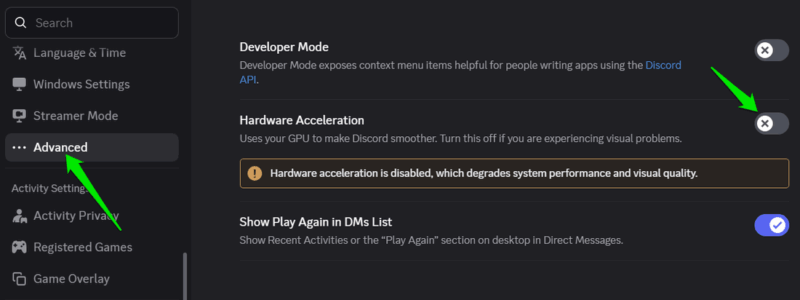
Keep in mind that this will increase overall CPU usage. Depending on your CPU performance, you might notice lower video playback and screen sharing quality.
Disable Autoplay for GIFs and Stickers
By default, Discord automatically plays GIFs and Stickers and saves them in memory to avoid reloading them every time. As you browse through conversations, the random GIFs and sticker animations stack up to consume lots of RAM. You can disable autoplay so only the GIFs and Stickers you interact with are played.
In Discord Settings, go to Accessibility and select Animated on interaction under Stickers. Afterward, scroll down and disable the Automatically play GIFs when Discord is Focused option.
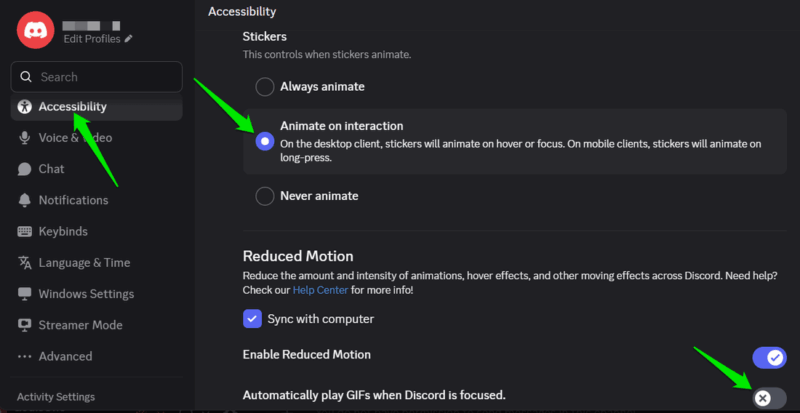
Now, you’ll have to click the GIFs and hover the mouse cursor over stickers to play them.
Turn Off the In-Game Overlay
For the in-game overlay, Discord runs extra processes to hook up with games to show information and accept input. This not only increases CPU usage, but also increases RAM usage as it saves frame buffers and image memory. If you don’t heavily depend on the in-game overlay, you can disable it to save Discord memory and even optimize game performance.
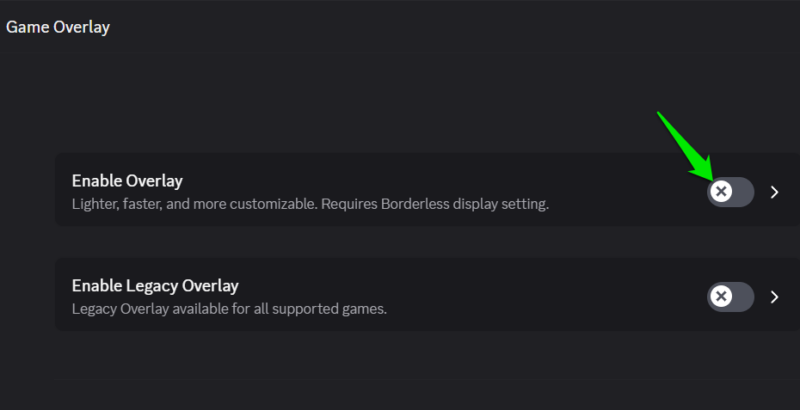
Open Discord Settings, and go to Game Overlay at the very bottom in the left panel. Here, disable the Enable Overlay toggle.
Manage Unused Servers
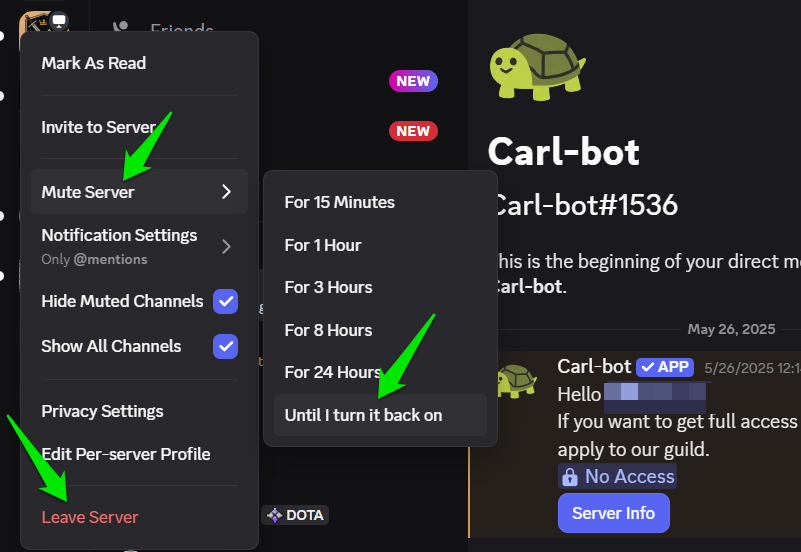
Servers in Discord are basically like tabs in a browser; the more you access, the more RAM Discord uses. While most of the RAM is used when you open a server, unopened servers still consume some RAM for caching icons/emojis, data structures, member data, etc.
It’s best to avoid stacking servers that just stay there to make the app heavier without being useful. You can either mute and hide the unused servers or leave them if you know you won’t be going back. Just right-click on the server icon, and you’ll find options to mute, hide, and leave the server.
Refresh the Discord App
You can also force Discord to flush all the accumulated data in the RAM to quickly recover RAM. Discord developers are even working on a feature to restart Discord automatically to release all the RAM it’s eating up. However, there is an easier way to flush most of the RAM; you can refresh the Discord app, similar to a browser refresh button.
You can use the Ctrl + R Discord keyboard shortcut to refresh it. The app will take a few seconds to refresh and continue from the same place where you refreshed it. Since this flushes the cache, the content you recently accessed will need to be loaded again, so expect some slowdowns.
Individually, these tweaks will have a small impact, but together, they should result in a noticeable decrease in Discord RAM usage. Just remember to refresh/restart Discord when you need a fresh start. If you are an avid Discord user, you might be interested in these lesser-known Discord features.








