What if you could search for and control most anything in Windows from a single tool? While Raycast has been around for years for Mac, now Raycast for Windows helps amp up the productivity. Plus, you can even customize how it works.
The Windows Command Palette You’ve Been Missing
The Windows Start menu has come a long way and does help me search for apps, documents, and settings. It’s definitely an upgrade from early versions of Windows, but Raycast takes this to a completely different level.
It’s a command palette that lets me skip the hunt and click with my mouse and search through endless menus for what I need. A simple keyboard shortcut launches Raycast for Windows and my entire computer is then at my fingertips.
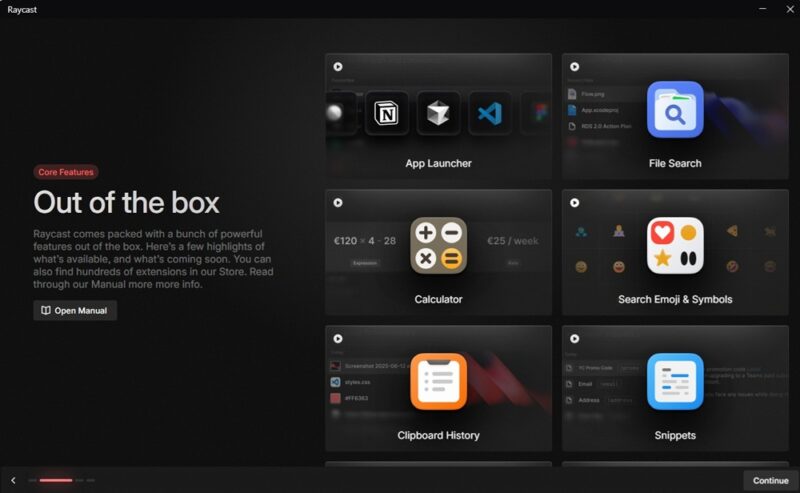
From this single tool, I can:
- Search for and open files, apps, and folders
- Launch games
- Run system commands
- Change Windows settings
- Add extensions to control third-party tools
- Access and search popular websites like Reddit
- Create site shortcuts
- Assign hotkeys
- Create and use snippets
- Use emojis
- Access clipboard history
All of this happens from a single interface. And, once you get everything set up the way you want, your fingers never need to leave the keyboard.
I know it doesn’t seem like a big deal, jumping from mouse to keyboard and back again, but it does interrupt the flow. I’m all for using keyboard shortcuts. It takes practice to remember them, but once you do, it will save you time.
The most important shortcut to remember is Alt + Space. This is the default hotkey for launching Raycast. But, you’re free to change this if you prefer something else.
The Surprisingly Fast Launcher Shaves Valuable Seconds
Most launchers take as much as 10-15 seconds or more to respond to commands. Since using Raycast for Windows, the same tasks only take a few seconds. As soon as I start typing, possible matches appear instantly. There’s no delay, no loading screen, nothing. It’s just the results I’m looking for.
As someone who needs to switch between different apps, adjust settings, access frequently used sites, and find files throughout the workday, those seconds turn into minutes.
I’ve saved around 30 minutes to an hour per day just from using Raycast to search for and control my PC.
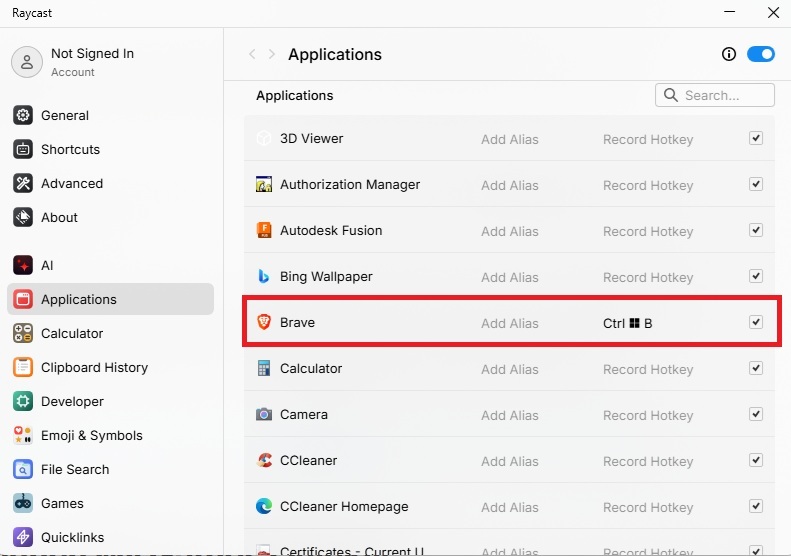
The most time I’ve spent was the initial setup. Most apps, games, and settings let you assign aliases and/or hotkeys for even quicker access. I took a while to set up hotkeys for my most frequently used apps and settings. Then, I don’t even have to open Raycast to do. Just type Ctrl + , to open Raycast’s settings to customize these shortcuts.
If you use Chrome or a Chrome-based browser, see how you can use hotkeys to access your extensions faster.
Launch My Games Quickly
I don’t play many PC games, but for the handful I do enjoy, Raycast lets me just start typing the name to launch instantly. I don’t have to open Steam or Epic and find the game in my library.
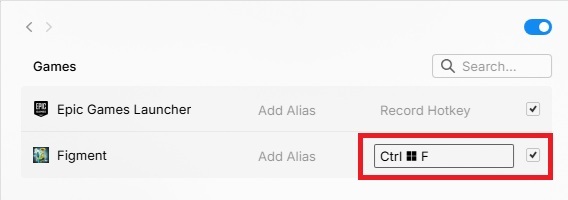
My favorite part is being able to add a hotkey and/or alias for even quicker access. For instance, if I want to take a break and play Figment for a while, I just press Ctrl + Win + F and my game launches. You can set any unused hotkey for any games you have.
Windows Users Get Free AI For Now
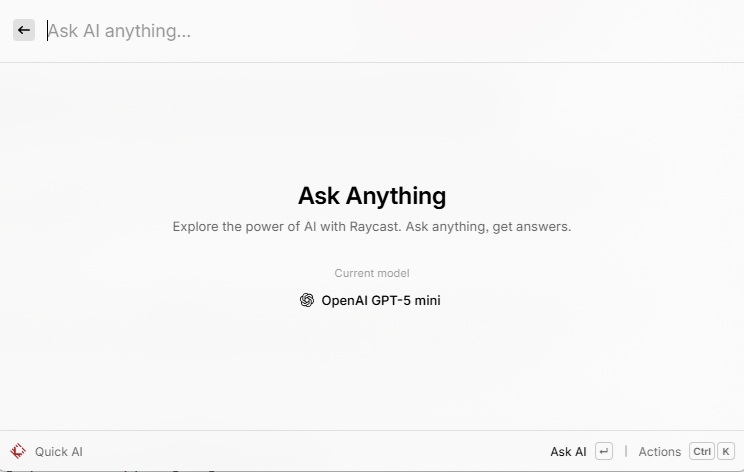
Raycast for Windows is still pretty new, but for the time being, Windows users get free access to Quick AI. This gives you access to ChatGPT-5 mini to get answers to random questions, draft content, or even get help with coding projects.
The premium version of Raycast lets you switch between AI models. Free users only get the one model. It’s possible this may change in the future and become a premium-only feature or limit how many requests you make per month.
All I have to do is press the Tab key to launch Quick AI and start typing my query. No bringing up another app or going to a website.
Extensions Change Everything
I thought Raycast was incredible on its own. At first, I didn’t realize how much I’d come to rely on the extensions.
Just type Store from the main Raycast window to launch the Extensions store. Connect with GitHub, Reddit, Google Calendar, YouTube, various AI tools, and so much more. You’ll find system utilities, weather, password generators, and even games.
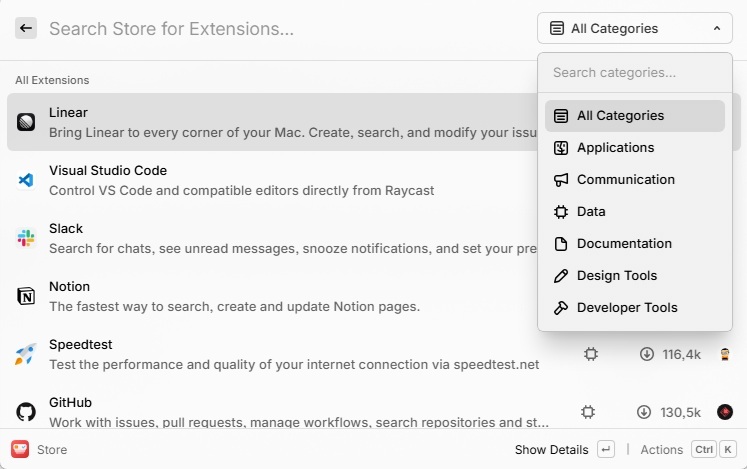
It’s easy to get lost scrolling through all the options. Or, use the filter to limit options by category. Once you install an extension, just start typing the name to quickly find it and launch it.
Open Raycast’s settings and look at the bottom of the list on the left panel to access any settings related to your installed extensions.
A Few of My Other Favorite Features
I have three more features I’m not sure how I was using Windows without. First, the clipboard history. Unlimited clipboard history is just for premium users, but free users get to store up to three months. I typically keep my at one week.
I set a keyboard shortcut to quickly access my history and paste what I need. It’s better than other clipboard managers I’ve used. Plus, it’s bundled in with Raycast for Windows.
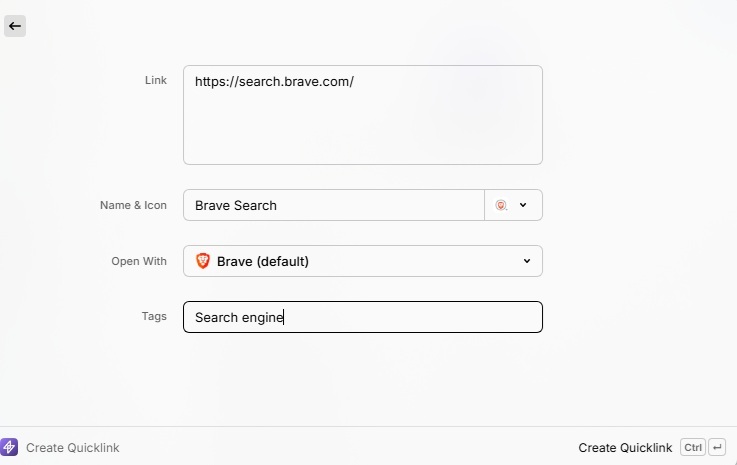
My other favorite feature is Quicklinks. Search for Quicklinks and select Create Quicklink. Add a URL and a name for quick access. You can even import links for a quicker setup.
The final feature is super simple, but I use my calculator app throughout the day. Raycast has one built-in. I just launch Raycast, enter my calculation, and I’m done. No need to click my calculator icon on my customized taskbar.
At first, Raycast might seem intimidating, but take some time to explore it. I’d also suggest reviewing the manual to learn some of the navigation shortcuts. Or, just dive into the settings and start customizing to optimize your Windows productivity.
I personally love the free version, but you can add more features starting at just $8/month.








