
A PC boot failure is the last thing we want to see on our screens, but when it happens, you have no choice but to find fixes immediately. For the first time, Windows 11 has brought Quick Machine Recovery (QMR), a disaster recovery feature that spares you from struggling with other troubleshooting fixes. Enable it once, and your Windows 11 device will automatically recover from future boot failures.
What is Quick Machine Recovery (QMR) and How It Works
Quick Machine Recovery (QMR) in Windows 11 is a reliability feature that automatically detects and resolves critical boot failures using cloud-based diagnostics and the Windows Recovery Environment (WinRE). Once enabled, as soon as your PC fails to start, the device boots into WinRE. It will also establish a network connection to Microsoft’s servers, which then starts a process of remediation.
Enabling Quick Machine Recovery in Windows 11 is easy from 24H2, build 26100.4946 onward. Currently, it is not supported on Windows 10 or older versions of Windows 11.
Within QMR, there are two online ways to restore your Windows PC user access:
- Cloud remediation: once enabled, devices connect to the Internet and utilize a Windows 11 update to enable recovery. If it is turned off, the system reverts to the legacy Startup Repair option.
- Auto remediation: it’s a bit faster than the cloud remediation mode. The device automatically connects to a Windows update. If a solution isn’t found on the first attempt, it goes for retries without requiring your manual intervention.

Building resilience into the Windows operating system has been a long demand of Microsoft consumers. It is most critical when your PC fails to boot or faces an unexpected restart. In the past, only Windows users who know troubleshooting commands could bypass error screens, making boot failure fixes harder than they should be. This is where methods like QMR offer a new breakthrough.
Related: before QMR, most Windows users would use Startup repair which is an Advanced Option in WinRE. This method is offline which means the fixes depend on local settings.
Enabling Quick Machine Recovery in Windows 11
In Windows 11, launch the Settings window using Win + I. Next, go down the following path: System -> Recovery -> Quick Machine Recovery.
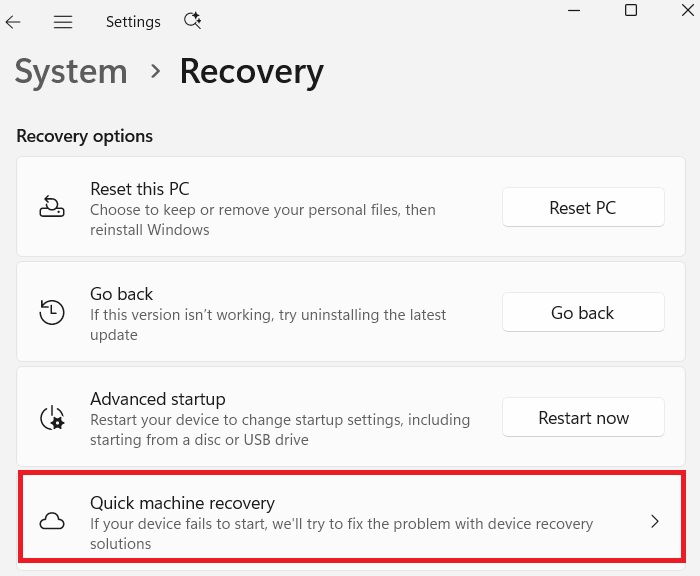
In the next screen, you have two options that need to be enabled. First, turn on Quick machine recovery which will fix the problem with device recovery solutions (cloud remediation) in the event of the next boot failure.
Also, turn on the option, Continue searching if a solution isn’t found. This triggers auto-remediation on your device to search for solutions that fix the boot problem.
Under Look for solutions every, and Restart every, keep the recommended timelines, at 30 minutes, and 72 hours respectively. This means once your PC goes in Quick machine recovery mode, it will look for solutions every 30 minutes.
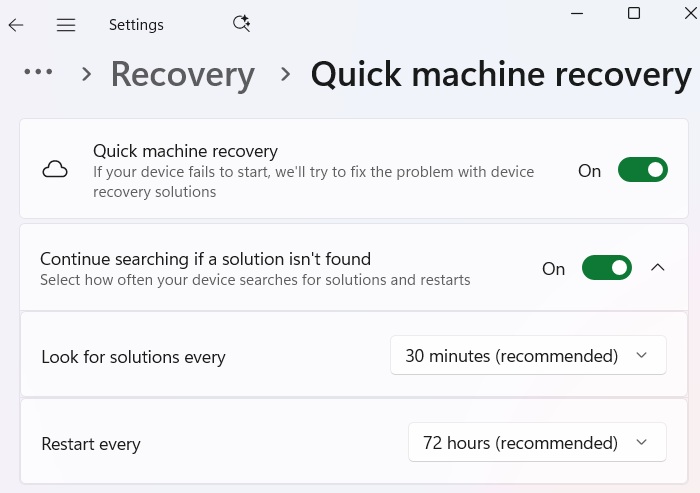
In case the cloud-based solution fails, the device will reboot into WinRE and keep finding solutions. So, keeping QMR turned on will eventually fix the issue. The system will reboot and start once done.
Good to know: apart from QMR, you can perform boot repairs using Windows Recovery Environment, Safe Mode, or booting from a recovery drive.
Testing Recovery Mode in Windows
While Quick Machine Recovery (QMR) does not come into play unless you encounter an actual crash, you could simulate a blue screen of death (BSOD) to see how your system would respond in the future. You can find many third-party BSOD simulating software online and on Microsoft Store. They will generate error during a PC restart.
Simultaneously, I started my Command Prompt in Administrator mode and activated the reagentc command which triggers the WinRE.
reagentc /BootToRe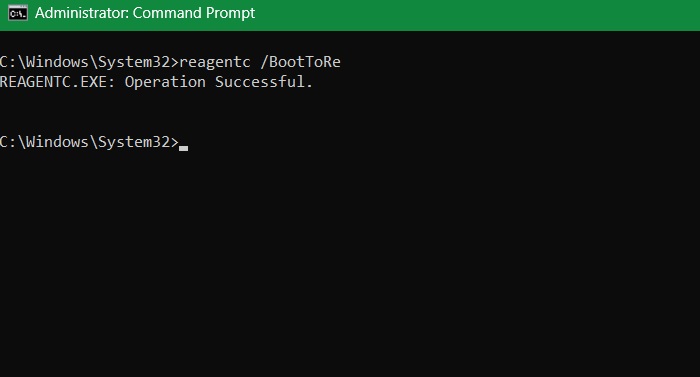
In the next PC restart, as simulated, a blue screen error showed up. I was told to press F1 to enter the recovery environment.
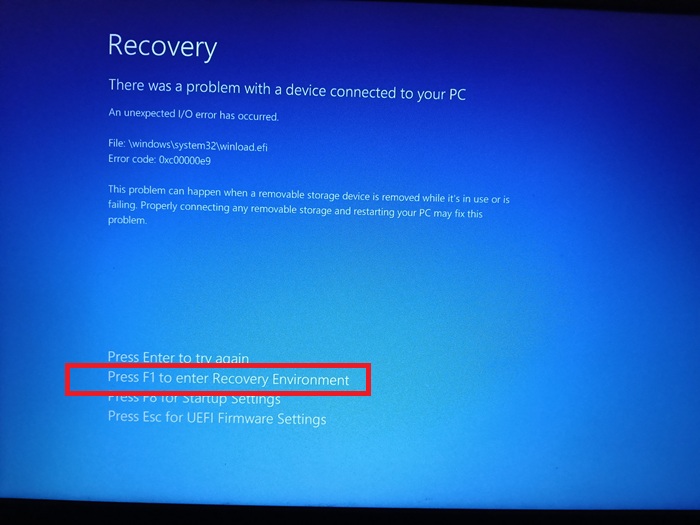
Once there, I had a familiar set of recovery and troubleshooting menus. Had there been an actual crash, I would have encountered the following screen with a dedicated menu for Quick machine recovery under More recovery options.
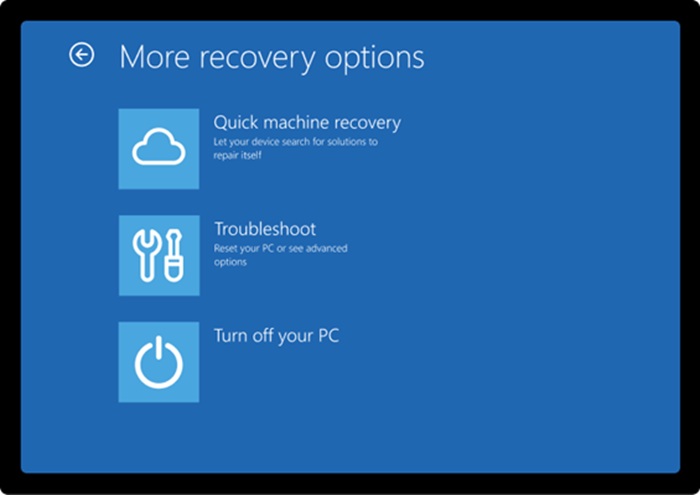
Remember: to prevent future boots to the WinRE, don’t forget to disable it in Command Prompt in administrator mode, using reagentc /disable. After that, enable it back using reagentc /enable to enable default QMR settings.
While Quick Machine Recovery in Windows 11 is only available in its advanced builds, Windows 10 and other users can always depend on System Restore in the event of a crash. You have to save multiple restore points, and once in WinRE, you can safely migrate to a safe PC instance earlier. You can also use programs like ShadowExplorer to restore the files from System Restore.








