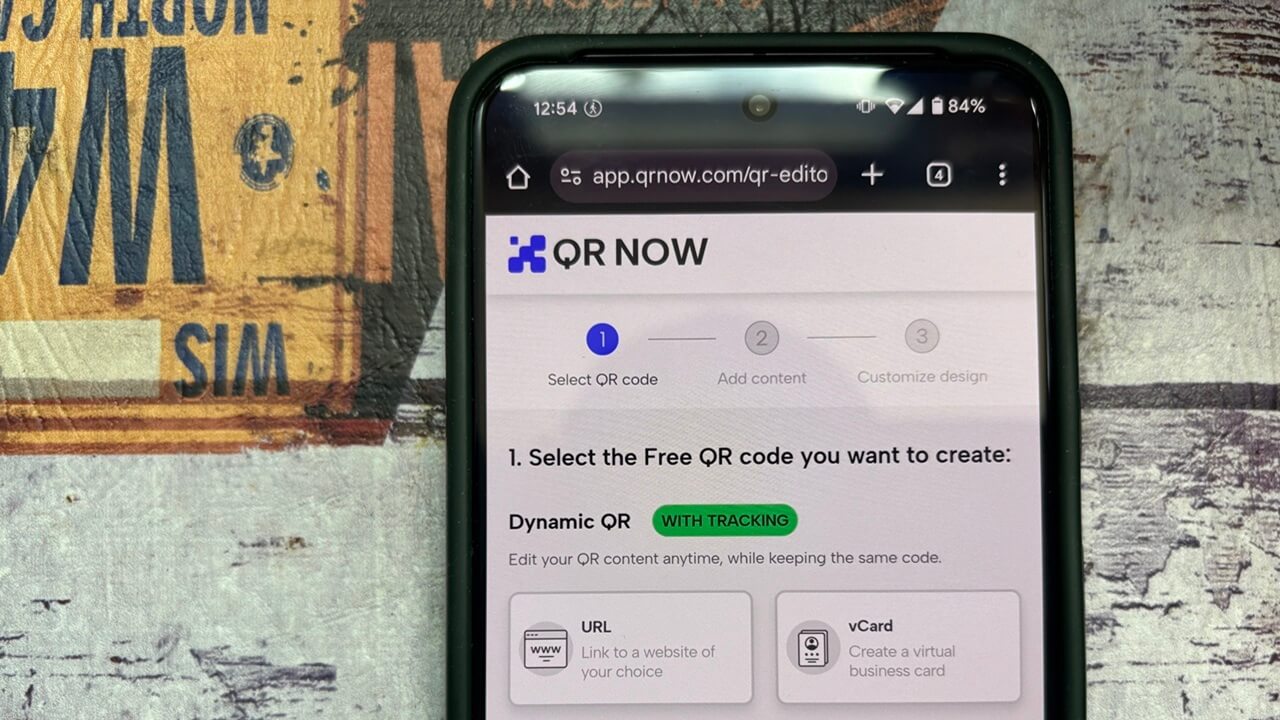
Whether you’re a small business owner or managing a larger operation, finding ways to attract new customers or streamline access to your services is always a priority. One effective solution is using QR codes. To help businesses take full advantage of this technology, platforms like QR Now offer tools to create and manage QR codes with minimal effort. This review is the result of the time we spent using QR Now, exploring its features and capabilities.
This is a sponsored article and was made possible by QRNow. The actual contents and opinions are the sole views of the author who maintains editorial independence, even when a post is sponsored.
Introducing QRNow for Businesses
QRNow is a web tool created for businesses for all devices, including computers, mobile phones, and tablets.
QRNow highlights various real-world examples of how businesses are leveraging QR codes to engage customers and boost interaction. This can be especially helpful if you’re still exploring how to integrate QR codes into your own strategy.
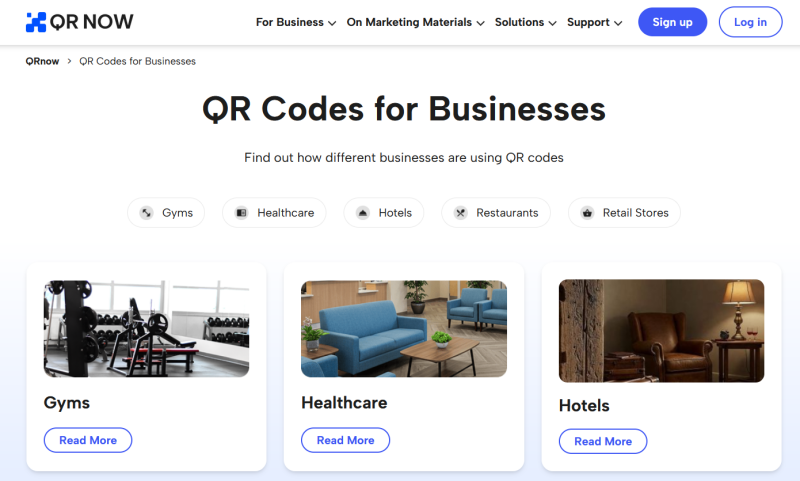
To start creating QR codes, you’ll need to create a free account. You can sign up with your Google account to unlocks 7-day free trial, after which you’ll have to upgrade to a paid subscription to continue using the service.
Static vs. Dynamic QR Codes
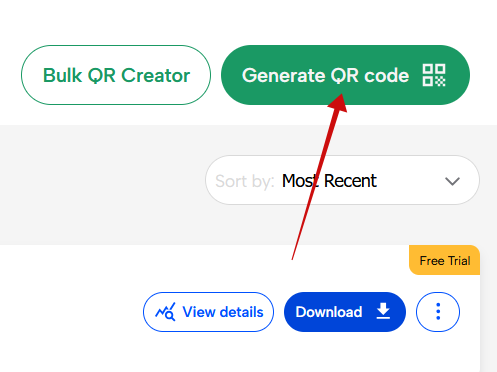
After logging in with your newly created account, you’re directed to the QRNow Dashboard, where you can easily manage your QR codes. You can create a single QR code, but there’s also an option to create bulk QR codes.
To create your first QR code, click or tap the Generate QR code button.
On the next page, select whether you want to create a Static or Dynamic QR code.
As the names imply, the key difference between static and dynamic QR codes lies in the flexibility. A static QR code is permanent. Once created, you can’t change its content. In contrast, a dynamic QR code allows you to update the content or even the linked URL after generation.
Static QR codes don’t rely on Internet access, so they’re perfect for simple, unchanging content, such as business cards or flyers for a one-time event. The downside is that they’re not trackable, so if you’re hoping to monitor engagement or scan performance, a static code won’t give you those insights.
Dynamic QR codes are the more versatile option, allowing for editable content and enhanced customization. They’re especially useful for businesses running ongoing campaigns or managing content that evolves over time. For instance, adding new products, updating pricing, or changing landing pages without recreating the code.
It’s worth noting, however, that dynamic QR codes rely on the provider’s server to function and require an active Internet connection to redirect users to the desired content.
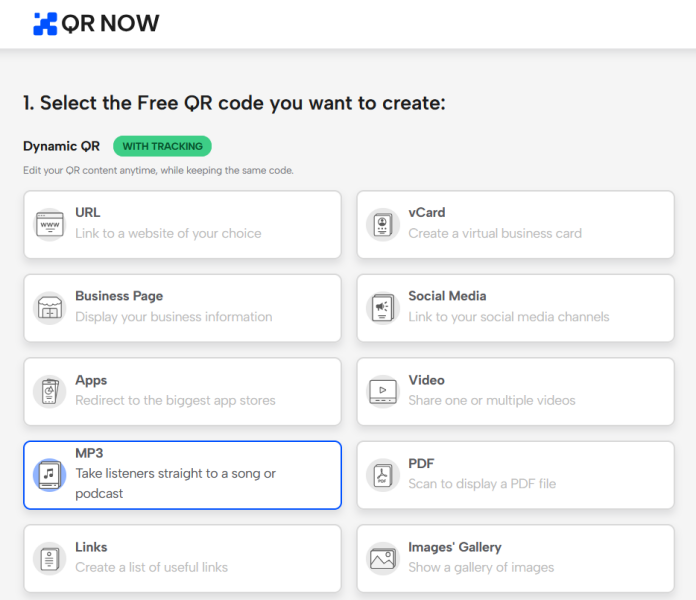
For this review, we’re creating a new Dynamic code. We first need to select what kind of code we want to make. There are plenty of options to choose from, including social media, vCard, PDF, video, links, and landing page. We’re creating a QR code that will lead to a list of links.
Creating the QR Code Content
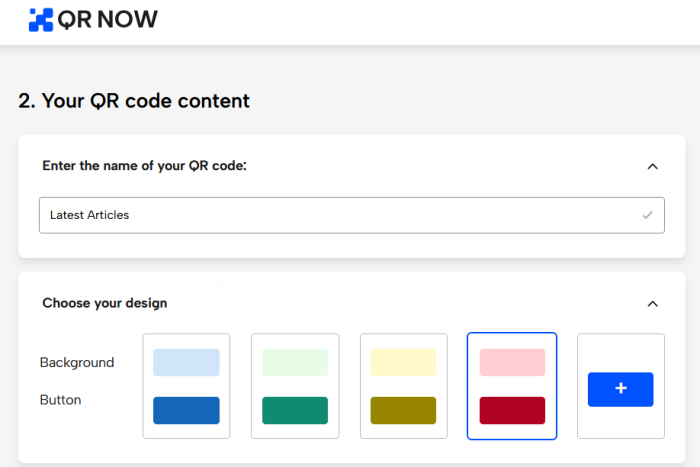
On the next page, we need to do quickly fill out the QR code content info. Start with giving it a name, then choose a color scheme.
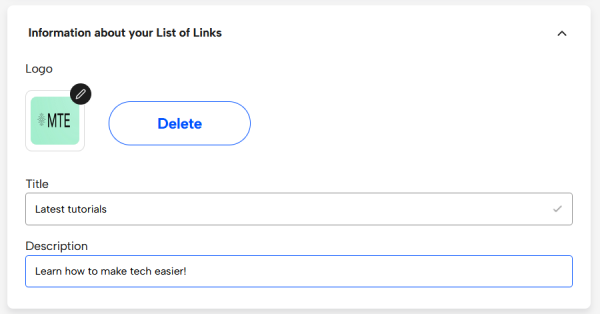
Upload your company’s logo and add a title and description for the links you’re about to add.
Note: you can check the live preview on the right side of the screen to see how your QR code is shaping up.
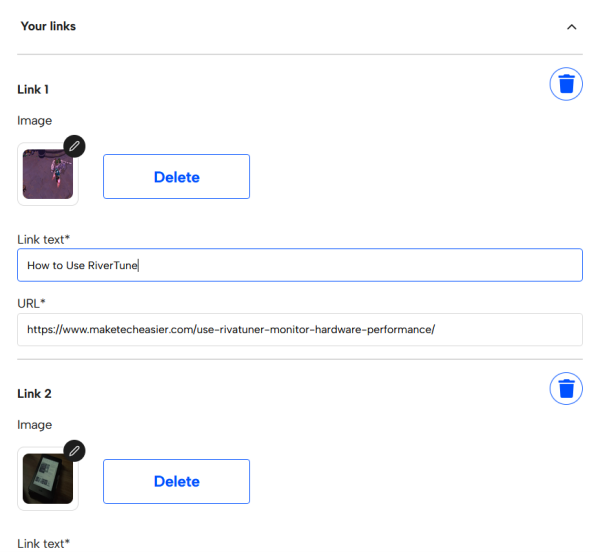
Next, add the links. Name each one and add a description. You can even include a photo for each piece, which will show up on the button that leads to the article.
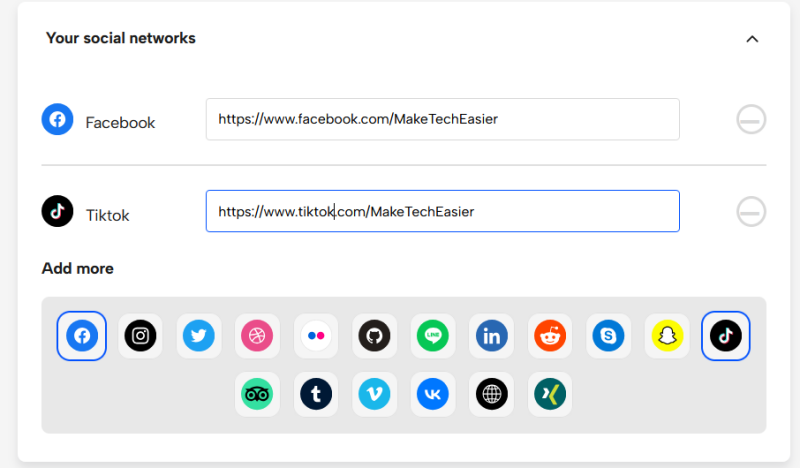
In the next section, you can add your social media accounts and any tracking info. For instance, if you’ve set up a Facebook Pixel or have a Google Analytics account, you can add them here.
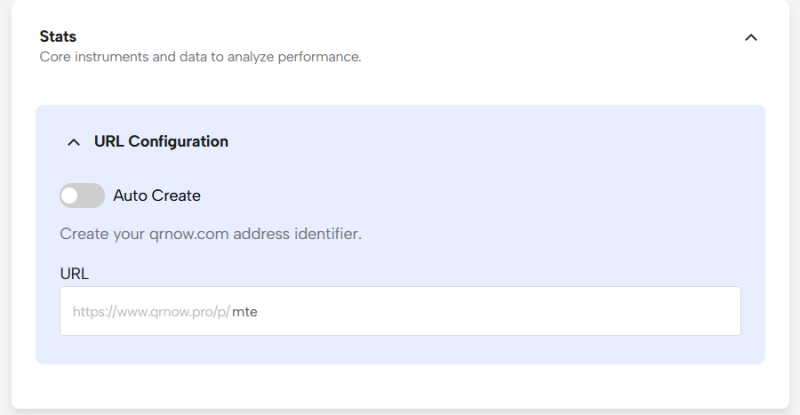
Finally, create a custom link if you would like. This is the link that users will see when they scan your code. Of course, it will be a www.qrnow.com address. You can customize the rear part of the link after the slash.
Designing Your Code
The next phase has to do with the visual aspect of the code. You should strive for an appealing design to more easily catch the attention of customers.
Start by adding a code frame. QRNow offers a few premade options. Select your favorite based on the purpose of the QR code.
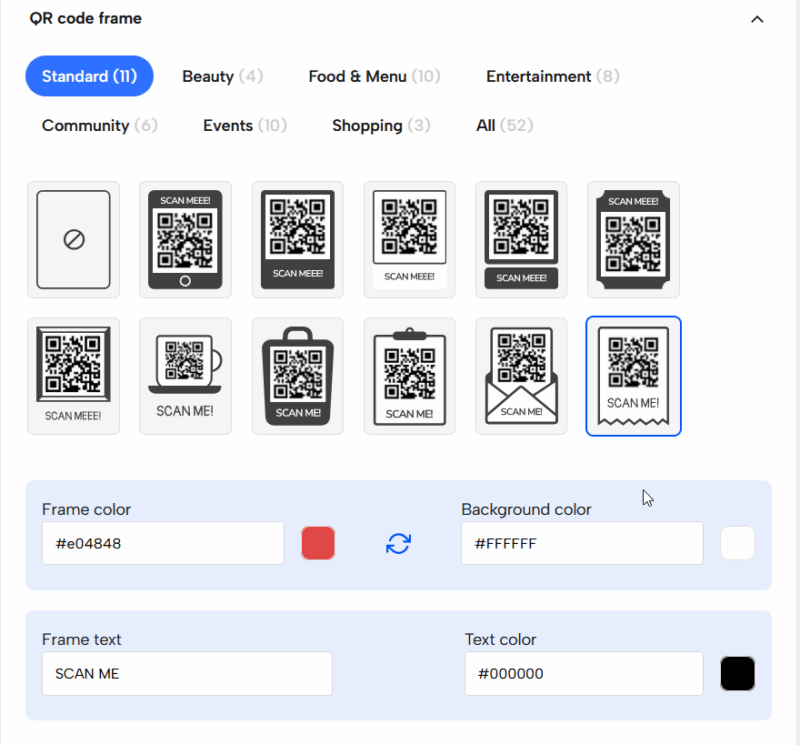
Customize the frame by changing the background color, text, and more. Use colors that are consistent with your brand for maximum appeal.
You can also change the colors of the actual QR code, including dot/square color and background color. Just make sure there’s enough contrast; if the colors are too similar, the code may not scan properly. For instance, a QR code like the one below will fail to scan.
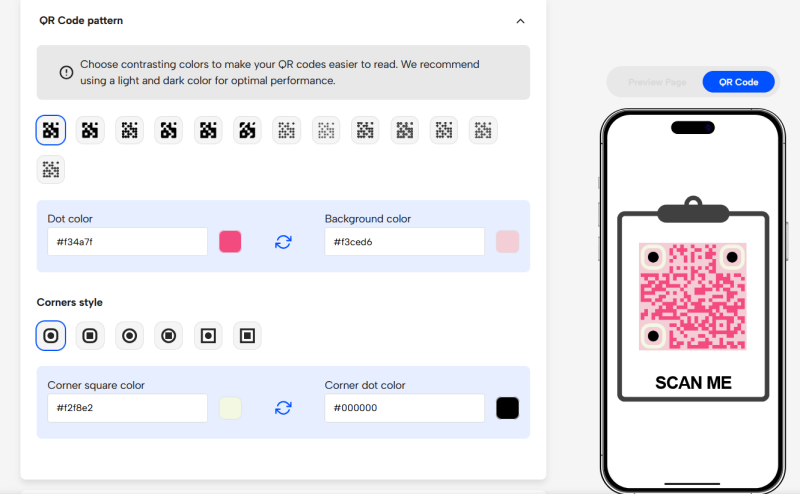
QRNow also allows you to select a different code pattern and corner style. You can play with these options until you find the combination that works for you.
Note that you can also include your company logo in the QR code. This will be added in the middle.
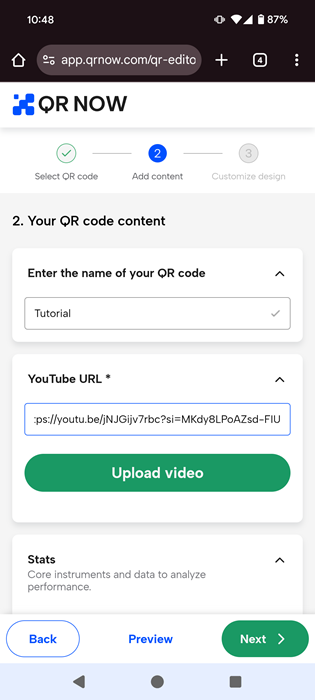
If you’re using a mobile device, the steps are similar. The interface remains the same, but it’s scaled back to the smaller screen.
Sprinkle a Little AI
If you want a QR code that’s a bit more impactful, QRNow has an AI feature that lets you generate codes based on prompts. It’s currently still in beta, so don’t expect it to be flawless.
I’ve generated various codes with AI, but some of them didn’t work. Even when I asked for something quite basic, the AI overcomplicated things, adding characters I didn’t ask for. Your best bet is to ask it for something intricate.
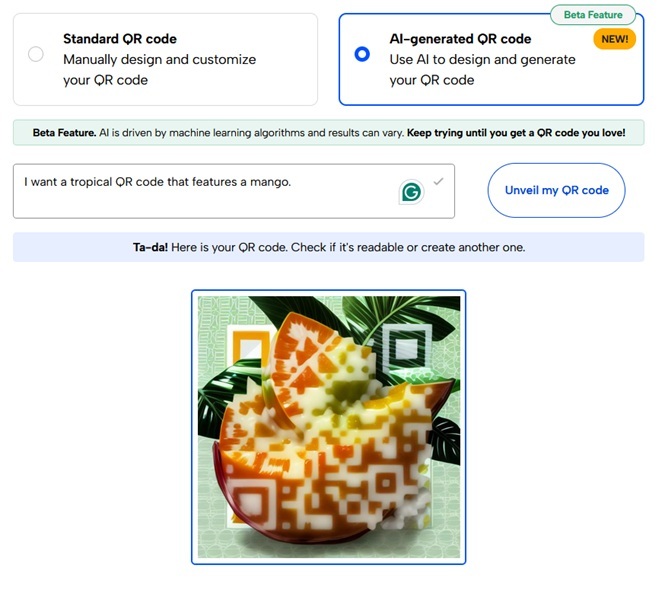
There is potential with this feature; however, at least for the moment, it may be best if you stick to creating regular QR codes. Unless you have some free time and want to experiment a little, in which case, the feature is pretty fun to play with.
Managing Your QR Codes
Each time you create a QR code, it appears instantly in your QRNow dashboard, where you can easily view all your codes at a glance.
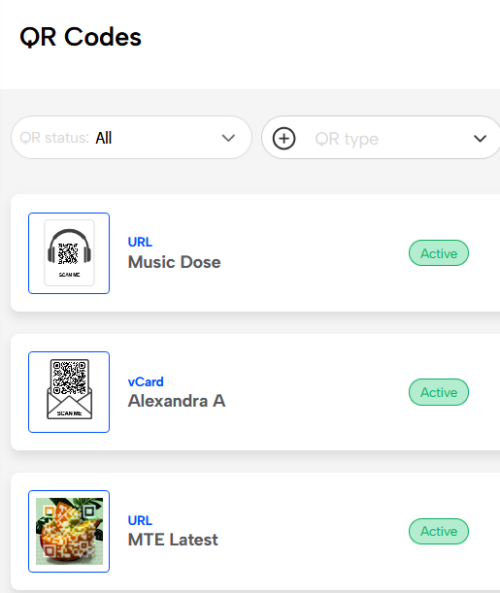
Click a QR code to view it. Alternatively, download it directly to your device, then share it via messaging or social media apps. You can even save in SVG on your device.

To easily manage a QR code, click the three dots next to it. From this menu, you can Delete the code, or if it’s a dynamic one, Edit its content. Alternatively, Pause the campaign so that metrics are no longer tracked.
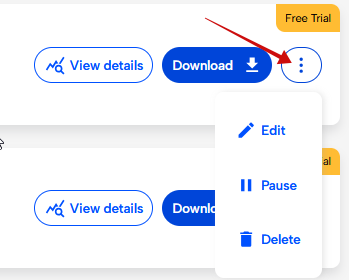
An additional button enables account holders to View details, aka analytics, for each code. This gives you access to insights such as how many times your QR codes were scanned, where those scans came from geographically, and the operating systems of their devices.
The option to create templates for various scenarios is also available via the Dashboard. In the menu on the left, click Templates, then the Create template button to design your QR code template. This feature comes in handy if you want to keep a design you may use again.
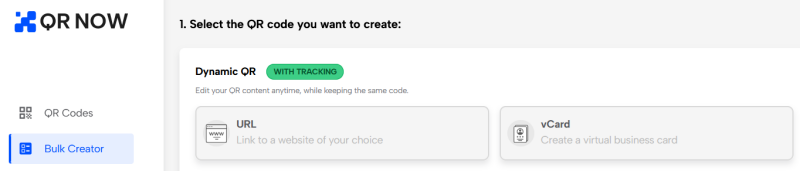
QRNow also features a Bulk QR Code Generator, available exclusively for Dynamic codes. You can choose between URL and vCard formats and simply upload a CSV file to proceed.
Availability
Once the 7-day free trial expires, you will no longer be able to edit or download your codes. To regain access, you’ll have to upgrade to a paid subscription:
- $39.95/month for 3 months
- $29.95/month for 6 months
- $19.95/month for 12 months
QRNow makes it easy for businesses to create and use QR codes as part of their strategy. Its intuitive web interface, accessible both on PC and mobile devices, simplifies the creation of impactful designs. With an AI-powered generator for unique designs and a built-in analytics dashboard to monitor campaign performance, QRNow equips you with everything needed to optimize your QR initiatives. Plus, with a free trial, you can test it out before committing to a paid plan.








