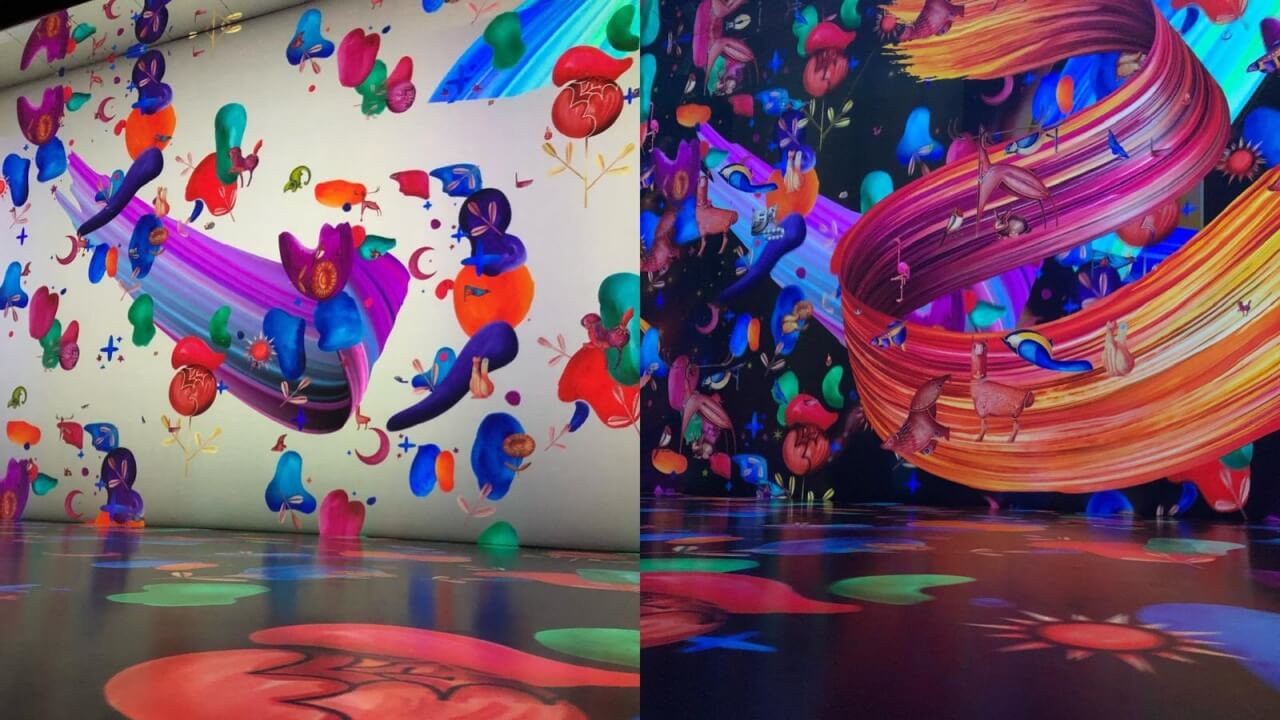
Need to place two photos side by side on your iPhone for a collage or a before/after shot? You might think you need to install a third-party app or turn on your computer, but there’s a simpler way. Read on to learn how to do it directly from your iPhone, no extra downloads required.
Good to know: these apps can make your iPhone photos look like film. Give them a try!
Use the Shortcuts App to Merge Photos
You can create a process that allows you to automatically merge photos on your iPhone using the Shortcuts app, which should come pre-installed on your device. If, for some reason, it is not found on your phone, you can download it from the App Store.
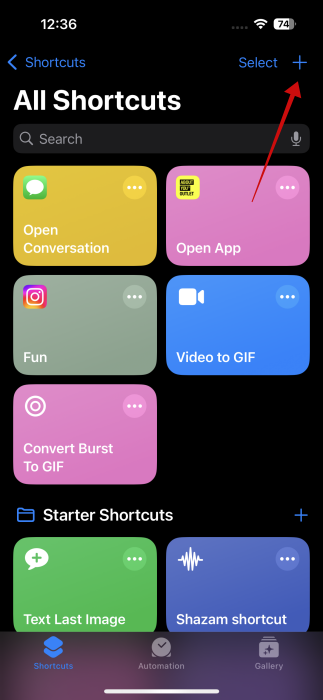
Open the Shortcuts app on your device. To create a new shortcut, tap the + button in the upper right corner.
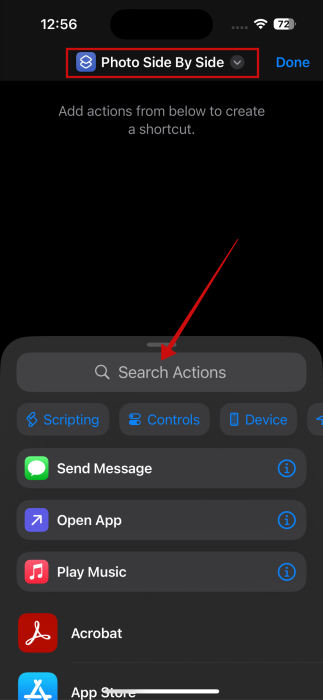
Name your shortcut. Now tap the Search Actions field underneath.
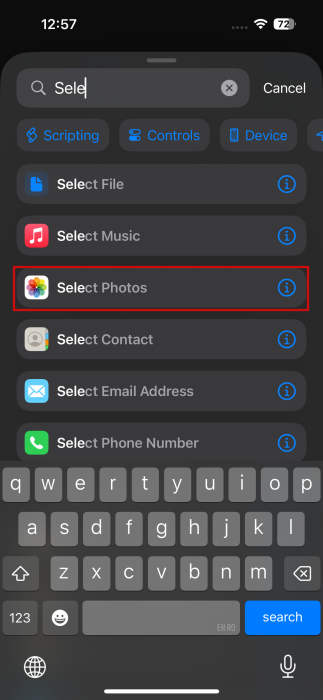
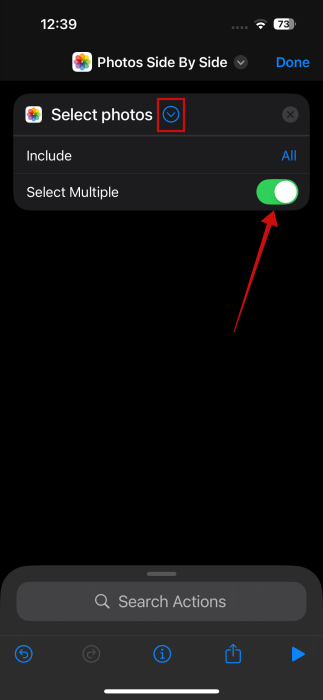
Search for Select Photos and tap to add it to your shortcut.
Tap on the small arrow next to the Select Photos and enable the toggle for Select Multiple in the drop-down menu.
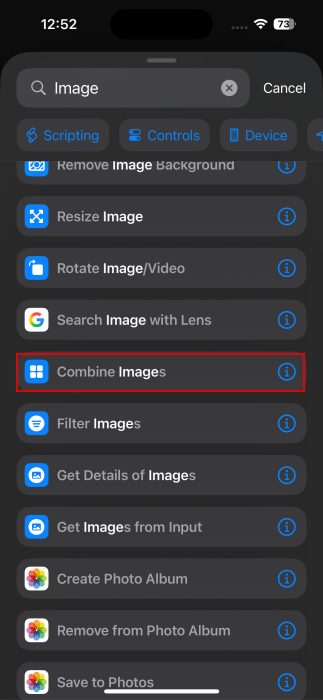
Next, use the search bar again to look for “image.” Select Combine Images from the options (you will need to do a bit of swiping downward).
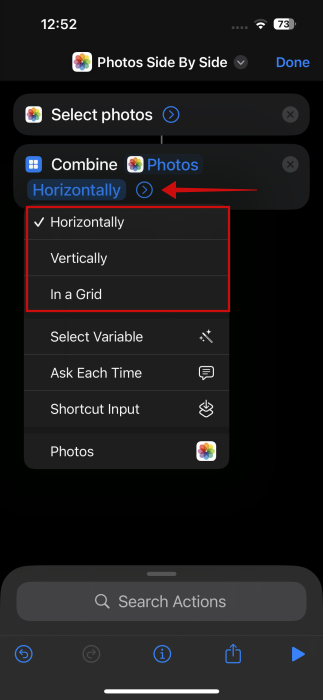
By default, the action is set to combine photos horizontally. You can change that by tapping on Horizontally and switching to Vertically. Or to In a Grid, so it can create a full collage.
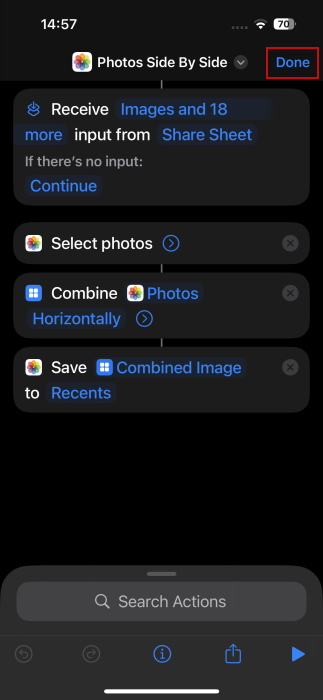
Finally, search actions for Save Photo. Leave the action as it is, as by default the resulting image will be saved to your Photos app.
Once this last option is added, press the small “i” button at the bottom. Toggle on Show in Share Sheet. Additionally, if you want to have more easy access to this shortcut, you can opt to Add to Home Screen. Press Done.
Once again, tap Done to finally save your shortcut.
Tip: get better at using Live Photos on iPhone with these tips.
Putting Two Photos Side by Side from the Photos App
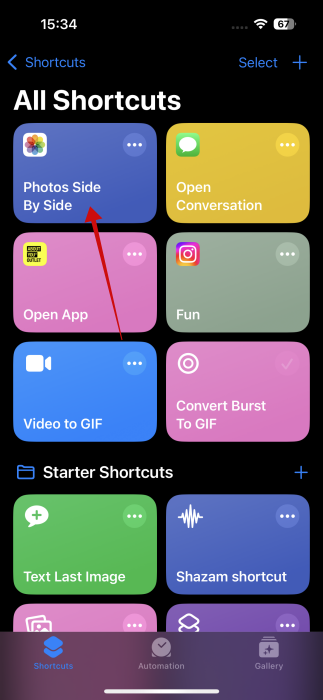
Return to the Shortcut’s app main screen. You should see your shortcut at the top. Tap it (just be careful not to press the three dots which will take you back to the shortcut editing screen.)
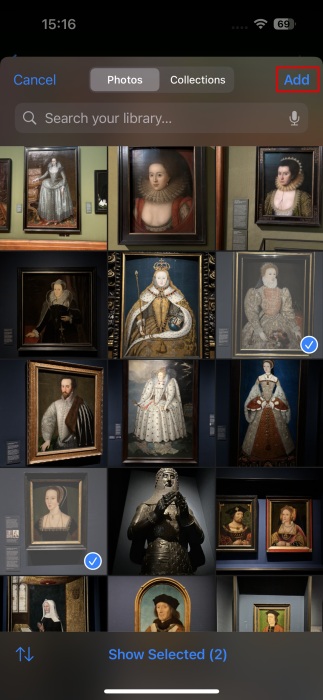
Select the images you want to merge horizontally in the order you want them to appear. Then press Add.
Wait a second while the Shortcuts app performs the action. Then open the Photos app. You should see the result waiting for you there. You can now easily share it with others from here.
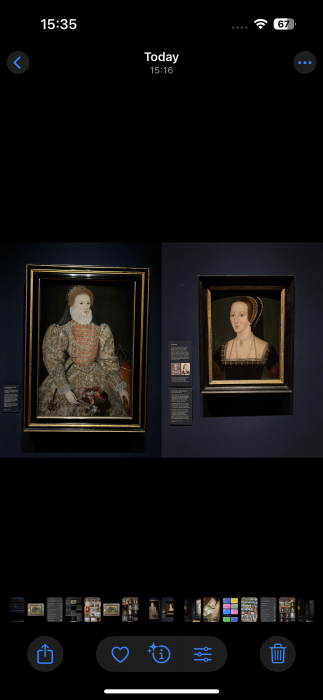
Tip: use photos that are the same size and orientation, or they will appear next to each other in different sizes.
Alternatively, you can do so directly from the Photos app. Go to the app and select an image (any image at this point). Then press the Share button.
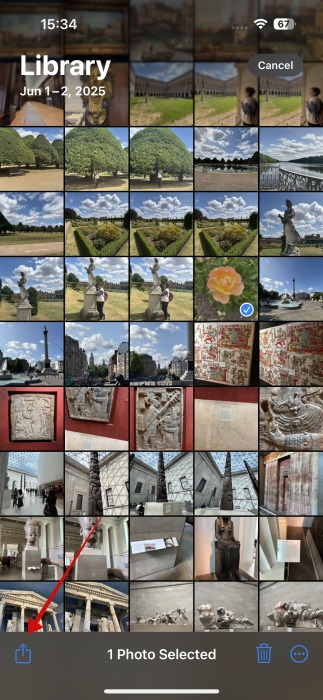
Swipe down all the way to the bottom and you should see your shortcut as part of the sharing menu. Tap on it.
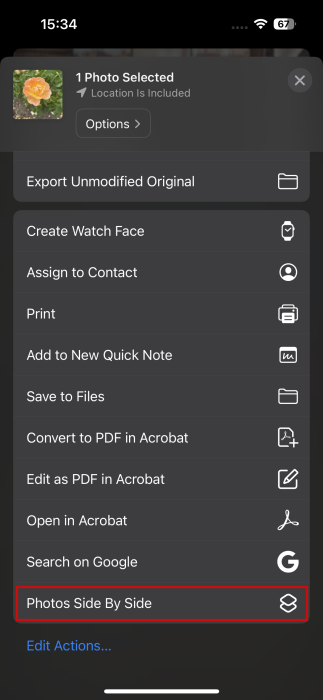
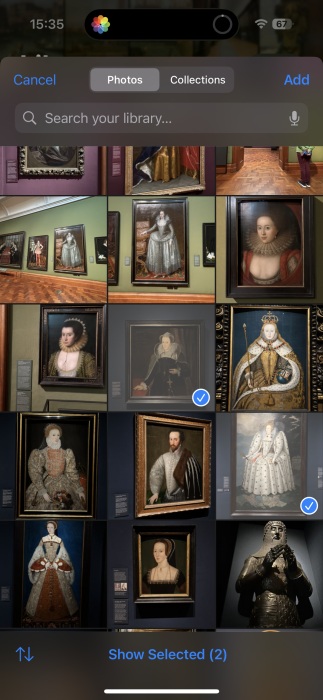
The next step is to select the two photos you want to merge. Press Add.
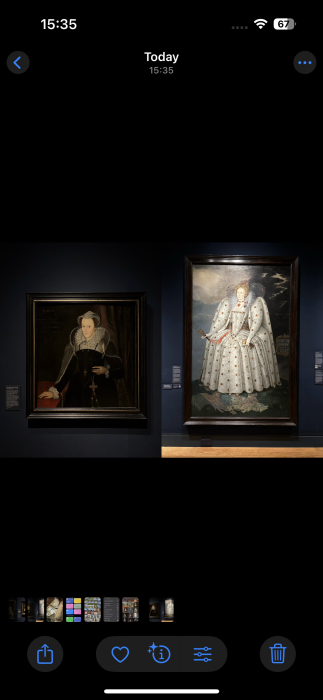
Go back to Recents in Photos. You should now see your creation.
FYI: here’s how you can rearrange photos in an Instagram carousel.
Use Instagram to Create a Quick Collage
Since Instagram is super popular, chances are you might already have the app installed on your phone. If that’s the case, you can use it to quickly create your collage.
Open the Instagram app and swipe from the left side to bring up the content creation screen. Switch to Story at the bottom.
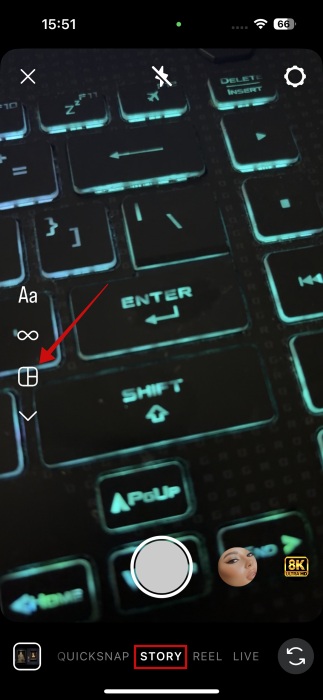
On the left, tap on the grid icon and then on Change grid option.
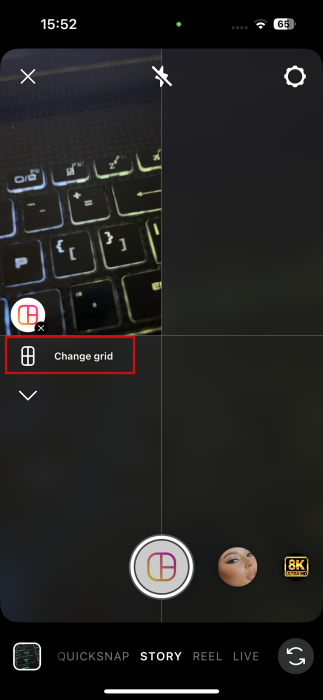
Select your layout. Next tap, on the tiny rectangle in the bottom left to access your gallery and fill in the first part of the grid.
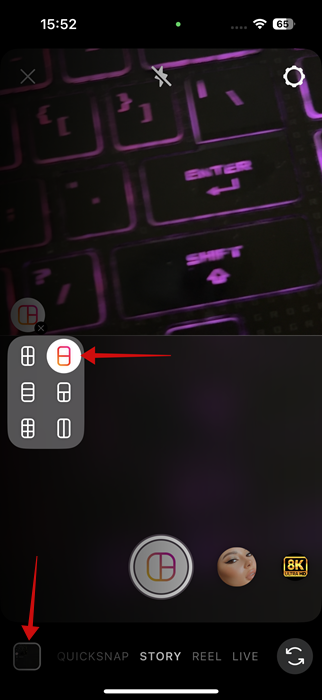
Tap the next part of the grid to select and add the other photo.
Once you’ve added them, press the tick sign button.
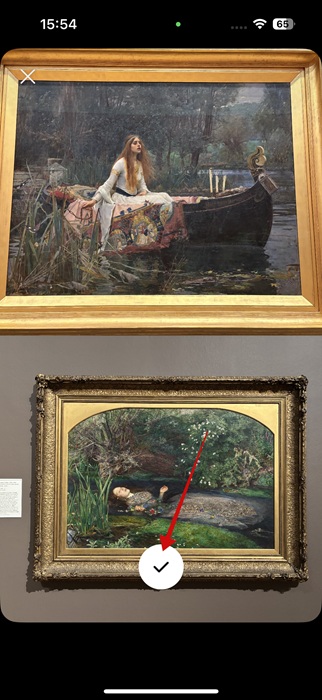
Now your Story if ready to go live on Instagram. However, we will skip this step. Instead, we’ll press the three dots in the upper right corner and tap Save.
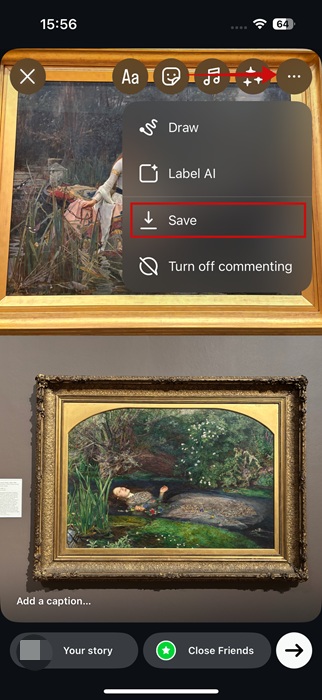
The resulting image should appear in your gallery.
For more photo tricks, check how to post a live photo on Instagram. Alternatively, read all about the best methods to organize photos on your iPhone.








