FileFix is a new attack method that takes advantage of how Windows and browsers handle the saving process of HTML webpages to bypass Windows security checks. If properly executed, it can compromise a Windows system to deploy ransomware attacks, harvest credentials, and even install new malware. This guide lists all the measures you can take to protect your PC from a FileFix attack.
How FileFix Attack Works
Revealed by security researcher mr.d0x, FileFix abuses how Windows handles local HTML application files and the Mark of the Web (MoTW) security feature. Whenever you save a webpage using the “Save as” function, your browser doesn’t tag it for MoTW, which is supposed to tell security functions (like Windows Security) to scan the file.
Additionally, if the file is saved as .hta (HTML application file), it can be directly executed as the current user without a security check. If a malicious webpage convinces the user to save it and also change its name with .hta extension, then the malicious code will be downloaded and executed (when the user opens the file) without Windows security detecting it.
The main difficulty is convincing users to save the malicious page as an HTML application file. However, like EDDIESTEALER, it’s possible by using cleverly executed social engineering attacks, like convincing users to save their MFA codes with a specific name that ends with .hta.
Thankfully, there are multiple points of interception to block this attack on your PC. Below are the most reliable ones.
Avoid Malicious Webpages
The attack starts by saving a malicious webpage, so if you don’t access a malicious page, you won’t be a target of this attack (and many others as well). Make sure you are on a modern browser like Chrome, Edge, Firefox, etc., as they have built-in phishing and malware protection features. Also, on Chrome, enable Enhanced Protection for AI-based protection to find threats in real-time.
Malicious webpages are often spread through phishing emails to act as legitimate webpages, so learn to identify phishing emails and avoid clicking them as much as possible. If you do end up on a suspicious page without a warning, there are many ways to determine if a website is legit or not.
Make File Extensions Visible in Windows
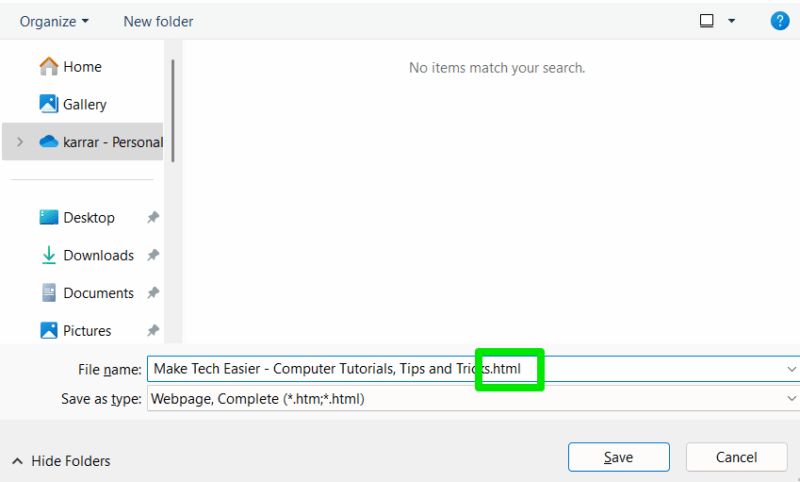
By default, Windows 11 hides file extensions and only shows the names of files. FileFix indirectly takes advantage of this, as users may not notice the .html extension changing to .hta when file extensions aren’t showing. You can enable it to always see what is the original file type and if it’s being changed.
In File Explorer, click on the See more button (three dots) and select Options.
Here, move to the View tab and uncheck the option Hide extensions for known file types.
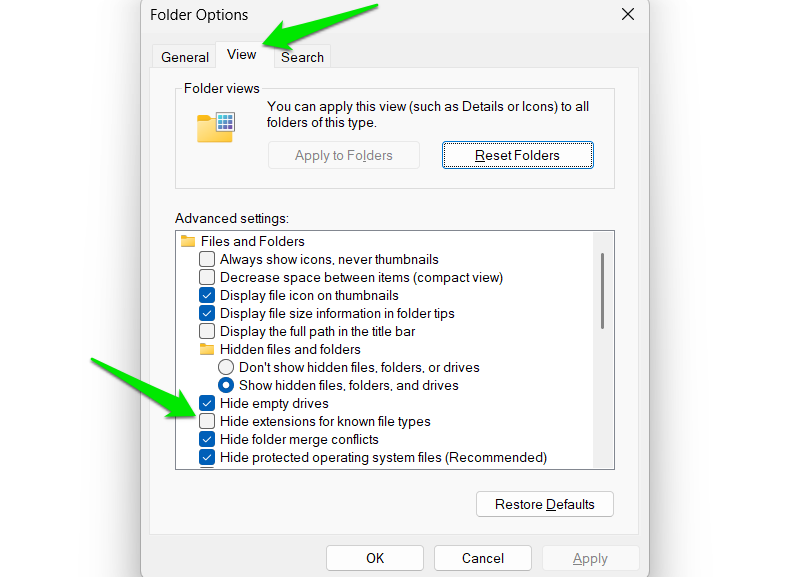
Now, you’ll always see file extensions even in the download window when saving the webpage.
Change .hta File Association to Notepad
By default, Mshta is the app that runs .hta files to execute HTML application functions directly. However, if you change the .hta file association to Notepad, it will instead open the file in the text editor when executed. So even if someone manages to trick you (or someone else on your PC) into downloading a malicious .hta file, it won’t execute.
This won’t affect most users as use of .hta scripts is quite niche and often used by IT admins only, or for some legacy script in enterprise environments. Unless you specifically depend on an .hta script, it won’t affect you.
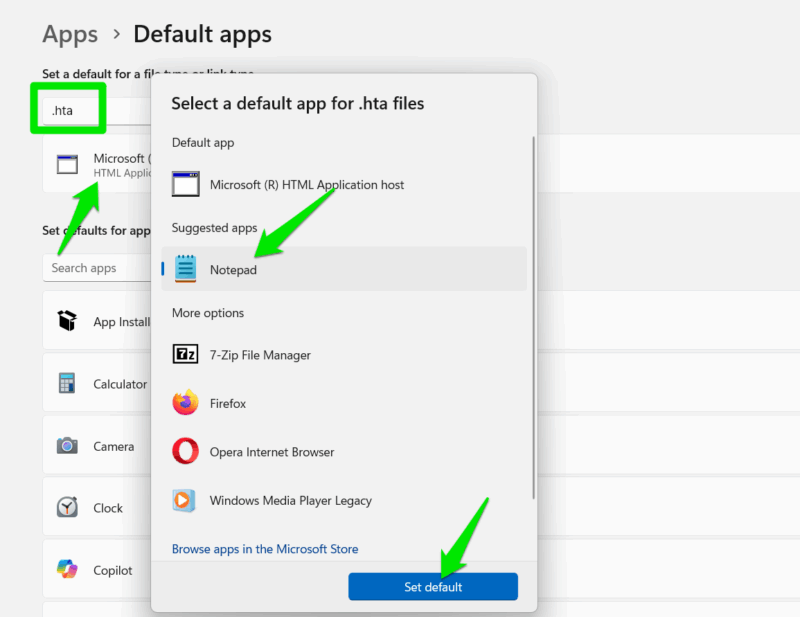
In Windows Settings, go to Apps -> Default Apps and search “.hta” in the top search bar under Set a default for a file type or link type section.
Now, click on Microsoft (R) HTML Application host, select Notepad as the default app, and click on Set default. Now, all .hta files will open in Notepad.
Disable Mshta to Block HTML Execution
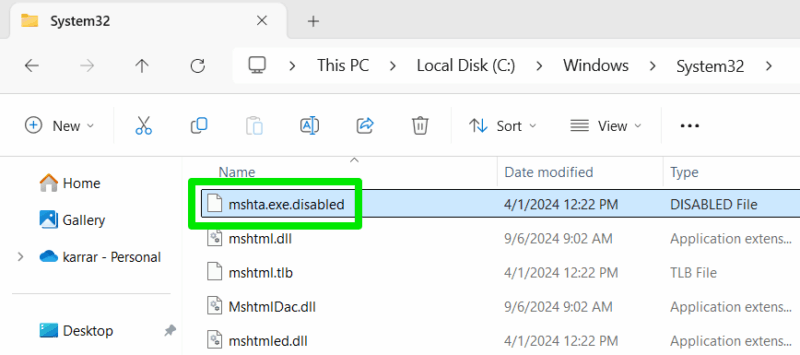
You can also use a trick to disable the Mshta app completely to avoid execution of all .hta scripts. All you have to do is change the “mshta.exe” file name to “mshta.exe.disabled” to disable it. You’ll need to have file extensions visible to make this change.
Mshta file is in “C:\Windows\System32” and “C:\Windows\SysWOW64”, you need to disable it in both locations.
Go to these locations in Windows Explorer, type “mshta” on keyboard to reach the file, and rename it to “mshta.exe.disabled”. You’ll need to be the administrator to make this change, and you may need to take file ownership as well. To undo the changes, simply change back the names in both locations to “mshta.exe”.
Since this vulnerability has been revealed, there is a chance Microsoft may change how MoTW is applied in a future update to fix it, so ensure your Windows is always up-to-date. Additionally, keep default Windows security features enabled to possibly catch the script during execution.








