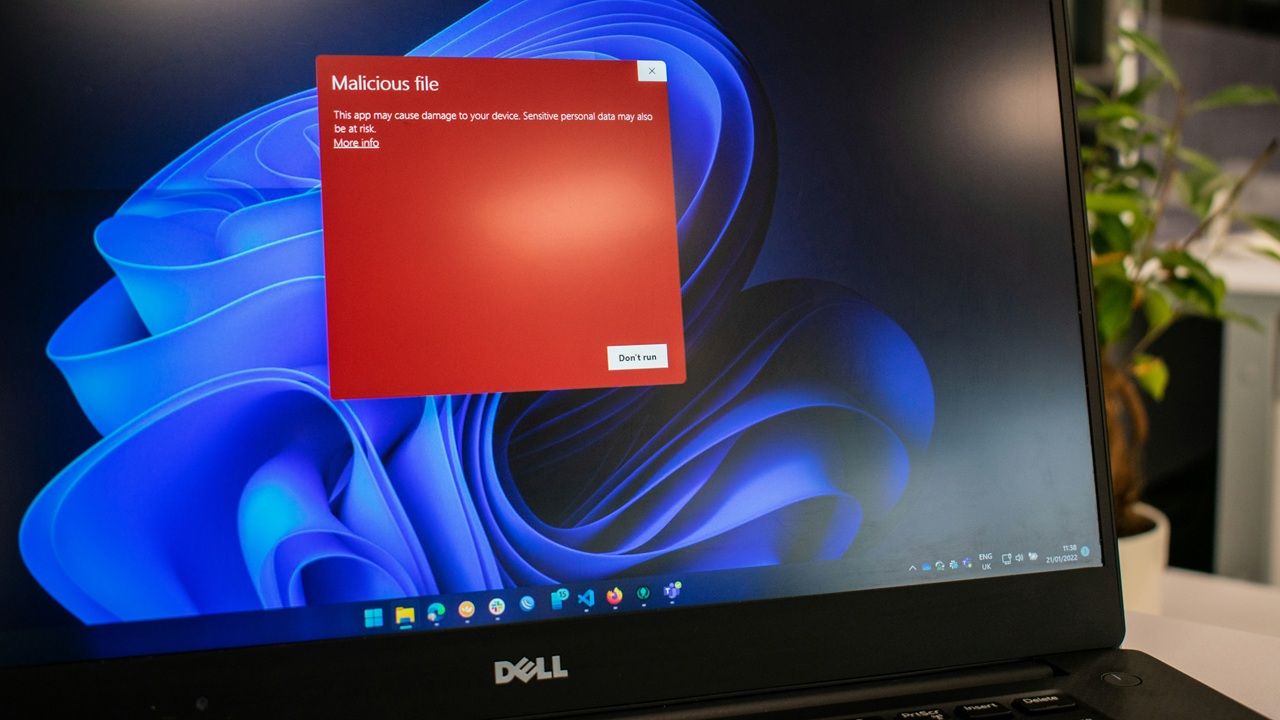
The sneaky Winos 4.0 malware variant is using deceptive NSIS installers to unleash multi-stage attacks. It can even tweak Windows Defender-based security to create an exception, giving it room to operate. The end results are data theft, registry tampering, and PC surveillance. Check out our verified solutions to stop this persistent malware in its tracks.
Why Winos 4.0 Malware is Dangerous
Winos 4.0 is a sophisticated malware family, originally derived from Gh0st RAT. The “4.0” is just a name, and not any specific version of the malware. It has been around for over a year. On May 22, 2025, Rapid 7 announced a Winos 4.0 variant that is using VPN and browser installers to inject the payload.
The malware is released as a chain reaction, starting with a fake NSIS application, which is a corrupt EXE file. The installer names are unsuspecting, such as QQBrowser_Setup_x64.exe or Lets.15.0.exe. What makes this malware dangerous is these expert deception tactics which many users will not doubt.
While you install the desired application, it drops extra files such as a VBScript launcher, a PowerShell loader, a malicious DLL, and configuration files. Rapid7 has given a name to the multi-stage payload – Catena loader. For persistence, a silent PowerShell command adds exclusions to shield the payload. Notably, the Winos 4.0 malware can lie dormant for weeks, springing into action much later.
Ultimately, the Winos 4.0 malware captures passwords and cryptocurrency details, performs registry changes, and monitors screenshots, webcam, and microphone. Operating solely in memory, as we saw with Remcos RAT, it leaves no trace on your disk, evading detection by antivirus.
Verify Digital Signatures of All Installers
Checking the digital signatures of any application that you’re planning to install keeps your PC safe. For this, right-click on the application, go to its Properties -> Digital Signatures. Click Details -> View Certificate to check the authenticity of the installer.
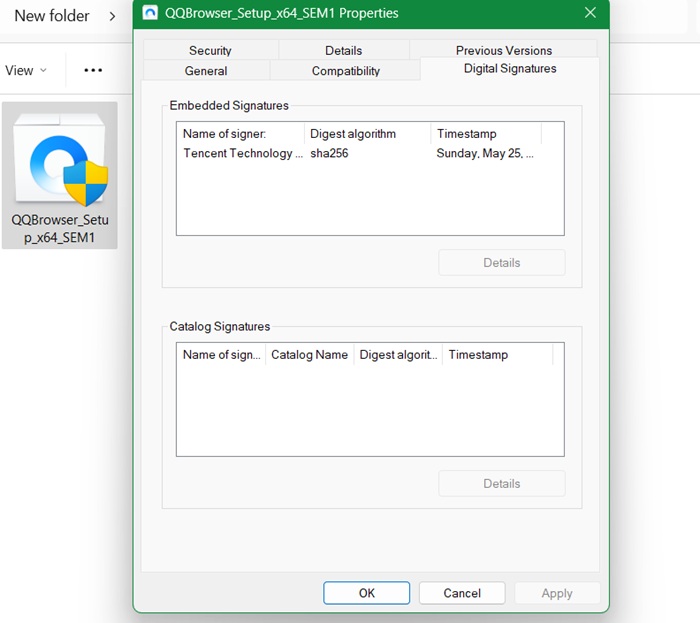
Here, we are checking the digital signature of QQBrowser, whose malware variants with fake NSIS installers are available. This one, though, has a genuine valid signature by Tencent Technology., the company behind QQBrowser.
Related: check how to verify the digital signatures in Linux software.
Enable Windows Security App Protections
While the Winos 4.0 malware deceives Windows Defender, there are certain security steps you can take inside Windows Security app.
You can prevent NSIS installers from executing. For this, open PowerShell in administrator mode, and run the following command to reduce Attack Surface Area (ASR). This is a superb command which does not impose a blanket ban, but only weeds out the malicious installers.
Set-MpPreference -AttackSurfaceReductionRules_Ids 3B576869-A4EC-4529-8536-B80A7769E899 -AttackSurfaceReductionRules_Actions Enabled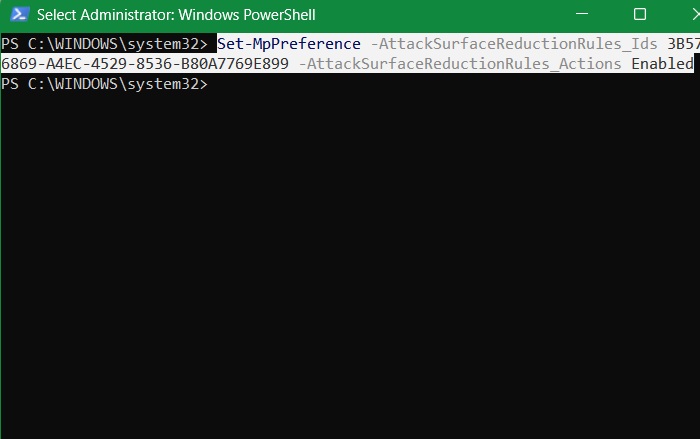
Next, open the Windows Security app. Go to Virus & Threat Protection -> Virus & Threat Protection Settings -> Manage Settings. Check to ensure that Real-time Protection is toggled on.
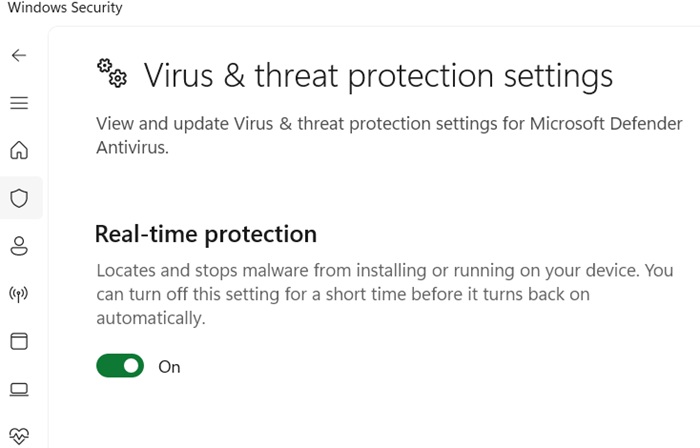
Also, under Virus & Threat Protection, scroll down to select Manage Ransomware Protection. If Controlled Folder access is off, turn it back on. You can further click Allow an App Through Controlled Folder Access to whitelist trusted apps.
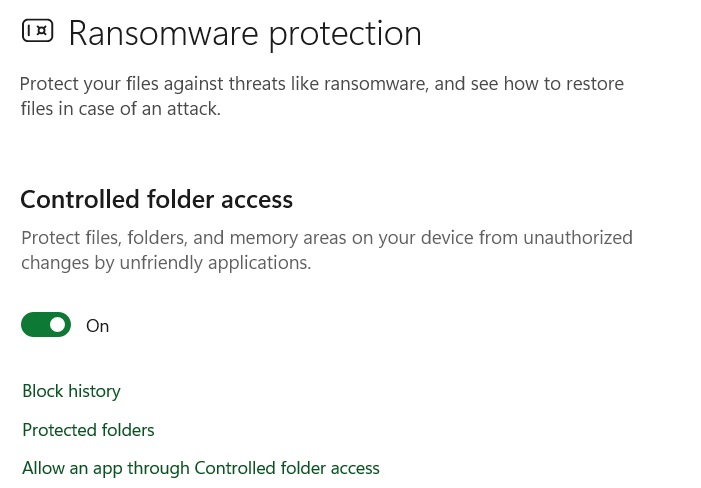
Doing these bare minimum Windows Security protections is enough. Advanced Windows users can also configure firewall to disallow Winos 4.0 malware.
Prevent Winos 4.0 Malware from Adding Exclusions to Windows Defender
A sneaky way Winos 4.0 malware develops in the system is by adding an exclusion from Windows Defender scanning. You can prevent it in advance.
Open PowerShell in administrator mode. Use the following command to add the execution policy for bad scripts. Click A to confirm.
Set-ExecutionPolicy -Scope CurrentUser -ExecutionPolicy Restricted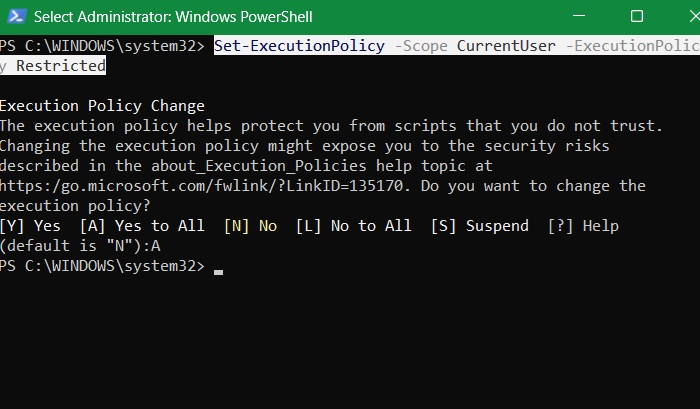
You can also prevent all unauthorized exclusions from running in PowerShell. This is done using the following command, which covers all drive letters.
Remove-MpPreference -ExclusionPath C:\,D:\,E:\,F:\,G:\,H:\,I:\,J:\,K:\,L:\,M:\,N:\,O:\,P:\,Q:\,R:\,S:\,T:\,U:\,V:\,W:\,X:\,Y:\,Z:\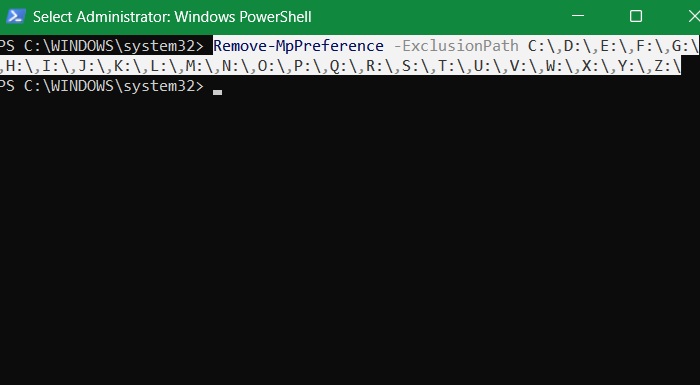
Related: Autoruns is used in Windows to manage many scheduled tasks.
Use Autoruns to Detect Fake NSIS Entries
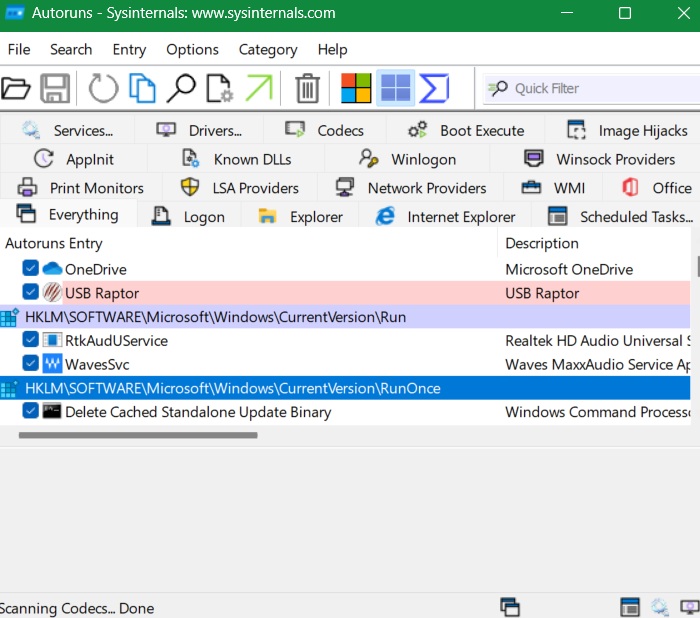
A Microsoft program called Autoruns can be used to keep track of bad startup programs, including fake NSIS entries. This is one of the easiest ways to catch Winos 4.0 malware and its variants before they can execute their payloads.
Download Autoruns ZIP file from the Sysinternals webpage. No installation is needed. Just unzip the file, and double-click the Autoruns64 file, (for Windows 64 systems.) Here, you get a bird’s eye view of all active logons, scheduled tasks, and processes. You might spot entries flagged in red. Keep an eye out for any NSIS-related entries, which will be properly flagged
We rarely suspect legitimate Windows app installers. Once they pass SmartScreen (which you should not disable), and Windows Security checks, we often assume the app is safe, whether it’s a VPN or browser. This is where Winos 4.0 malware authors found easy access.
That is why we will recommend verifying your installer’s credibility using the above methods. Protecting your PowerShell window from script executions ensures a great deal of safety. You can use VirusTotal and other websites to scan malware in installer packages.








