Windows users should be on high alert for the Remcos Remote Access Trojan (RAT). This malware deploys an incredibly stealthy payload through phishing, with no downloads required. One careless click on a malicious ZIP link, and the RAT springs into action, executing HTML applications through PowerShell. From there, it can capture screenshots, log keystrokes, and take full control of your system.
Here’s how to protect your PowerShell from Remcos RAT and any other fileless attacks.
How Remcos RAT Hijacks PowerShell to Take Over Your System
Security firm Qualys revealed the simplicity of the Remcos RAT attack. Victims receive a ZIP containing a deceptive LNK file, a Windows shortcut disguised as a real document. As of May 2025, attackers are using tax themed phishing emails, but future variants could use anything that tricks you into clicking links.
Once you open the LNK file, it activates a Windows application called mshta.exe (Microsoft HTML Application Host). Next, a PowerShell script, such as “24.ps1” launches a shellcode loader to execute the Remcos RAT payload in real time. The attack does not store any files on disk but operates entirely in memory.
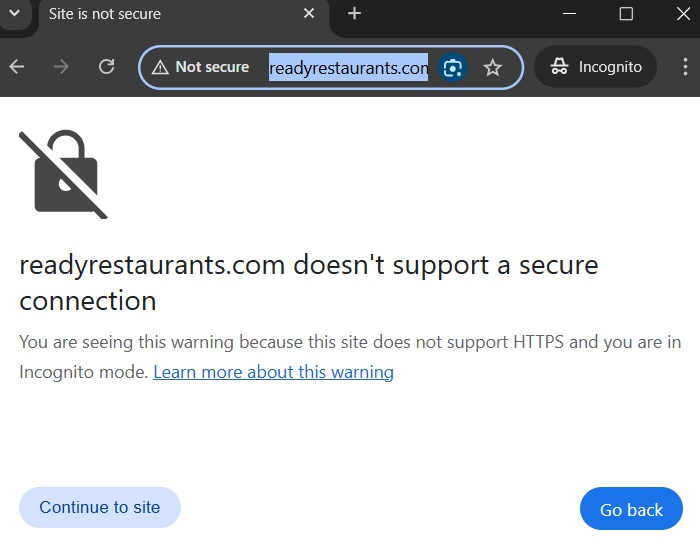
Also, Microsoft Defender antivirus is unable to step into action while attackers create a remote TLS connection. They are currently linking to a command server called “ReadyRestaurants DOT com.” It’s flagged as “not secure” by Google Chrome. But this might change in the future.
Important: Windows PowerShell has become a favorite tool for cybercriminals to carry out stealthy attacks that go undetected. Just last month, we saw it with Neptune RAT malware, which needed you to download a file first.
Prevent Remcos RAT from Executing in PowerShell
First, launch PowerShell in administrator mode. After this, check whether it is in unrestricted or restricted mode.
Get-ExecutionPolicyIf your device is set to restricted (which is usually the default), move on to the next step. Otherwise, first switch from unrestricted back to restricted. Click A when it asks you to confirm this change.
Set-ExecutionPolicy Restricted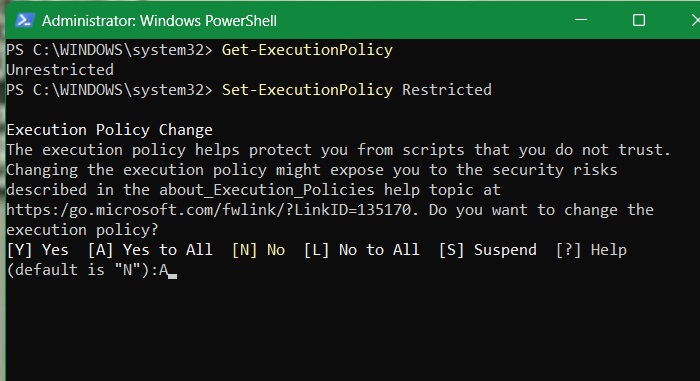
After implementing the above change, follow Qualys’ recommendations and set PowerShell to Constrained Language Mode. It blocks access to sensitive .NET methods and COM objects, which Remcos RAT and similar malware often exploit.
$ExecutionContext.SessionState.LanguageMode = "ConstrainedLanguage"For best effect, ensure this setting applies to all users, including non-admin users, even if you’re the only one using the PC.
Set-ExecutionPolicy -Scope LocalMachine -ExecutionPolicy Restricted -Force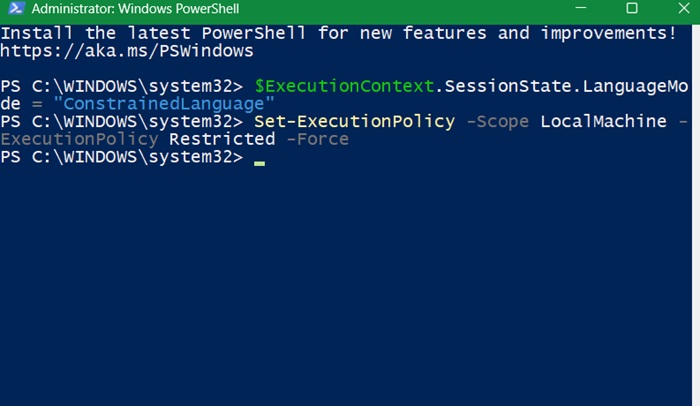
Qualys also recommends blocking suspicious PowerShell command-line arguments. This prevents precursor hidden scripts, like the HTA file in Remcos RAT attacks, from executing in the user’s PowerShell window.
Since Remcos RAT leverages PowerShell shellcode, there is a way to spot these commands. Unless it is already available on your PC, you may need to manually create a missing registry path for “PowerShell” and “ScriptBlockLogging.”
New-Item -Path "HKLM:\SOFTWARE\Policies\Microsoft\Windows\PowerShell" -Force
New-Item -Path "HKLM:\SOFTWARE\Policies\Microsoft\Windows\PowerShell\ScriptBlockLogging" -Force
Set-ItemProperty -Path "HKLM:\SOFTWARE\Policies\Microsoft\Windows\PowerShell\ScriptBlockLogging" -Name "EnableScriptBlockLogging" -Value 1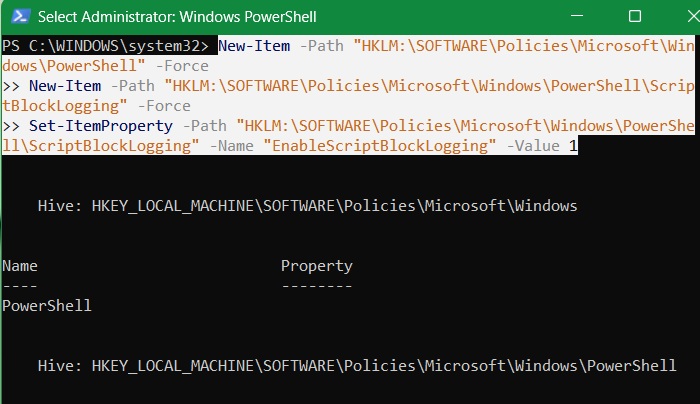
Now, enable the “ScriptBlockLogging” command and set its value to 1. This prevents Remcos RAT and other malware from running shellcode loaders in PowerShell.
Set-ItemProperty -Path "HKLM:\SOFTWARE\Policies\Microsoft\Windows\PowerShell\ScriptBlockLogging" -Name "EnableScriptBlockLogging" -Value 1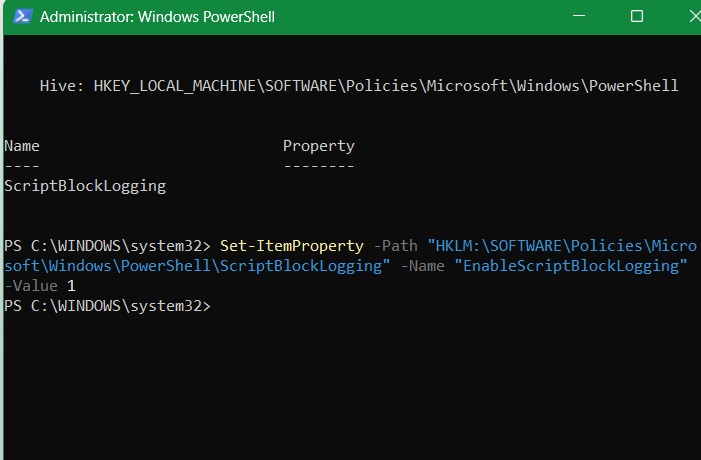
There is another related command to block suspicious command-line arguments using hidden scripts.
New-Item -Path "HKLM:\SOFTWARE\Policies\Microsoft\Windows\PowerShell" -Name "CommandLineFiltering" -Force
Set-ItemProperty -Path "HKLM:\SOFTWARE\Policies\Microsoft\Windows\PowerShell\CommandLineFiltering" -Name "EnableCommandLineFiltering" -Value 1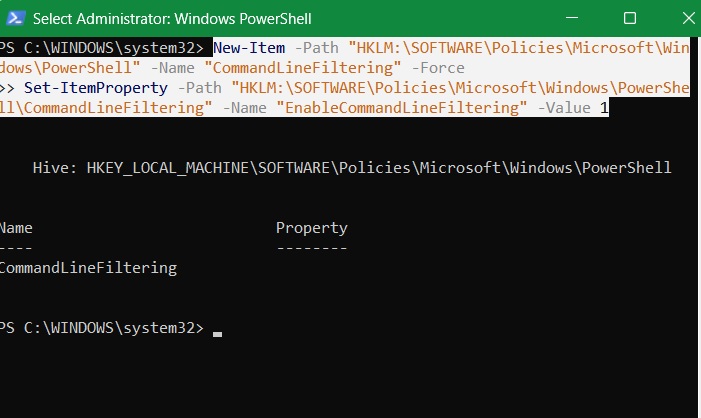
Good to know: the recent rise of AI-generated scripts in PowerShell has been a big factor in malware authors easily being able to create new scripts to target systems.
Note: some websites suggest disabling PowerShell for non-Admin users. We will not go to that extreme because using a non-Admin Windows account has many advantages. For one, it shields you from cyber threats that steal login credentials, such as NT LAN Manager (NTLM).
Disable MSHTA.exe to Prevent Remcos RAT from Executing
Remcos RAT uses a common system application on your Windows PC called “mshta.exe”. It is located in “C:\Windows\System32.”
Nowadays, disabling mshta.exe is perfectly fine. It is very rarely used, except in legacy applications such as Internet Explorer, or Office macro files. From Windows 11 version 24H2 onward, it has been completely deprecated.
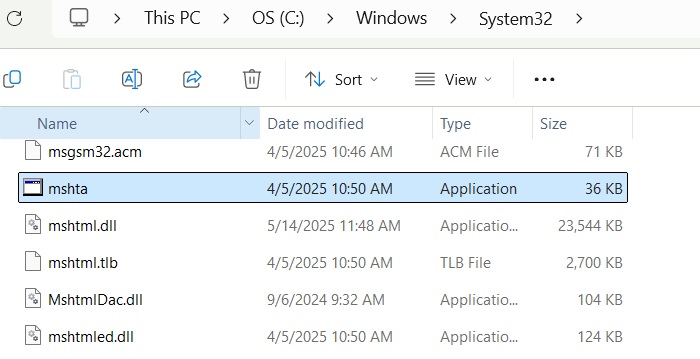
Since mshta.exe operates HTML application (HTA) files, it is used to run VBScript or JavaScript outside browsers with full system privileges.
In Windows 11 Pro, type gpedit.msc in the Run command to go to Local Group Policy Editor. Go down this path: Computer Configuration -> Windows Settings -> Security Settings -> Software Restriction Policies.
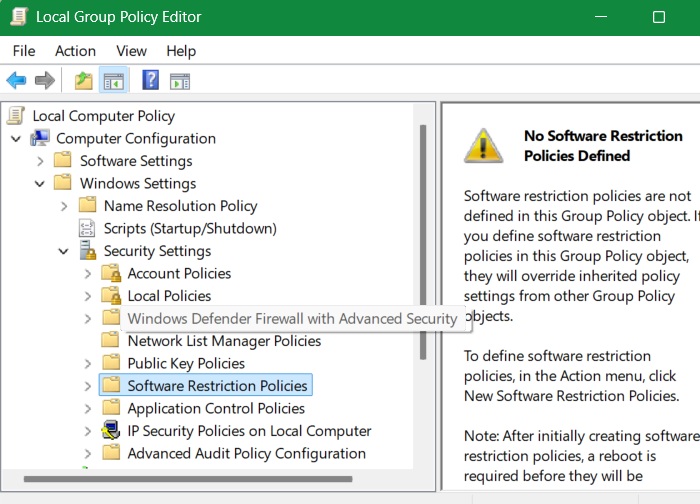
If no policies exist, right-click to create a new security policy by selecting New Software Restriction Policies. Once it is created, under Additional Rules, right-click and select New Path Rule.
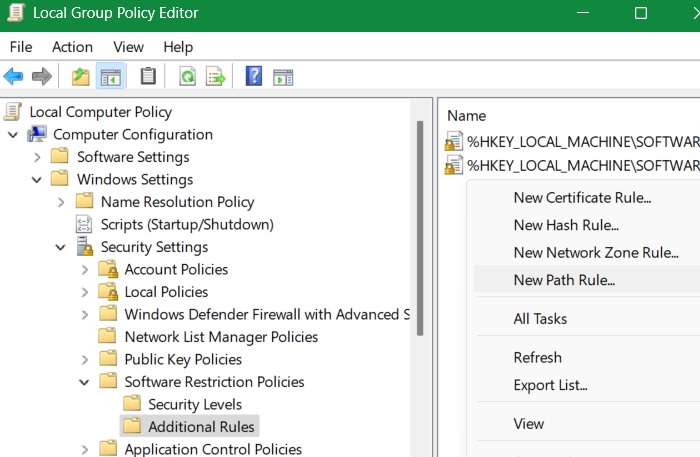
Rename this path to C:\Windows\System32\mshta.exe. Set security level to Disallowed and click Apply -> OK.
On Windows 11/10 Home devices, which lack Group Policy Editor, there is another way. Launch Windows Security, and go to App & Browser Control -> Exploit Protection -> Exploit Protection Settings -> Program Settings. Here, click Add program to customize.
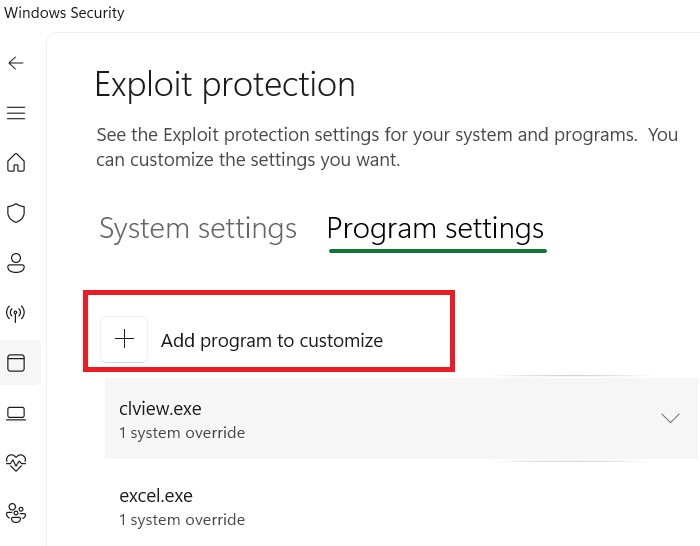
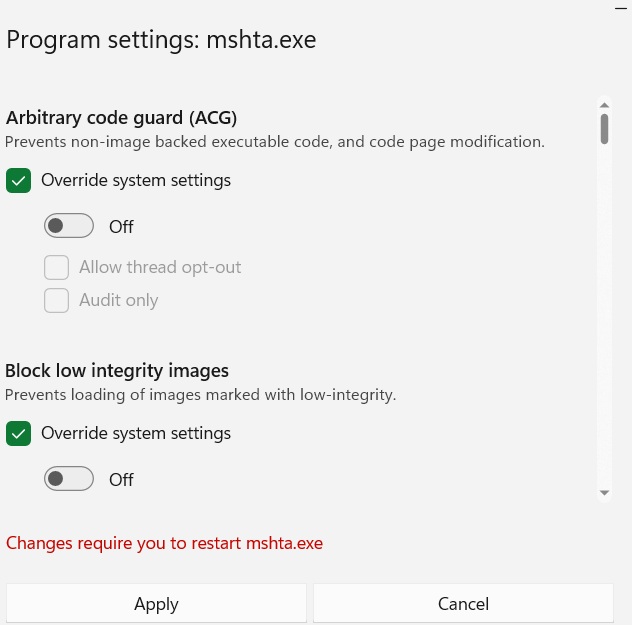
The above will show two options. Click Choose exact file path. It will open your file explorer window. Navigate to the mshta.exe file location, and it will open in another pop-up window.
Now, you just have to toggle off all the mshta.exe policies which override the system precautions. If these have already been toggled off, you don’t have to do anything.
Related: solve the problem if Windows Security is not working on your device.
Other Methods to Prevent Remote Exploits in PowerShell
Here are some other things you can do to prevent Remcos RAT and other remote exploits from executing in PowerShell.
- Invest in Windows endpoint protection software, such as Microsoft Defender, which is a different product than Windows Security.
- Update and patch your systems regularly. Migrating to version 24H2 in Windows 11 will deliver timely patches to these latest threats.
- Implement email filtering and phishing protection on your web browser emails used on Windows devices.








