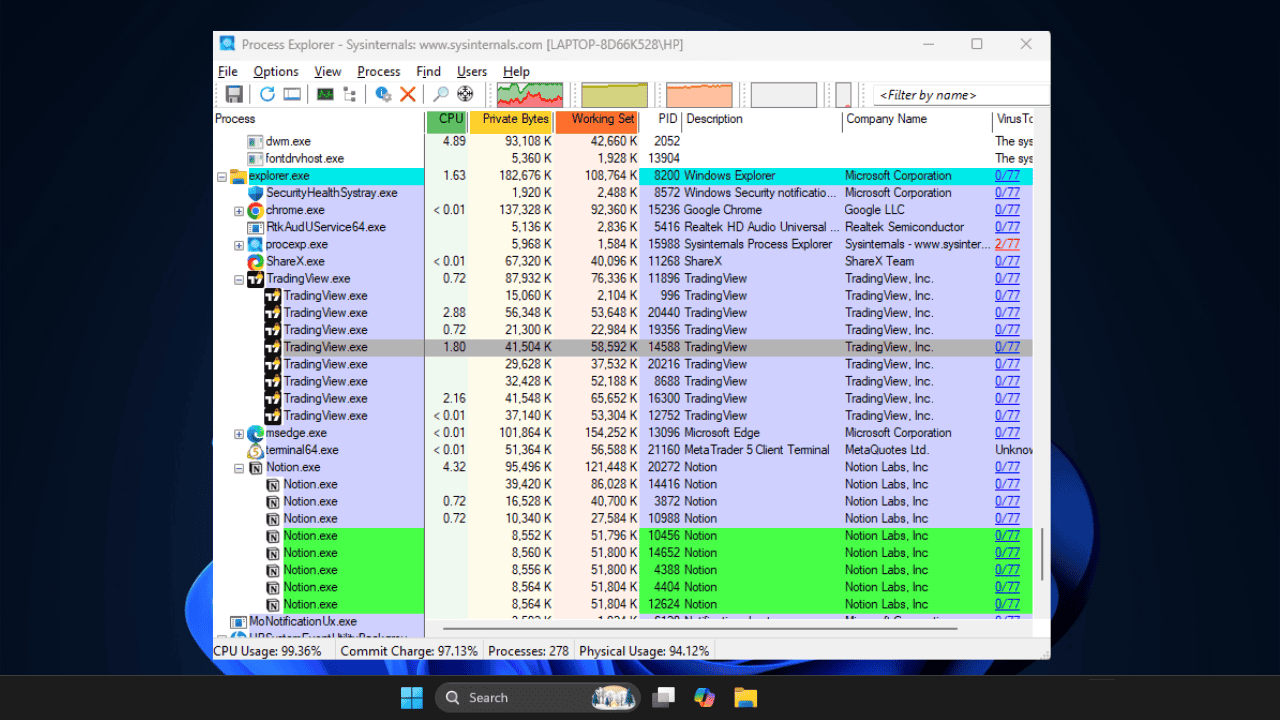
I used Windows Task Manager for years without questioning it. It worked, mostly. But once I started caring about why my PC slowed down and which process was actually responsible, surface-level stats weren’t enough. That’s when Process Explorer quietly became my default task manager on Windows.
Windows Task Manager is Fine Until You Actually Need Answers
Windows Task Manager handles the basics well. You can quickly check CPU usage, monitor memory, end frozen apps, or even confirm whether something is running. For casual monitoring, that’s often enough.
The problem starts when you need deeper insights into why your system’s acting up, and Task Manager can’t explain it. Process names are vague, and the relationship between apps and services is hidden behind tabs.
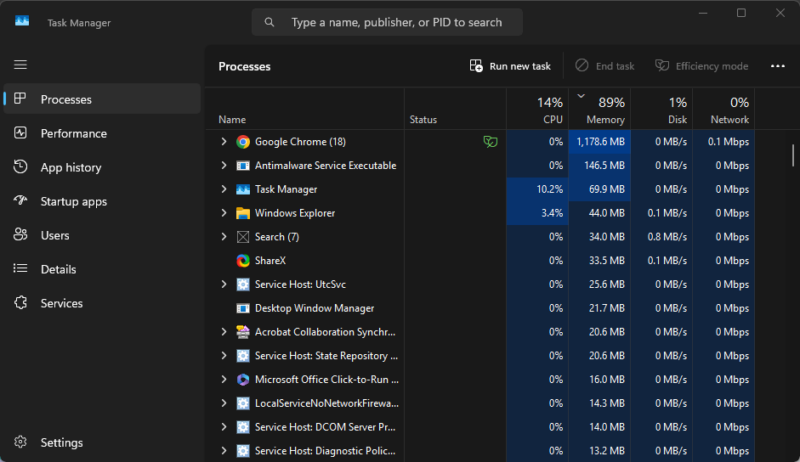
When background apps quietly pile up and drain resources, you’re left guessing which process is safe to stop. This is a common frustration for many Windows users.
I ran into this repeatedly during unexplained slowdowns and disk spikes. Task Manager showed symptoms, but not the cause. When bugs like duplicated processes appear, the experience gets even worse. At that point, it stopped being useful for real troubleshooting.
Why I Started Using Process Explorer
I discovered Process Explorer while exploring Microsoft’s Sysinternals tools during a tough troubleshooting session. It’s portable, lightweight, and runs without any installation. Back when Task Manager couldn’t explain busy processes, I found a tool with answers. I’ve used it consistently for years now.
The immediate benefits were clear. No bloat, just powerful features that make managing Windows processes simple and intuitive. Process Explorer feels like a natural extension of Windows itself, without the limitations of the built-in tool. You’ll quickly see why it became my default, saving time and reducing unnecessary reboots.
Process Explorer Gives Me Clarity
Clarity is one of the top perks of using Process Explorer. Unlike Task Manager’s flat, unhelpful list, it provides a tree-style layout that shows parent-child processes at a glance.
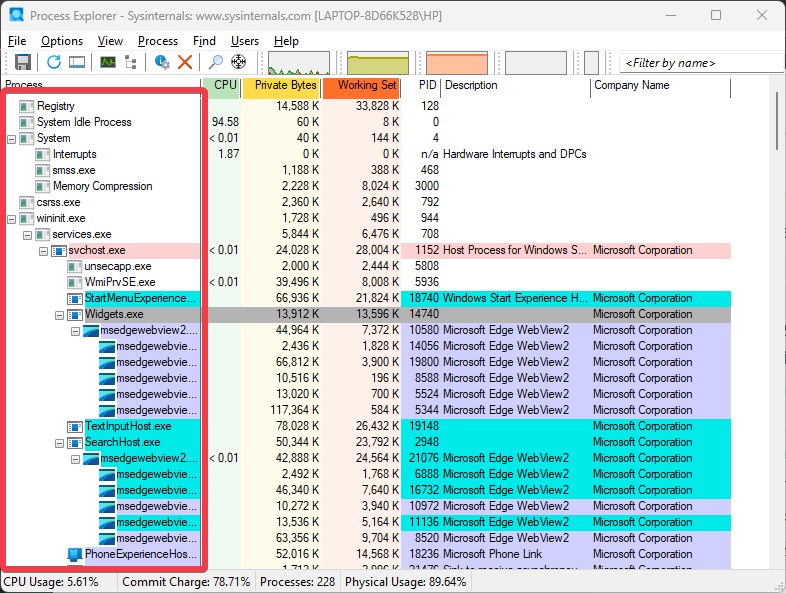
This means you can instantly see how one app spawns others. So, when my system slows down, I don’t randomly kill processes anymore. I trace the slowdown to its source, like a browser launching multiple tabs or extensions, causing CPU spikes.
Color-coding takes it further. New processes appear in green, system ones in blue, suspended in dark grey, Windows Store apps in cyan, protected processes with restricted access in pink, and .NET processes in yellow. You can also change the color to suit your taste.
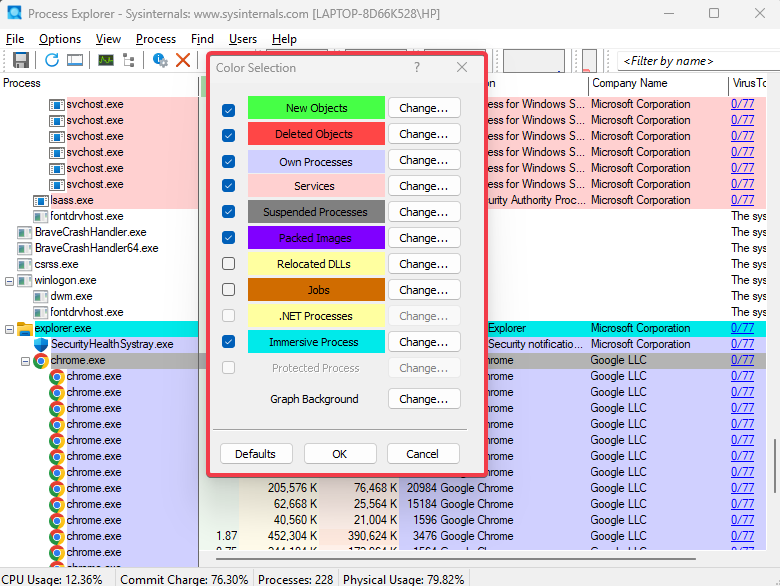
This makes it easy to spot anomalies, which is important because legitimate Windows processes can appear to be malware if you are unfamiliar with them.
Resource usage is also easier to interpret. You get a detailed breakdown of CPU, memory, disk I/O, GPU, and network activity, all in one customizable view. Unlike the native Task Manager, they’re not buried across multiple tabs.
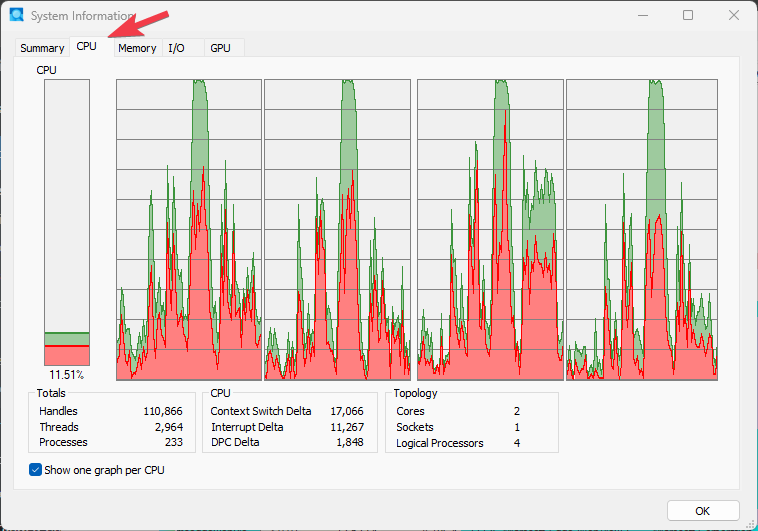
Over time, this clarity helped me recognize patterns. I noticed the apps that consistently misbehave and the harmless ones. For me, that alone changed how I troubleshoot Windows performance issues.
Better Decisions, Not Just More Data
More data doesn’t automatically lead to better decisions. Process Explorer is effective because it provides context to the data that matters. Beyond basic stats, each process shows verified signatures, command-line details, loaded DLLs, open handles (files, registry keys, or devices in use), and network activity.
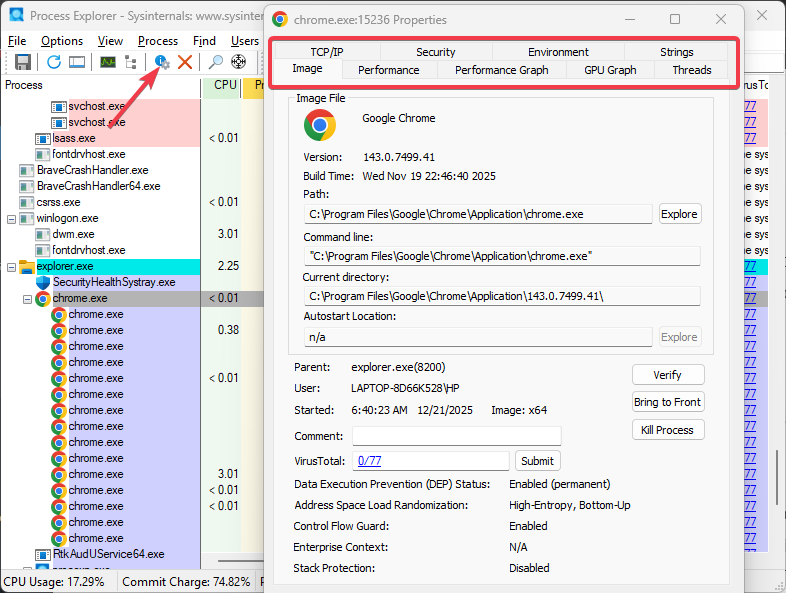
That sounds technical, but in practice, it answers simple questions like: Is this safe? What’s it connected to? Will ending this break something?
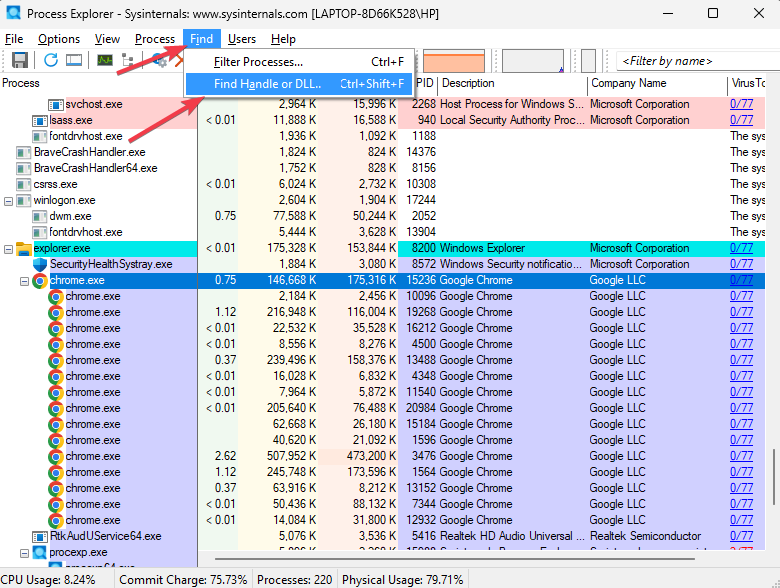
One feature I rely on constantly is the handle search. When a file is locked, and Windows won’t let you delete or move it, Process Explorer tells you exactly which process is holding it, letting you close the handle safely instead of rebooting. That alone has saved me countless interruptions.
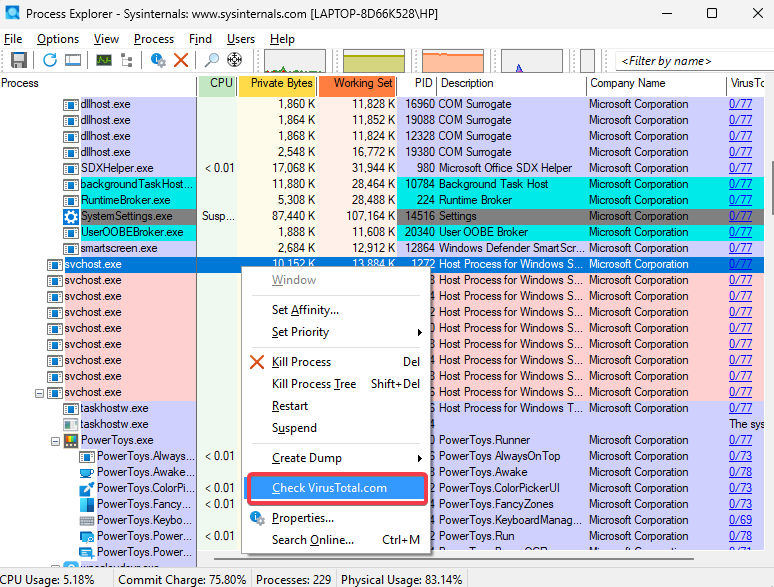
There’s also built-in VirusTotal integration, which scans suspicious processes against dozens of antivirus engines right from the interface. That adds a security layer without adding extra tools.
In my long-term use, the real benefit has been confidence. I stopped guessing because I make informed decisions about what to stop, what to leave alone, and what needs deeper investigation. That leads to fewer crashes and a smoother system overall.
Better for Long-Term PC Health
Process Explorer for Windows has helped improve my PC maintenance. I moved from reacting to problems to stopping them before they start.
It follows patterns in how programs act, such as apps that quietly consume memory over time or services that shouldn’t be running at startup. Also, it pairs well with other upkeep tools like Microsoft’s PC Manager for wider system maintenance.
Over the long term, this approach reduces random performance drops. It also makes it easier to control background apps before they become a problem, rather than after your PC already feels sluggish.
I Still Have Task Manager, But Rarely Opens It
Task Manager still has its place. It’s built in and useful for quick checks. I haven’t removed it from my workflow completely.
But for anything beyond a glance, I open Process Explorer without thinking. Once you get used to having real context, going back feels limiting. It’s similar to choosing more capable task managers like XFCE on Linux, where a better view leads to stronger control.
To wrap up, Process Explorer offers clearer insight and better control than the built-in Windows Task Manager. That’s why it has become my preferred way to manage processes on Windows.








