
Recently, an app named Defendnot showcased how third-party apps can utilize legitimate functions of Windows to disable Microsoft Defender. While this app is mostly for research purposes, it does raise concerns that a legitimate function can be exploited by malicious programs to disable Windows protection. This guide shows how you can protect your PC from apps taking advantage of this vulnerability.
How Apps Can Disable Microsoft Defender
Microsoft Defender automatically enters passive mode whenever it detects another registered antivirus, stopping scans and defenses to avoid conflicts. While this feature is meant for legitimate products, it also lets malicious software disable Microsoft Defender.
Defendnot exploits this by reverse‑engineering the undocumented, NDA‑protected Windows Security Center API. It injects its DLL into Taskmgr.exe (a trusted process) to register itself under a spoofed antivirus name, forcing Microsoft Defender to go offline. As of writing, Microsoft Defender now flags Defendnot as a Trojan, but similar tricks could still leave your PC vulnerable. Below are some ways to defend yourself:
Enable Tamper Protection in Windows
Tamper Protection is the main feature in Windows that protects Windows security functions from third-party changes. When enabled, it prevents scripts or registry edits from modifying the main security features of Windows, especially the Microsoft Defender features. You can still edit settings using Windows Security, but no external tampering.
Malicious programs that disable Microsoft Defender often depend on disabling Tamper Protection. Making sure it’s enabled is a good step to ensure your PC stays safe.
Here’s how to ensure it’s enabled:
Search “windows security” in the Windows Search and open the Windows Security app.
Click on Virus & threat protection in the left panel, and then click Manage settings under Virus & threat protection settings.
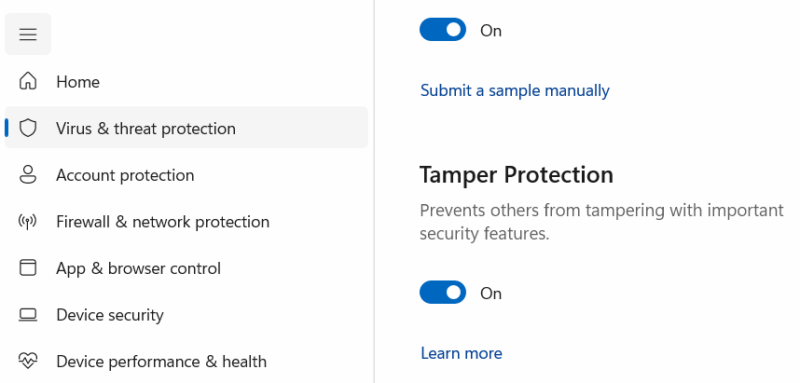
Here, make sure Tamper Protection is enabled.
Don’t Run Unknown Apps as Administrator
Any app that can register itself as an antivirus will require administrator access, no matter which loophole it utilizes. This is true for the Defendnot app as well; you have to approve the UAC prompt to disable Microsoft Defender. Admin access should only be given to apps that you trust and that actually need to do something at the system level.
Most apps only require administrator access when they’re being installed, and never after. Some apps that interact with system settings may ask for admin access only when you use that specific function. If an unknown app that doesn’t even change system settings asks for administrator access, it’s better to decline the prompt.
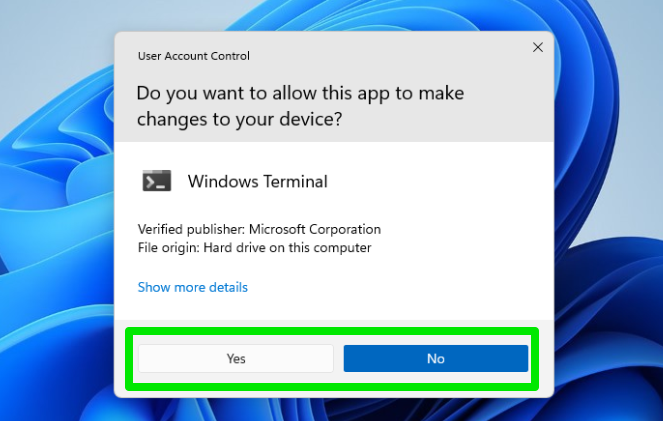
Better yet, you should switch to a standard account since it’s safer. When infected, an administrator account will be able to disable Microsoft Defender, while a standard account will require the admin account password to confirm the change.
Use Another Antivirus Software
The behavior of disabling security upon detecting another antivirus is exclusive to Microsoft Defender. Since Microsoft Defender is a built-in security system, it’s configured to disable itself to allow the installation of more antivirus programs. However, third-party antivirus programs don’t follow this rule because two antivirus programs can conflict with each other, so it’s expected that users will not install more than one.
If you already have a third-party antivirus software in place, a fake antivirus installation won’t disable it; they will just work side-by-side. Fortunately, even free antivirus programs today offer stronger protection than Microsoft Defender. You can just install a free antivirus, and you won’t have to worry about a fake antivirus disabling it.
The basic advice of not using untrusted programs or at least not giving admin access should keep you safe from such attacks. Apart from these protection methods, you should also make sure Windows is up-to-date, as Microsoft often fixes such vulnerabilities in the latest Windows updates.








