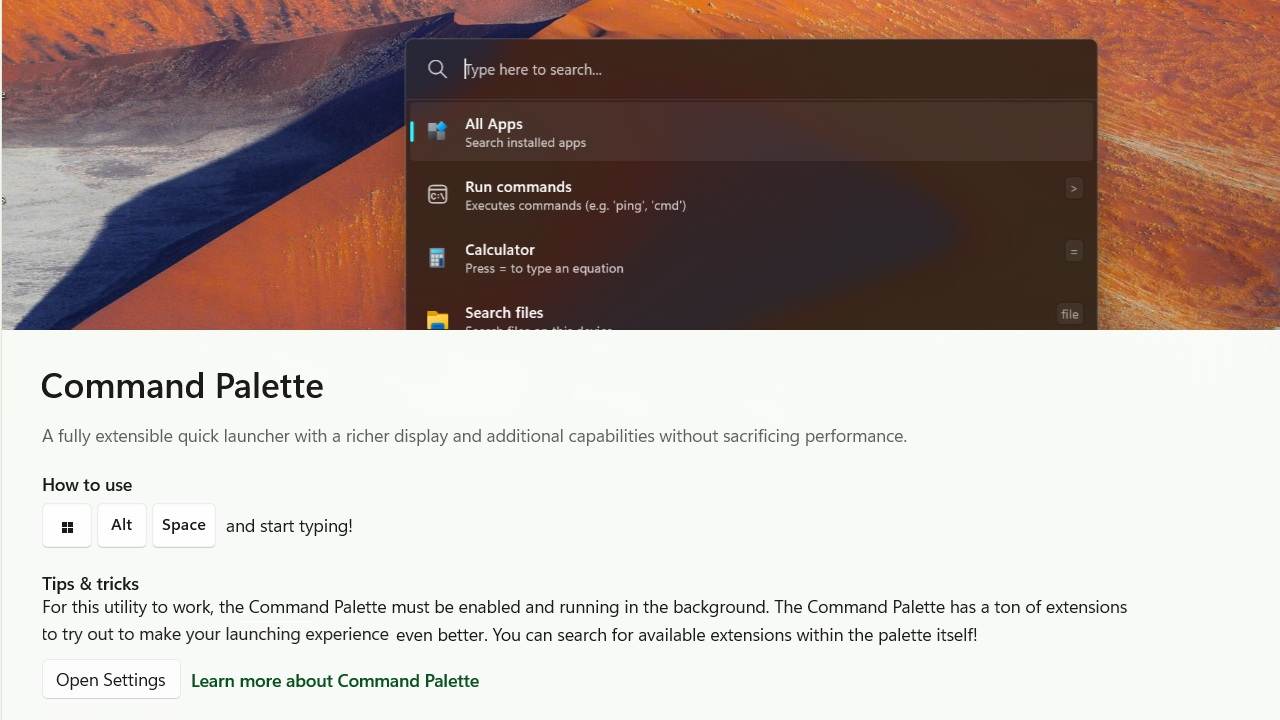
While Windows search bar and Run command help open files and applications, they’re not always quick enough for power users. The PowerToys application has introduced a new feature called Command Palette, which saves you a lot of time in performing repetitive tasks on your device. In this guide, we will show how you can use the various shortcuts in this feature to maximize your Windows productivity.
What is Command Palette in PowerToys
The PowerToys Command Palette, introduced in PowerToys v0.90 for Windows 11/10 (and stabilized with v0.91), is a keyboard-driven launcher designed to make navigation easier, and boost productivity for Windows users seeking a macOS Spotlight-like experience.
The aim of this feature is to quickly access apps, files, folders, system commands, and web searches, in a modern, rich user interface. With new additional capabilities, it provides a superior experience to the existing PowerToys Run feature.
Whether you’re a Windows power user or a regular user who just wants to save time in your Windows searches and scrolling effort, the Command Palette is a great feature to have.
Getting Started With PowerToys Command Palette
First, you need to download and install PowerToys (version 0,91 or later) from its official Microsoft GitHub page. We have already covered this in detail here. Download the EXE or ARM file on that page, and finish the installation.
After the app is installed, open PowerToys Settings, navigate to the Command Palette module (replacing PowerToys Run), and confirm it is toggled on.
Finish any patches or updates, if prompted. You can now exit the settings window.
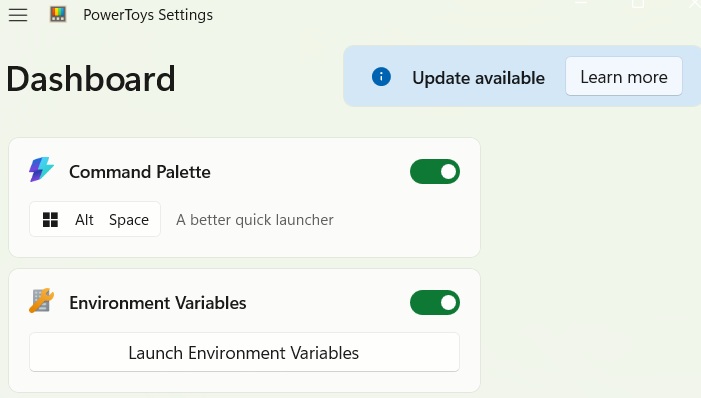
To launch the Command Palette utility anytime, use a keyboard shortcut Win + Alt + Space. If you want, you can customize the exact keystrokes in the settings.
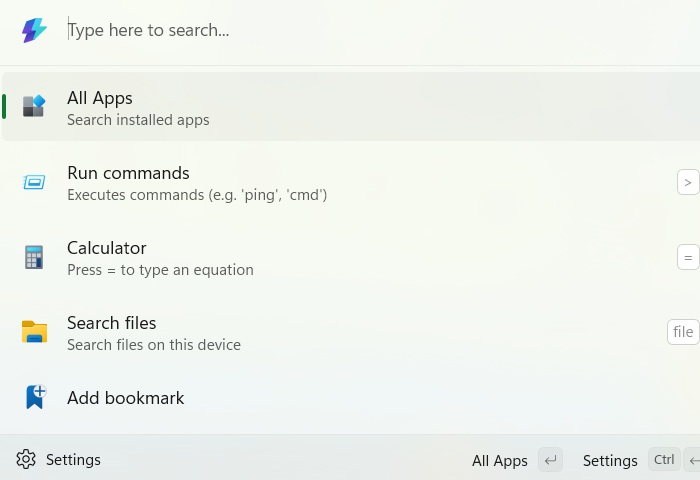
You can either search for any items on the main search bar, or go deep inside a specific shortcut path like All Apps, which gives you more detailed power user options.
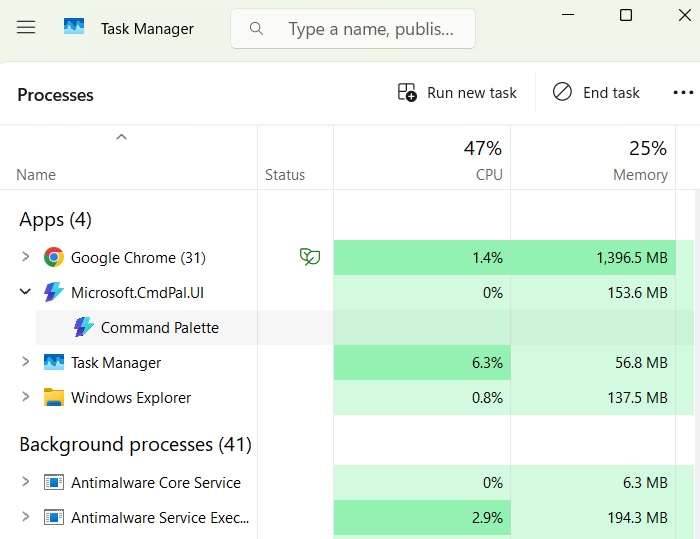
The utility uses minimal system resources, no more than a File Explorer window. Once you are done with any task, say, opening a file, Command Palette fades away quietly, ready to be recalled only when needed.
Tip: the PowerToys application has many versatile uses, such as using the PrintScreen button to open the Snipping Tool.
Use Command Palette to Replace Windows Search
Open the Command Palette window with the keyboard shortcuts. To locate a file or folder, go inside the Search files shortcut. Now you can quickly search for the specific documents, files, or folders using any terms you remember.
You can right-click to Open these files and folders. You can also use Open with to launch them with a certain application, or just click Enter to open directly.
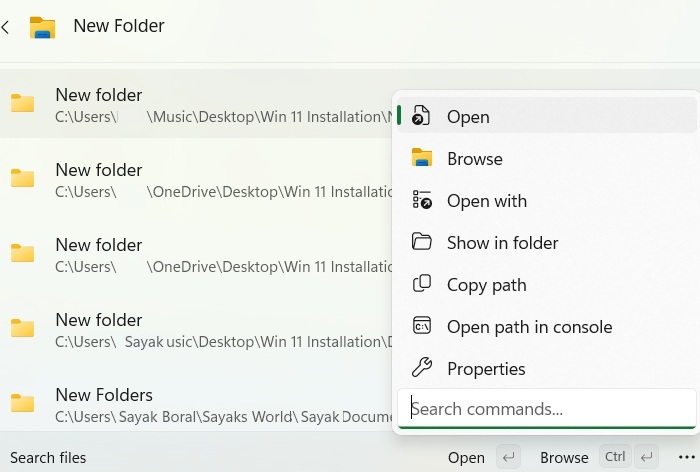
Windows Search does help you find files and apps, but the interface feels cluttered. The worst part is that it sometimes freezes, especially when system memory is low or, you’re dealing with a faulty Windows update. The Command Palette is a faster option to open anything you need.
Quickly Open Applications With Command Palette
To search for any installed or system applications, go to All apps. Here, you can search for whatever you need, or find a very close match.
You can also choose Run as administrator for these applications. It is very useful for instantly launching terminals like Command Prompt and PowerShell.
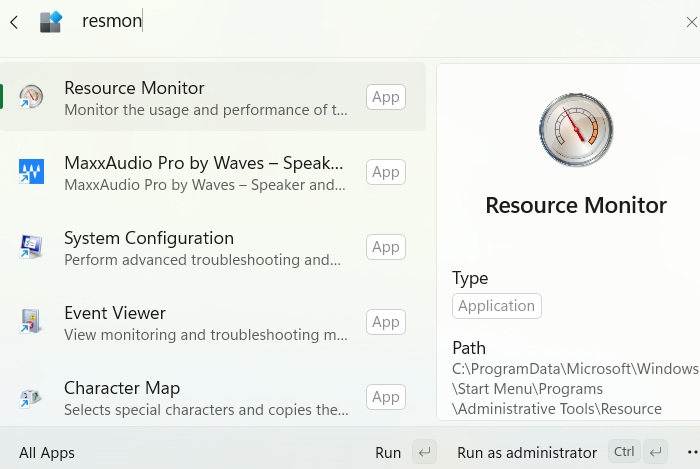
Other things you can now open directly include the Windows Services menu. Previously, launching a relevant Windows service used to take quite a bit of time scrolling down to the exact option. Now, you can search for it directly.
One-stop Access to System Commands
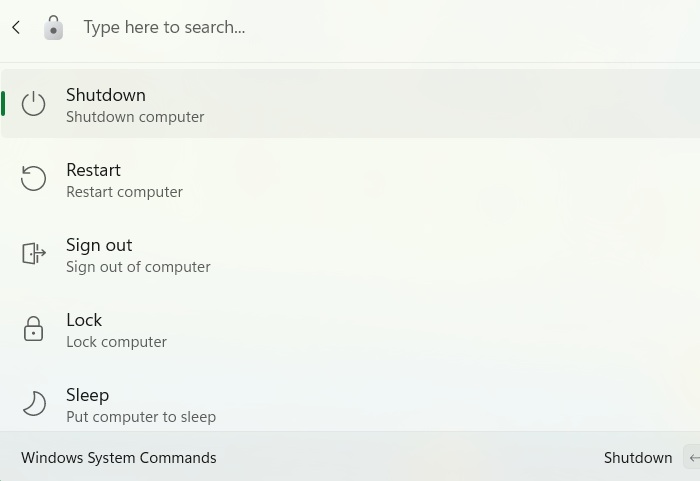
Open the Windows System Commands shortcut. From here, you can directly access Shutdown, Restart, Lock, Sleep, and Hibernate commands.
You can also open the Recycle Bin, UEFI firmware settings, and MAC addresses of all the Wi-Fi, Ethernet, USB and Bluetooth adapters on your device.
Related: Winget is one of the most efficient package managers in Windows.
Install Applications Quickly With Search WinGet
This is one of the best features for power users, as you can now install anything quickly.
Open the Search WinGet shortcut. Type a query like the application you’re looking for, “chocolatey” as in this example.
After you find what you need, click Install. You can also install the application in administrator mode.
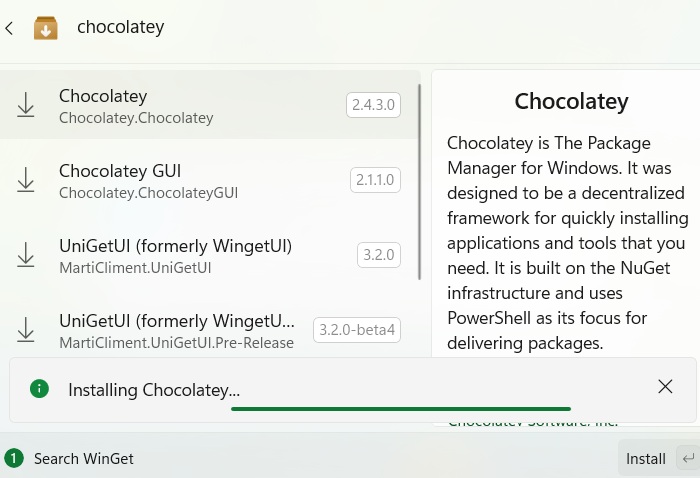
You can always access winget applications from the Command Prompt or PowerShell window. But first you had to search for them. Now, that task has been streamlined into the command palette, saving you a ton of time.
The best part is you can return to the same instance later, even if you step away from your PC, especially for larger installations that take time.
Access the Registry Editor Keys Directly
Open the Registry shortcut. Copy-paste an entire registry path, and click Open key in registry editor. The Registry Editor will open directly at that location.
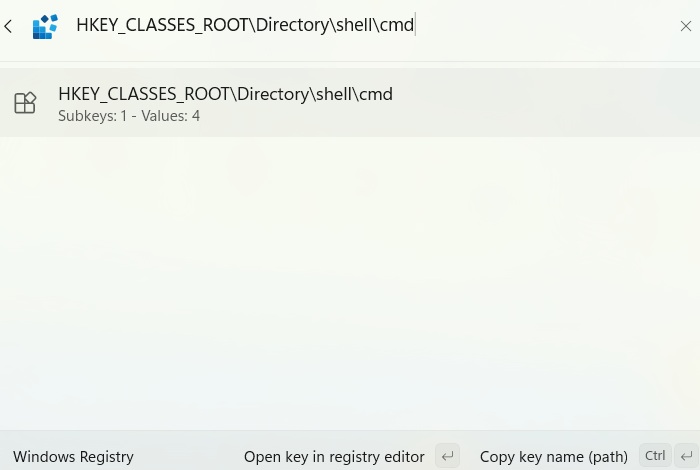
In the past, finding an exact registry path could take several minutes. You had to navigate through multiple subheadings to get to the registry keys you wanted to modify. The Command Palette shortcut is a great time-saver.
Do Web Search Without a Browser
Open Search the web shortcut. From here, you can search for any website you want to visit. Click Open in default browser to open search results.
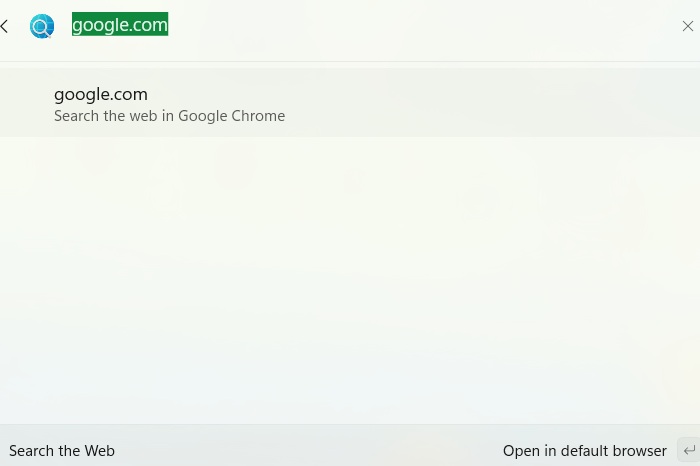
Windows Search includes web search, but it feels overwhelming, tempting you to click right away. With Command Palette, the interface is minimal. You can browse through the options at your own pace and open the web page only when you want to.
The Command Palette has a few more power user features including saving bookmark shortcuts for files, folders, and apps. You can also add third-party extensions for extra functionality, and perform instant calculations and conversions. Finally, it allows you to use natural language queries to locate files and folders.








