
Instead of digging through Run commands, Settings, or Command Prompt rituals like DISM/SFC, wouldn’t it be nice to have one single dashboard for everything in Windows? Microsoft PC Manager does exactly that and more. Despite a few flaws, for regular Windows maintenance, this free, underrated Microsoft utility delivers real results.
Windows System Maintenance is Chaotic
Over the decades, Microsoft built specific tools for different audiences. All work properly, with plenty of overlap. When troubleshooting, typical Windows users like me instinctively reach for one of the following solutions, which can be confusing and chaotic.
- Run commands: whether you have startup problems (
msconfig), or want to clean up your entire disk (cleanmgr), Run commands are quick and easy. - Windows search: you can find the exact Run command options here as well.
- Settings: the master app Microsoft recommends pinning to the taskbar.
- Services console: things not working properly? The services.msc menu is the one place in Windows that lets you restart or refresh everything.
- Command prompt fixes: the trifecta of DISM, SFC, and Chkdsk scans take care of the bulk of Windows device repairs.
- Third party apps: Windows users often turn to third-party tools like CCleaner. Can’t uninstall something? Tools like Revo Uninstaller come to mind.
On Mac, System Preferences is a single hub to manage all your basic settings. I always wanted Microsoft offering something similar for Windows, and that time has come.
Microsoft PC Manager: Finally a Dashboard to “Boost” Windows Speed
Initially promoted by Microsoft in China for a regional rollout, PC Manager is now available globally. You just need to download it from Microsoft Store on the official Microsoft link. At 46 MB, it barely registers on your device.
For regular Windows maintenance, just tap the big Boost button, and you get an immediate improvement in your computer speed. Check the Task Manager to verify gains in CPU, RAM, and Disk percentages.
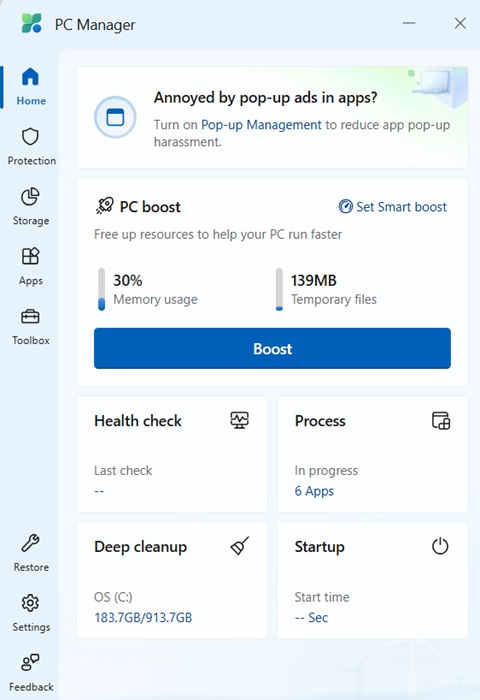
To enjoy consistent improvements, go to Settings -> Smart boost settings, which can be toggled on. Whenever you have high RAM spikes or a large accumulation of temp files, you get an automatic boost.
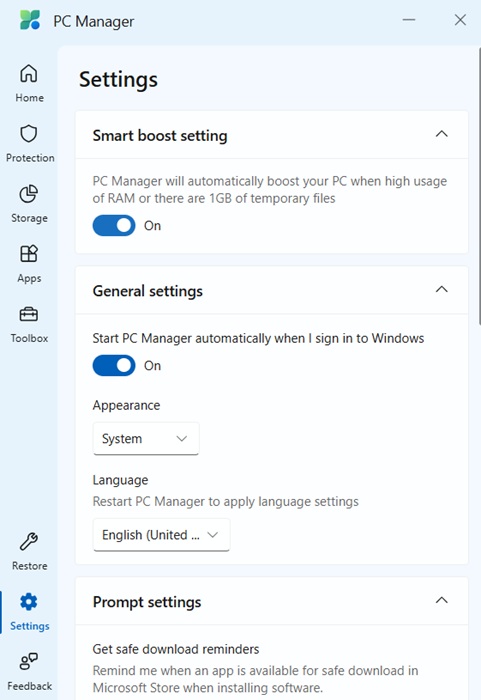
It’s not possible to address every Windows slowdown and speed bottleneck with Boost, but it’s the first time that Microsoft has introduced such a feature.
Deep Cleanup Gives Better Performance Than Disk Cleanup/CleanMgr
I was pleasantly surprised with the results of another PC Manager maintenance feature, Deep Cleanup. It performs so much better than a popular Run command tool, Cleanmgr, or Disk Cleanup, although they all share the same backend.
The process of calculating your Disk Cleanup requirements can be a slow and tedious affair. I used to dread this activity in the past because you’d spend several minutes staring at the screen.
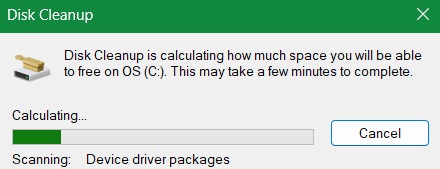
With Deep Cleanup, all the files that are required to be removed are assembled in just a few seconds. This includes everything including Windows log files, DirectX cache, Windows error reports, thumbnail cache, browser application items, PowerToys elements, and even System Usage traces.
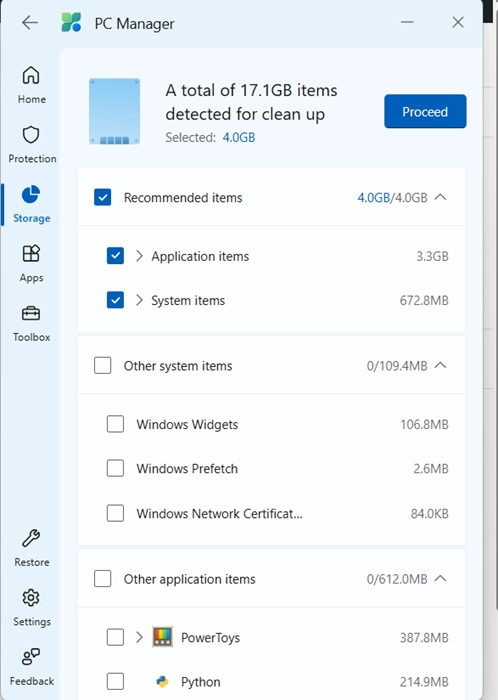
On average, I have been able to save 10–20 minutes of time in cleaning up the accumulated clutter on Windows 11.
More Centralized Cleanup Options
Apart from Deep Cleanup, you can find three more cleanup options on the main home screen. Each of them replaces a previous app we thought was indispensable – not anymore!
- Health check: whether it’s resetting a shaky taskbar or removing browser cache on PC, the Health check option does the job in a few seconds.
- Finetuning your Startup apps: go to an option called Startup apps, and you don’t need
msconfiganymore to streamline this routine activity. - Process management: if you’re feeling bogged down by too many apps and processes, Process Management quickly ends them, similar to Task Manager. But it’s much easier closing down these menu items.
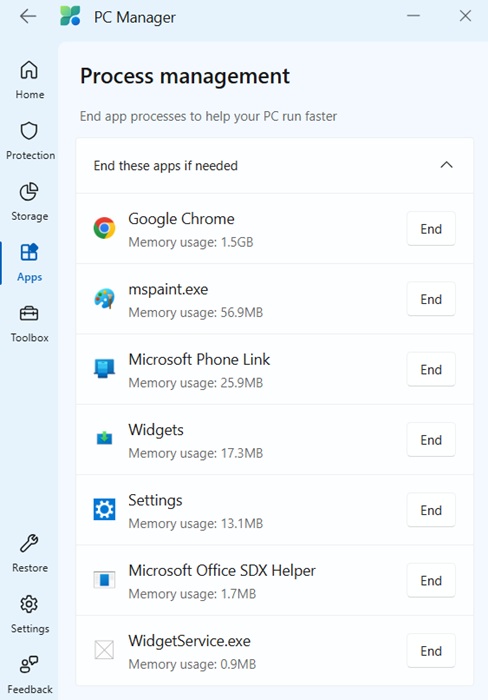
Each of these options has been well-thought-out. I currently schedule them once a week at most, and it barely takes me a few minutes.
It really used to be a constant bother in the past because these necessary maintenance tasks were so decentralized.
System Protection: One Stop Area for Updates and Security
Most of us are going to love the System Protection feature of PC Manager. Of course, updates are a part of maintenance. For so many years, Windows kept it hidden under Settings app. Now you can push for any latest updates right from a central location.
You can also club Windows Security activities. It includes a big Scan button that monitors any viruses or threats in real time. Keeping PC Manager pinned consumes far less RAM (which is barely noticeable) compared to the Windows Security app.
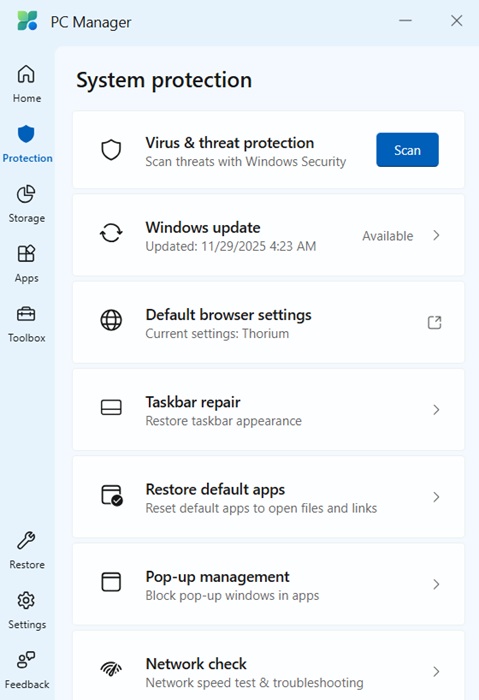
You can also repair the taskbar or block pop-ups from this place. I think they should include some additional options here such as access to Quick Assist for troubleshooting, and perhaps the Task Scheduler.
Limitations: PC Manager is a Work in Progress
While PC Manager has been released into the public domain globally through Microsoft Store, it does look like the app requires more work.
There are a few downsides. In the past, PC Manager used to make Bing the default search engine. But that is the kind of annoyance to be expected from any Microsoft application these days. However, you’re unlikely to encounter this anymore unless you go for the recommended system defaults.
There is also the GDPR issues in the European Union. This has been sorted out recently after backend adjustments for EU server hosting.
Even though PC Manager supports a vast majority of system maintenance tasks on Windows, there are a few exceptions. It still cannot replace the PowerShell, and its commands. It cannot fix your registry entries, although it can clean them up.
Microsoft PC Manager is definitely a simple PC optimization tool you can use regularly now. It’s stable, and being a 100% native Microsoft utility, works well on both Windows 10 and Windows 11. So, for basic optimization and maintenance tasks, it can indeed replace many legacy tools, commands, and apps.
But, Windows devices also require advanced clean-ups from time to time. There are many more advanced tools such as Performance Monitor, Resource Monitor, and the various advanced troubleshooting menus available during a restart.








