
You’ve likely seen the prompt on Google, Apple, or Microsoft asking you to create or save a passkey. You tap it, verify with your face or PIN, and sign in instantly with no typing. But where does that leave your password manager?
The Real Difference Between How Passwords and Passkeys Protect You
To understand why password managers are evolving, you have to understand that there is a major flaw with the traditional password, and that is the fact that it is a shared secret.
Password managers are excellent at reducing credential reuse and generating complex, unguessable strings of text. However, they cannot stop you from being tricked into entering those credentials on a convincing fake login page. Phishing works because fake websites look identical to the real ones. The moment you enter your username and masterfully generated password, attackers capture that shared secret and use it immediately.
Passkeys completely close this vulnerability because they are bound to a specific domain using math-based security, known as public-key cryptography.
When you create a passkey, whatever device you’re using generates a pair of keys. The Private Key is stored securely in the hardware of your phone or computer and never leaves the device. The Public Key is what’s shared with the website.
When you attempt to log in, the website sends a unique mathematical challenge to your device. Whatever device you’re using at the time signs this challenge using your Private Key (after you verify your identity with FaceID or a fingerprint), and the website verifies the signature using the Public Key. Because no actual secret ever crosses the network, a fake phishing site cannot steal anything. Furthermore, if a company’s database is breached, the hackers only get the Public Key, which is entirely useless without your device’s hidden Private Key.
Where Password Managers Still Have No Competition
Despite the undeniable security benefits of passkeys, password managers are not obsolete. They’re still an important tool for managing your larger digital life for several reasons.
The 1,000+ Legacy Sites That Will Never Adopt Passkeys
While tech giants like Google and Apple have fully adopted passkeys, the reality is that much of the internet runs on older architecture. Your local utility company, your dentist’s patient portal, and countless small forums will likely not upgrade their security infrastructure anytime soon. Traditional passwords will remain necessary for these accounts, and a password manager is still your best defense against reusing the same password everywhere.
Secure Notes, Payment Cards, and Identity Storage
Passkeys only handle the act of logging in. Password managers do much more, acting as encrypted vaults for your entire digital life. They securely store Wi-Fi codes, credit card numbers, software license keys, and scanned identity documents. Until a broader, universal standard exists for digital wallets, password managers remain the most practical way to store and organize sensitive data safely.
Cross-Platform Sharing with Family or a Team
By design, passkeys are personal and tied to your specific device, making group sharing difficult. Password managers excel at this because they allow families and corporate teams to securely share specific credentials across different devices without ever exposing the master password or requiring physical proximity to a device.
Tip: Most modern password managers include an Emergency Access feature. Set this up now so a trusted family member can request access to your vault if you are ever incapacitated or lose your primary devices.
The Big Password Managers Are Adding Passkey Support
The password management industry is not fighting passkeys; they’re absorbing them. Most major third-party managers can now save passkeys right alongside your regular passwords.
When a website prompts you to create a passkey, your password manager intercepts the request and saves the cryptographic key in your vault. The benefit you get here is cross-platform syncing. If you save a passkey in Apple’s iCloud Keychain, you generally need your iPhone to scan a QR code if you want to log into that same site on a Windows PC. Third-party managers fix this ecosystem lock-in. Many password managers now allow your passkeys to follow you seamlessly through a browser extension on Windows, Mac, iPhone, and Android.
Where Apple and Google Actually Beat Third-Party Apps
While third-party managers offer superior cross-platform freedom, the built-in ecosystem managers, Apple iCloud Keychain and Google Password Manager, win on just frictionless convenience. Because they operate at the operating system level, there is nothing to download, install, or manage. They are completely free, incredibly fast to set up, and deeply integrated into the hardware biometrics you already use every day.
If You Live Exclusively in the Apple or Google Ecosystem
If you own an iPhone and a Mac, or an Android and a Chromebook, you are already in the best position to go mostly passwordless. Let iCloud Keychain or Google Password Manager handle passkey creation, storage, and syncing automatically. You don’t need to install anything extra or pay for a third-party service.
- To set up passkeys on Google: Go to your Google account and search Passkeys and security keys.
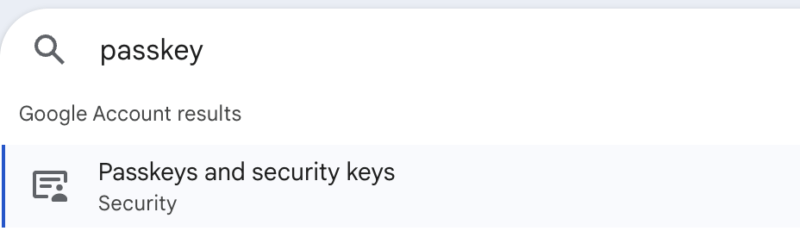
- To set up passkeys on Apple: Go to Settings → type in Passwords & Keychain in the search bar.

If You Use Multiple Platforms or Manage Family Accounts
If you use an iPhone but work on a Windows PC, a third-party password manager is the right call. You can create a passkey on your phone and access it from your Windows laptop without friction. You can also share specific streaming or utility credentials with family members easily. 1Password Families and Bitwarden are both suited to this hybrid use case.
If You Work in a High-Security Environment
If you run a small business or manage IT, the free and personal tiers of most password managers will not suffice. You need administrative features like activity logs, permission controls, and a way to recover accounts centrally. Tools like NordPass Business lets you set strict security rules and instantly revoke access to shared vaults the moment an employee leaves the company.
Tip: If a website does not support passkeys yet, check if it allows Sign in with Google or Sign in with Apple. These options often leverage the passkey on your primary account, effectively securing the smaller site with your main passkey.
How to Start Using Passkeys Without Abandoning What Works
You do not need to convert your entire digital life to passkeys today. The smartest move is a hybrid approach. You can start with accounts that control everything else. This includes your primary email, your banking apps, and your core social media accounts.
Set Up Your Password Manager as a Passkey Vault
Before creating any passkeys, ensure your third-party password manager is configured to intercept and store them.
For example, if you are using Bitwarden, on an iPhone, go to Settings → Passwords & Accounts → Autofill Passwords and select Bitwarden. On Android, go to Settings → Passwords & Autofill and set Bitwarden as the preferred provider.
Create Passkeys on Supported Sites
Once your manager is ready, log in to your priority accounts (like Google or Amazon) and navigate to the Account Settings → Security menu. Look for the Add a passkey option and click Create.
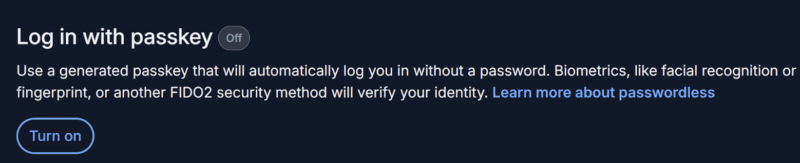
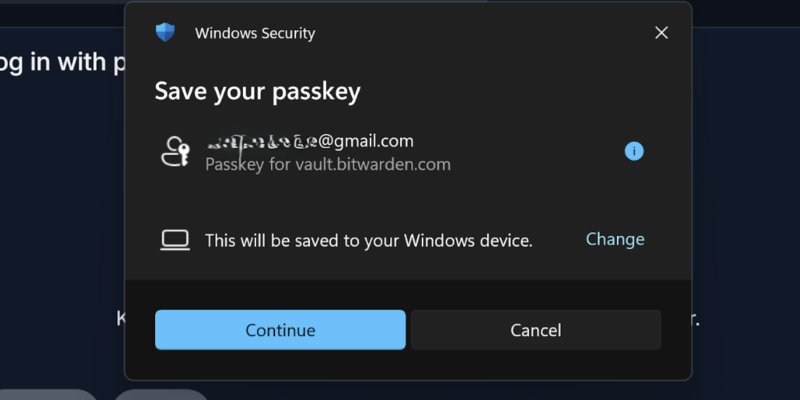
Your password manager will automatically prompt you to save the cryptographic key to your vault. The next time you log in, no password will be required. Basically, you should repeat this for each account on your priority list.
Audit Your Remaining Passwords
For the hundreds of accounts that still rely on passwords, use this transition period to clean up your vault.
- For starters, check through your vault for reused passwords and change them immediately.
- Use your manager’s built-in generator to replace weak passwords with strings of 20 or more characters.
- Enable Two-Factor Authentication (2FA) wherever possible. Most password managers can now store and auto-fill the six-digit TOTP (Time-based One-Time Password) code for you, adding security without it conflicting with anything.
By using passkeys for every site that supports them to eliminate phishing risks, and keeping a reputable password manager as your digital vault for everything else, you create a safety net that is both basically mathematically unbreakable and easy to use.
If your password manager fails to save a passkey, check for browser extension conflicts. If you’re tempted to take a shortcut, you can check out our guide on why storing passwords in a notes app is a bad idea. Also, to find a new vault before migrating, check out our guide to find the best password managers.