
Are you seeing a blue screen crash traced to OpenVPN in your VPN application? It stems from an OpenVPN driver vulnerability and requires a patch from the original source. Since almost all major VPN providers use the OpenVPN protocol, your Windows device may encounter this critical error. Here’s how to diagnose this error when it occurs and prevent a fatal PC crash.
OpenVPN Crashing Windows: How Common Is It?
OpenVPN is widely used in VPN applications. In June 2025, a critical buffer overflow flaw was found in OpenVPN’s data channel offload (DCO) driver – “ovpn-dco-win,” causing blue screen of death crashes.
This isn’t the first time. OpenVPN’s plugin mechanism has long been a weak spot, enabling remote code execution or privilege escalation errors. In 2024, Microsoft found four flaws (CVE-2024-27459, CVE-2024-24974, CVE-2024-27903, CVE-2024-1305), with the last causing a memory overflow in the Windows TAP driver, leading to a denial-of-service (DoS) issue.
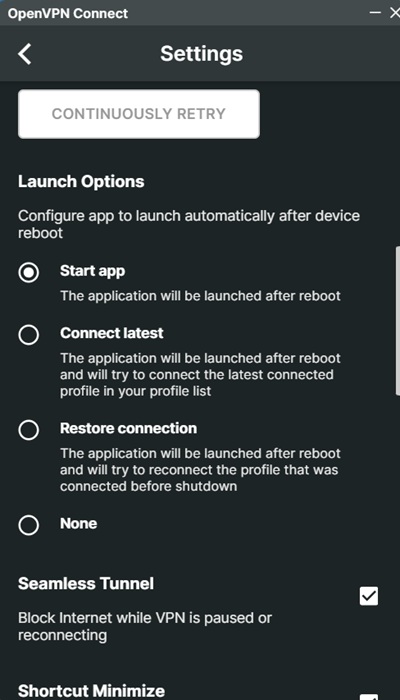
If you use a VPN product and set it to launch on system reboot, you may run into this error if you haven’t updated the OpenVPN client to its latest patch, “OpenVPN 2.7_alpha2” and above. Your VPN provider should handle this patch fix in its own Windows client, so update your VPN as soon as possible.
The DCO driver handles data packet tasks like encryption, decryption, and routing, moving them from user space to the Windows kernel. Unlike WireGuard, OpenVPN’s DCO operates in kernel space. The crashes mainly happen because these components interact closely with the operating system.
Past kernel-level malware incidents showed how hard these issues are to manage, and CVE-2025-50054’s malformed packets cause crashes due to low-level memory errors.
Locate and Disable OpenVPN Drivers in Your Windows PC
If you do not use OpenVPN, you can keep it disabled. Your VPN client may install its drivers, so find out if your system has them.
Open the File Explorer. Go to “C:\Windows\System32\Drivers.” Look for OpenVPN related drivers such as the DCO driver – “ovpn-dco.sys.”
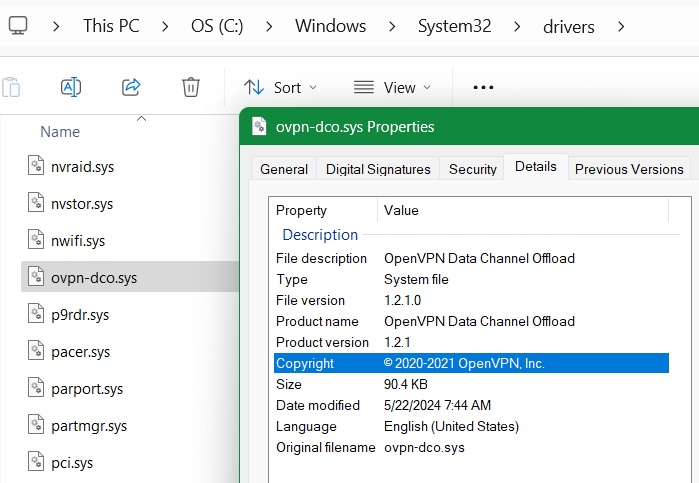
Other vulnerable OpenVPN drivers include the TAP-Windows Adapter V9, “tapwindows6.sys,” the Wintun driver, “wintun.sys,” and named pipe interfaces, such as “\\.\pipe\openvpn.”
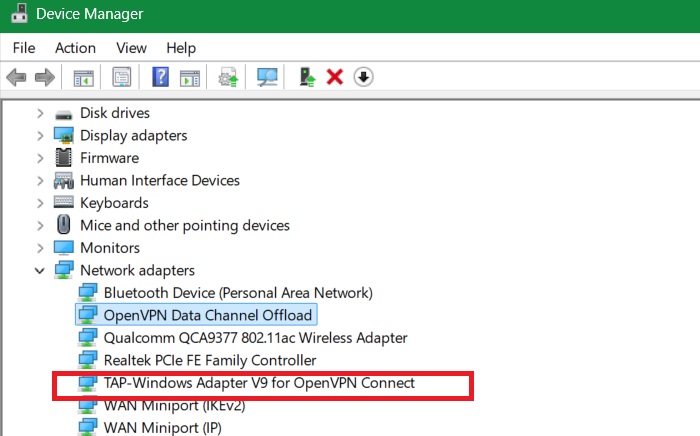
You can locate these drivers in Device Manager. In the Run command, type devmgmt.msc and go to Network Adapters. You should see OpenVPN adapters on your system, such as the DCO and TAP-Windows Adapter V9, listed here.
If you want to list all hidden OpenVPN drivers in your system, open PowerShell in administrator mode. Now, enter the following command:
Get-WmiObject Win32_SystemDriver | Where-Object { $_.Name -like "*ovpn*" -or $_.Name -like "*tap*" } | Select-Object Name, State, PathName, StartModeAfter this, you may choose to uninstall the OpenVPN application and remove all its drivers manually. Sometimes, they persist even after you uninstalled the application.
On a VPN client like NordVPN or ExpressVPN, if you do not plan on using OpenVPN, switch to WireGuard.
Related: OpenVPN’s complex codebase, legacy drivers, unprivileged processes, and slow patch adoption make it especially risky on Windows. That’s why Windows users should switch to WireGuard instead of OpenVPN.
Restrict OpenVPN Driver’s Access to Your PC Permissions
OpenVPN’s flexibility and deep OS integration make it prone to low-level bugs that can have high-impact consequences, especially on Windows.
To prevent it, you can restrict the corrupted OpenVPN Driver’s Access to Modify Permissions (this solution ensures you don’t have to uninstall your VPN client).
Open PowerShell in administrator mode, and type the following:
$driverPath = "C:\Windows\System32\drivers\ovpn-dco.sys"
icacls $driverPath /inheritance:r
icacls $driverPath /grant:r "SYSTEM:R" "Administrators:R"
icacls $driverPath /deny "Everyone:W"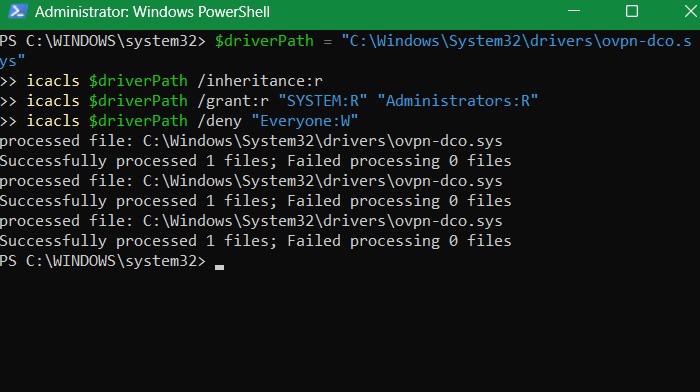
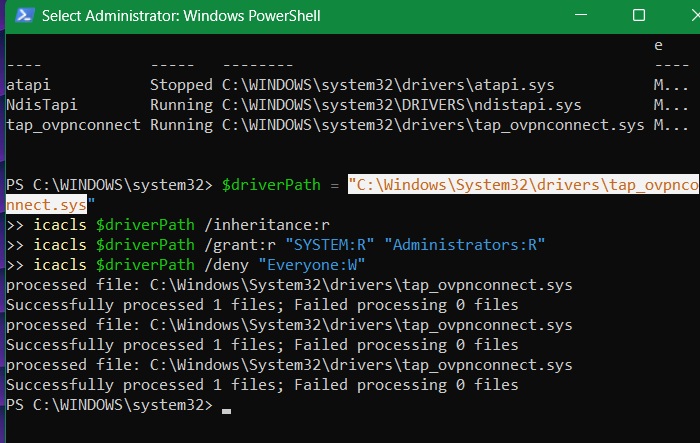
The command above removes inherited permissions to block sudden access. It also denies write access to everyone, including unprivileged users and malware, ensuring that a driver malfunction won’t affect your system.
In the previous step, we saw how to list all hidden OpenVPN drivers. You can repeat the command above with a slight edit in driver path to similarly deny access to them. Here, we are denying access to the TAP-Windows Adapter V9, “tapwindows6.sys.”
Related: learn how to set up OpenVPN in Windows.
Monitor BSoD Crashes Caused by OpenVPN Drivers
Even though OpenVPN patches are released quickly, many users lag behind in updates. There is a proactive way to oversee these crashes don’t happen. First, download a utility called Blue Screen View, and install it as shown in this guide.
Now, open PowerShell in administrator mode and run the following script as shown. Replace the $nirDir path with the actual path of the folder where you have the application installed. It checks for recent crash dumps and flags any that list OpenVPN-related drivers as the main cause.
# Set path to your BlueScreenView directory (update if needed)
$nirDir = "C:\Tools\BlueScreenView"  # ← Change this to your actual path
$csvPath = "$nirDir\bsod.csv"

# Monitoring loop
while ($true) {
    # Run BlueScreenView in command-line mode and export to CSV
    Start-Process -FilePath "$nirDir\BlueScreenView.exe" -ArgumentList "/scomma `"$csvPath`"" -Wait

    # Import and analyze results
    $bsods = Import-Csv $csvPath -Header Dumpfile, Timestamp, Reason, Errorcode, Param1, Param2, Param3, Param4, CausedByDriver

    $recent = $bsods | Where-Object {
        ($_.Timestamp -as [datetime]) -gt (Get-Date).AddMinutes(-10) -and
        $_.CausedByDriver -match "ovpn|tap|wintun"
    }

    if ($recent) {
        Write-Warning "⚠️ BSOD caused by OpenVPN-related driver in last 10 minutes!"
        $recent | Format-Table -AutoSize
    } else {
        Write-Host "✅ No recent OpenVPN-related BSODs."
    }

    Start-Sleep -Seconds 600  # Wait 10 minutes before checking again
}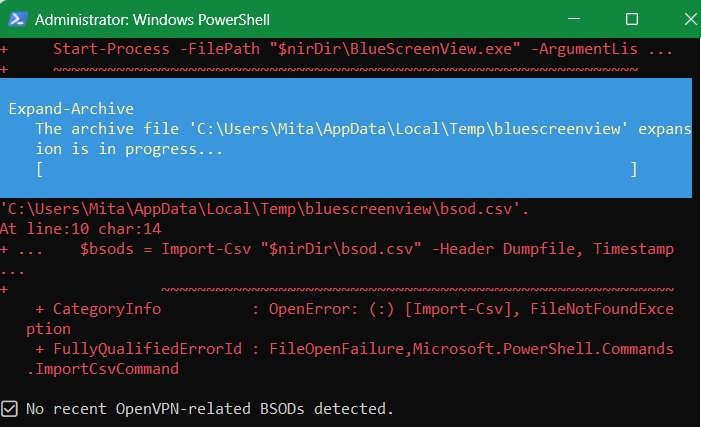
As shown in the above results window, no recent instances of BSoD crashes due to OpenVPN were detected.
Tip: Windows itself should release a timely patch to plug in the crashes due to applications like OpenVPN. Check out our monthly Windows update guide to monitor and prevent all possible BSoD crashes affecting the system.
Use Software Restriction Policies for OpenVPN Drivers
On a Windows Pro/Enterprise device, you can use software restriction policies in the Local Group Policy Editor to block the OpenVPN drivers from executing randomly without your permission.
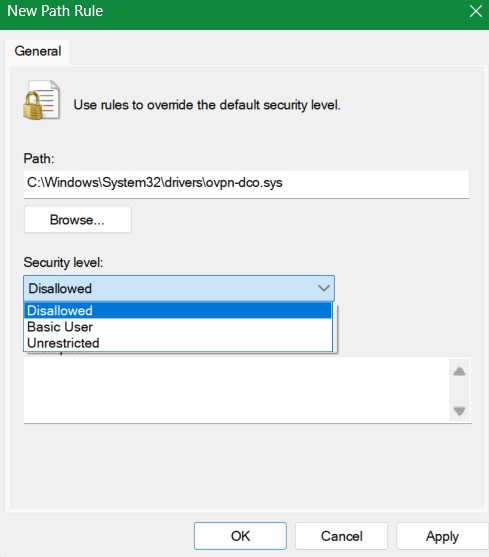
Open Group Policy Editor from Run command by typing “gpedit.msc.” Go to Computer Configuration -> Windows Settings -> Security Settings -> Software Restriction Policies -> Additional Rules.
Right-click on the last one to select New Path Rule.

In the pop-up window that opens, copy-paste the driver’s path. In this case, we have copy-pasted the driver path for OpenVPN’s DCO. Select Disallowed, and then Apply -> OK. Now repeat this method for all the other drivers.
As kernel space drivers in OpenVPN maintain session state even after you uninstall the application, they are a prime cause of crashing Windows during a startup. By following the above methods, you can prevent the bad error. Looking for a new VPN product? Check out the important criteria that they should fulfill.








