Most video editors want something from you upfront: an install, an account, or your footage sitting on their servers. I got tired of that deal with CapCut and went looking for something simpler. That search led me to OpenReel Video, an open-source browser video editor most people haven’t heard of yet.
Why OpenReel Video is the Best CapCut Alternative
OpenReel Video browser editor is released under the MIT license and built as an open-source project. The best thing is, it is accessible in your browser, and no installation is required.
All you need to do is to open the editor in a browser tab and start working. No account. No watermark.
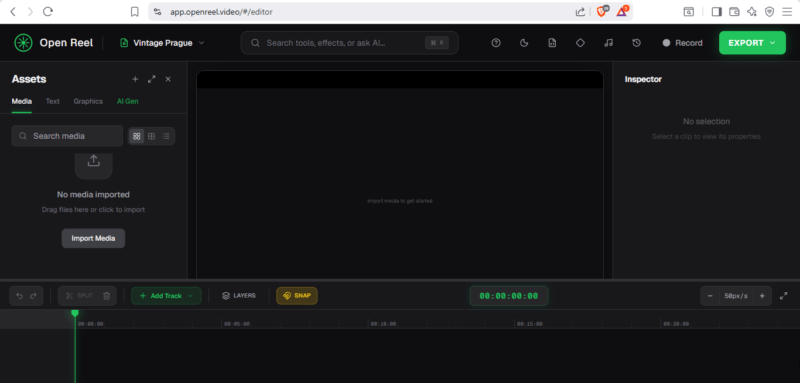
OpenReel uses modern browser APIs like WebCodecs and WebGPU. Those allow browsers to use your computer’s hardware to process video locally.
Instead of uploading your clip to a server, the browser handles the heavy lifting. The file loads from your computer and stays there the entire time.
That approach makes it feel closer to desktop software than many of the online video editing tools you might have tried before.
Editing a Real Clip With OpenReel
To see whether the editor was actually usable, I pulled in a 45-second video and tried to do what I’d normally do in CapCut: trim the clip, add a text overlay, drop in a transition, and export to MP4.
Loading the file took seconds. There was no upload step. The editor opened the file and placed it on the timeline.
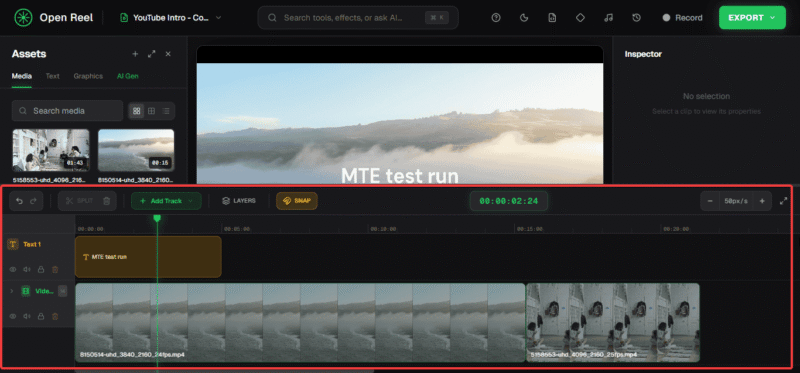
The interface felt familiar right away. A preview window sits above a multi-track timeline. Basic tools for cutting, trimming, and moving clips are easy to find.
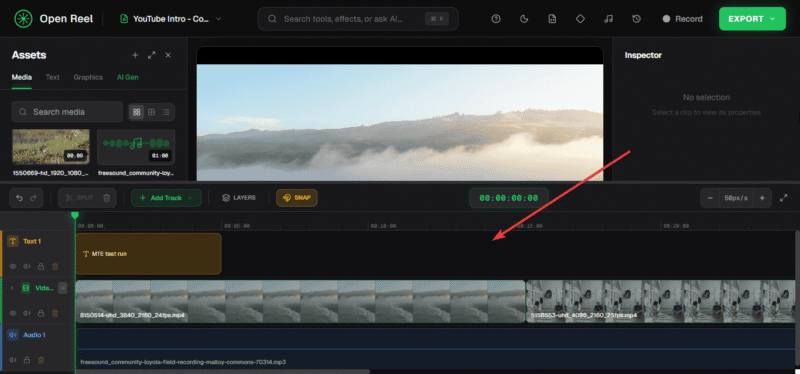
I trimmed a few seconds from the start, split a section in the middle, and added a text overlay. The preview updated instantly after each change. On my mid-range laptop, playback stayed smooth.
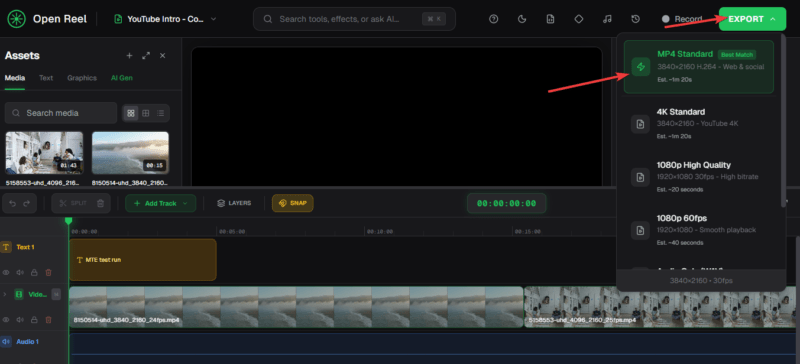
Exporting the video was straightforward. I selected the export option and downloaded the final file after about 20 seconds of processing for a 1080p clip.
The most interesting part of the process is what doesn’t happen. The video never uploads anywhere. Everything happens locally in the browser. If privacy matters to you, that alone makes this open-source browser video editor worth a look.
The Parts That Actually Impressed Me
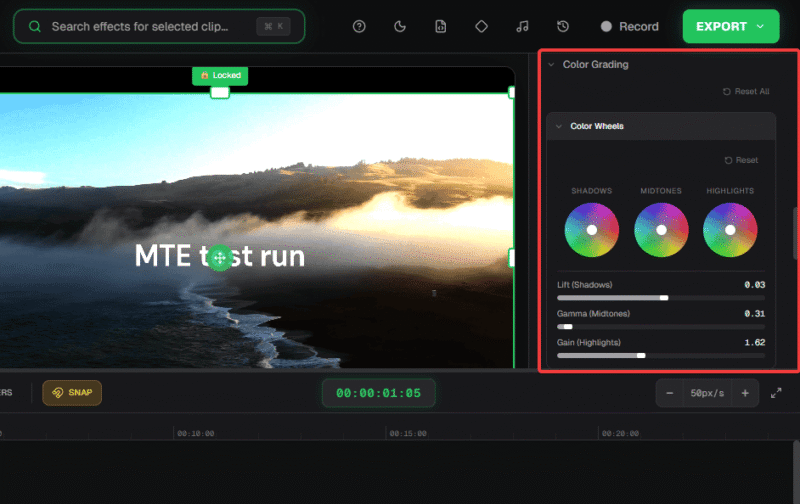
A few features surprised me while testing this OpenReel Video browser editor. The color grading panel was the first thing that made me double-check I was still in a browser tab. Lift, gamma, and gain wheels with an RGB curves editor. That’s the kind of tool you expect from something like DaVinci Resolve Lite, not a free open-source browser video editor someone pushed to GitHub a few weeks ago.
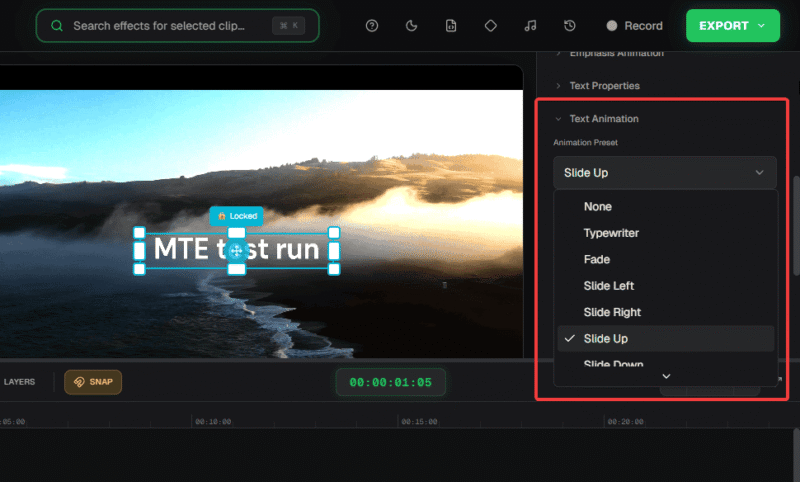
The text animation library has over 20 options: typewriter, glitch, elastic bounce, and fade slide. Useful range for social content or tutorial clips without having to think too hard about it.
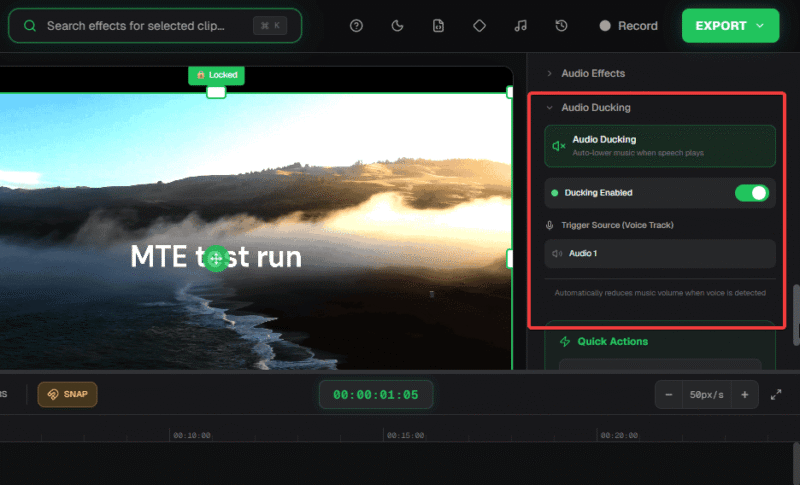
Audio ducking stuck with me most practically. It automatically lowers the background music when dialogue plays, which may seem like a small thing until you’ve spent time manually keyframing volume dips. I dropped a music track under my screen recording, turned ducking on, and it just worked. That one feature alone would keep me coming back for the kind of content I make.
What stood out most was the real-time preview. Many browser editors struggle with responsiveness, but OpenReel handled basic edits without slowing down. For quick edits, it already feels capable enough that you might not need a full desktop video editor for Windows at all.
It’s Not Finished, And That’s Worth Knowing
OpenReel Video is a respectable project, although a few limitations are easy to notice. The editor currently works best in Chromium-based browsers such as Google Chrome or Brave Browser. Support in other browsers exists but isn’t as polished.
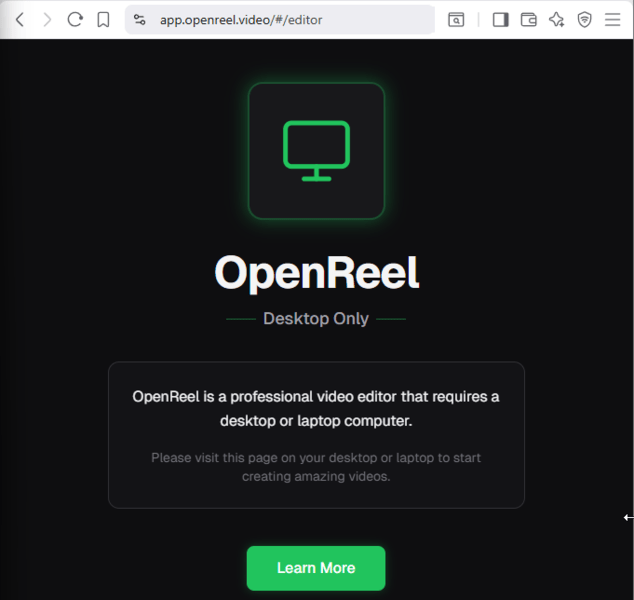
It’s also designed for desktop use. Mobile editing isn’t supported yet. So, if you’re editing on a phone, this isn’t the answer.
Hardware matters as well. The project documentation recommends at least 8GB of RAM for smoother 4K editing. On my system, 1080p footage ran smoothly, but 4K previews occasionally dropped frames.
Some advanced editing tools are missing, too. Motion tracking and complex compositing features are a hit-or-miss on my system. For now, it is more suited for lightweight work.
The Kind of Creator This Is Built For
If your editing needs sit somewhere between “I just need to trim this and export it clean” and “I want proper color grading without a subscription,” OpenReel lands right in that gap.
YouTubers cutting quick turnaround clips, bloggers who need demo videos, and teachers putting together screen recording tutorials can blend this into their workflow without asking much.
It also makes sense for anyone who prefers tools that keep data local. If you already lean toward privacy-focused tools or explore alternatives to Google services, this kind of workflow will feel familiar.
On the other hand, creators who rely on mobile editing, motion tracking, or heavy 4K production will probably need something more mature.
I bookmarked OpenReel Video after that first test. Not because it does everything, but because what it does, it does without asking for your footage, your account, or a subscription. It’s early, and it will have rough edges depending on what you throw at it. But for clean, watermark-free exports where your files stay on your PC, it already works better than it has any right to at this stage.