Scalable Vector Graphics (SVG) is a web-friendly file format used to display 2D graphics, vector illustrations, charts, etc. While it renders like an image, underneath it is actually XML code that defines the curves and lines. In Windows, you can easily view SVG files with a browser, but editing them with the usual image editor. In this guide, we’ll show you how to open and edit an SVG file on Windows.
Open SVG File Using a Browser
We can open an SVG file in the browser by double-clicking on it or dragging it to our preferred browser.
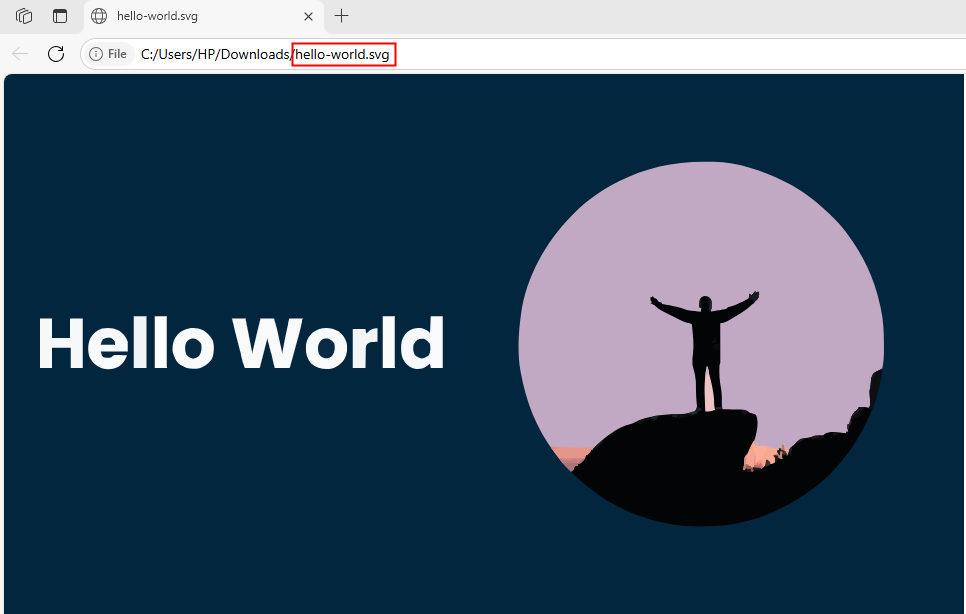
This is the easiest way to open any SVG file. However, we cannot edit the image using this method.
View an SVG File in File Explorer
You can open SVG files by enabling the SVG preview feature in Microsoft PowerToys. To do this, you need to download and install PowerToys from the official PowerToys page, Microsoft Store, or Windows Package Manager (winget).
For example, we use the Winget package manager in PowerShell to install PowerToys:
winget install --id Microsoft.PowerToys --source winget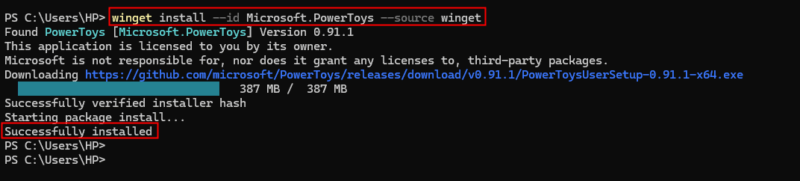
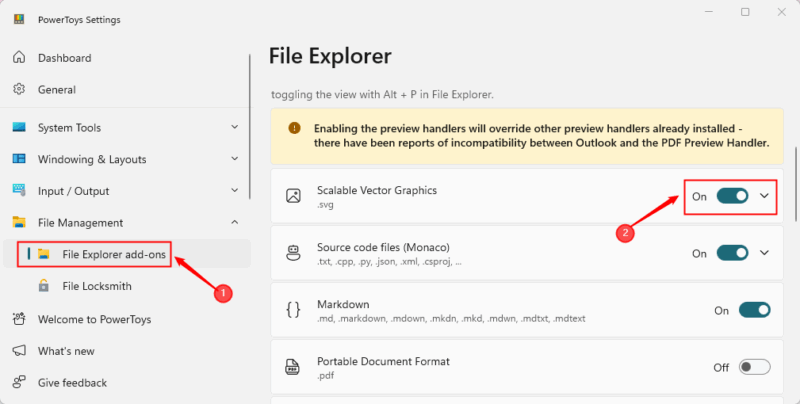
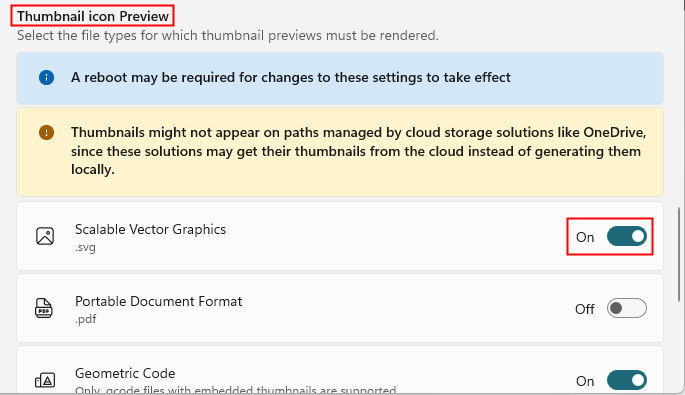
After installation, you can open PowerToys from the Start menu. In the PowerToys Settings, go to “File Explorer Add-ons” and enable “Scalable Vector Graphics” preview under the Preview Pane section:
You can also enable SVG thumbnails to see them in icon view, not just the Preview pane:
Now open File Explorer, press Alt + P to enable the Preview Pane, and select any SVG file to see a preview on the right.
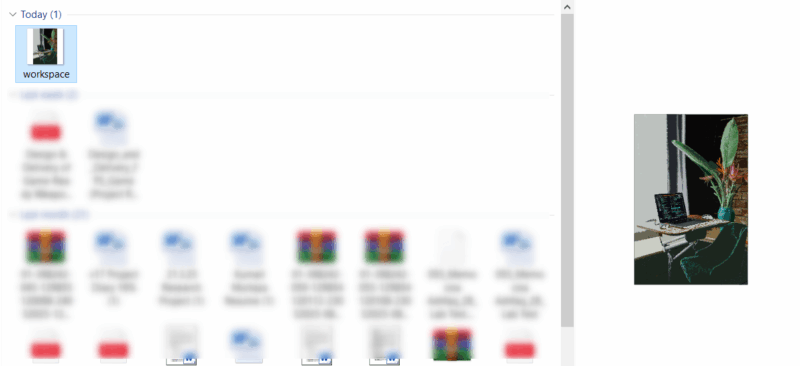
This way, you can view thumbnails and detailed previews in the file explorer without needing extra software.
Edit an SVG File Using a Text Editor
Since SVGs are mainly XML files, you can easily edit them using a text editor. Moreover, you can use CSS to style the SVG in many ways, even add animations. That’s something you can’t do with regular image formats like JPG or PNG.
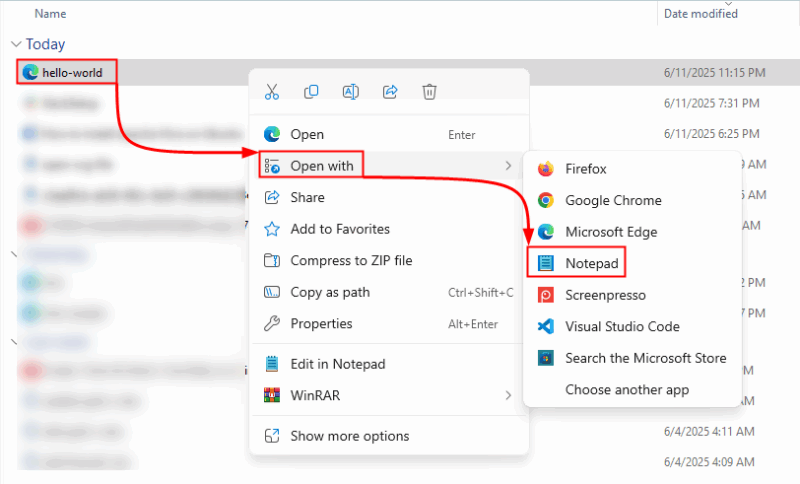
Right-click on the SVG file, hover over Open with, and select an editor like Notepad:
When you open an SVG file in a text editor, you’ll see XML-based code instead of the image itself.
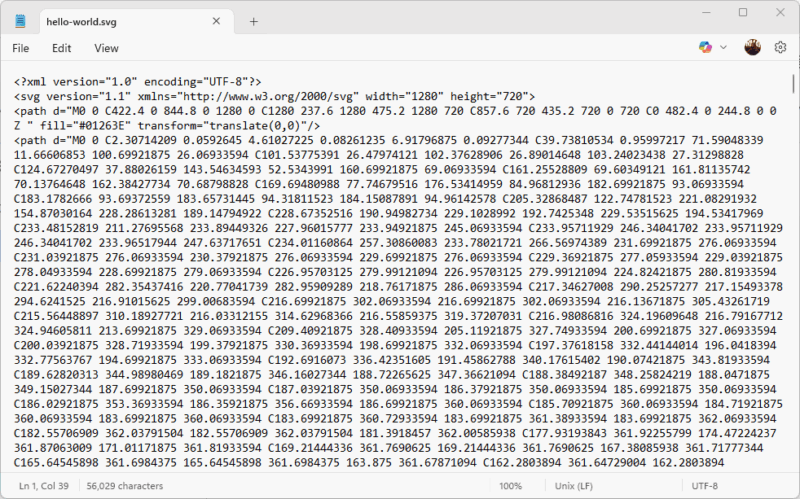
Suppose we want to change the fill color of the given SVG file to black. In that case, we can edit the fill attribute as follows:
Save the code in a text file and open the file again, you will see the updated output, something like this:
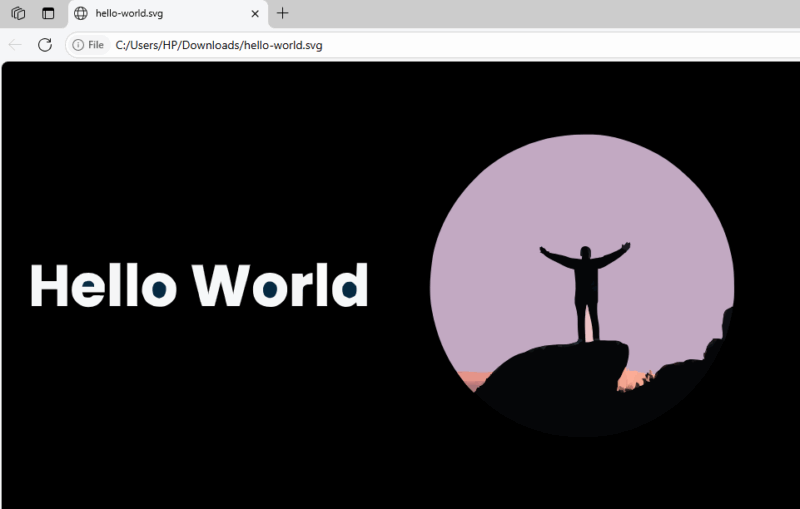
You can use a text editor to create or edit an SVG file, but that only works well for very simple images with a few shapes. If the image is complex, changing each part manually becomes too difficult.
Edit an SVG File Using a Vector Editor
Modern vector editing tools, whether desktop-based like Adobe Illustrator and Inkscape or online platforms like Figma and Canva, can open and edit SVG files.
For example, we’ll use Canva’s SVG editor to show you how easily you can edit an SVG image using an online tool. First, access Canva’s SVG editor from the official website and then click on the Edit SVG button:

Click the Upload Files button and select the SVG file you want to edit:
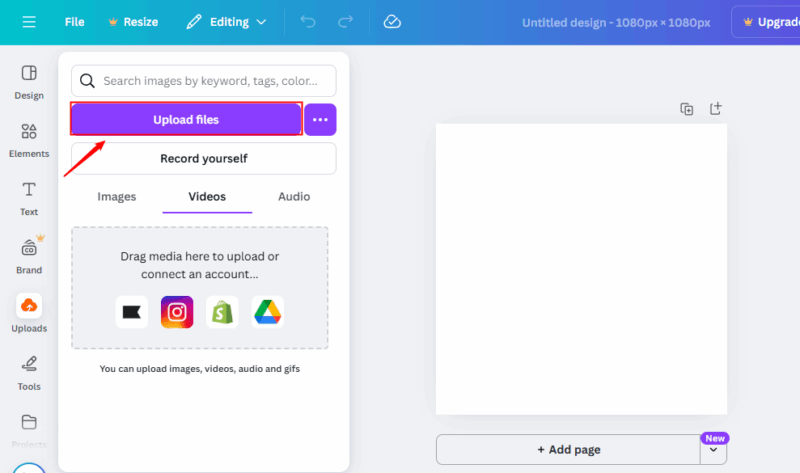
Once the desired SVG file is uploaded, you can edit it as you want. Here, I changed the background and foreground color of the selected SVG file.
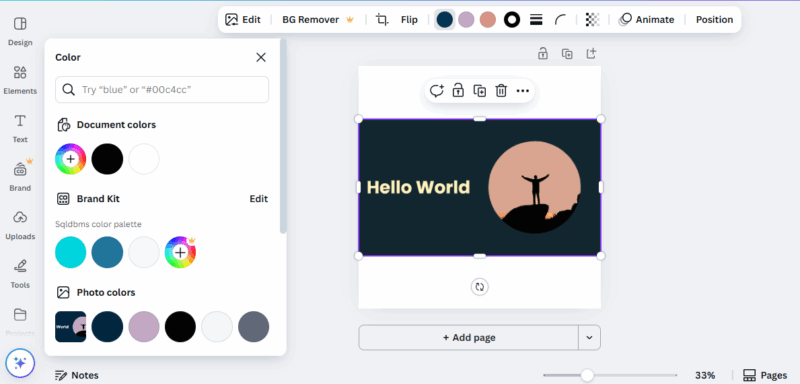
If you need basic edits, you can opt for Canva’s SVG Editor. However, I recommend using advanced tools like Adobe Illustrator or Inkscape to edit complex vector groups or paths.
Convert Files to and from SVG Format
You can convert an SVG file into other formats or from other image formats to SVG using desktop-based or online image editing tools.
When converting to SVG, especially from PNG or JPG, online tools might struggle with complex visuals. You may notice simplified shapes or missing colors because raster images are traced into vector graphics.
Suppose we want to convert the following PNG file to SVG:

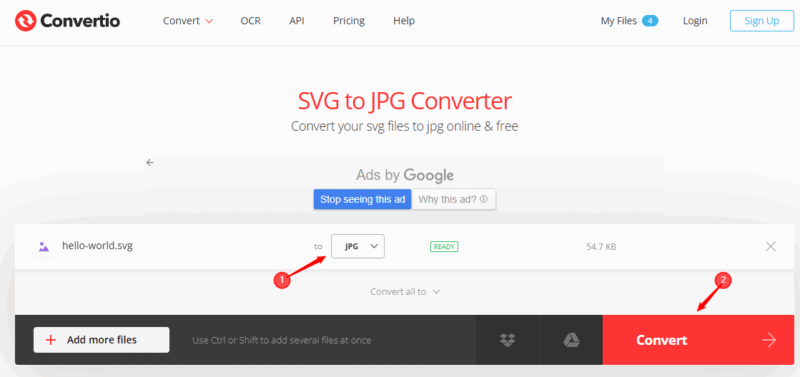
Let’s use an online editor like Convertio to convert a PNG image to SVG. To do this, upload the file to be converted, then select the desired output format. Finally, click the Convert button to convert the file to the selected format:
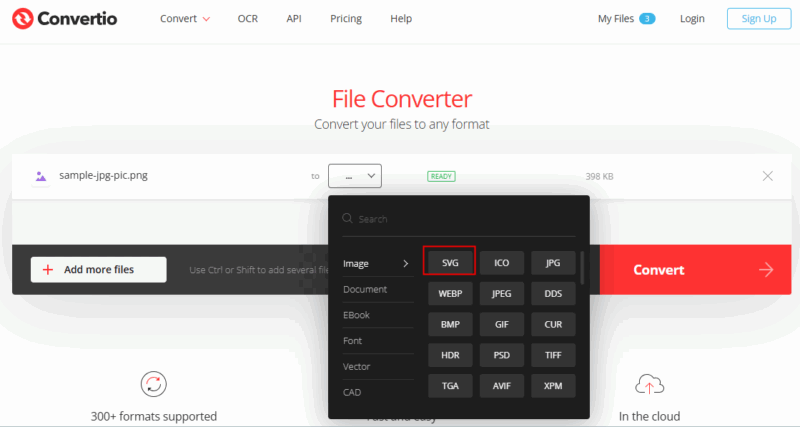
Once the file is converted, you can download it by clicking the respective button:
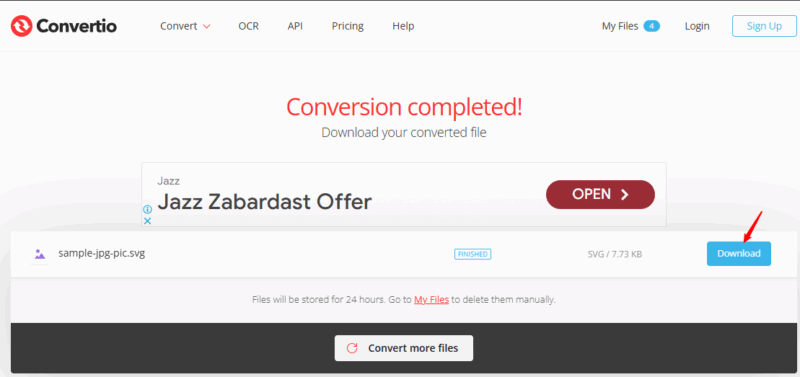
Now open the converted file to see the final result:
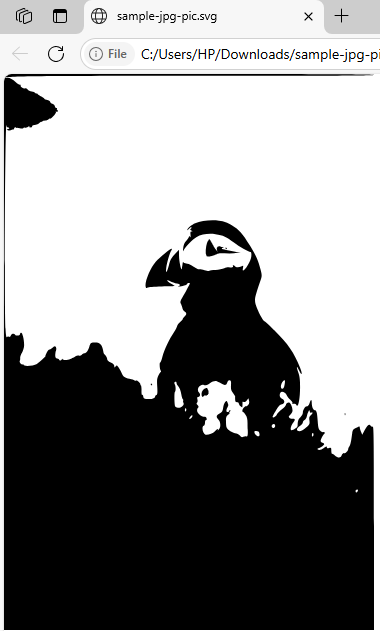
The output indicates a significant drop in image quality.
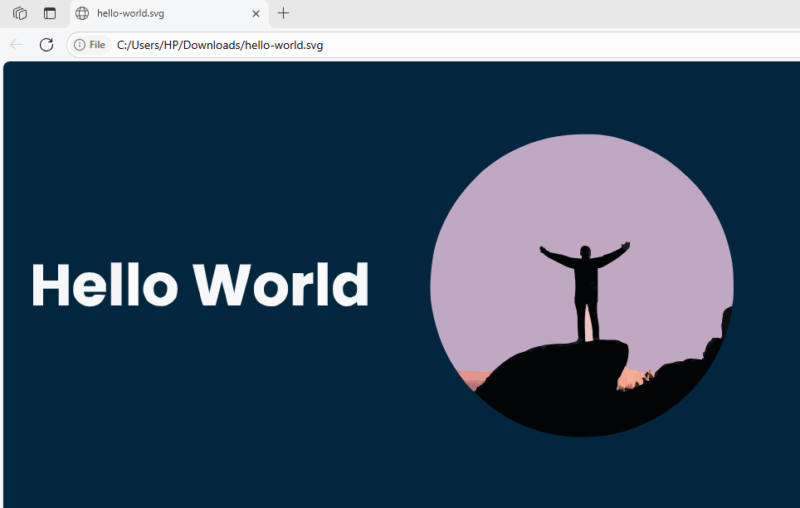
On the other hand, converting from SVG to formats like PNG or JPG is usually more accurate and works well across most tools. Suppose we want to convert the following SVG image to JPG:
Let’s use the convertio to convert the selected SVG file to JPG:
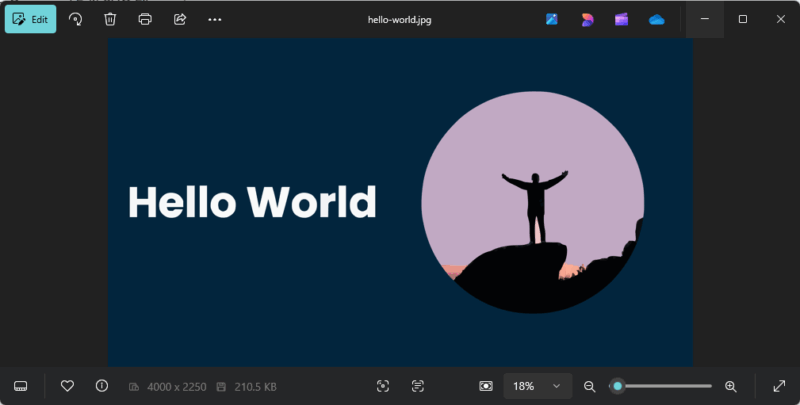
Download the image and open it to analyze the result. The output shows that converting an SVG to JPG doesn’t affect the image quality:
If you need to work with raster images on mobile, you can also edit photos with Photoshop for Android.








